

Copy your page tokens for the WooCommerce plugin
The WooCommerce plugin sends a page token with every page view so Releva knows which of your pages a visitor is on and which product blocks and banners to return. Each Releva page has one token. You copy it on Personalization › Product Blocks and paste it into the matching field of the plugin’s Page Tokens section: home, category, product, cart and search pages, plus any other WordPress page through its Releva Page Token box.
Pages and tokens are explained in How product blocks work. Banner blocks use the same pages and tokens, so one token per page serves both.
Before you start
Section titled “Before you start”- The shop is selected in the shop switcher at the top of the page. Every shop has its own pages and tokens.
- You know which page types you want to personalize. You need one Releva page per plugin field you fill in.
- You can open the plugin settings in your WordPress admin in another tab. See Connect your WooCommerce store.
-
In the left menu, select Personalization › Product Blocks
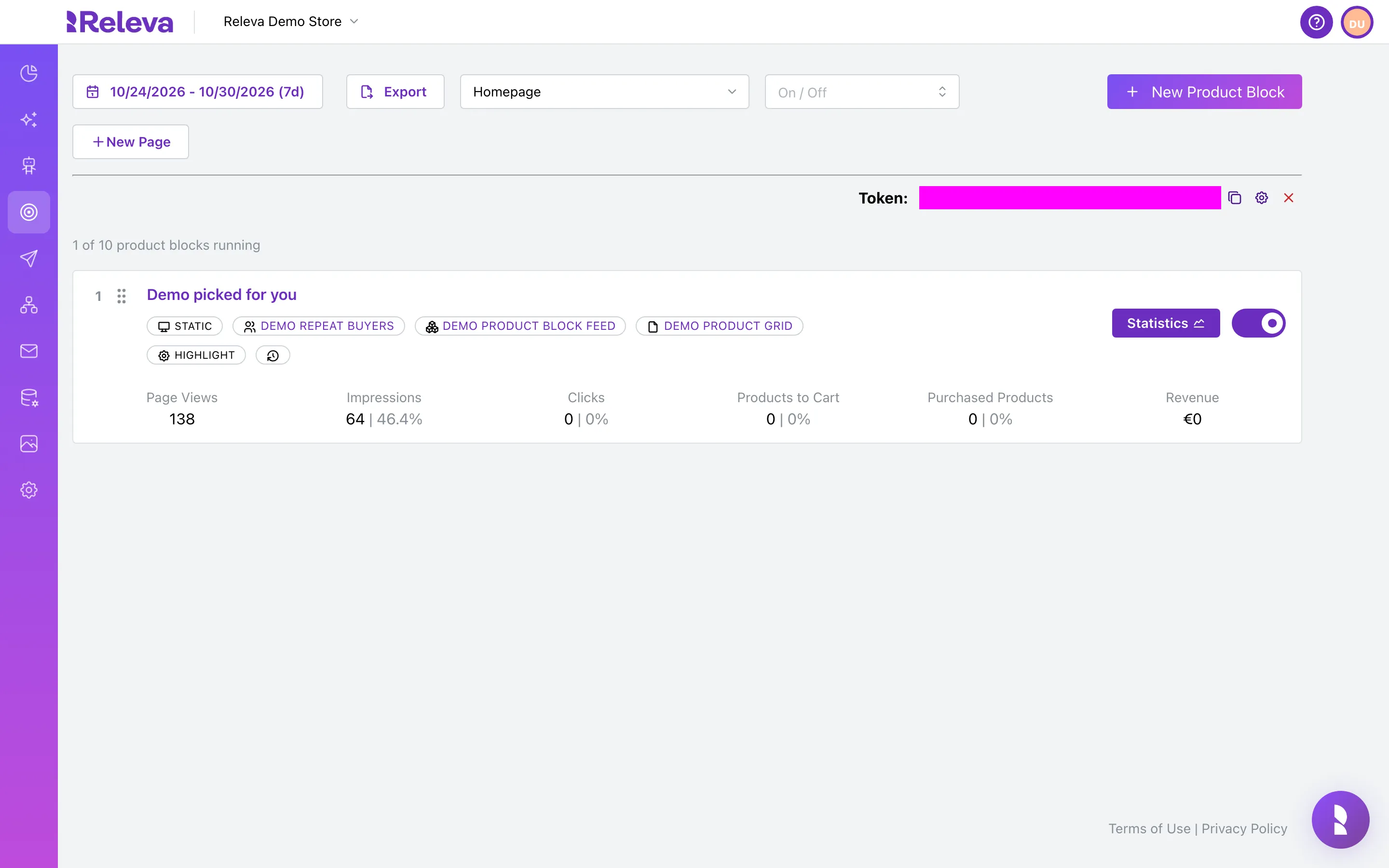
-
Open the page selector. It lists every Releva page of your shop
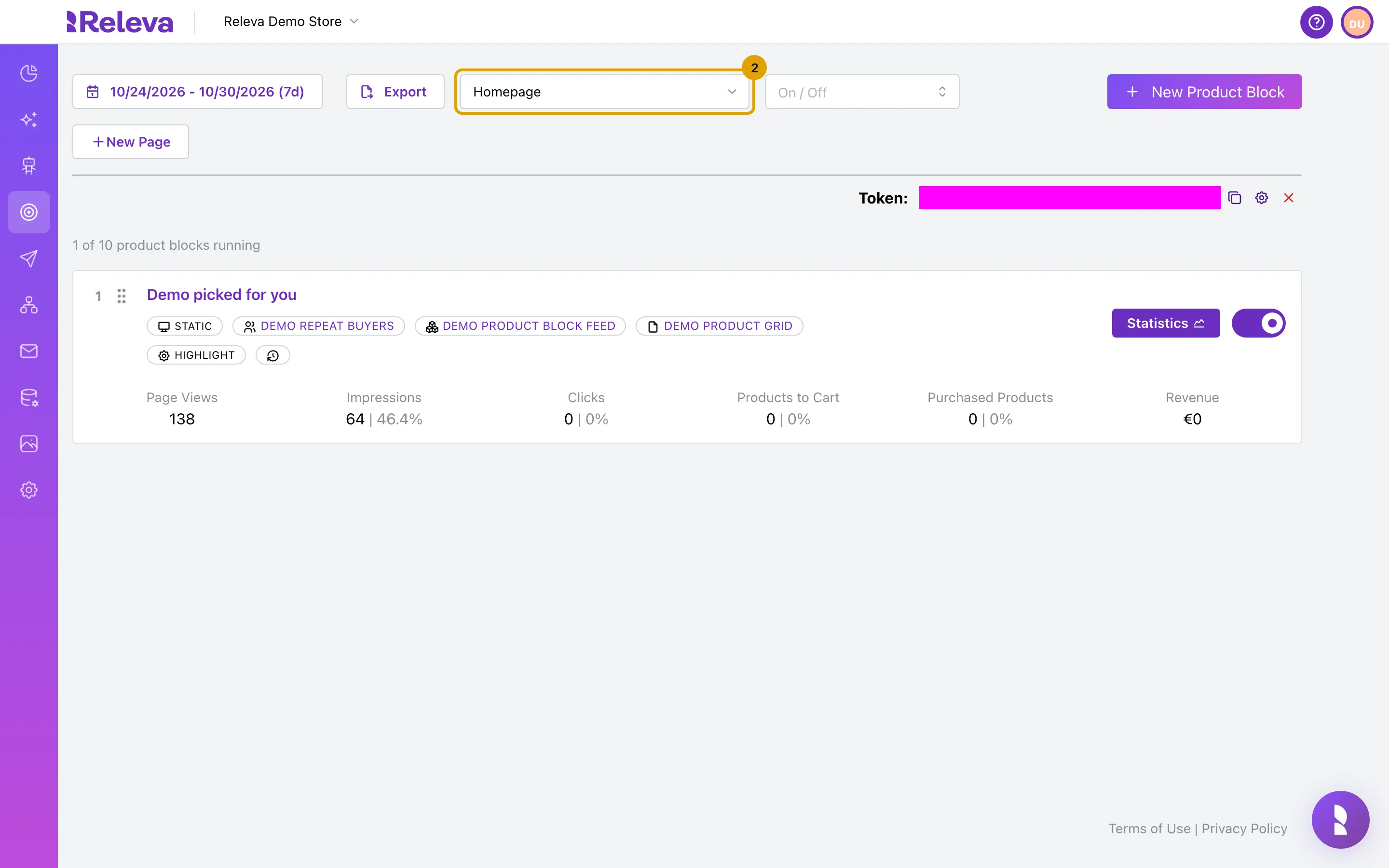
-
Select the page that matches the plugin field you are filling in, for example Demo product page for the product page token
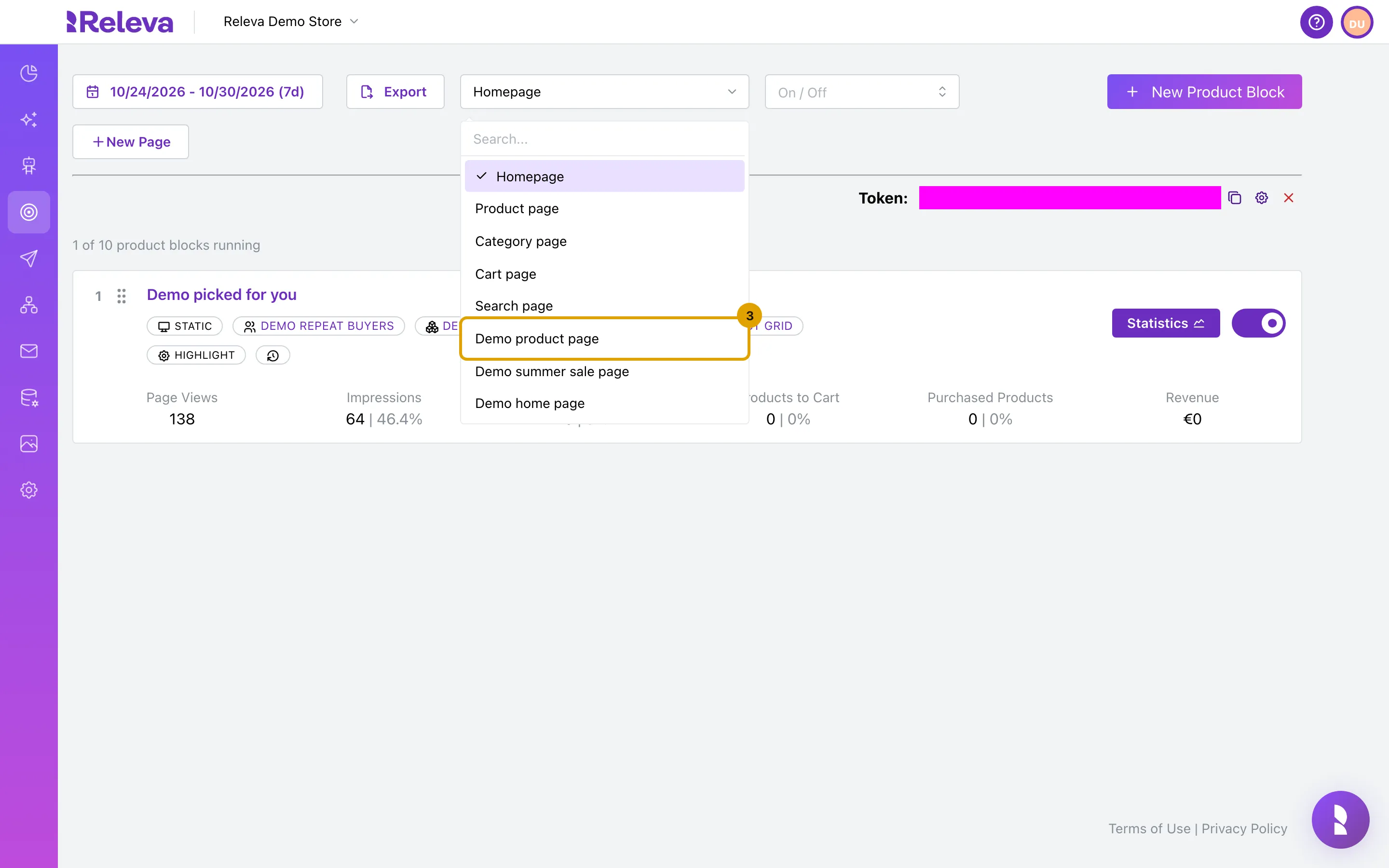
-
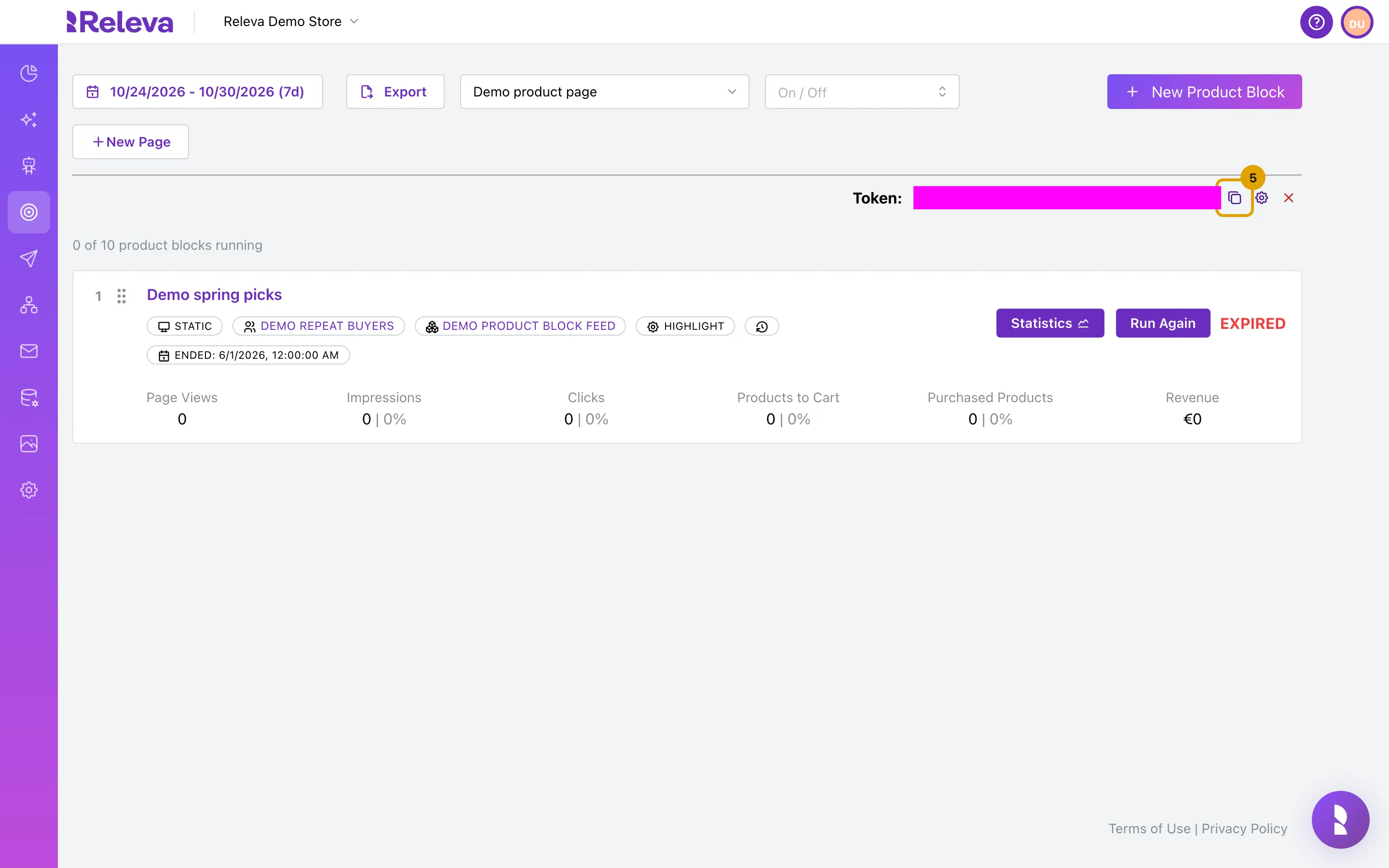
Token: shows the page token of the selected page
The token is a UUID. It is masked in the screenshot; on your shop it is shown in full.
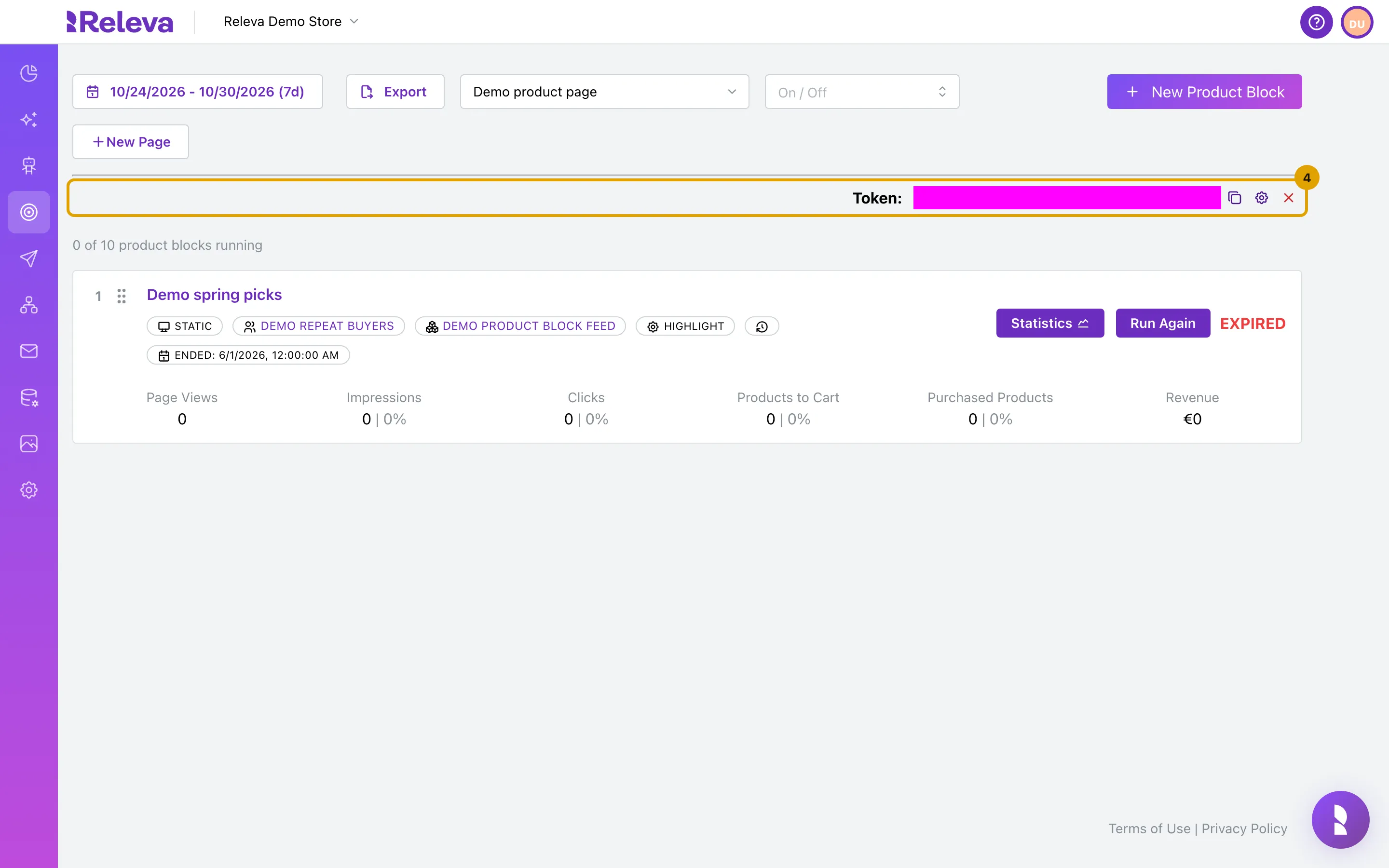
-
Select the copy icon next to the token, then paste the token into the matching page-token field in the plugin settings
-
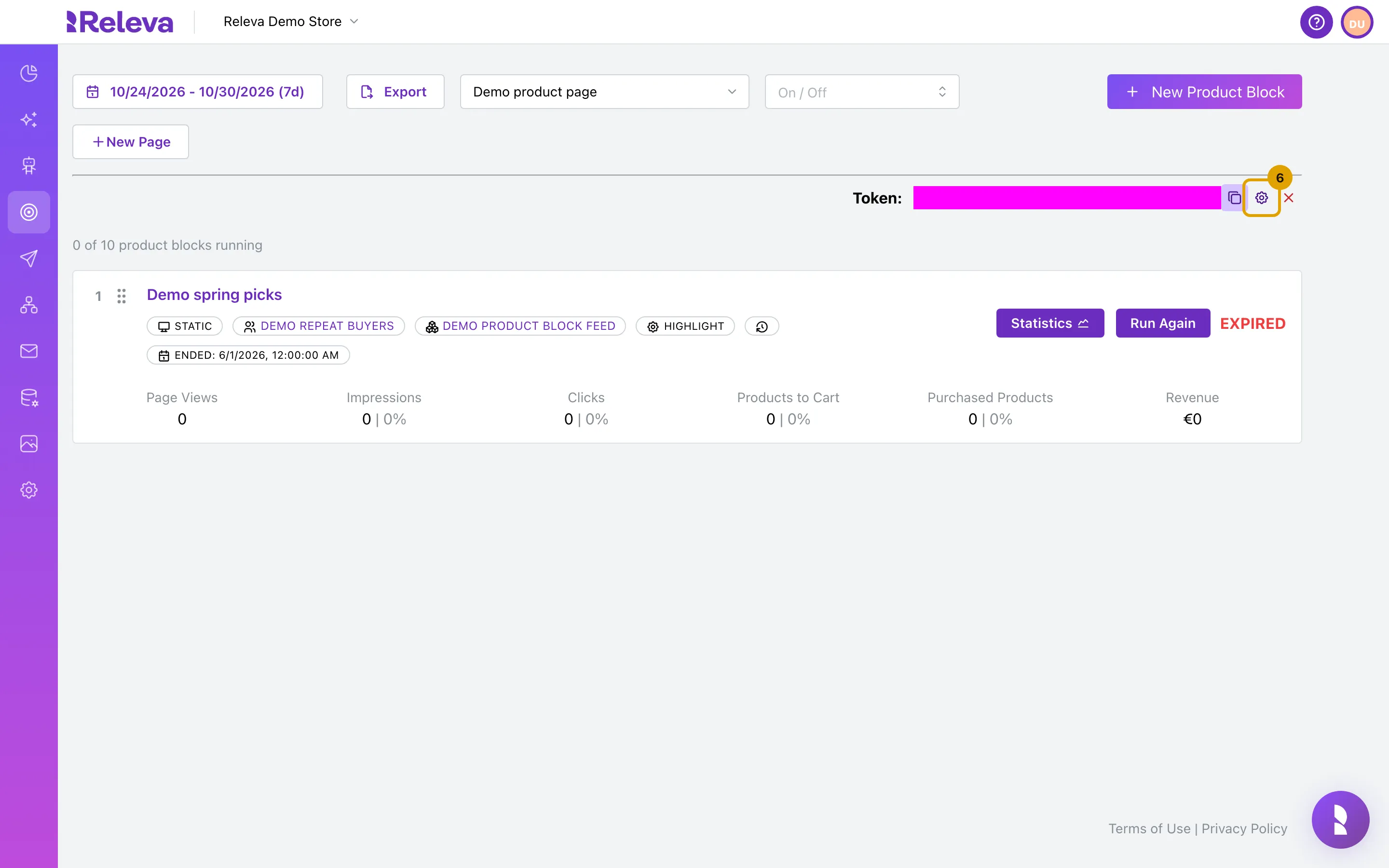
To check which URLs the page covers, select the settings icon
-
URL Path is optional. When the storefront sends no token, Releva matches the page by this path
Enter only the path, for example
/black-friday, not the full URL. The dialog also holds Page Name and Max Banners Displayed (the most banners the page shows; empty means no limit). Neither changes the token. Select Close to leave the dialog without saving.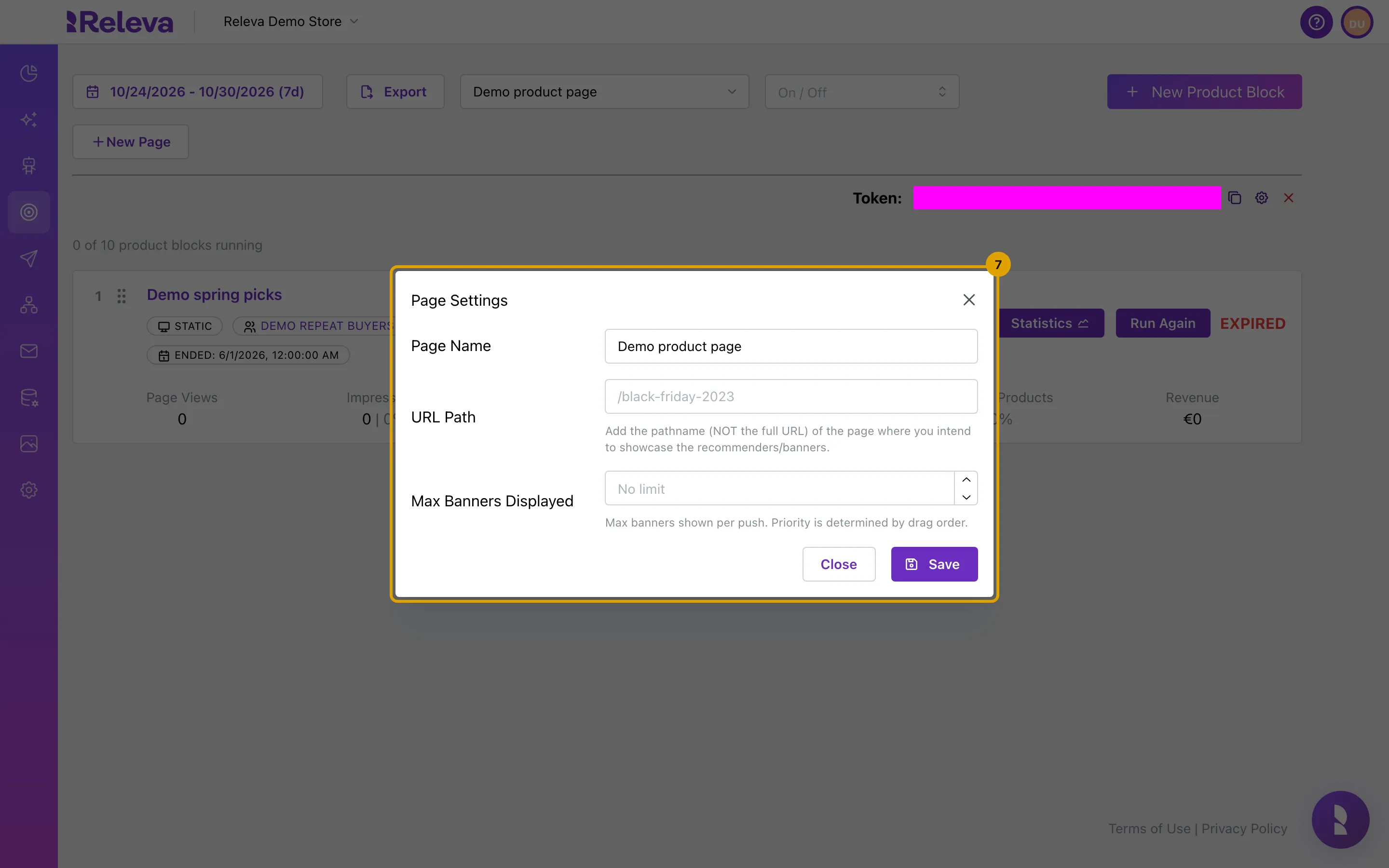
-
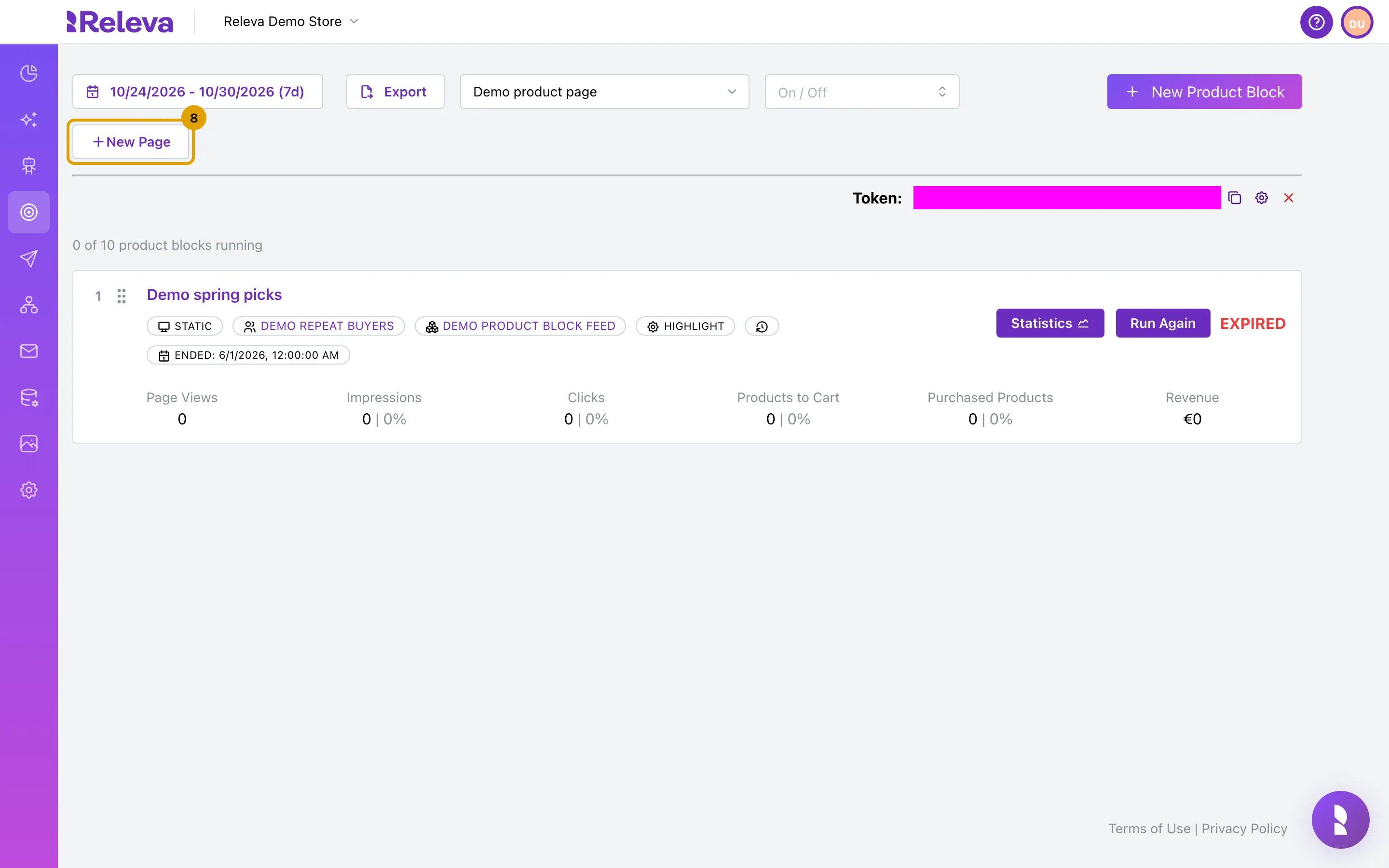
If a page type has no Releva page yet, select New Page, name it and save it to get its token
Repeat steps 2 to 5 for each page type, then select Save in the plugin settings.
Check it worked
Section titled “Check it worked”- Open the page type on your storefront, then go to Data Platform › Events and filter by Viewed Page. The newest row shows Page: followed by the name of the Releva page you copied the token from. Releva shows that link when the event’s token equals a page token, or when the event URL contains the page’s URL Path.
- On Personalization › Product Blocks, the Page Views counter of a block on that page increases after a few page loads.
Troubleshooting
Section titled “Troubleshooting”The page selector lists only one page. Your shop has a single Releva page. Select New Page to add one for each page type you want to personalize, then come back for its token.
Copying does nothing. The copy icon writes to the clipboard silently. Paste into the plugin field; if the field stays empty, select the token text next to Token: and copy it with the keyboard.
Events show URL: View in browser but no Page:. The token in the plugin does not match any page of this shop, or the field is empty. Copy the token again, and check that you are in the right shop. As a fallback, set URL Path in Page Settings to the pathname of the page.
The red X next to the token. That icon deletes the Releva page and its blocks after a confirmation. It does not clear the token.