

Check that your mobile app is connected
Run your app once on a device or simulator with the SDK set up, accept the notification permission, and open a screen that sends a page token. Then check the four screens below. They are the same for every mobile SDK.
Before you start
Section titled “Before you start”- The SDK is initialised with your shop’s Access Token, a
deviceIdand aprofileId, andregisterPushTokenhas run at least once. Use a profile id you can type, for exampledemo-app-user-1001, while testing. - Firebase credentials are saved: Add your Firebase credentials for app push. Skip steps 1 and 2 if you do not use app push.
- The app’s log shows the SDK’s own request lines, for example
[Releva] POST /api/v0/appPush/tokens -> 202in React Native, orRelevaSDK: ✓ Successfully registered push token for iosin Swift withRelevaConfig.debug().
-
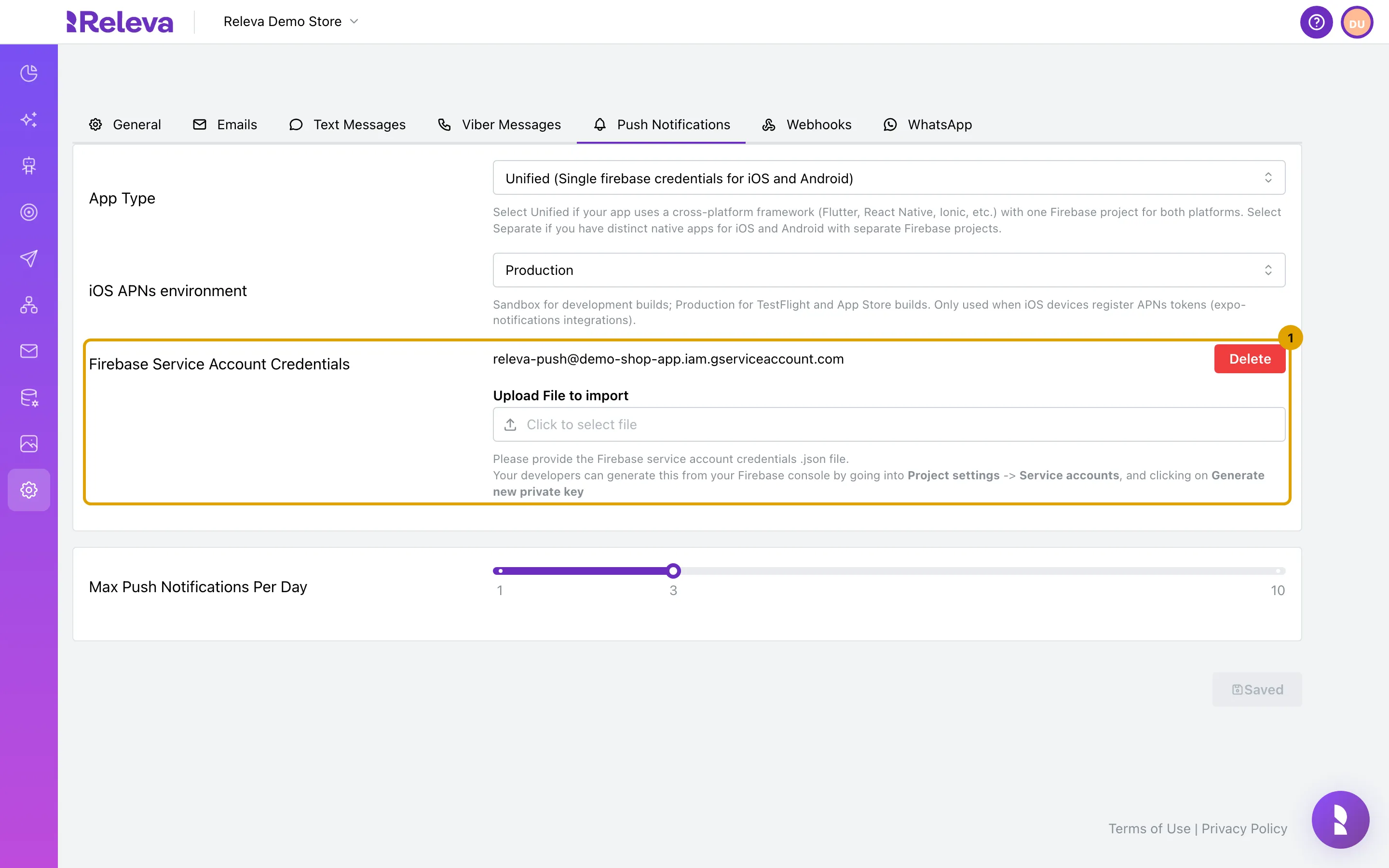
Go to Settings › Messaging › Push Notifications and check that the service account’s e-mail address shows above the upload field. If the field is empty, the credentials were not saved
The screenshot shows a fictional service account on the demo shop.
-
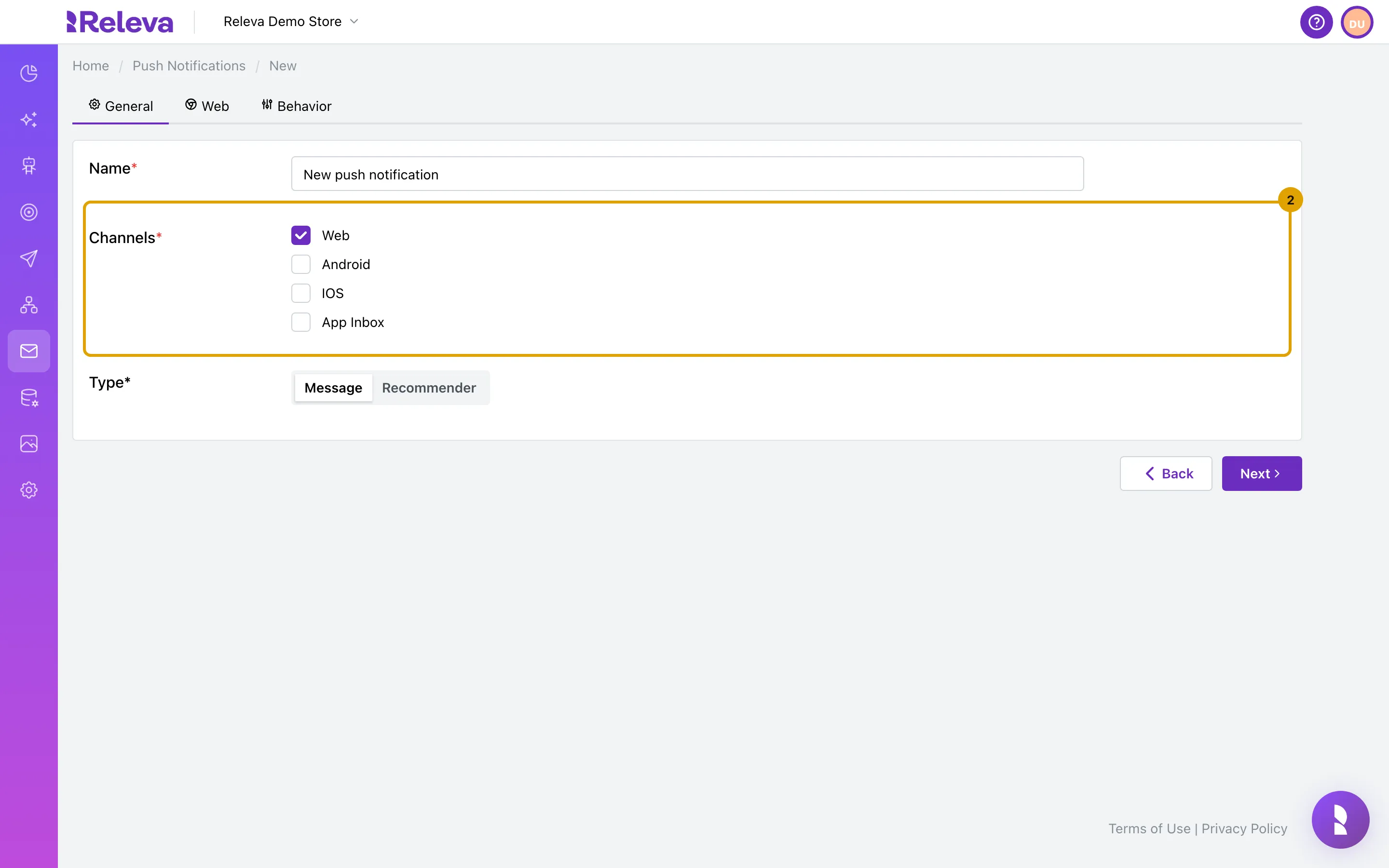
Go to Marketing Channels › Push Notifications, select New push Notification and check that Android and IOS can be selected under Channels. Without Firebase credentials they are greyed out
-
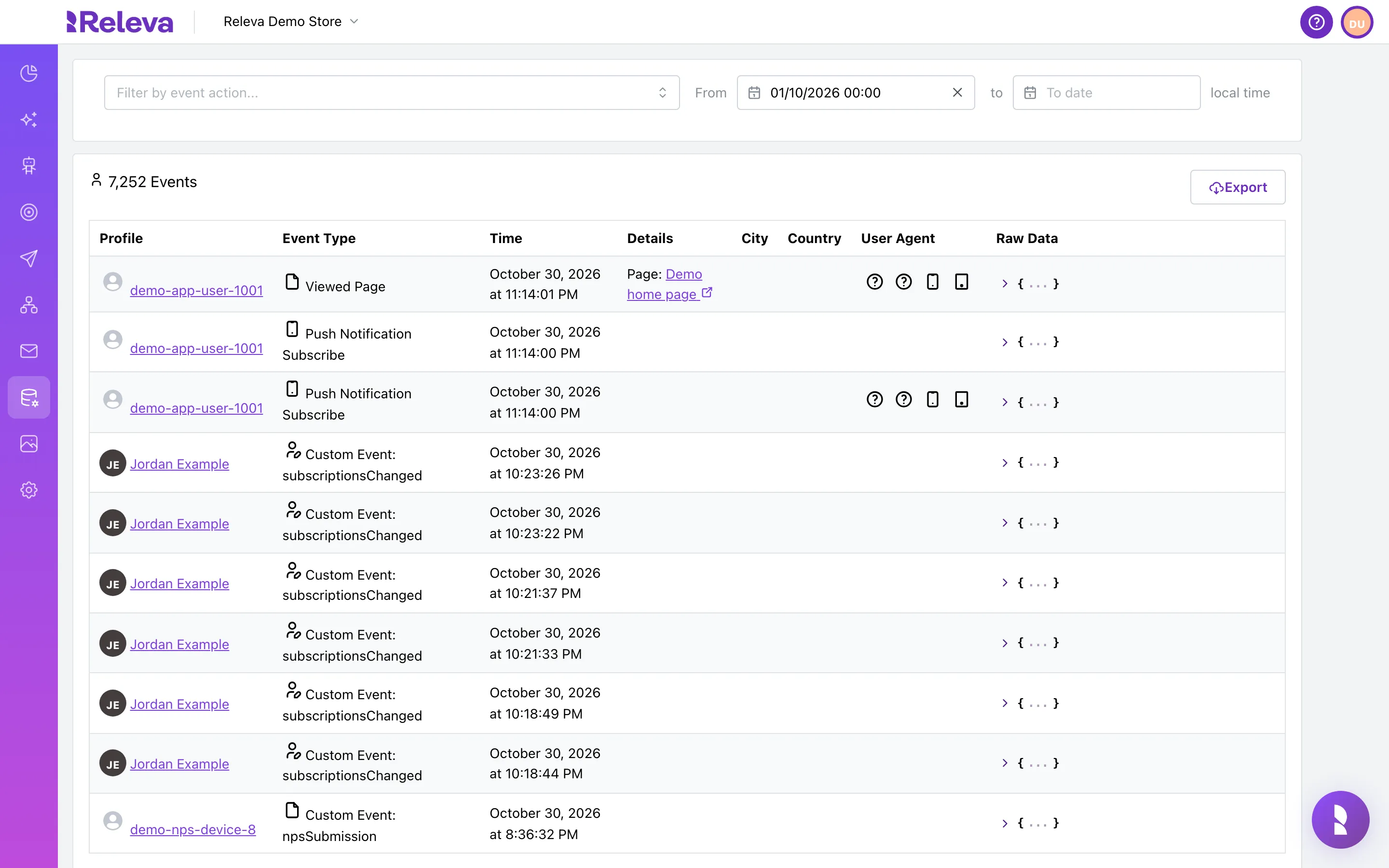
Go to Data Platform › Events
-
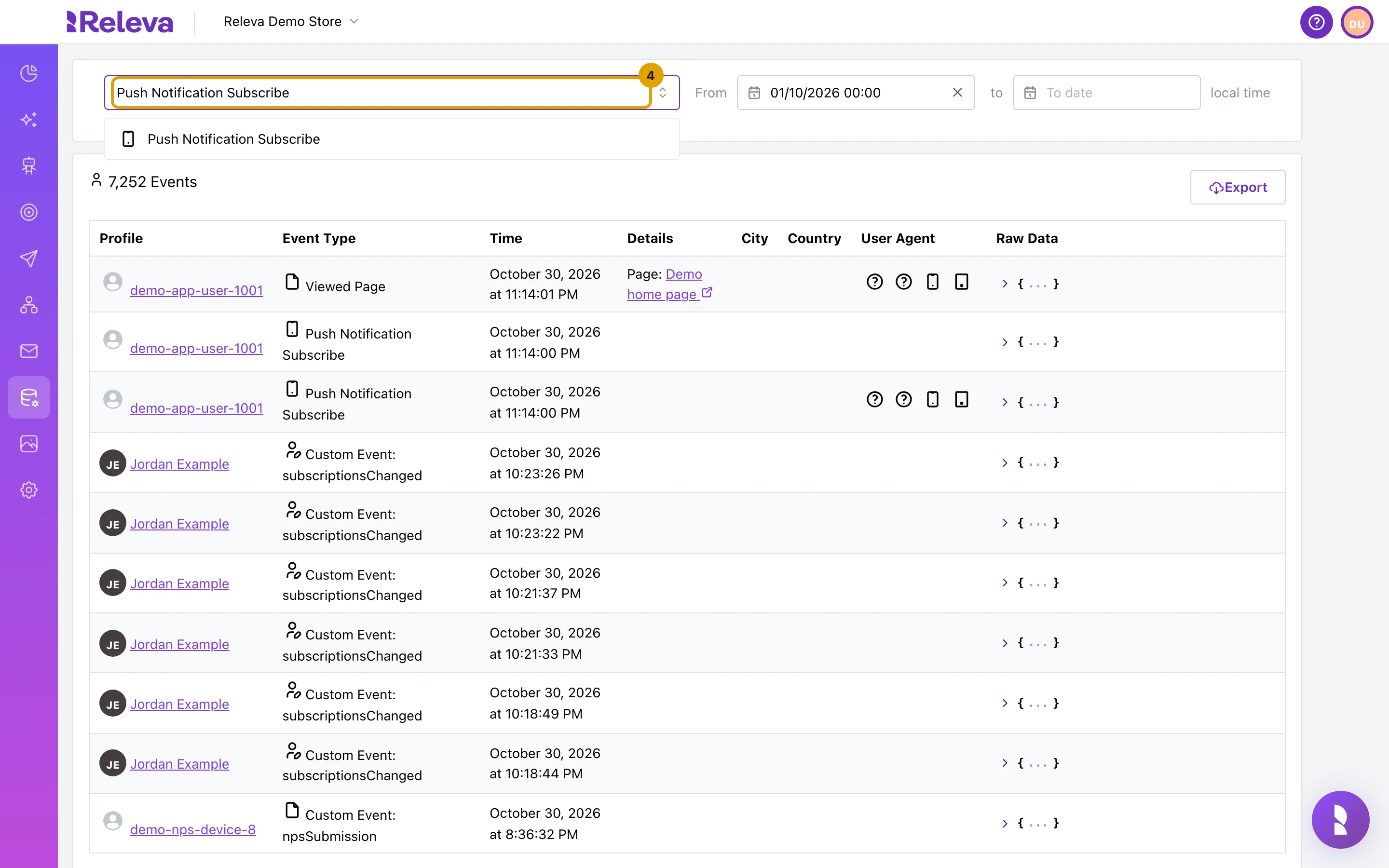
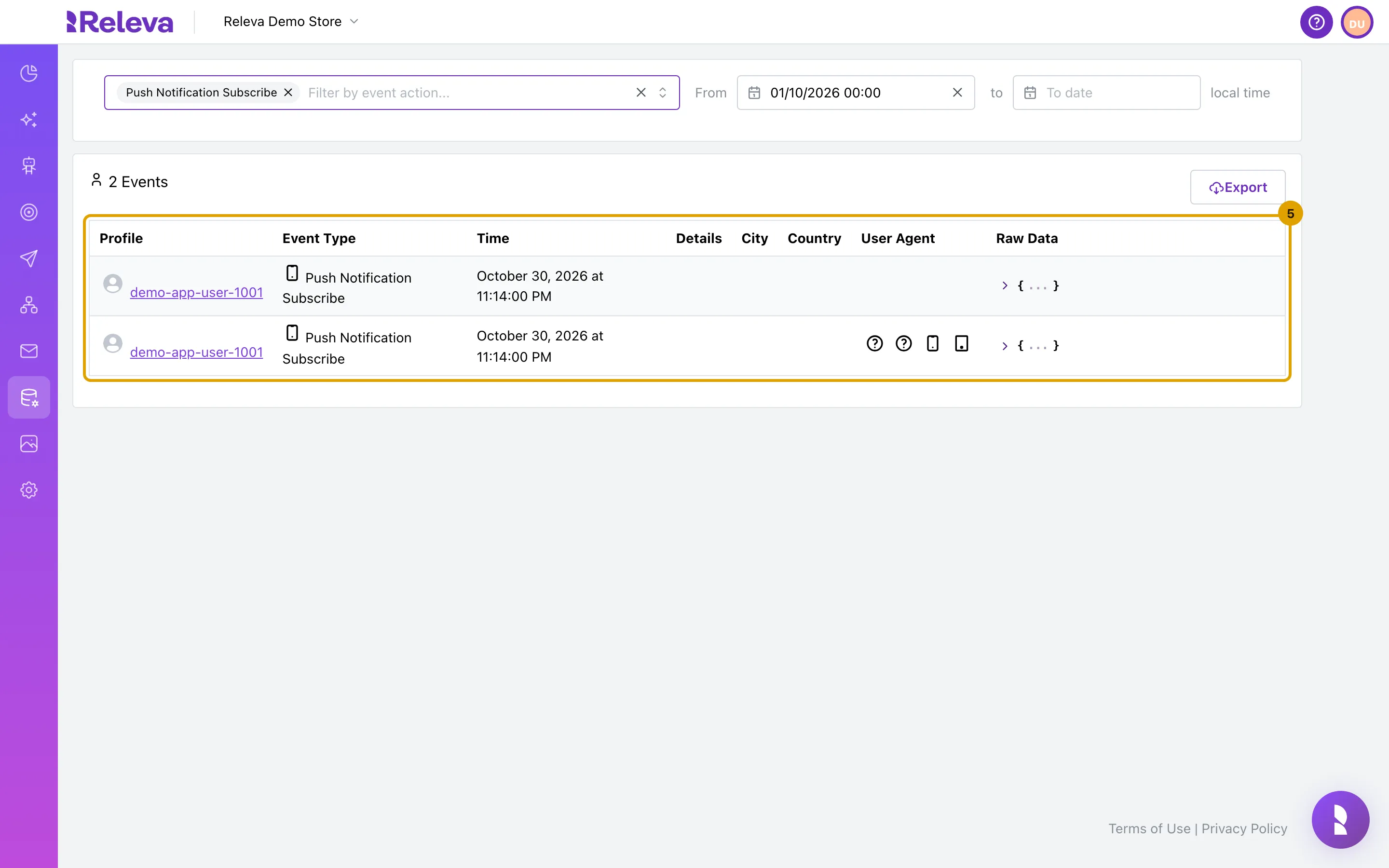
In Filter by event action…, type Push Notification Subscribe
-
Each time your app registers a push token, Releva records a Push Notification Subscribe event for that profile
The Profile column shows the profile id the app set, or the device id when the app set none. The event is written on every registration, so one row per app start is normal for SDKs that re-register on launch.
-
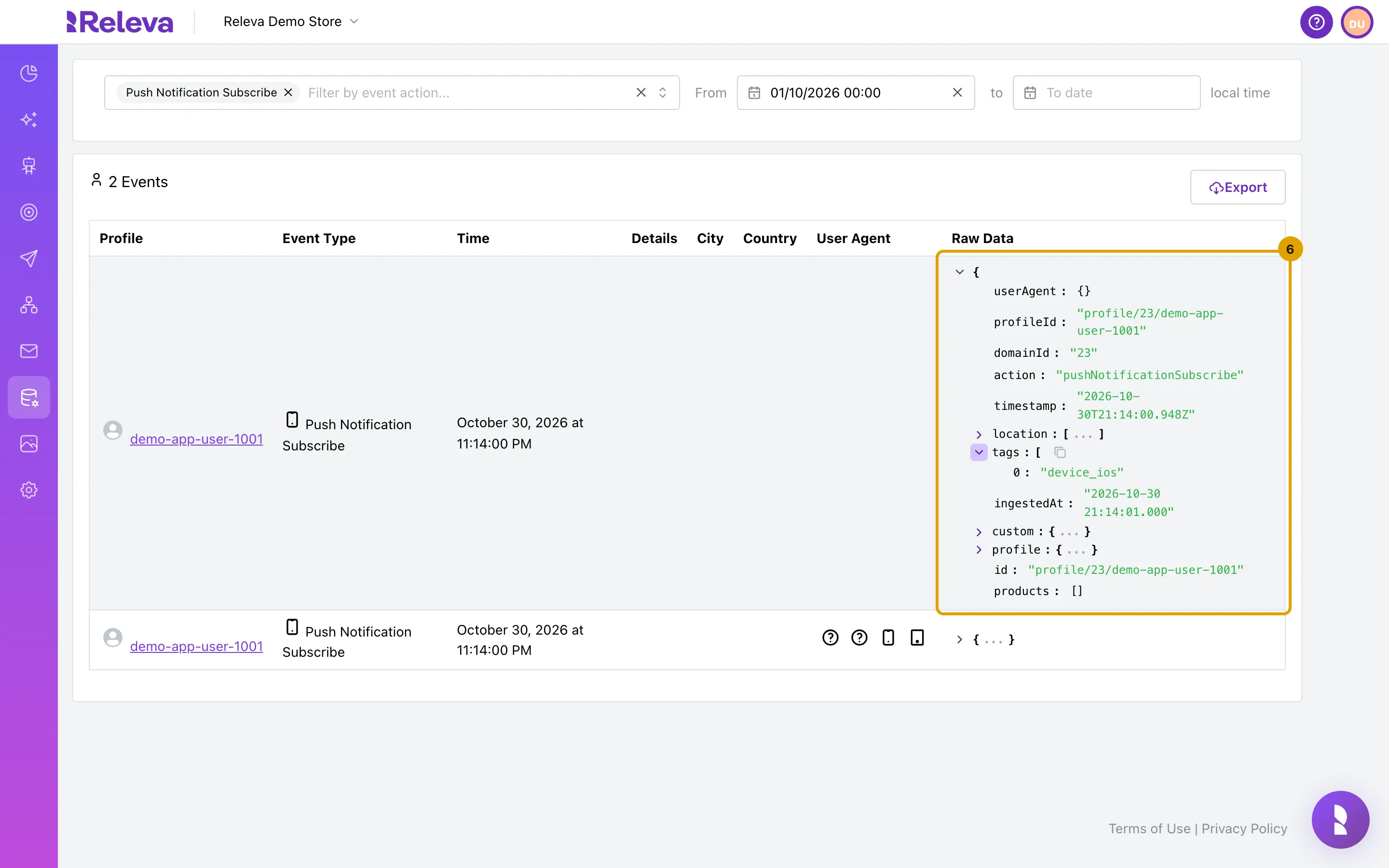
In Raw Data, expand tags to see the device type the app sent, for example device_ios or device_android
-
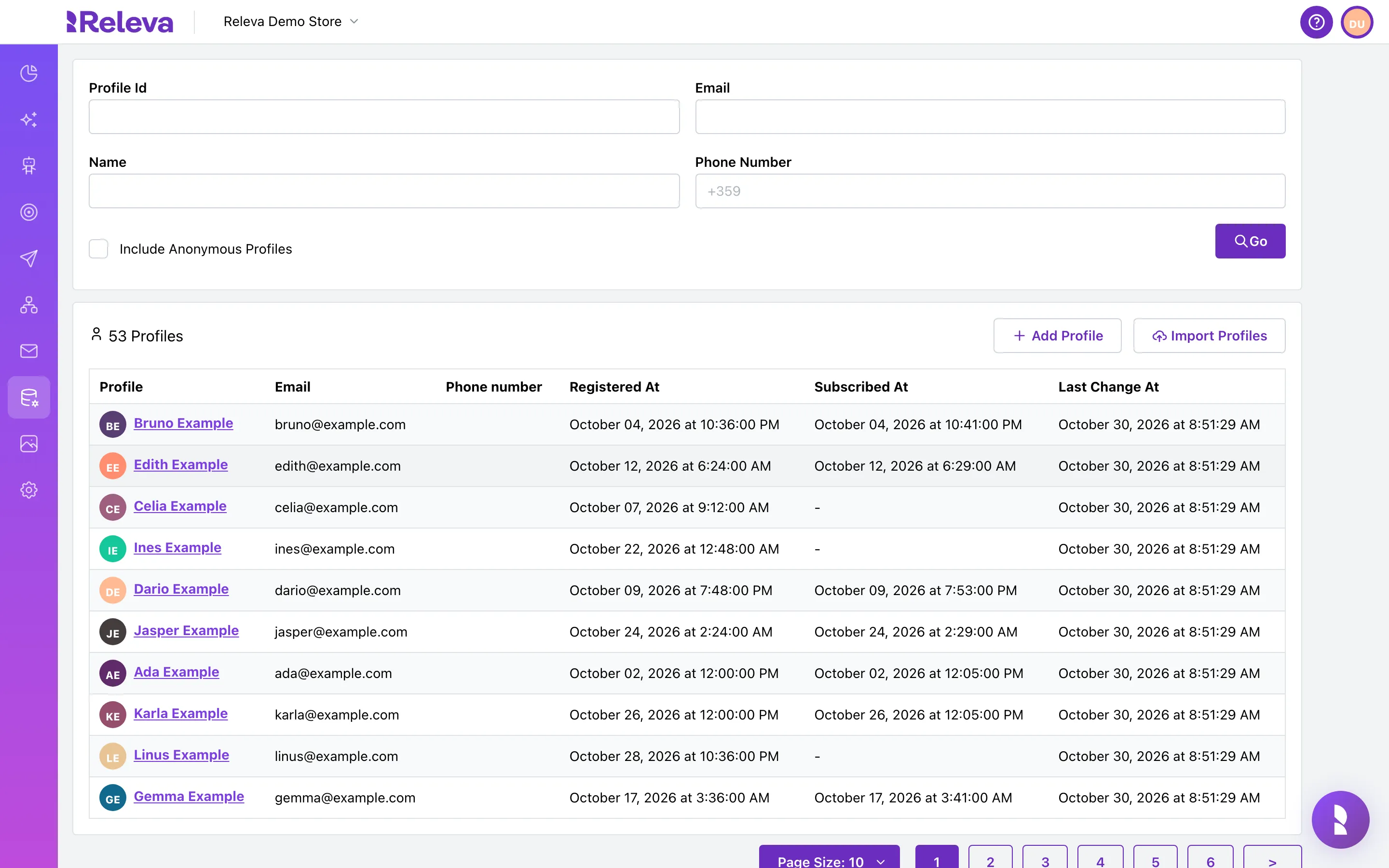
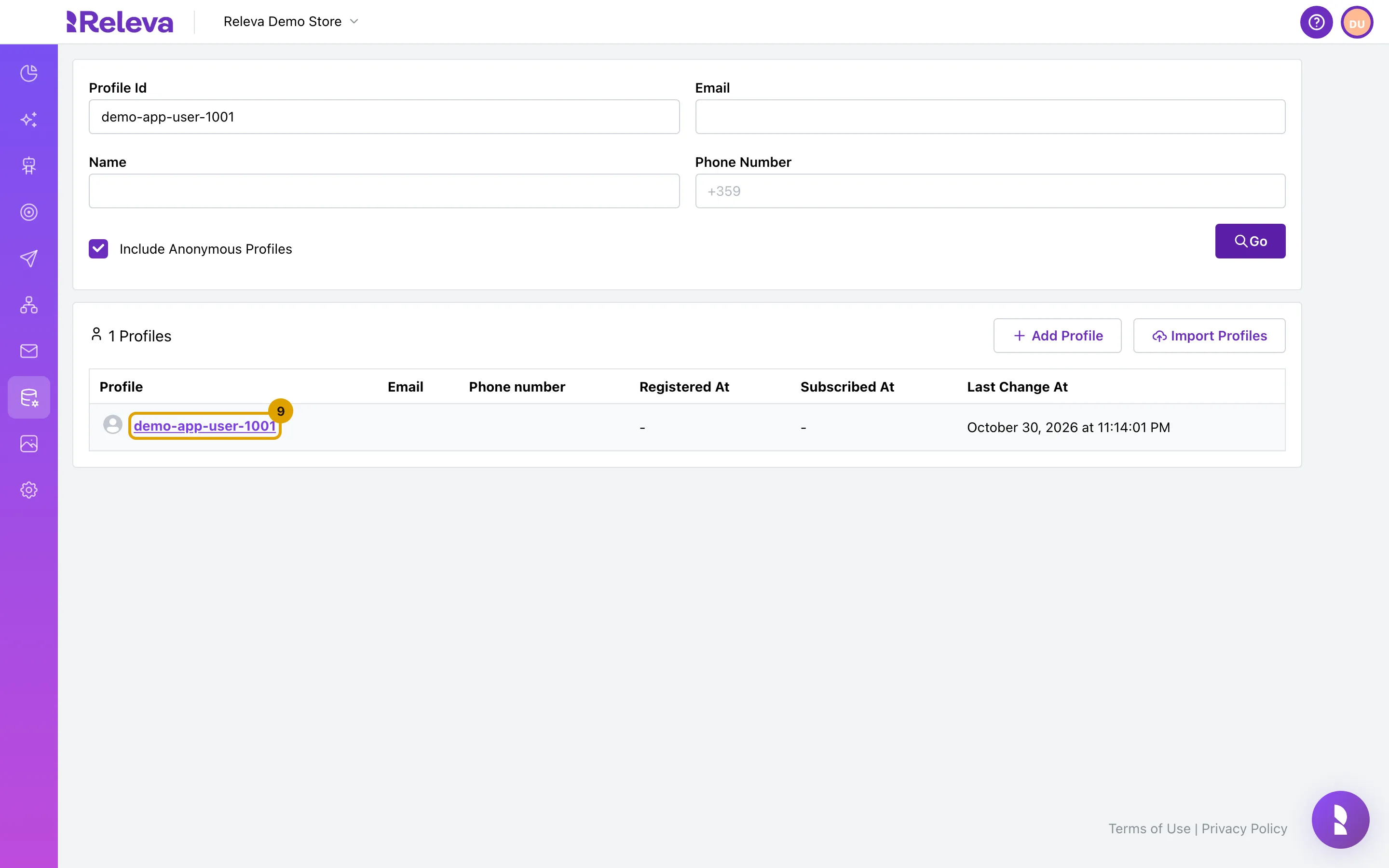
Go to Data Platform › Profiles
-
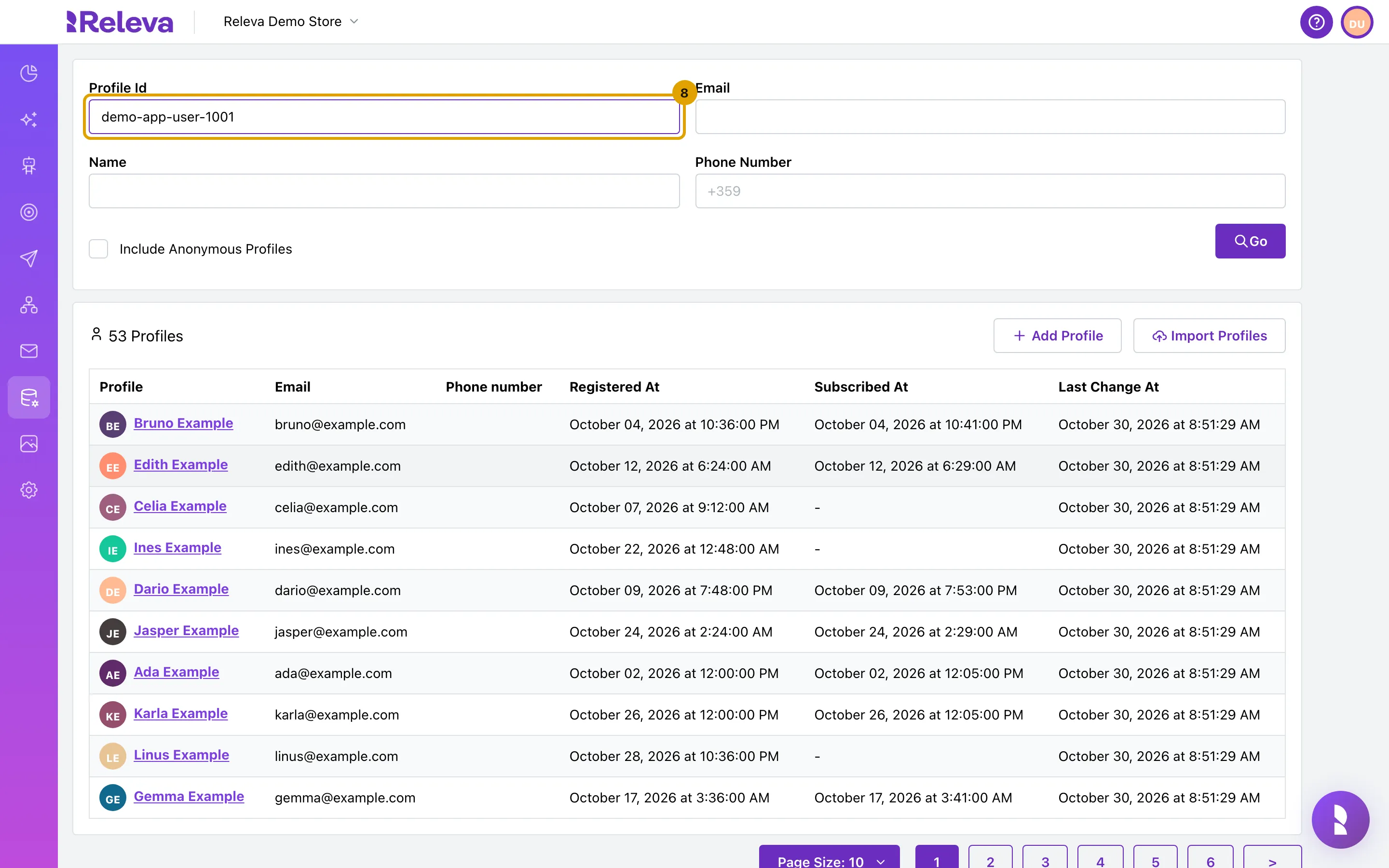
In Profile Id, enter the profile id your app sets with setProfileId, and select Include Anonymous Profiles if the user has not given an e-mail address or phone number
A profile that exists only because the app registered a token has no e-mail or phone, so it is listed only with Include Anonymous Profiles ticked. The filter is an exact match.
-
Select the profile to open it
-
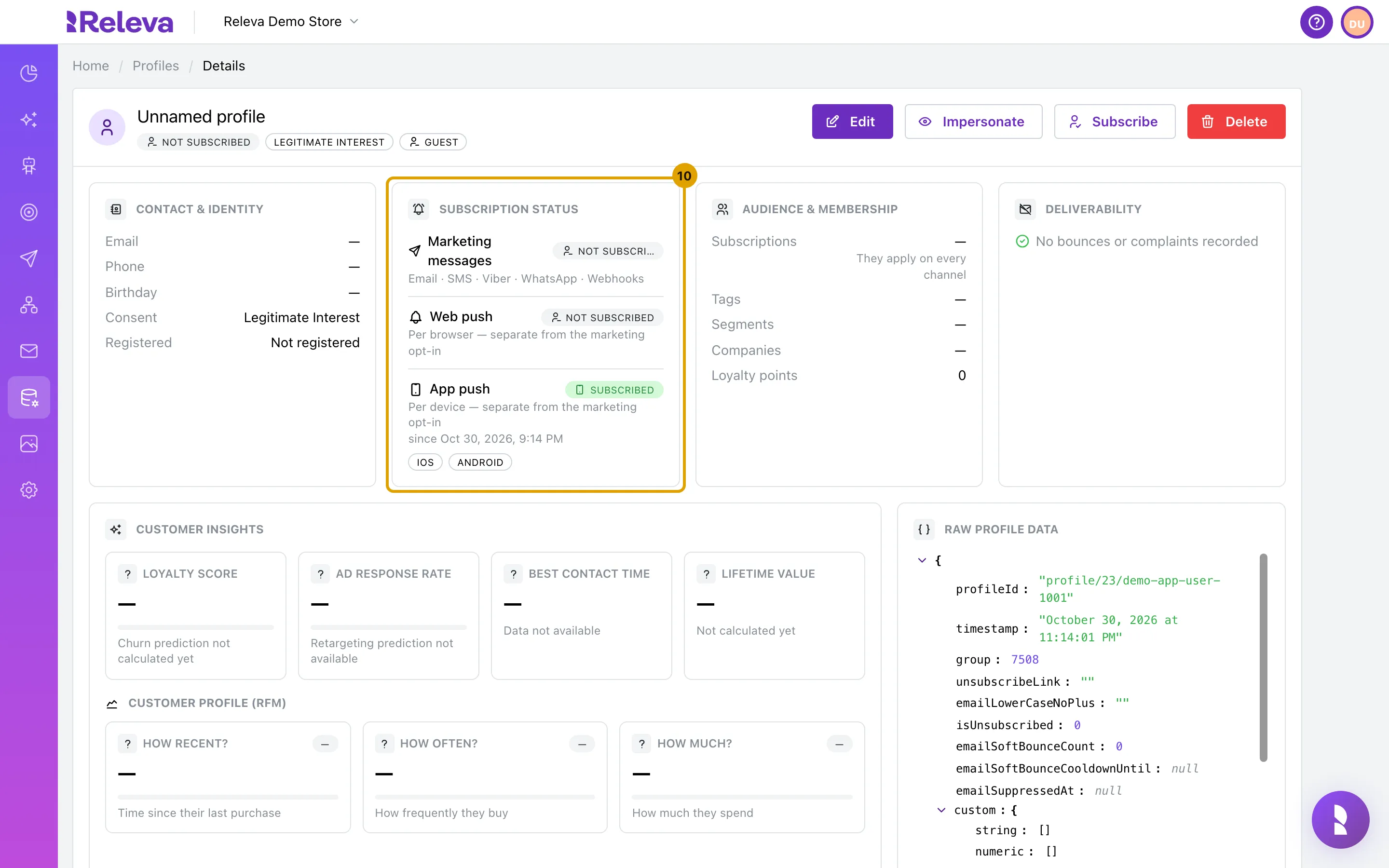
Under Subscription status, App push shows Subscribed with the date of the first registration and a badge for each platform (IOS, ANDROID)
The header still reads NOT SUBSCRIBED: app push is a per-device status, separate from marketing consent, as the card says.
Check it worked
Section titled “Check it worked”- One Push Notification Subscribe row per registration, tagged with the device type your app sent.
- Viewed Page rows for the screens that send a page token. On Data Platform › Events filter by Viewed Page; the row names the Releva page that matched the token. See Check that an event reached Releva.
- App push: Subscribed on the profile, with a badge for each platform that registered.
Troubleshooting
Section titled “Troubleshooting”No Push Notification Subscribe event. The call never left the app or was rejected. Check the app log for the request line and its status. 202 means accepted. A 400 body names the problem: Please provide deviceId before using the client! is thrown by the SDK before any request when setDeviceId has not run. Backend 400 messages are listed in the push notifications reference.
The profile is not found. Tick Include Anonymous Profiles. The Profile Id filter is an exact match. If your app sets no profile id, the profile is listed under the device id.
A screen view records no Viewed Page. The screenToken is not a token of a page on Personalization › Product Blocks, or the screen was sent without one. Releva answers 200 either way and stores nothing, so the app log looks fine. Copy the token from the Token: bar. If you test the API by hand, send a real device user agent: requests from curl and other bot user agents are dropped as bots.
App push shows Not subscribed although events arrived. The token row was marked deleted after Firebase rejected it at send time (a bounce), or the registration went to a different profile id than the one you opened. Register again from the app and reload the profile.
Android and IOS stay greyed out on the push form. Reload the form after saving credentials. With Separate, each platform needs its own file; the form says which one is missing.