

Connect your CS-Cart store
On CS-Cart, Releva is an add-on called Releva AI (add-on id releva_ai). You upload it in the CS-Cart admin, enter your shop’s Secret Key once and, optionally, switch on web push. The add-on puts the Releva tracking templates on the storefront and serves the catalog and subscriber endpoints that Releva pulls from.
The steps inside the CS-Cart admin and their screenshots show add-on version 1.0 on CS-Cart 4.15.2. Other versions can look different.
Before you start
Section titled “Before you start”- Your shop exists in Releva with Platform set to CS-Cart. The platform is chosen when the shop is created and is read-only afterwards on Settings › Shop & Integration › General. Choosing it fills in the catalog and subscriber sync addresses for you (see What syncs). If you have no shop yet, see Creating a shop or ask your account manager.
- You have the add-on archive. It is sent to you by Releva; it is not on the CS-Cart Marketplace.
- You are an administrator in the CS-Cart admin panel.
- The Newsletters add-on is enabled (it is by default). Releva uses it to sync e-mail subscribers.
- Your store runs on HTTPS if you want web push: browsers register a service worker only on HTTPS pages.
Install
Section titled “Install”In the CS-Cart admin panel:
-
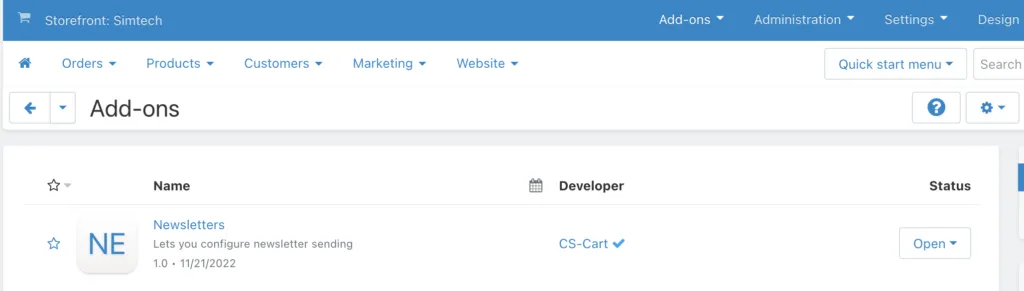
Open Add-ons and check that Newsletters is active.
-
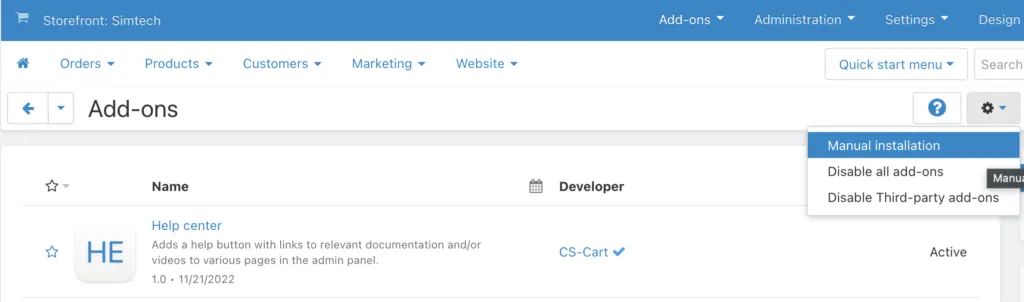
On the Add-ons page, open the gear menu and select Manual installation.
-
Select Local, choose the archive Releva sent you and select Upload & Install.
-
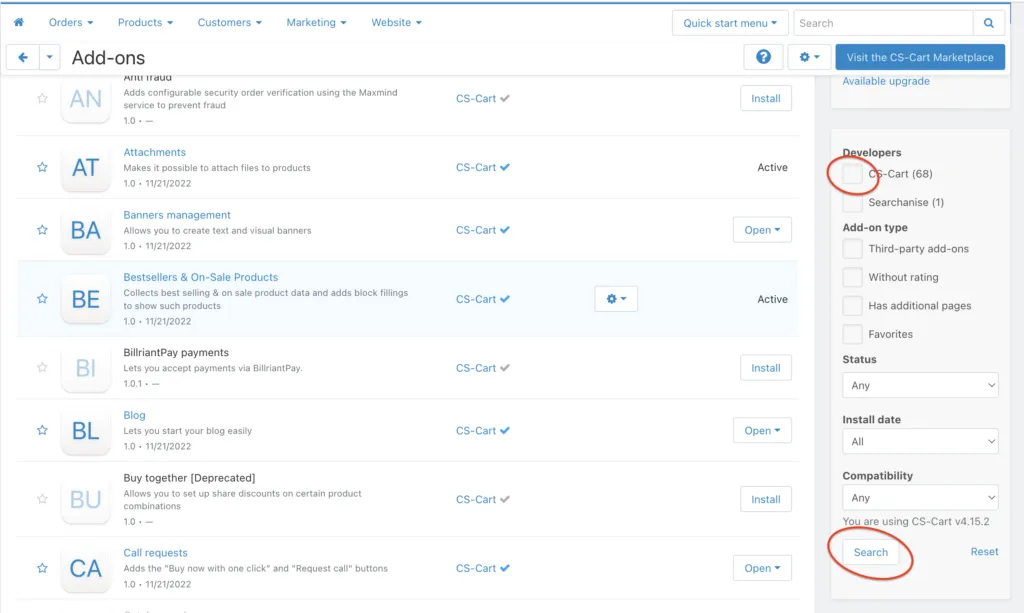
In the filter on the right, uncheck developer CS-Cart and select Search, so that only third-party add-ons are listed.
-
Search for
relevaand open Releva AI.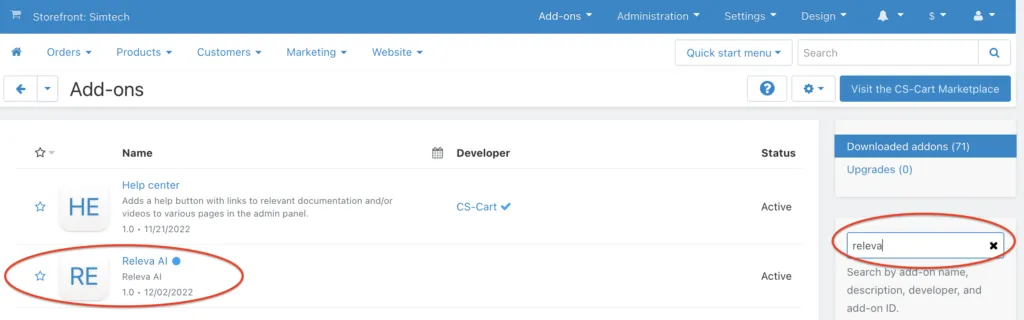

Configure
Section titled “Configure”1. Copy your Secret Key from Releva
Section titled “1. Copy your Secret Key from Releva”Open Settings › Shop & Integration. On the General tab, copy Secret Key with the copy icon next to it. Guide: Find your Access Token and Secret Key. The add-on asks for the Secret Key only; it does not ask for the Access Token or page tokens.
2. Enter it in the add-on
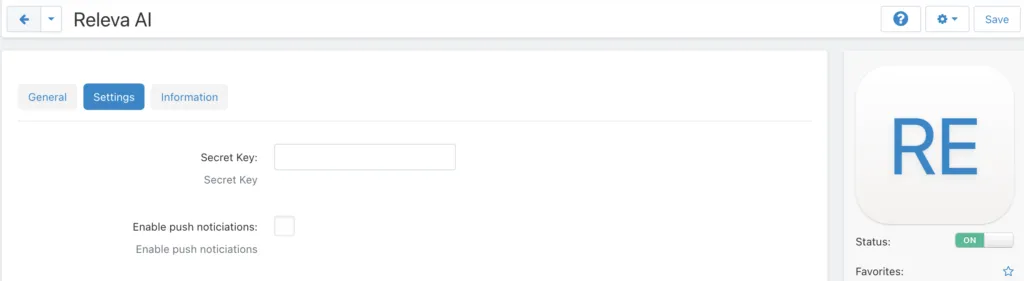
Section titled “2. Enter it in the add-on”On the Releva AI add-on page, open the Settings tab:
| Add-on field | Value |
|---|---|
| Secret Key: | Secret Key from Settings › Shop & Integration › General |
| Enable push noticiations: | Tick it to enable web push notifications (the label’s spelling is the add-on’s own) |
Select Save and make sure the add-on Status switch on the right is ON.
Verify
Section titled “Verify”-
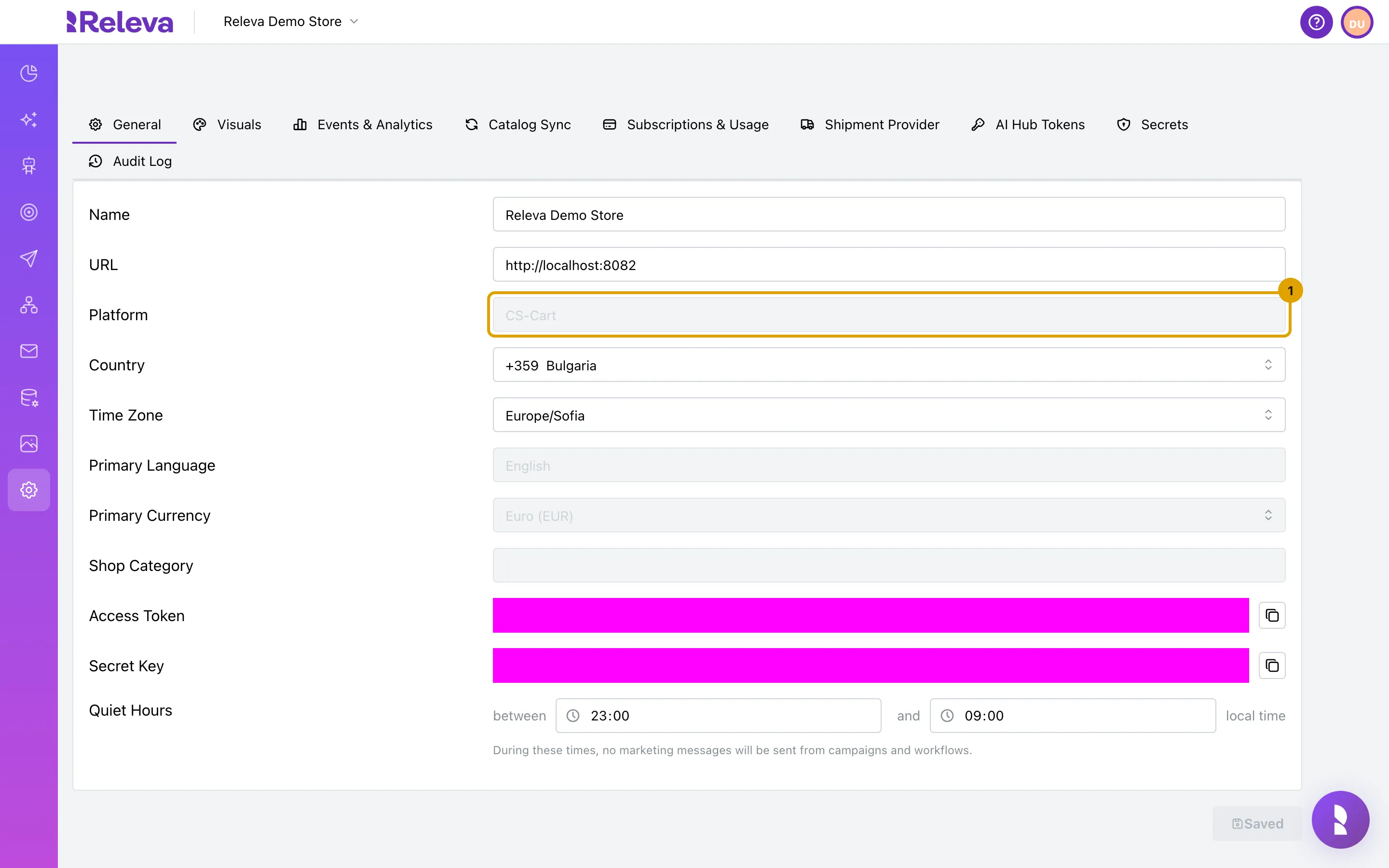
Open Settings › Shop & Integration. On the General tab, Platform shows the platform your shop was created with, for example CS-Cart.
-
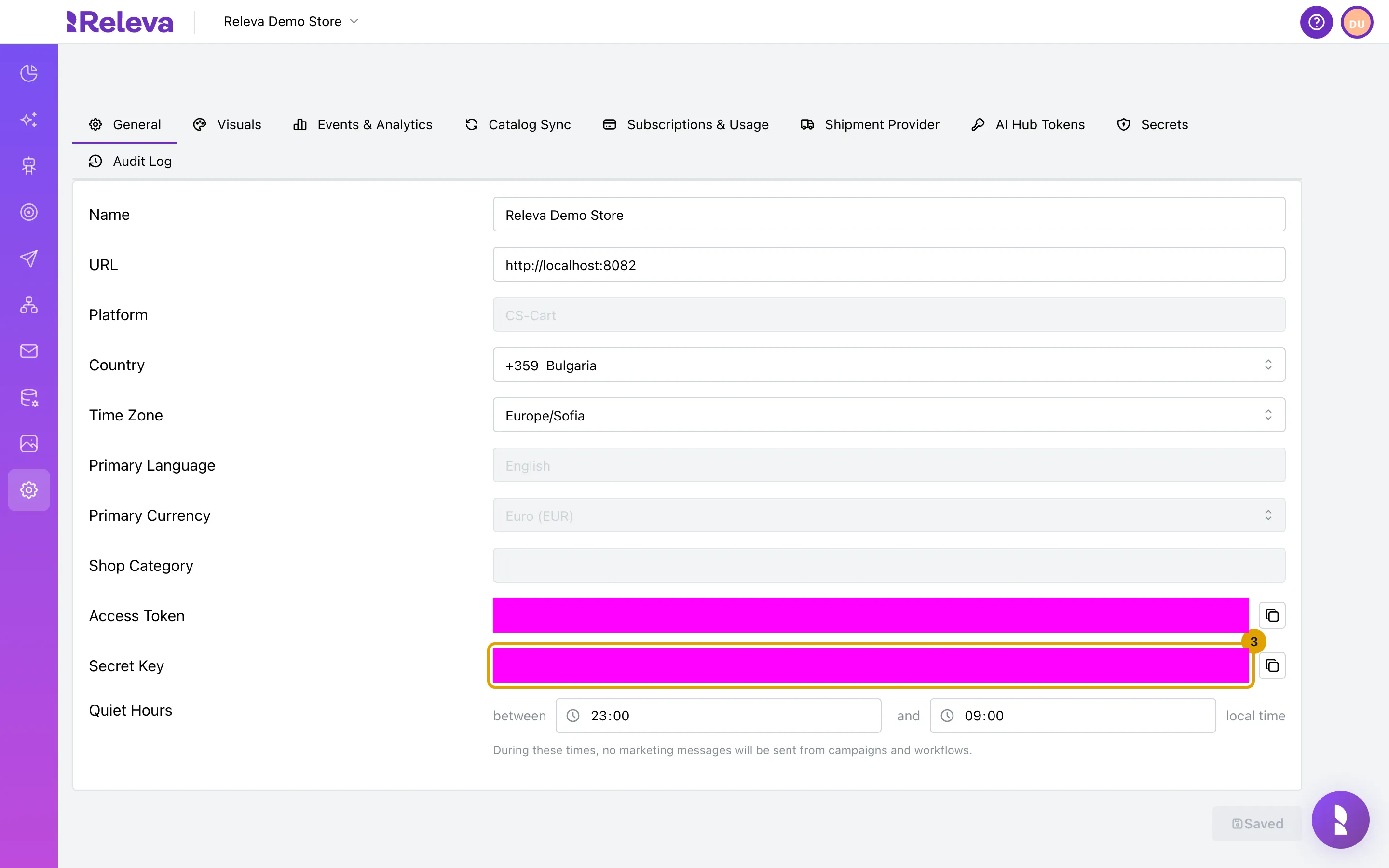
Secret Key is the private key. The CS-Cart add-on asks for it on its Settings tab. Keep it out of storefront code.
-
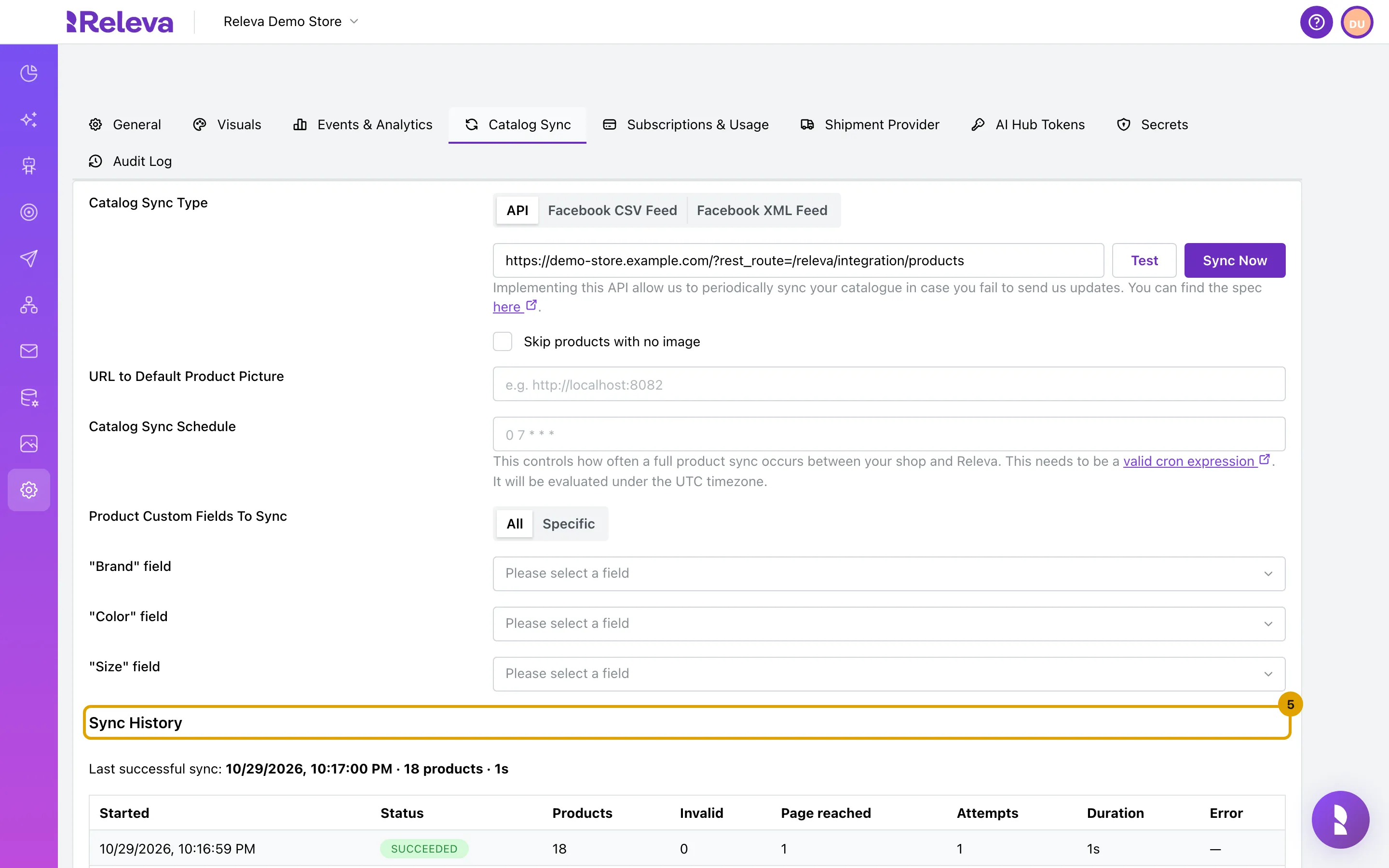
Select the Catalog Sync tab. With API selected, the address field shows the address Releva reads your catalog from. It was filled in when your shop was created in Releva and depends on the platform.
For a CS-Cart shop it is
https://<your store>/?rest_route=/releva/integration/products. Select Test: a green result means the add-on answered with your secret key.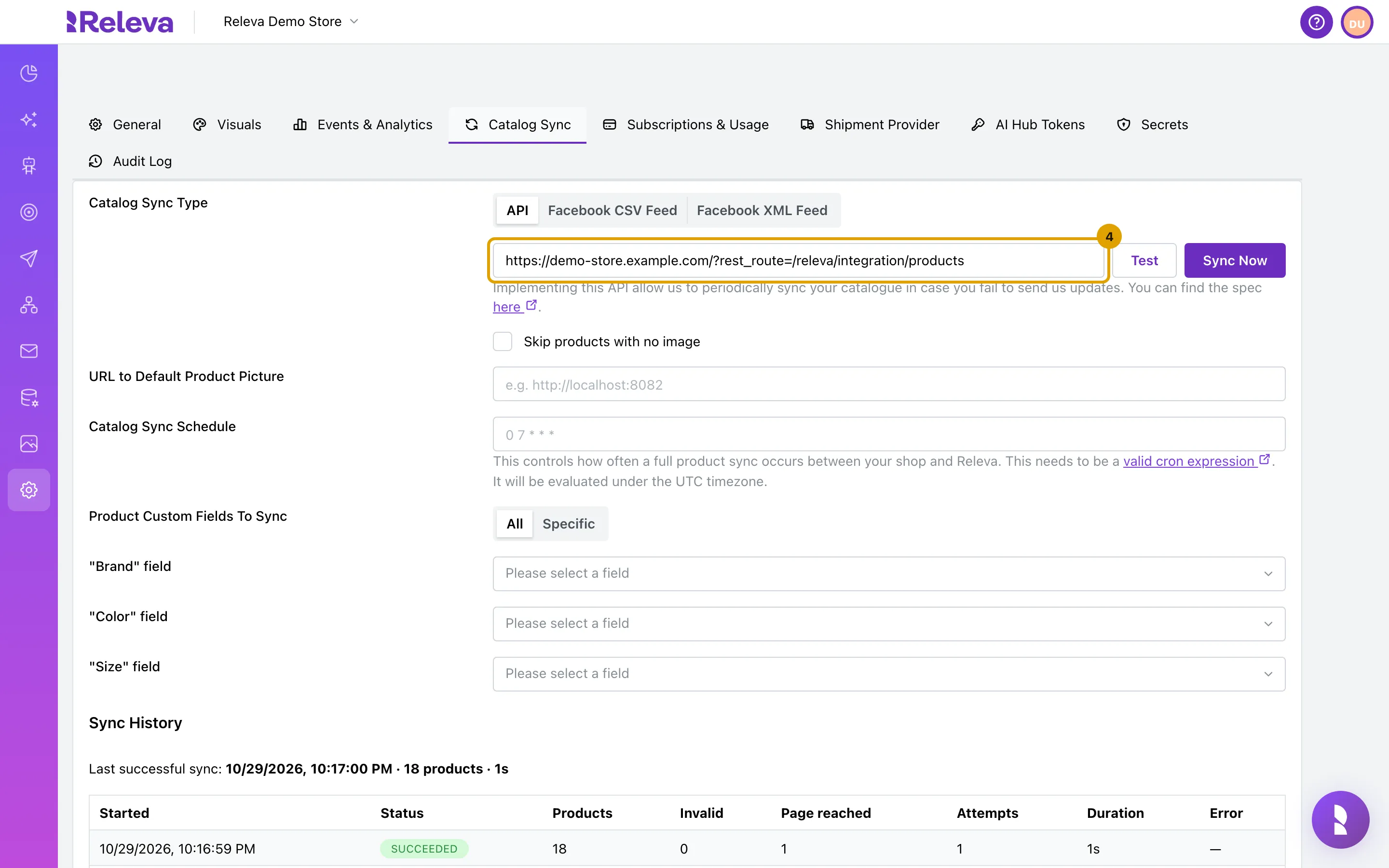
-
Sync History lists each catalog sync with its status and product count. Last successful sync: shows the time, product count and duration of the last sync that worked; Never means Releva has not read your catalog yet.
Select Sync Now to run the first sync, and set a Catalog Sync Schedule: Schedule a full catalog sync.
Then open your storefront in a browser, visit a few pages, view a product and add it to the cart, and check Data Platform › Events, Data Platform › Products and Data Platform › Profiles in Releva. The screens are the same for every platform: Check that your store data arrives.
In the screenshots the key fields are masked.
Troubleshooting
Section titled “Troubleshooting”Test on the Catalog Sync tab fails. The address Releva fills in for CS-Cart, /?rest_route=/releva/integration/products, has the same shape as the WooCommerce one. If your add-on serves the catalog on another path, replace the address on the Catalog Sync tab with the one from the add-on’s documentation and select Test again. Also check that the add-on Status is ON and that the Secret Key in the add-on matches the one on Settings › Shop & Integration › General.
Test fails only with the SEO add-on on. On a Releva test store, the store redirected the sync requests to its main URL while the SEO add-on was on, and the catalog sync failed. If Test fails only while SEO is active, check that ?rest_route= requests are not redirected, or ask your account manager for the address the add-on exposes without SEO rewriting.
No subscribers arrive. The subscriber sync reads the Newsletters add-on’s list. Check that the add-on is active and that the Subscriber Sync API on Settings › Messaging (External mode) is https://<your store>/?rest_route=/releva/integration/subscribers. See Choose how Releva manages subscriptions.
No web push prompt. Enable push noticiations must be ticked in the add-on and the store must run on HTTPS. The storefront then registers Releva’s service worker and sends the subscription to Releva.
Multi-vendor or several storefronts. Each Releva shop has one secret key and one catalog address. Whether the add-on supports more than one storefront per installation is not documented; ask your account manager.
What syncs
Section titled “What syncs”What a connector sends can change between versions. If you depend on one of these, ask your account manager.
| Data | Direction | Endpoint | When |
|---|---|---|---|
| Products (full catalog) | Releva pulls from your store | GET https://<your store>/?rest_route=/releva/integration/products with page, cursor and x-rlv-authorization: Bearer <secretKey> |
On Sync Now and on the Catalog Sync Schedule. Address set when the shop is created; no schedule is preset. Contract: the pull-sync endpoint. |
| Subscriber list | Releva pulls from your store | GET https://<your store>/?rest_route=/releva/integration/subscribers, same paging and headers |
Prefilled as Subscriber Sync API on Settings › Messaging in External mode; runs on Sync Now. The list comes from the Newsletters add-on. |
| Page views, product views, cart, search | Storefront (add-on templates, SDK) | POST /api/v0/push/{accessToken} |
On page load. The add-on’s storefront templates render the snippet. |
| Web push subscriptions | Storefront (SDK) | POST /api/v0/pushSubscriptions/{accessToken} |
When Enable push noticiations is ticked and the visitor grants permission. |
| Orders, registrations, opt-in and opt-out, product changes between syncs | Your server | POST /api/v0/carts, /register or /profiles, /subscribe, /unsubscribe, /products |
Whether the add-on calls these depends on its version. The full sync is the safety net: about two minutes after a complete pass Releva deletes products that the pass did not return. |
| Order status changes | not sent | CS-Cart shops do not send orderStatusChanged events. |
See How Releva connects to your shop.