

Using Releva through your platform
Some e-commerce platforms and apps embed Releva: when you install their Releva app or switch Releva on in their admin, they create your Releva shop through the Partner API, store its keys, and often bill you for Releva as part of their own invoice. You never copy an access token or a secret key, and you open the Releva admin from a button in the platform rather than with a password. This page explains what that changes inside Releva. Everything else works as for any other shop.
What your platform manages for you
Section titled “What your platform manages for you”| In Releva | What you see | Why |
|---|---|---|
| Settings › Shop & Integration › General › URL | Greyed out | Your platform owns the shop address and uses it to find your shop. |
| Account › Account Name | Greyed out | The account name is the key your platform registered you under. |
| Access Token and Secret Key on the General tab | Shown, read-only, with copy icons | Your platform already uses them. You need them only if you add your own tracking code or server calls. See Find your Access Token and Secret Key. |
| Settings › Shop & Integration › Subscriptions & Usage | Your active plan and this period’s usage, or You are on a custom subscription when no Releva plan is active | When your platform bills you, Releva plans are confirmed in your platform’s store, and a shop without an active plan is on a custom arrangement. |
| Pricing Policy link in the setup wizard and the terms dialog | Opens your platform’s pricing page when it has one, otherwise Releva’s | Your platform sets the price you pay for Releva. |
| Platform on the General tab | The platform your shop was created with | Read-only for every shop. |
Everything your platform does not manage, you do: channels, campaigns, product blocks, segments, consent. For how an account, its shops and billing fit together, read How accounts, shops and billing work.
Your first sign-in
Section titled “Your first sign-in”The button in your platform opens a one-time sign-in link. Releva creates your user the first time (you receive a “Welcome to Releva!” e-mail with a Confirm your account button, in case you ever want to sign in with a password directly), gives you access to the shop and lands you on one of three pages:
- the plan confirmation page, if you just picked a Releva plan in your platform’s store;
- the Get started with Releva setup wizard, if your shop is on Shopify, its app embed is not on yet and the shop is not live yet;
- the shop’s Analytics dashboard otherwise. On the dashboard, the Welcome to Releva dialog asks you to accept Releva’s Terms of Use and Pricing Policy once; select both and Save.
The link expires after a few minutes. If it stops working, go back to your platform and open Releva again instead of bookmarking it.
The plan confirmation page
Section titled “The plan confirmation page”When your platform bills you, you approve a Releva plan in your platform’s store, and your platform tells Releva that the plan is active. The confirmation page waits for that message.
-
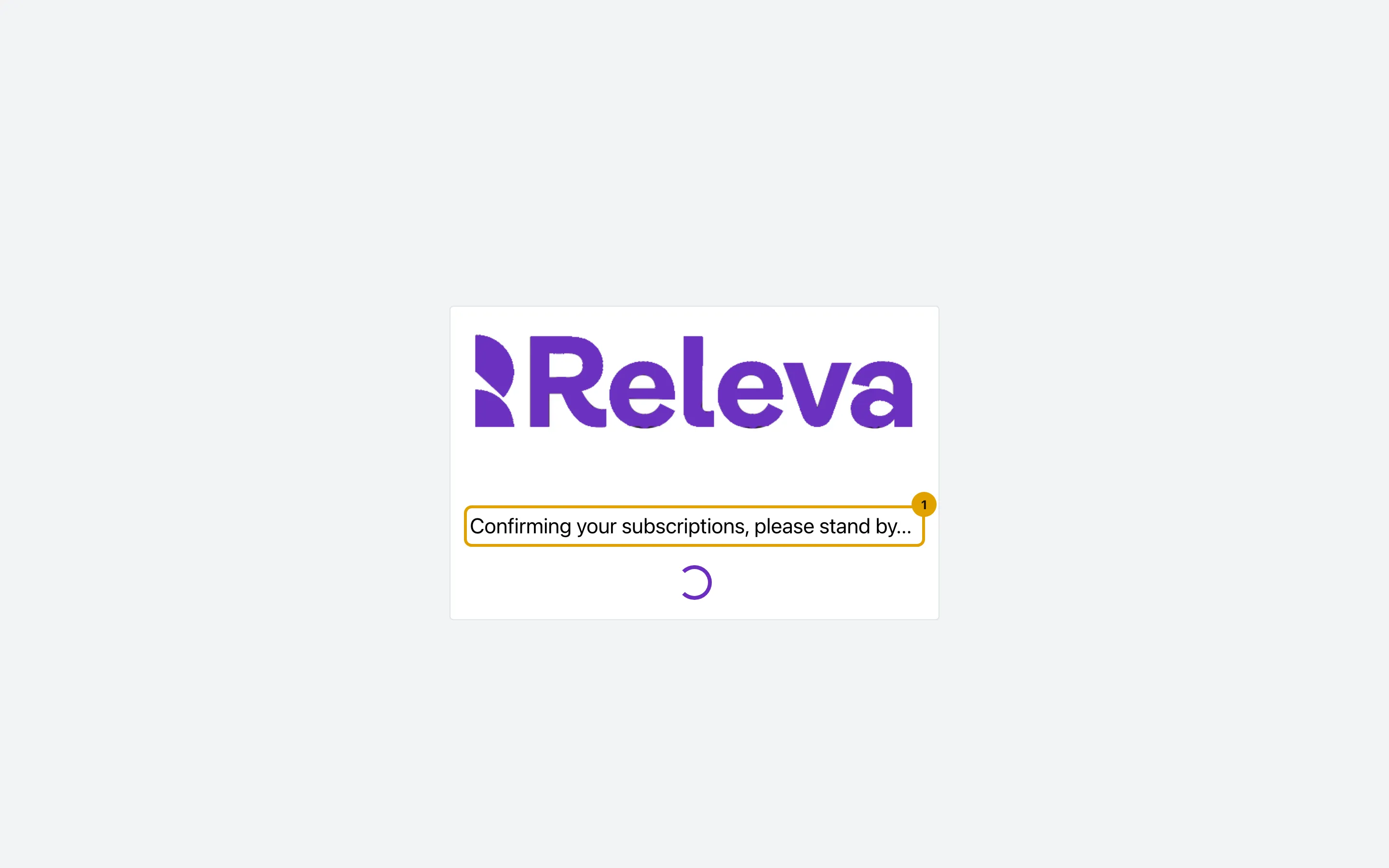
If you picked a plan on your platform, Releva first waits for the plan to be confirmed. This usually takes a few seconds.
-
If the confirmation has not arrived after a minute, you see We could not confirm your subscription. Select Return to setup and try again.
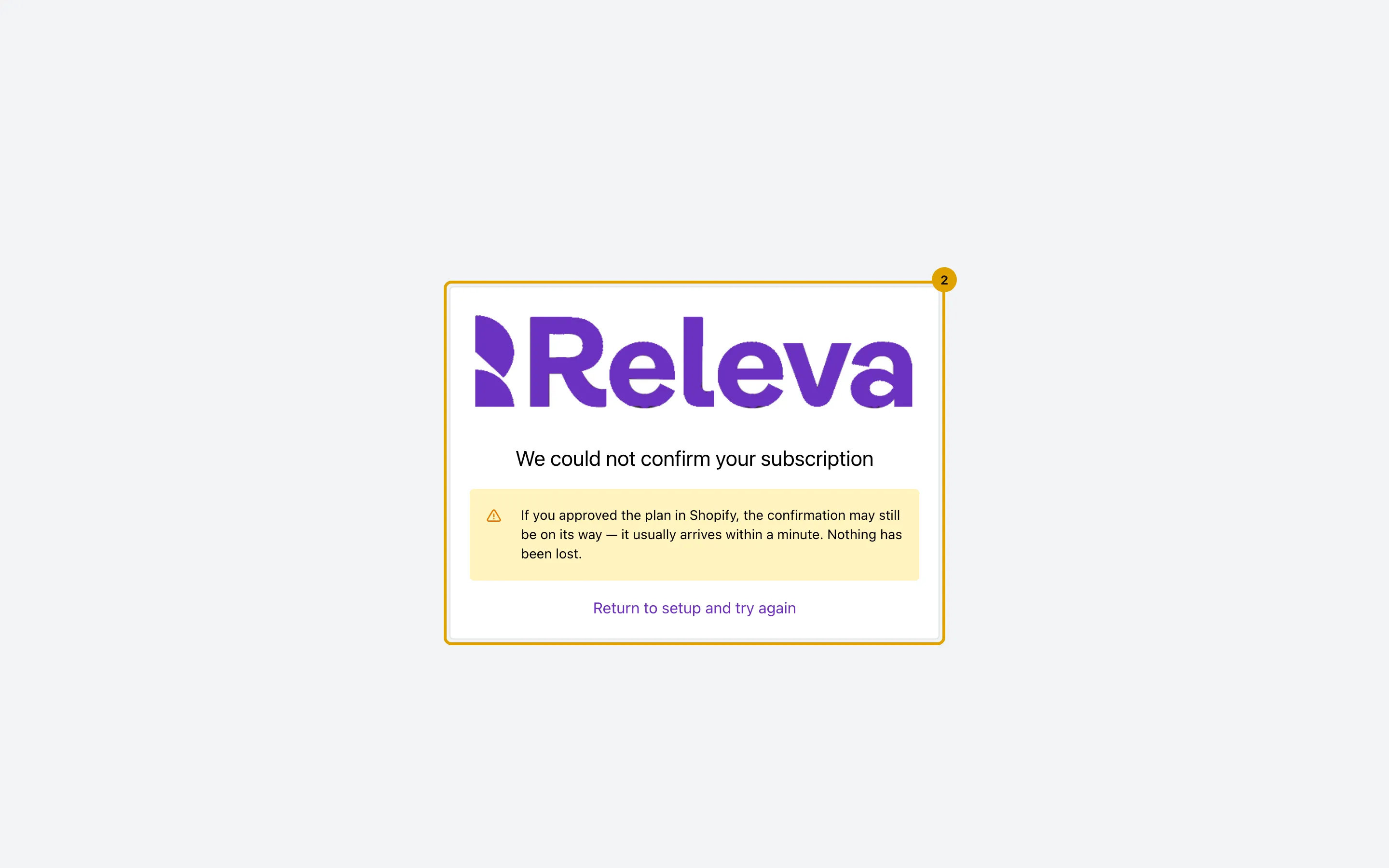
Once the plan is active, Releva sends you to the setup wizard if the shop is not live yet, or to the dashboard. Nothing is lost if the page times out: the plan you approved stays approved, and the confirmation usually arrives within the minute. The alert on the page names Shopify; it applies to every platform that bills you.
The setup wizard
Section titled “The setup wizard”Get started with Releva collects what Releva needs to start. Because your platform handles billing, the wizard has no billing or payment step; a Shopify shop gets an extra Activation step for the app embed.
-
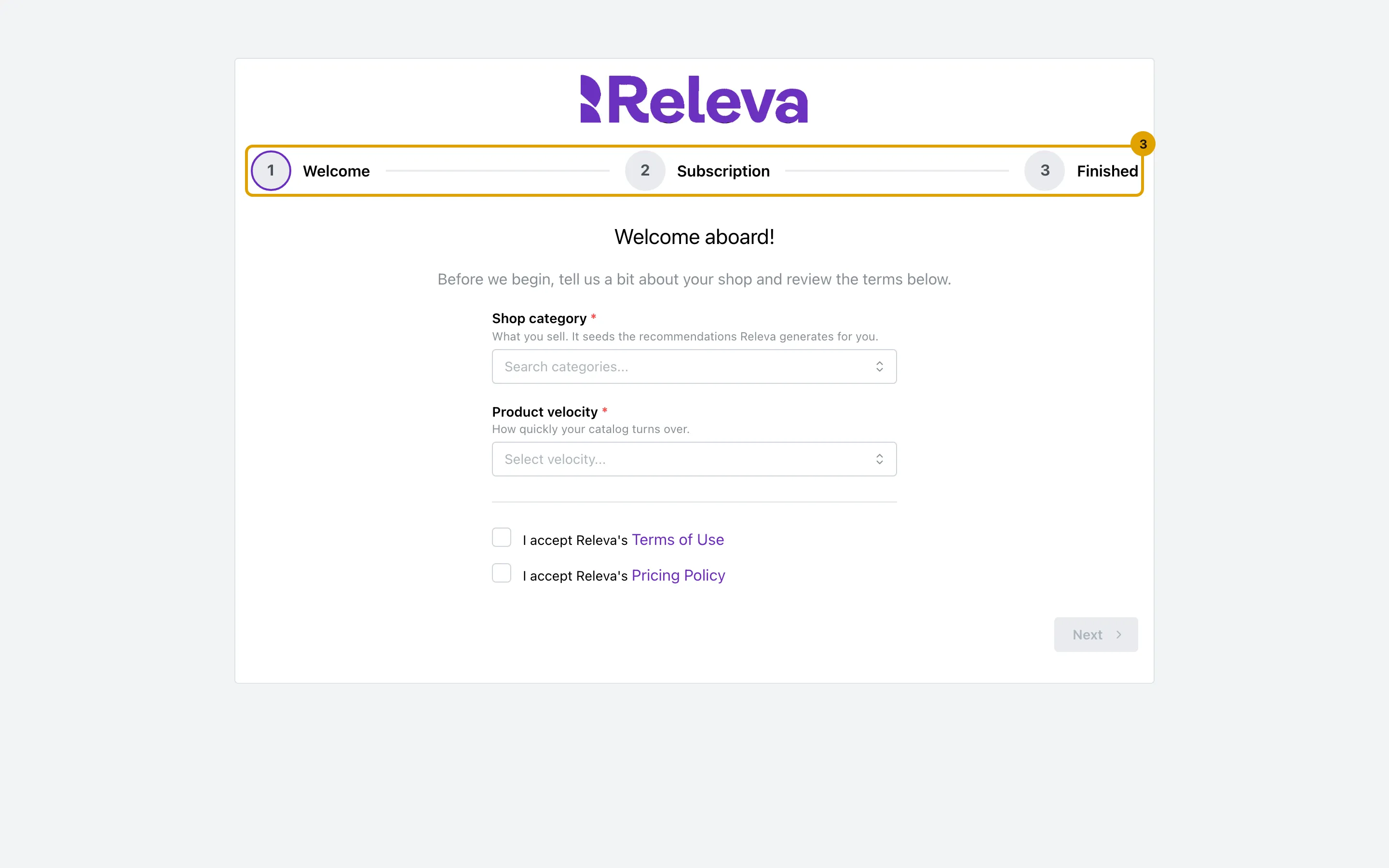
The Get started with Releva setup has three steps, Welcome, Subscription and Finished. Your platform handles billing, so there is no billing or payment step.
-
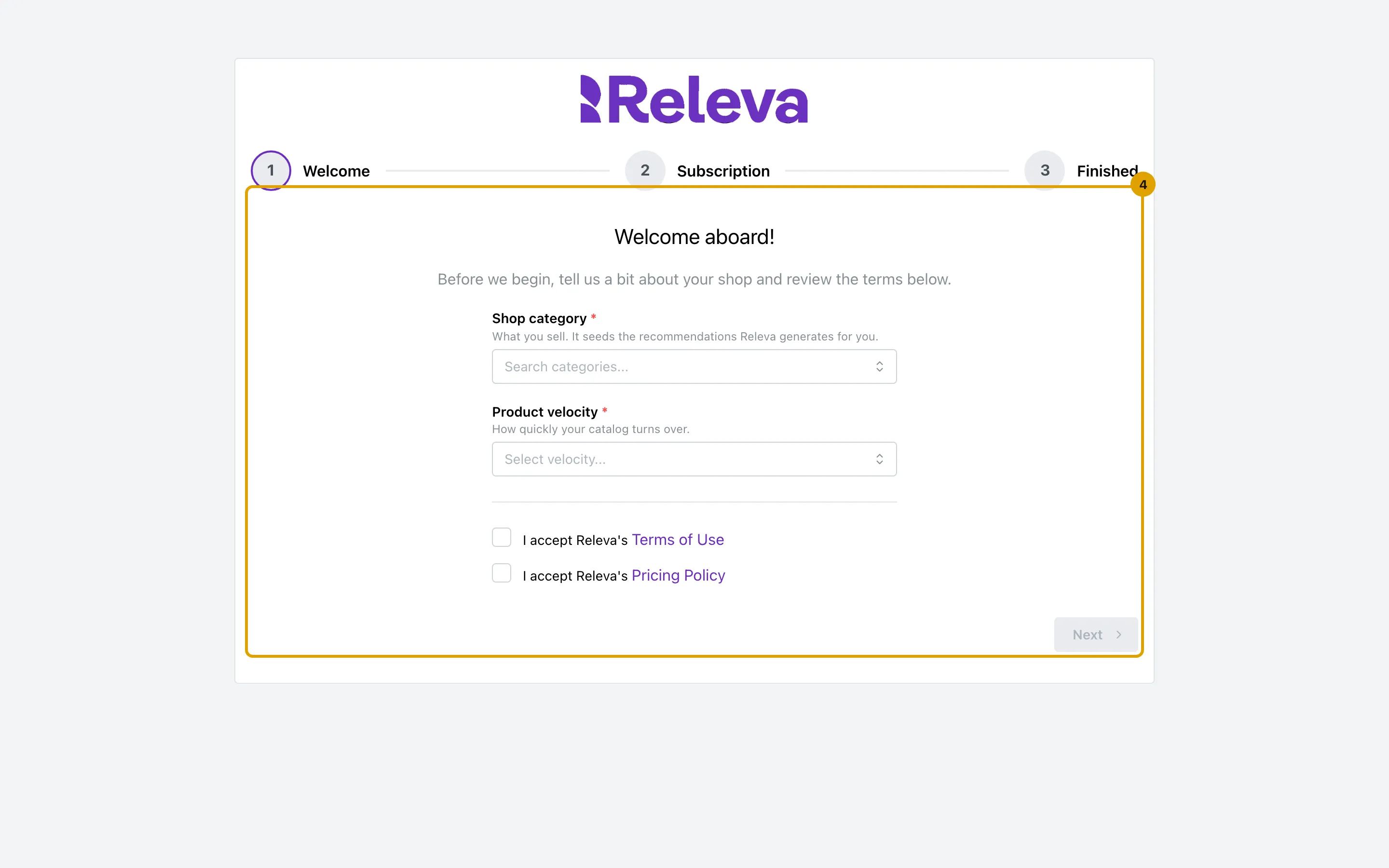
On Welcome, choose your Shop category and Product velocity.
-
Select I accept Releva’s Terms of Use and I accept Releva’s Pricing Policy, then select Next.
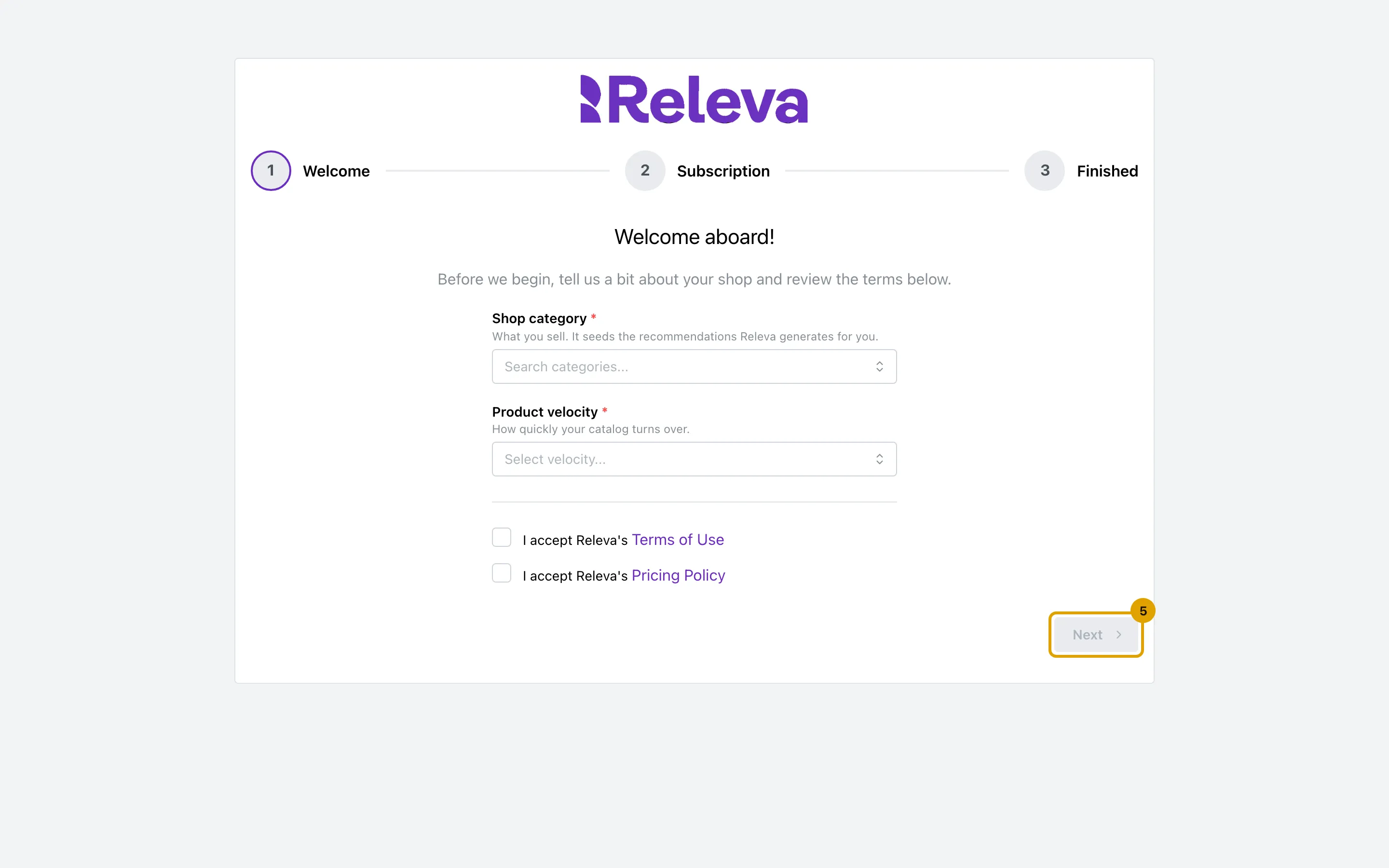
Shop category seeds the recommendations Releva generates for you, Product velocity tells Releva how quickly your catalog turns over. Next stays disabled until both are set and both boxes are ticked.
On Subscription you pick a plan. When your platform bills you, Next sends you to your platform’s store to approve the charge, and you come back through the plan confirmation page above. If the step says No subscriptions are available for your shop, your platform has not published Releva plans for it yet; contact support@releva.ai. Finished starts your trial for every shop in the account and takes you to the dashboard with Go to dashboard.
You cannot skip ahead to a step you have not completed, but you can go back to one you have.
Banners your platform controls
Section titled “Banners your platform controls”The state of your shop is set by your platform through the Partner API. A banner at the top of every admin page tells you when something stopped:
| Banner | What happened | What to do |
|---|---|---|
| Shop is disabled. Campaigns, workflow, or web personalizations will not run. (red) | Your platform paused the shop, for example because you switched Releva off or stopped paying. | Resume Releva in your platform. The banner says to contact support@releva.ai; Releva support can help you find out why, but when your platform paused the shop, your platform resumes it. |
| The Releva app has been removed from your store … (red) | Your platform reported that you uninstalled the Releva app. Campaigns, workflows and personalization stopped and your plan is no longer active. Your data and settings are kept. | Reinstall the app in your platform. The banner and the setup page link to the Shopify App Store; on other platforms, reinstall where you installed it. |
| Your usage is over your plan limit … (yellow) | You passed the usage limit of your plan. Releva keeps running during a grace period. | Raise the limit in your platform or contact support@releva.ai. If you have already raised it, the warning clears within a day. |
| Your campaigns and on-site personalization are paused because your usage exceeded your plan limit. (red) | The grace period ended. Data collection keeps running, so nothing is lost. | Raise the limit, or wait: service resumes at the start of the next billing period. |
Check that data arrives
Section titled “Check that data arrives”There is no partner-specific status screen. The same three screens that every shop uses show whether your platform’s integration sends data: Data Platform › Events filtered by Viewed Page for storefront visits, Data Platform › Products for the catalog after the first sync, and Data Platform › Profiles for customers with an e-mail address or phone number. The recorded steps are in Embed Releva in your platform; the guides are Check that an event reached Releva, Find a product and Find a profile.