

Connect your Magento 1 store
The Releva module for Magento 1 (Releva_Releva) puts the Releva tracking snippet on every storefront page and serves the catalog and subscriber endpoints Releva pulls from. You upload it once and activate it per store view with that store view’s Secret Key from Releva. The module’s Sync section has buttons to push your catalog and your customers and subscribers to Releva by hand.
Nothing Magento-specific is configured inside Releva. In Releva you create one shop per store view with platform Magento 1.x, copy its Secret Key, and later check that data arrives.
Before you start
Section titled “Before you start”- A shop in Releva with Platform set to Magento 1.x. The platform is chosen on Create Shop and cannot be changed later; a shop created as Other / Custom does not get the Magento default URLs. See How accounts, shops and billing work.
- One Releva shop per store view, each with its own Secret Key.
- The module package (
.tgz/zip) from your Releva account manager. - A Magento admin user who may open Magento Connect Manager and change System › Configuration.
- Your server must trust the certificate of
https://releva.ai. Saving the key with an untrusted CA fails withReleva API Error: Curl error: 60.
Install
Section titled “Install”-
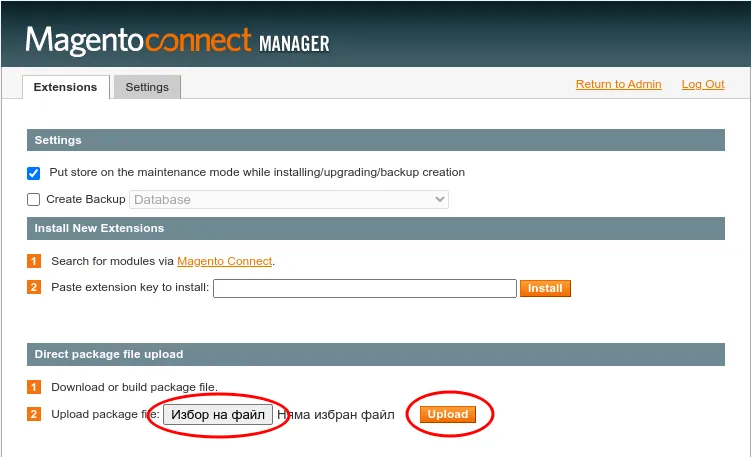
Open Magento Connect Manager (System › Magento Connect › Magento Connect Manager). Under Direct package file upload, choose the package file and select Upload.
-
Wait for the console to print
Package installed: community Releva_RelevaandCache cleaned successfully, then select Return to Admin.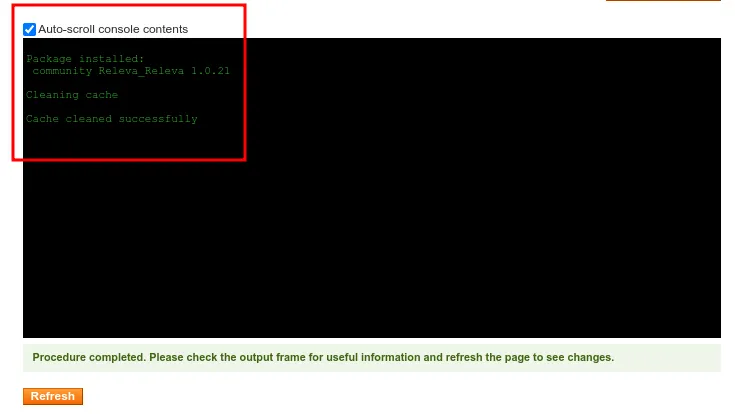
-
Log out of the Magento admin and log back in. Until you do, the new configuration page answers
404.
Magento Connect no longer exists in current Magento 1 forks such as OpenMage. For a manual install (copying the files or modman), ask your account manager.
Configure
Section titled “Configure”In Releva: copy the Secret Key
Section titled “In Releva: copy the Secret Key”- Open Settings › Shop & Integration. On the General tab, Platform shows Magento 1.x. Pick the shop for this store view in the shop switcher first if your account has several shops.
- Scroll to Secret Key and select the copy icon next to it. The module asks only for this key.
The screenshots of these steps are in Verify. For both keys and what each is for, read Find your Access Token and Secret Key.
In Magento: activate the store view
Section titled “In Magento: activate the store view”-
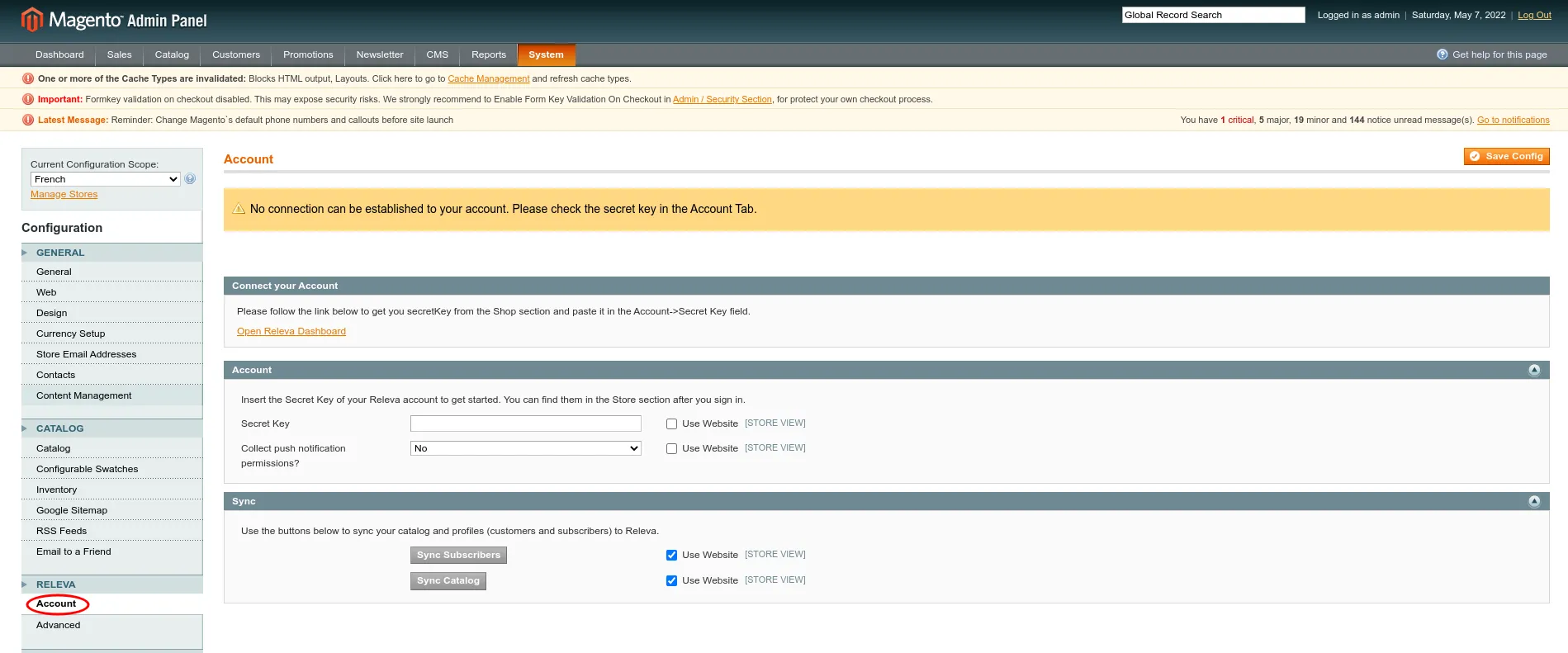
Open System › Configuration. In the left column, under Releva, select Account. A yellow banner reads “No connection can be established to your account. Please check the secret key in the Account Tab.” until a valid key is saved.
-
In Current Configuration Scope, select your primary store view, not Default Config.
-
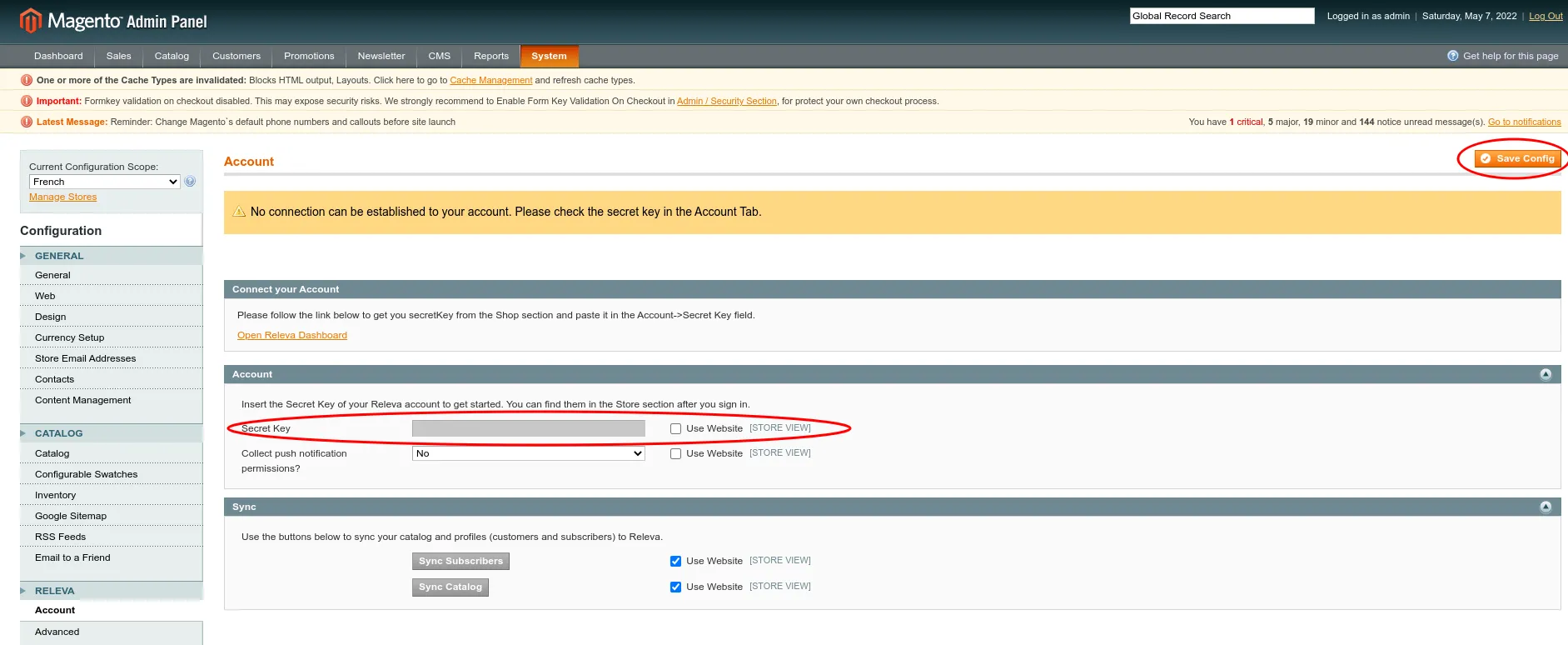
In the Account box, clear Use Website next to Secret Key and paste the key from Releva. The box’s help text says “Store section”; the current path in Releva is Settings › Shop & Integration › General.
-
If you will send web push notifications from Releva, set Collect push notification permissions? to Yes.
-
Select Save Config. The banner changes to Account Connected, “Your Releva account is connected.”, with an Open Releva Dashboard link. The module validates the key against Releva when you save.
-
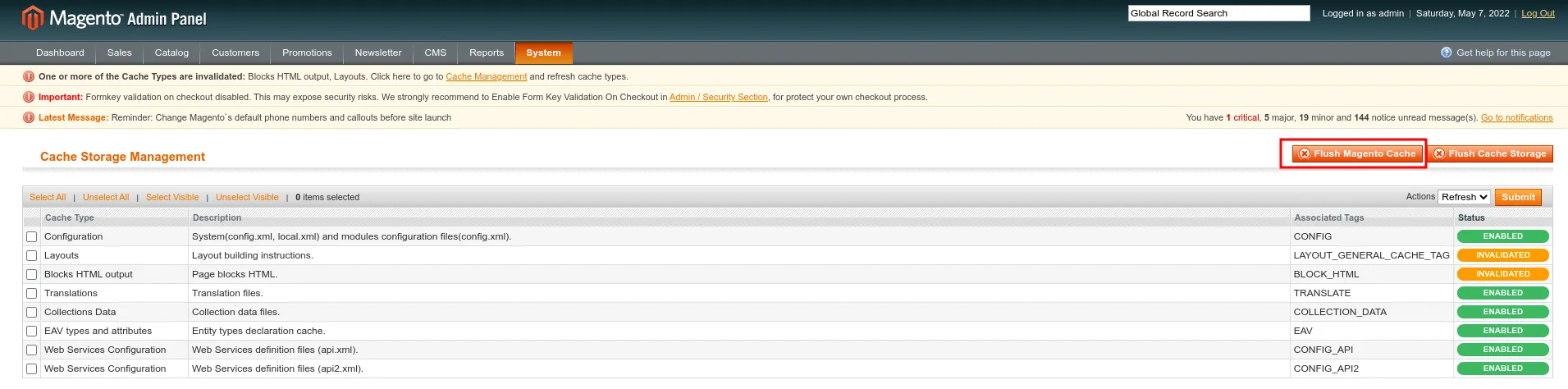
Open System › Cache Management and select Flush Magento Cache.
-
Repeat for each other store view, each with the Secret Key of its own Releva shop.
Send the catalog and your customers
Section titled “Send the catalog and your customers”In Releva › Account, the Sync box reads “Use the buttons below to sync your catalog and profiles (customers and subscribers) to Releva.” Select Sync Catalog after the first activation and after any change that affects product data, such as the thumbnail size below. Select Sync Subscribers to send your customers and newsletter subscribers. Check the result in Releva as described under Verify.
Product image size
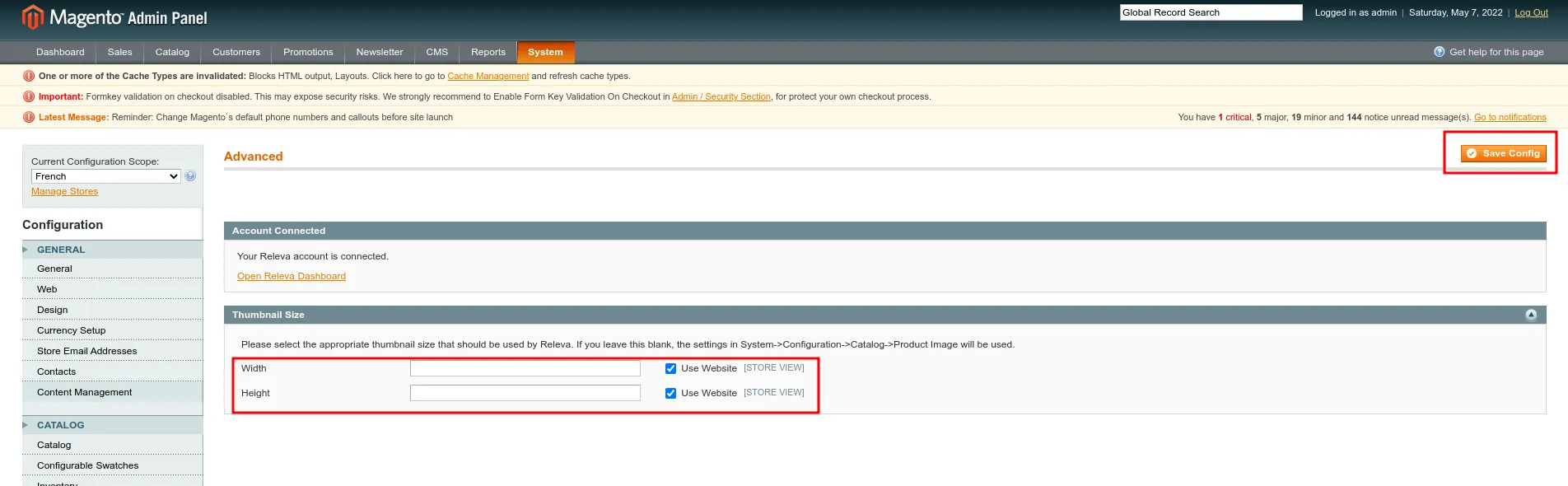
Section titled “Product image size”Product blocks in Releva use the image the module sends. If images come out in different sizes, set Width and Height under Releva › Advanced › Thumbnail Size, or change System › Configuration › Catalog › Product Image globally. When both are empty, the Magento catalog image settings apply. After changing the size, select Sync Catalog again.
In Releva: check the sync settings
Section titled “In Releva: check the sync settings”When the shop was created with platform Magento 1.x, Releva filled in three addresses from the shop URL:
| Setting | Where in Releva | Default |
|---|---|---|
| Catalog sync URL (Catalog Sync Type API) | Settings › Shop & Integration › Catalog Sync | https://your-shop.example.com/releva/integration/products |
| Subscriber Sync API | Settings › Messaging › General, visible when Subscription Management is External | https://your-shop.example.com/releva/integration/subscribers |
| Email Unsubscribe URL | Same place | https://your-shop.example.com/newsletter/manage/ (Magento’s own newsletter page) |
- Catalog Sync Schedule is empty for Magento shops. Without a cron expression Releva never pulls your full catalog on its own; add one with Schedule a full catalog sync or use Sync Now in Releva or Sync Catalog in Magento.
- Subscription Management defaults to Internal, which hides the two subscriber fields. If Magento stays the record of newsletter consent, switch to External and save: Choose how Releva manages subscriptions.
- If a store view’s base URL differs from the shop URL in Releva (store code in the path,
index.php), edit the addresses.
Verify
Section titled “Verify”Check that Releva sees your Magento shop
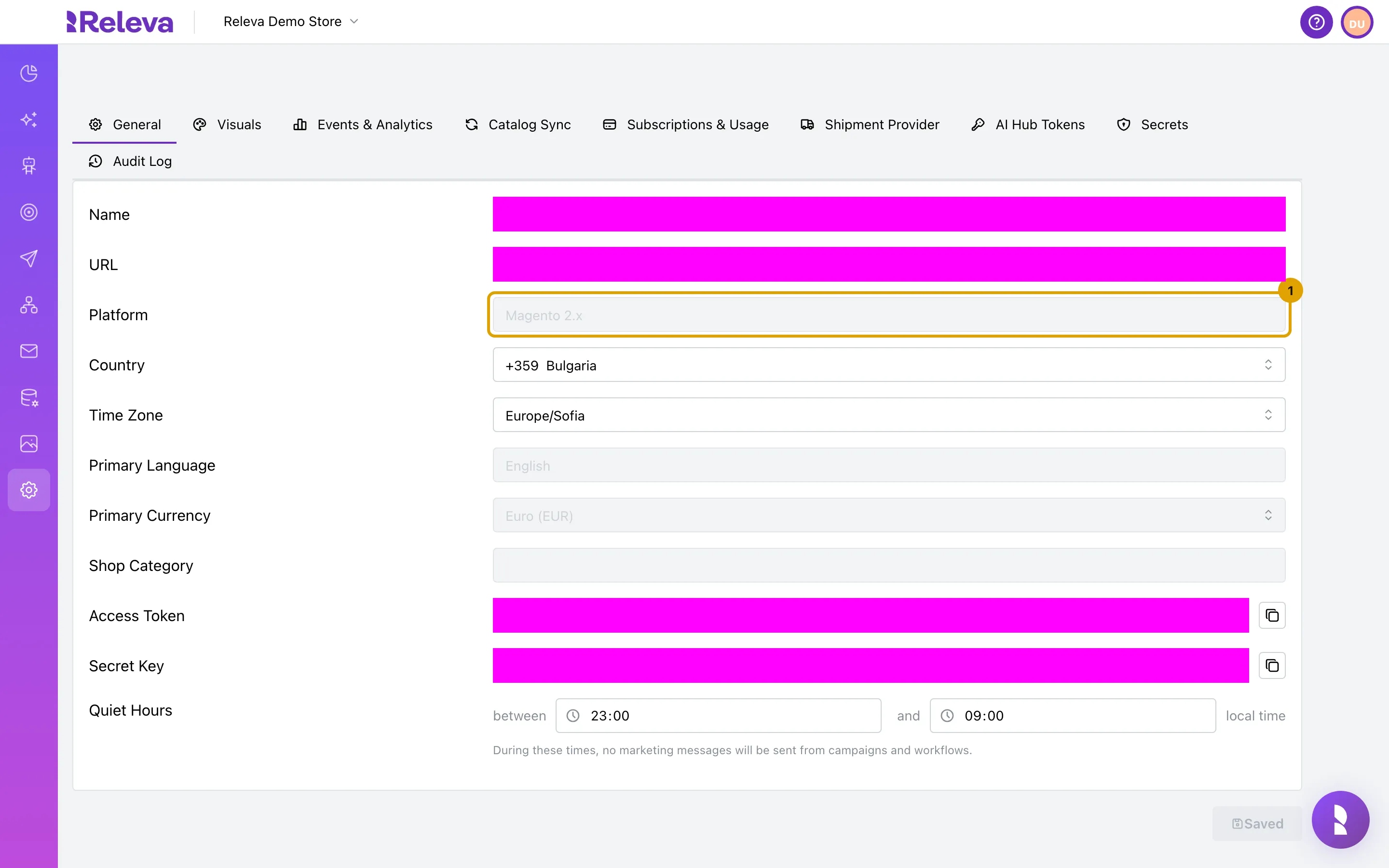
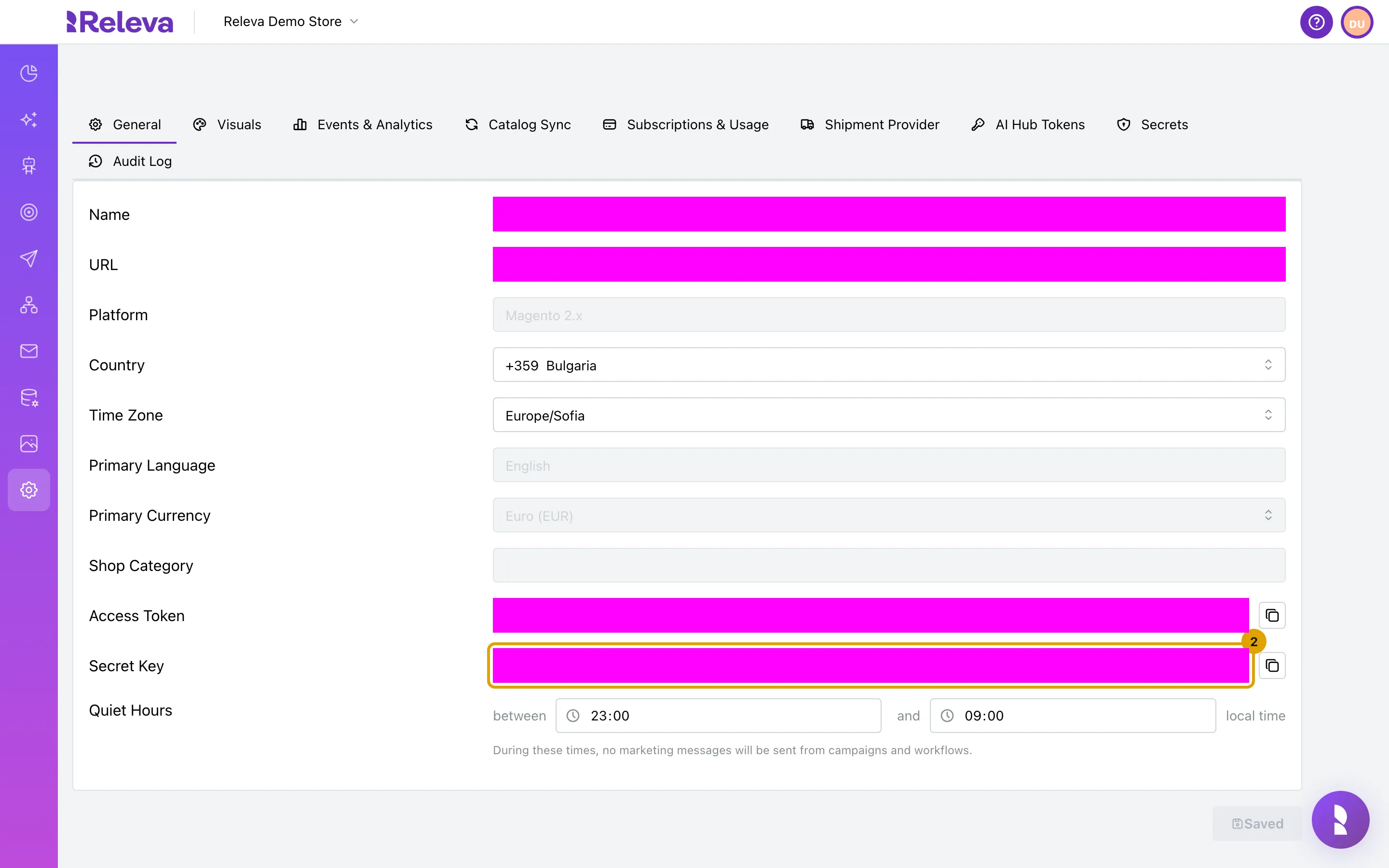
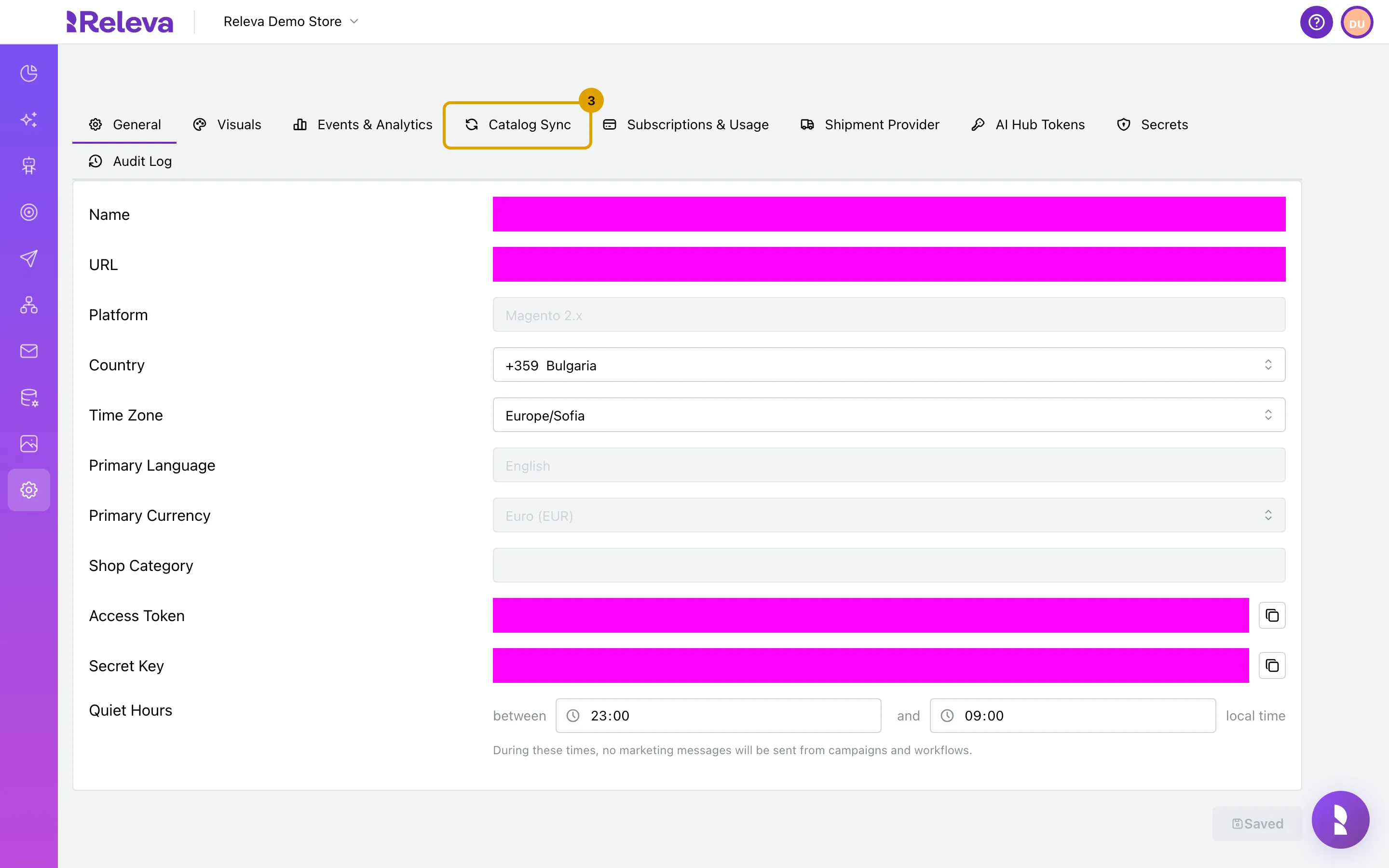
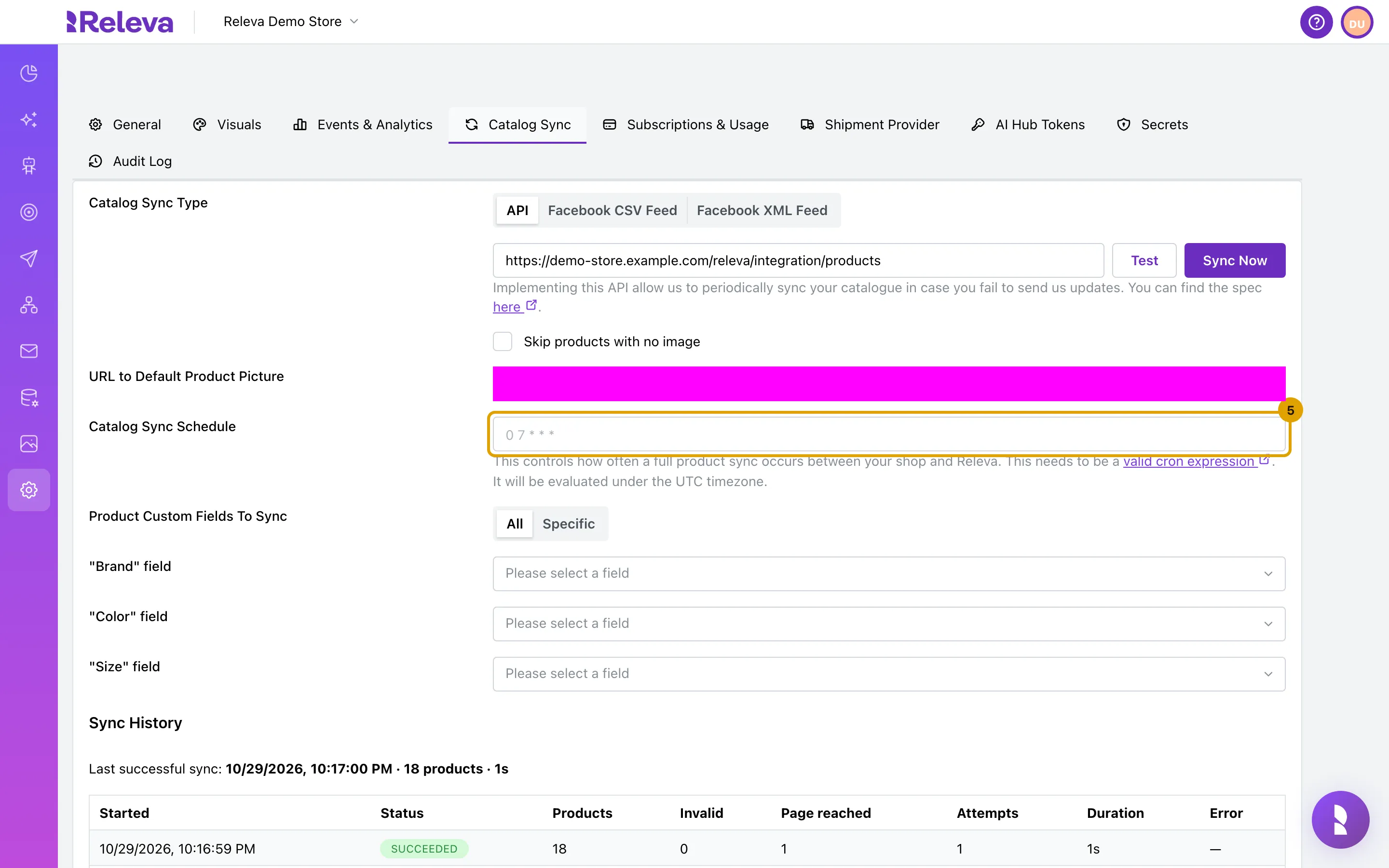
Section titled “Check that Releva sees your Magento shop”Recorded in the Releva admin on a demo shop set to Magento 2.x, as a regular shop user; a Magento 1 shop shows Magento 1.x in the same field. Nothing is typed or saved. The shop name, URL and keys are masked, and the catalog address uses an example host.
-
Open Settings › Shop & Integration. On the General tab, Platform shows Magento 2.x or Magento 1.x.
-
Secret Key is the key the Releva extension asks for in your Magento admin. Select the copy icon next to it to copy it.
-
Select the Catalog Sync tab.
-
With API selected, the address ends in
/releva/integration/products. This is the catalog endpoint of the extension, filled in when your shop was created in Releva.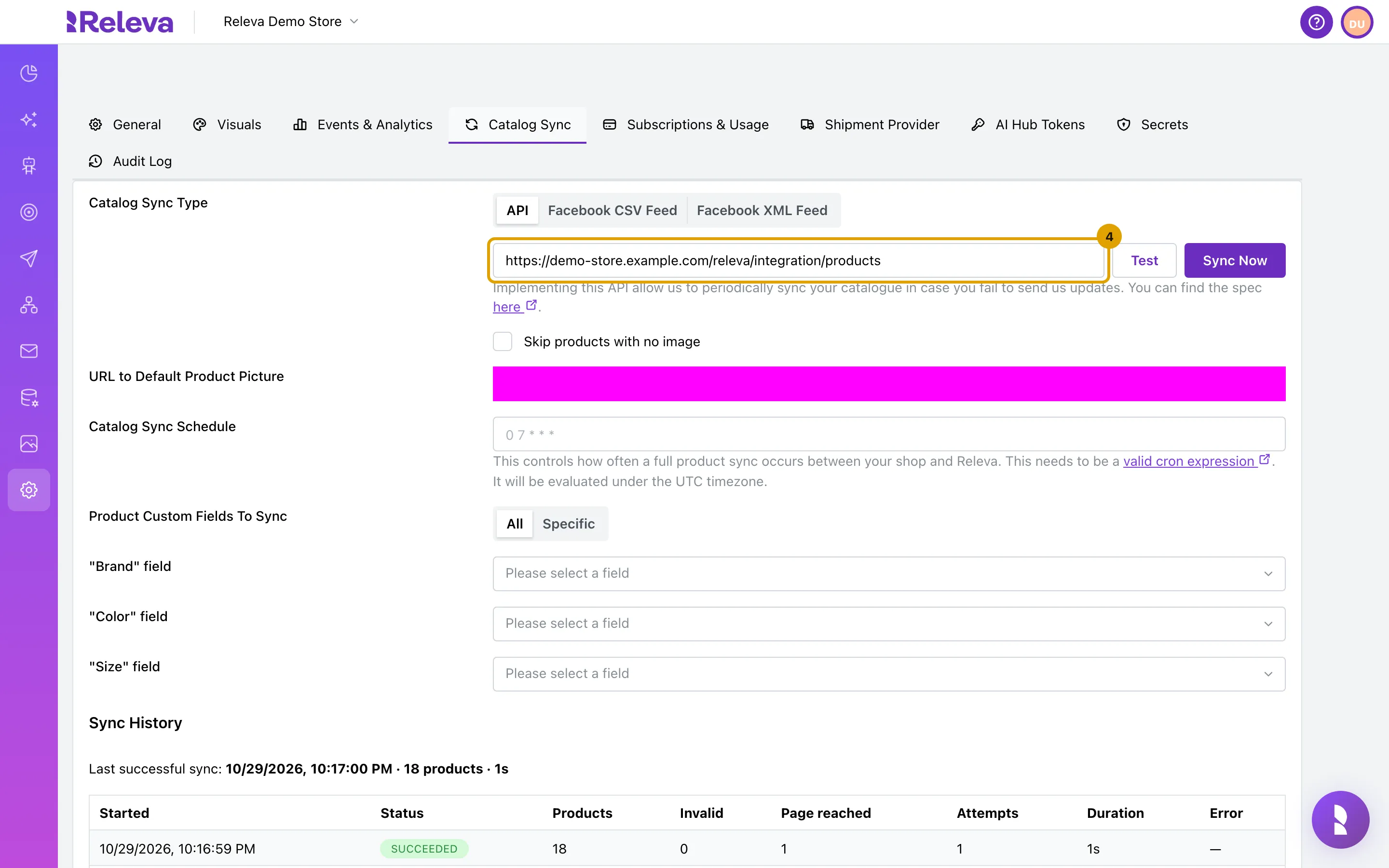
-
Catalog Sync Schedule stays empty until you enter a cron expression. Without one, Releva runs no scheduled full sync; Sync Now starts one by hand.
-
Sync History lists each catalog sync with its status and product count. Last successful sync shows when Releva last read your catalog; Never means it has not read it yet.
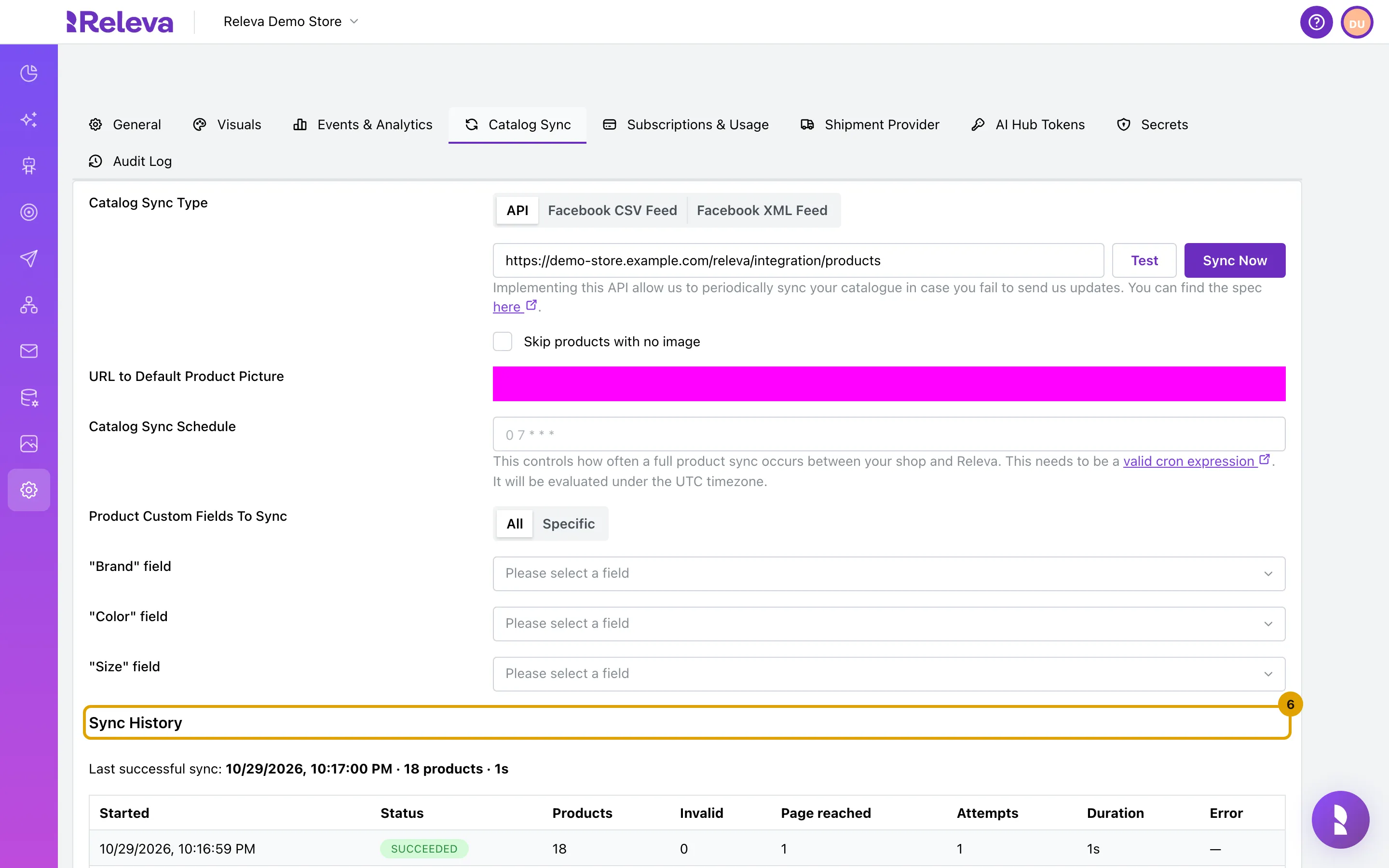
Select Test next to the address to make Releva request page 1 of your catalog endpoint with your secret key.
Check that your shop’s data reaches Releva
Section titled “Check that your shop’s data reaches Releva”Browse your storefront, then follow the recorded steps in Check that your store data arrives. The screens (Data Platform › Events filtered by Viewed Page, Data Platform › Products, Data Platform › Profiles with Include Anonymous Profiles) are the same for every platform.
Troubleshooting
Section titled “Troubleshooting”The Releva › Account page answers 404. Log out of the Magento admin and log back in after the upload.
“No connection can be established to your account” stays after saving. The key is wrong, belongs to another shop, or your server cannot reach https://releva.ai. Copy the Secret Key again from the shop you are integrating (both keys are UUIDs, so the format does not tell them apart). A Releva API Error: Curl error: 60 means the server does not trust the Releva certificate chain.
Nothing appears in Data Platform › Events. Make sure the key was saved in the store view scope you are browsing and that you flushed the cache. Look for releva-sdk-js in the storefront page source. Confirm the shop’s Access Token with the tracking-snippet check.
Test next to the catalog URL fails. Releva calls GET {url}?page=1 with authorization and x-rlv-authorization: Bearer <secretKey> and expects JSON with products and pageCount or nextCursor. A 404 means the module is not active for that store view or the URL does not match your base URL. See the catalog pull-sync reference.
Products disappear from Releva after a full sync. About 120 seconds after a complete pass, Releva deletes every product the endpoint did not return. Return disabled or out-of-stock products with available: false. See Full syncs delete what they do not see.
Product images in blocks have different sizes. Set Releva › Advanced › Thumbnail Size and select Sync Catalog.
The same customer triggers “Registered” conversions on every page. The module renders registeredAt in window.relevaProfile on every page for a logged-in customer; Releva fires Registered only on the push that first records the registration. Nothing to configure.
What syncs
Section titled “What syncs”What a module sends can change between module versions. If you depend on one of these calls, ask your account manager whether your module version makes it.
| Data | Direction and endpoint | When |
|---|---|---|
| Page views, product views, the logged-in customer | Browser. The module renders the Releva SDK snippet; the SDK posts the page context to POST /api/v0/push/{accessToken}. The customer is in window.relevaProfile, with registeredAt on every page |
Every storefront page |
| Registration | Same push; Releva records Registered once | First page after sign-up |
| Cart changes | Browser push cart context. The server-side POST /api/v0/carts/update endpoint names the Magento 2 module only |
On cart changes |
| Catalog, full | Releva pulls GET https://your-shop/releva/integration/products?page=&cursor= with authorization and x-rlv-authorization: Bearer <secretKey>; the module serves this route |
Catalog Sync Schedule, Sync Now, POST /api/v0/products/sync |
| Product deletes | DELETE /api/v0/products/{id} by plain product id |
On product delete |
| Catalog, incremental | POST /api/v0/products, POST /api/v0/products/availability |
On product save or stock change |
| Subscribers, full | Releva pulls GET https://your-shop/releva/integration/subscribers?page=&cursor=; each item is upserted as a profile |
Sync Now next to Subscriber Sync API, POST /api/v0/subscribers/sync |
| Orders | POST /api/v0/carts with cartPaid and orderId |
On order placement |
| Order status | POST /api/v0/events with action: orderStatusChanged |
On order status change |
| Newsletter consent | POST /api/v0/subscribe / POST /api/v0/unsubscribe; Email Unsubscribe URL defaults to Magento’s newsletter/manage/ page |
On newsletter changes |
| Web push subscriptions | SDK registers the service worker and posts to POST /api/v0/pushSubscriptions/{accessToken} |
When Collect push notification permissions? is Yes |
| Refunds | POST /api/v0/refunds |