

Invite a collaborator
People are added to an account, not to a single shop: a collaborator sees every shop of the account. This guide invites one person by e-mail. For roles and what the invitation e-mail contains, read How accounts, shops and billing work.
Before you start
Section titled “Before you start”- You are signed in to the Releva admin and have access to the account. Every member of an account can invite and remove members; there is no owner role.
- You know the person’s first name, last name and e-mail address. Use an address they can read: the invitation link is sent there.
-
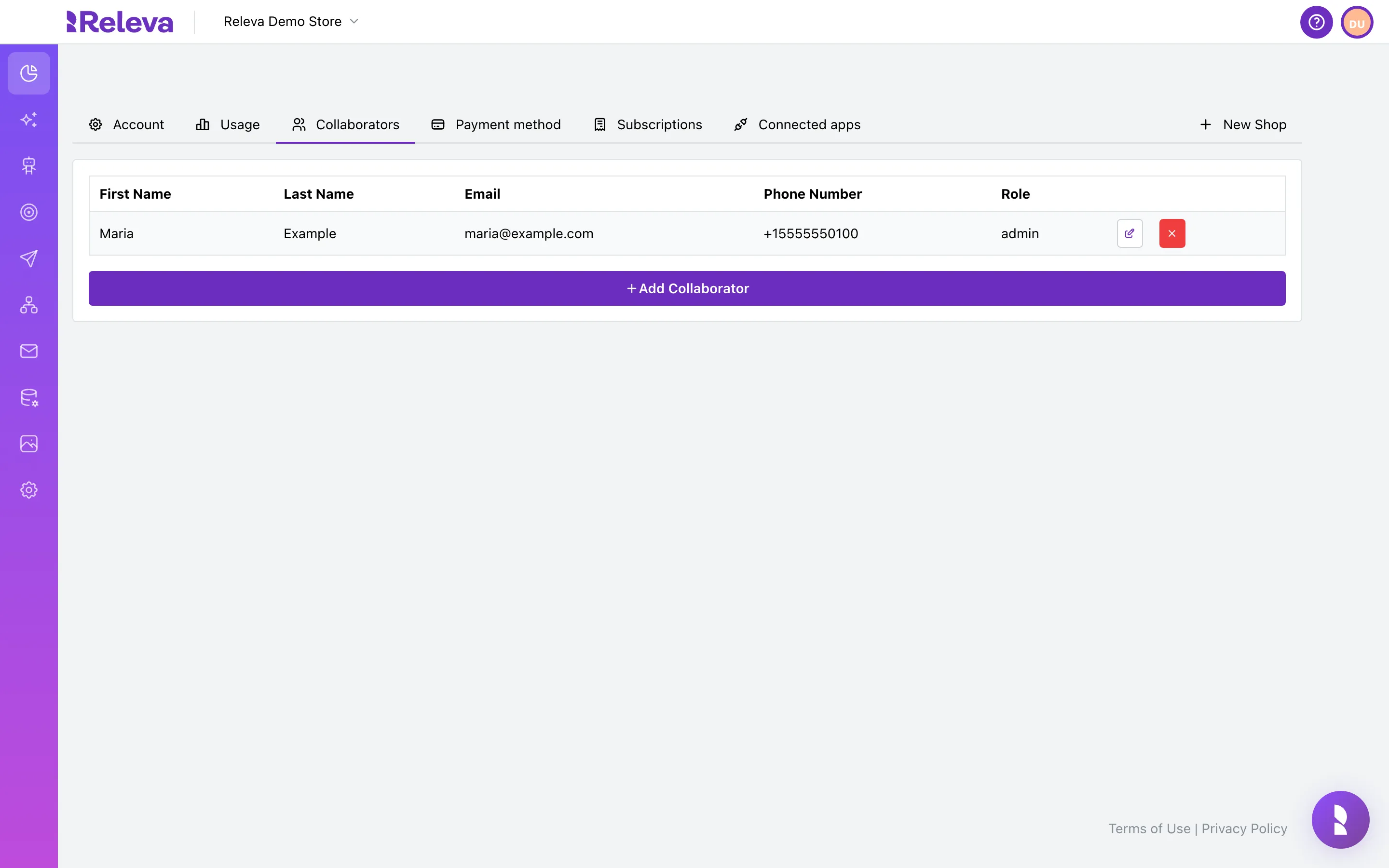
Select your avatar in the top-right corner, select Account and open the Collaborators tab.
The table lists everyone on the account with First Name, Last Name, Email, Phone Number and Role. Every row except your own has an edit button and a red remove button.
-
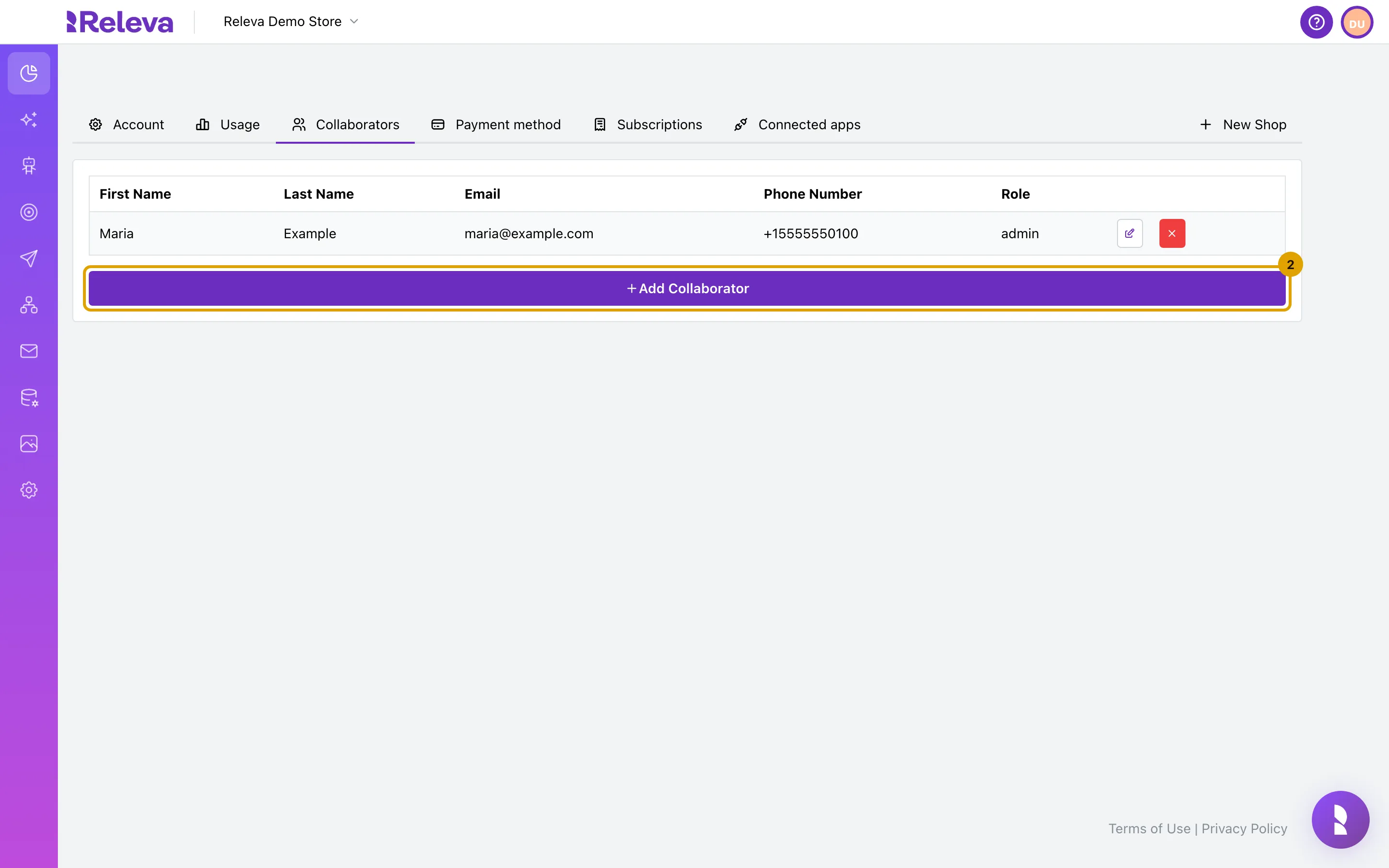
Select Add Collaborator.
-
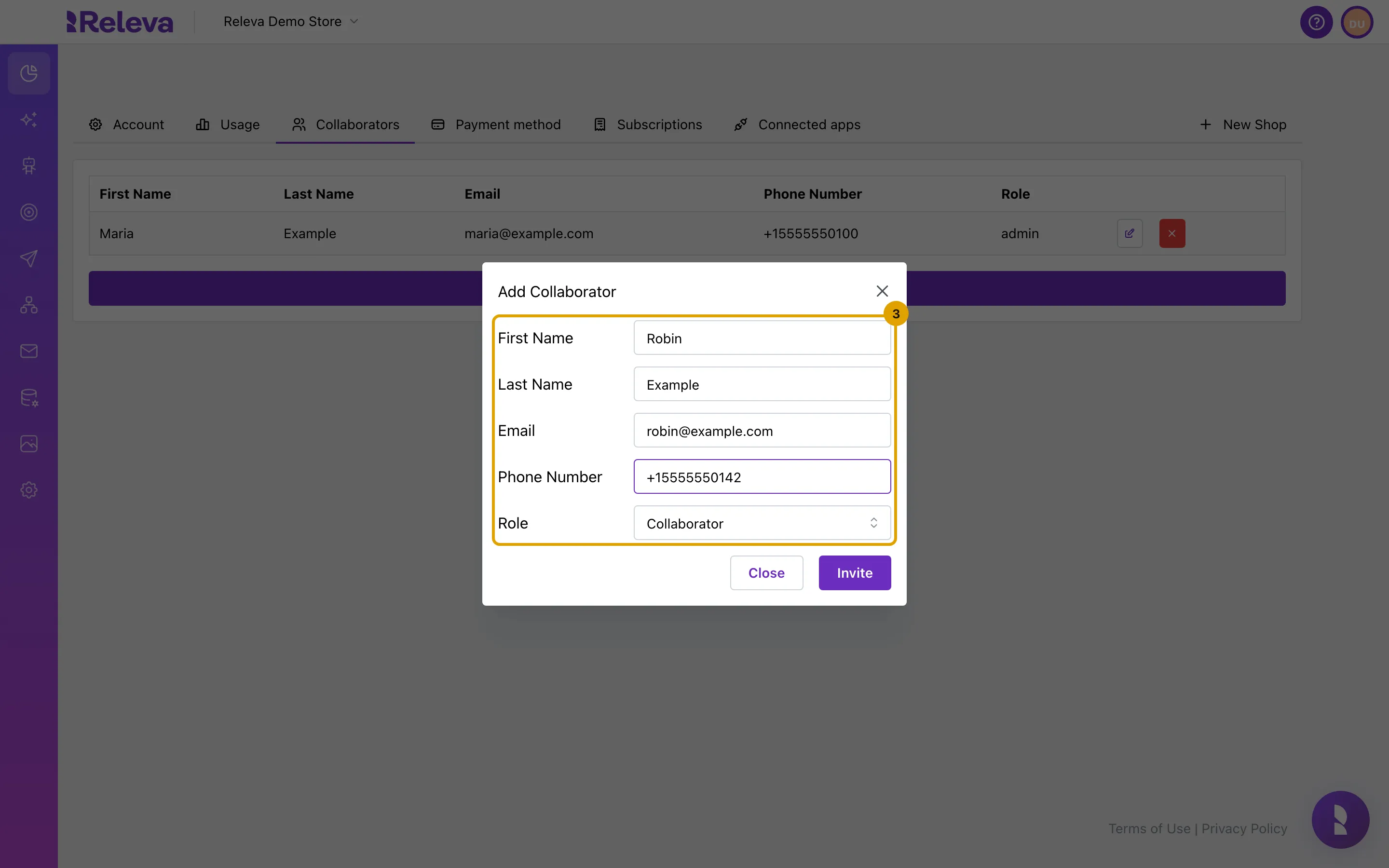
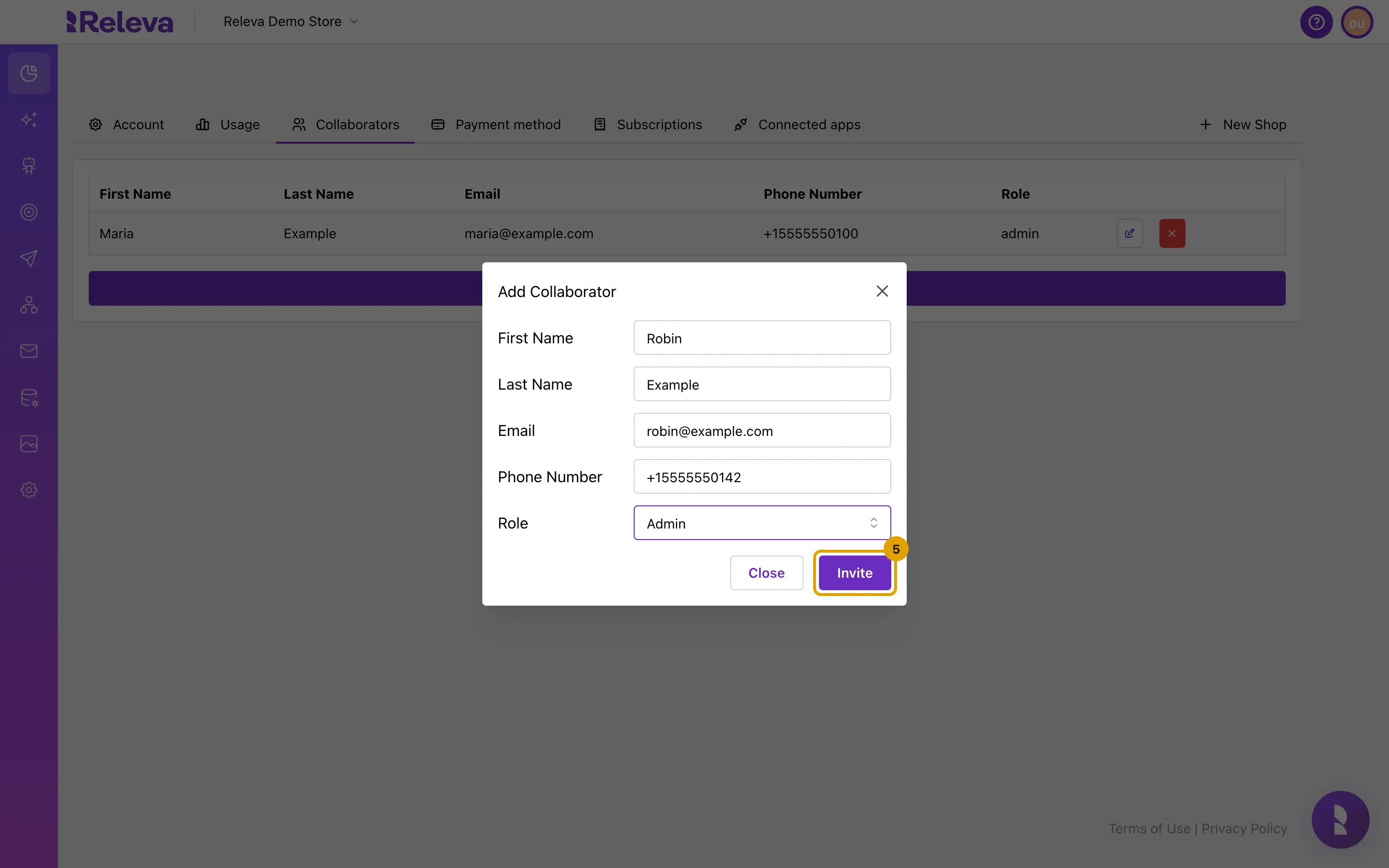
Enter the person’s First Name, Last Name and Email. Phone Number is optional.
The e-mail is checked as you type. An invalid address shows “Email is not valid. Please ensure that the email address you entered is valid and does not contain any spaces.”
-
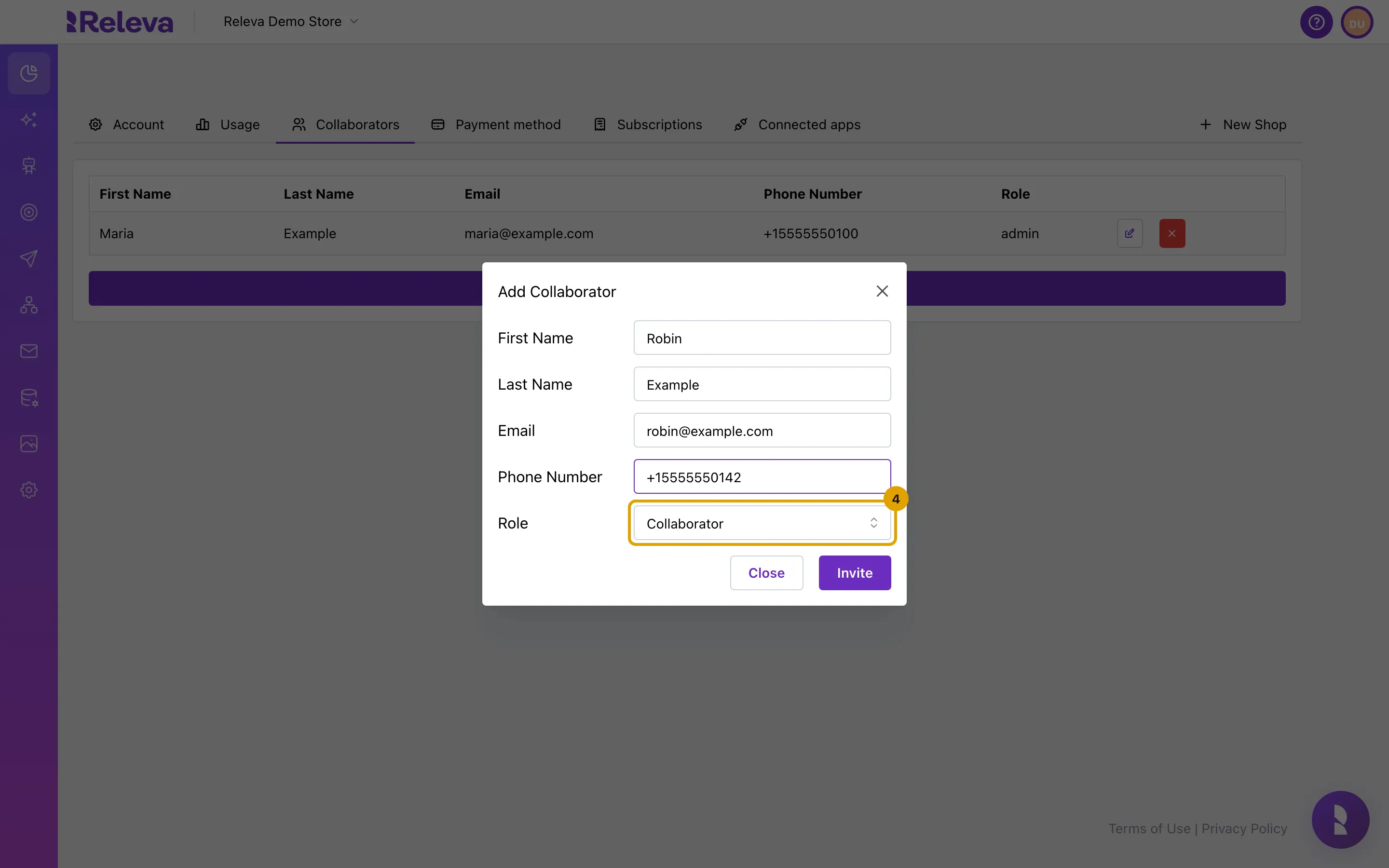
In Role, choose Collaborator or Admin.
Collaborator is the default. Both roles see the same screens; Admin additionally receives the account’s periodic analytics report e-mail and billing notices.
-
Select Invite.
Invite stays disabled until the first name, last name, a valid e-mail and a role are set. The dialog closes and the list reloads. There is no success message.
Check it worked
Section titled “Check it worked”- The person appears as a new row in the Collaborators table with the role you chose, shown as
collaboratororadmin. - The person receives an e-mail with the subject Welcome to Releva!. A new user gets a Confirm my Account button that opens a page where they choose a password of at least 8 characters and select Get Started. Someone who already has a Releva user gets a Go to Dashboard button instead.
Troubleshooting
Section titled “Troubleshooting”Invite is disabled. A required field is empty or the e-mail is invalid. Phone Number is the only optional field.
The person did not get the e-mail. Ask them to check their spam folder. You can invite the same address again: the existing role is kept and a new e-mail is sent, but it has a Go to Dashboard button and no link to set a password. If the person never confirmed their account, ask them to use the first e-mail, or Forgot your password? on the login page.
The link says “Invalid confirmation token!”. The invitation was already used. If the person already set a password, they sign in at the login page and use Forgot your password? if needed.
The page shows “Password must be at least 8 characters.” Choose a longer password and select Get Started again.
I want to change someone’s role. Select the edit button in their row, change Role and select Save. Name, e-mail and phone cannot be edited there.
I removed someone by mistake. The red button removes the person at once, without a confirmation. Invite them again with the same e-mail; they keep their password.