

Check your usage and subscription
Your Releva account owns one or more shops. Usage is counted per shop, and your invoice is built from it once a month. This guide shows where to read the numbers: the account Usage tab for every shop at once, and a shop’s Subscriptions & Usage tab for its plan. For how accounts, shops, plans and billing periods fit together, read How accounts, shops and billing work.
Before you start
Section titled “Before you start”- You are signed in to the Releva admin. Every member of the account can open these tabs; there is no separate billing role.
- Your shop tracks events. The audience columns come from daily snapshots and the activity columns from tracked events, so a shop that was connected today shows
-until the first snapshot is written.
-
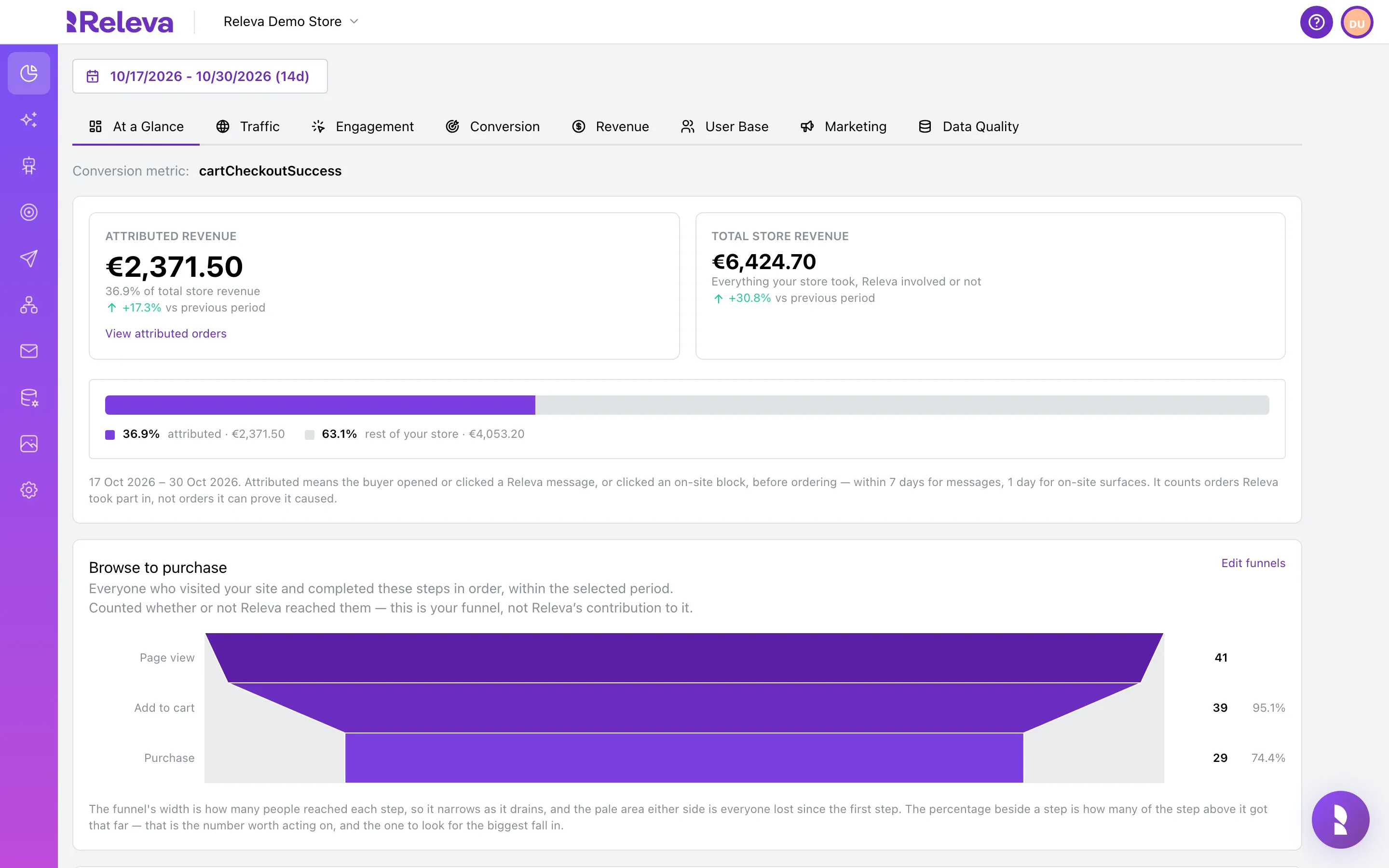
Sign in to Releva. Your shop’s dashboard opens.
-
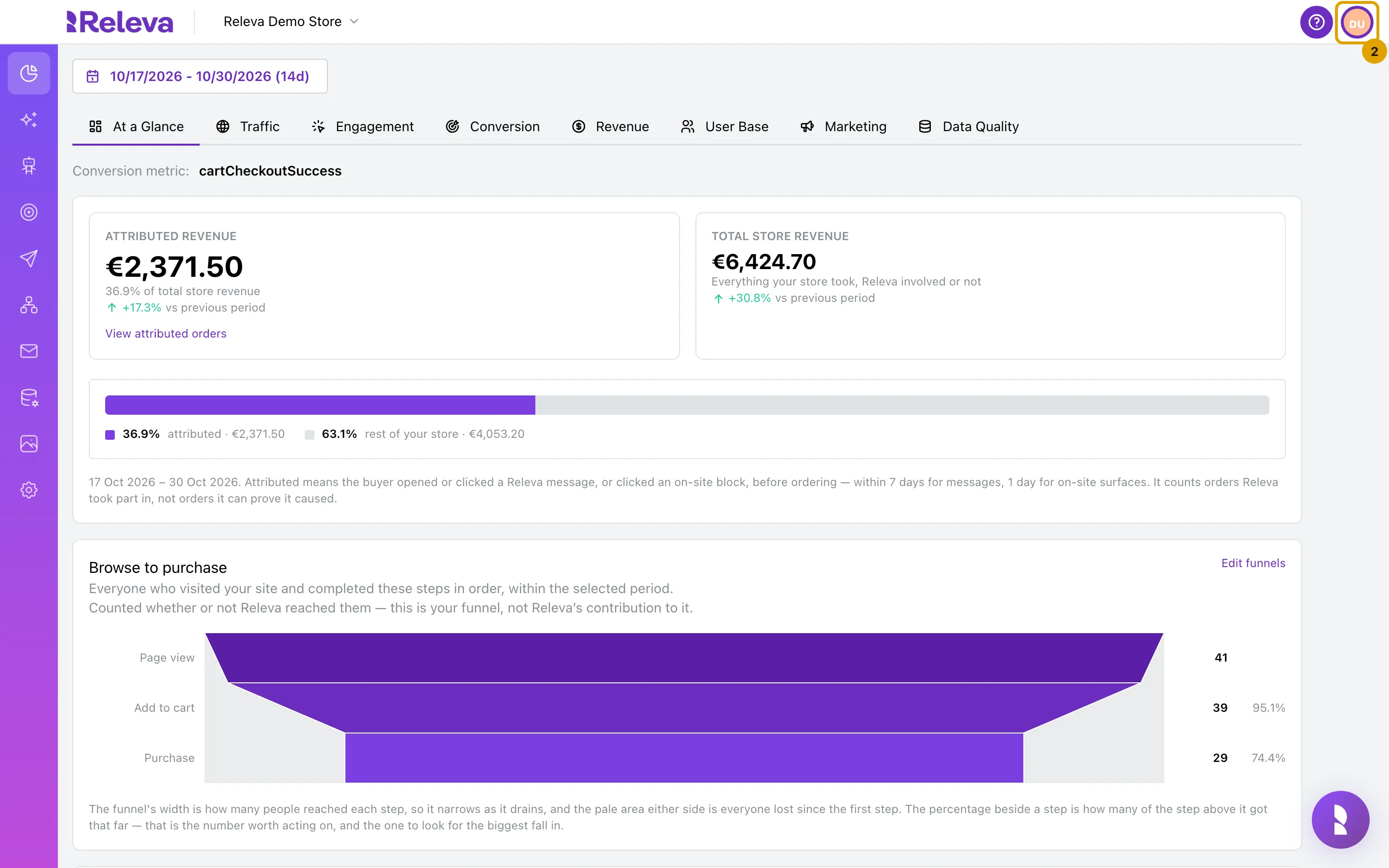
Select your avatar in the top-right corner.
-
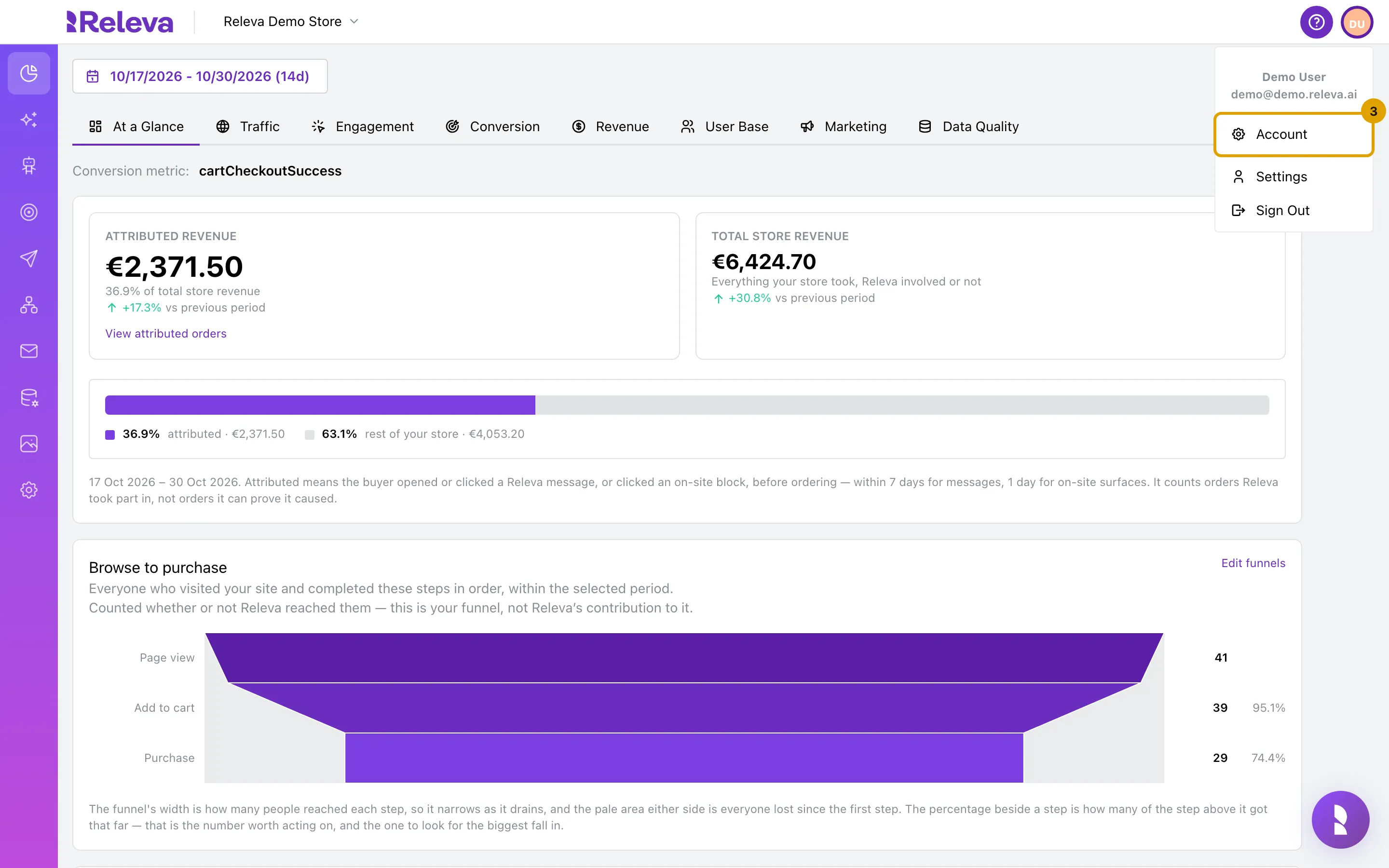
Select Account.
The menu also has Settings (your own name, e-mail and password) and Sign Out.
-
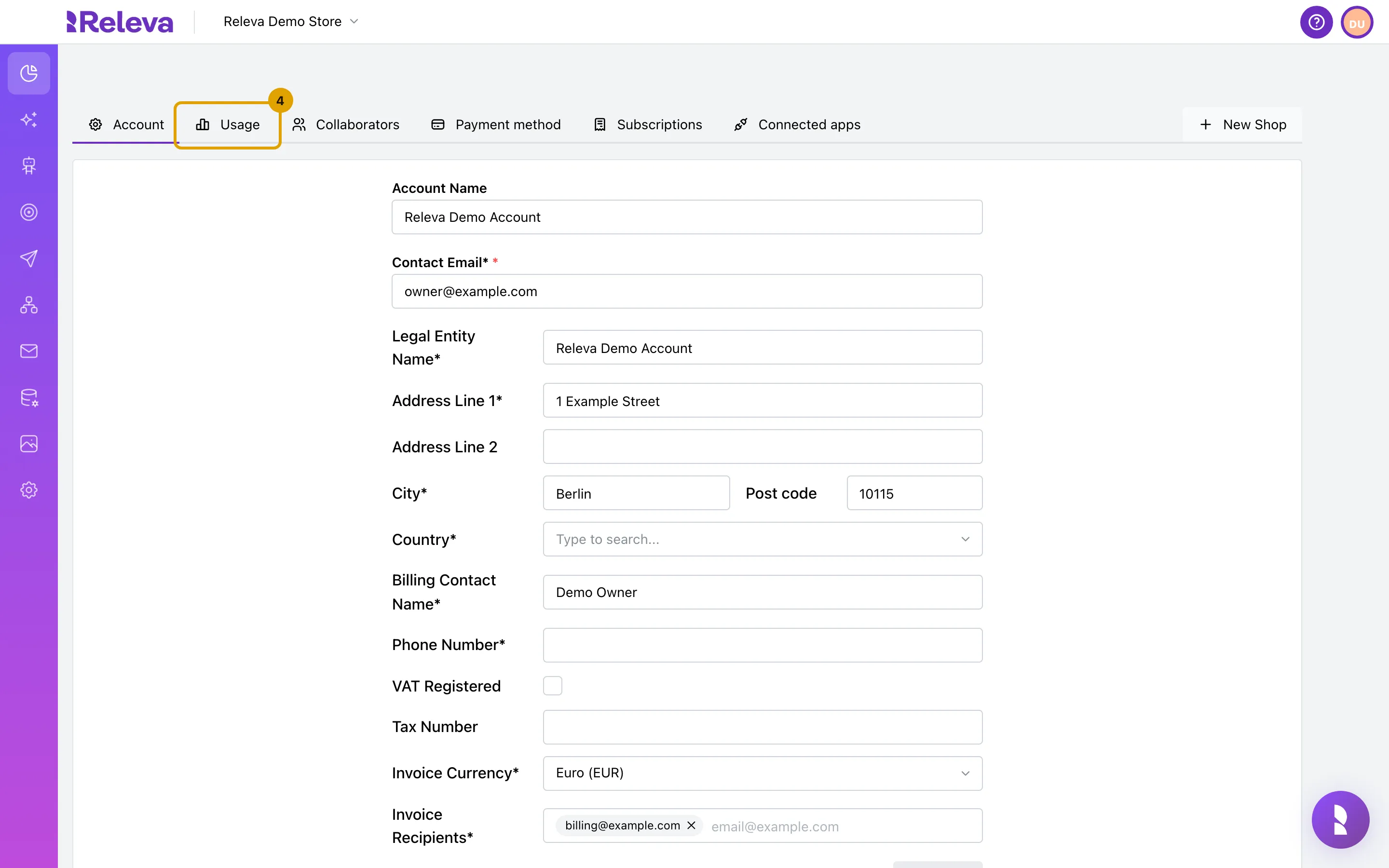
Select the Usage tab.
The account page opens on the Account tab with your company’s billing details. The other tabs are Usage, Collaborators, Payment method, Subscriptions, Connected apps and New Shop.
-
Each shop on the account has one row. Audience size shows profiles, active profiles and subscribers on the date shown. The activity columns count page views, messages sent and assisted revenue in the period.
The period defaults to the last 30 days. Under each audience number is the date of the snapshot it comes from, for example
on 30 Oct. A-means there is no value for that cell.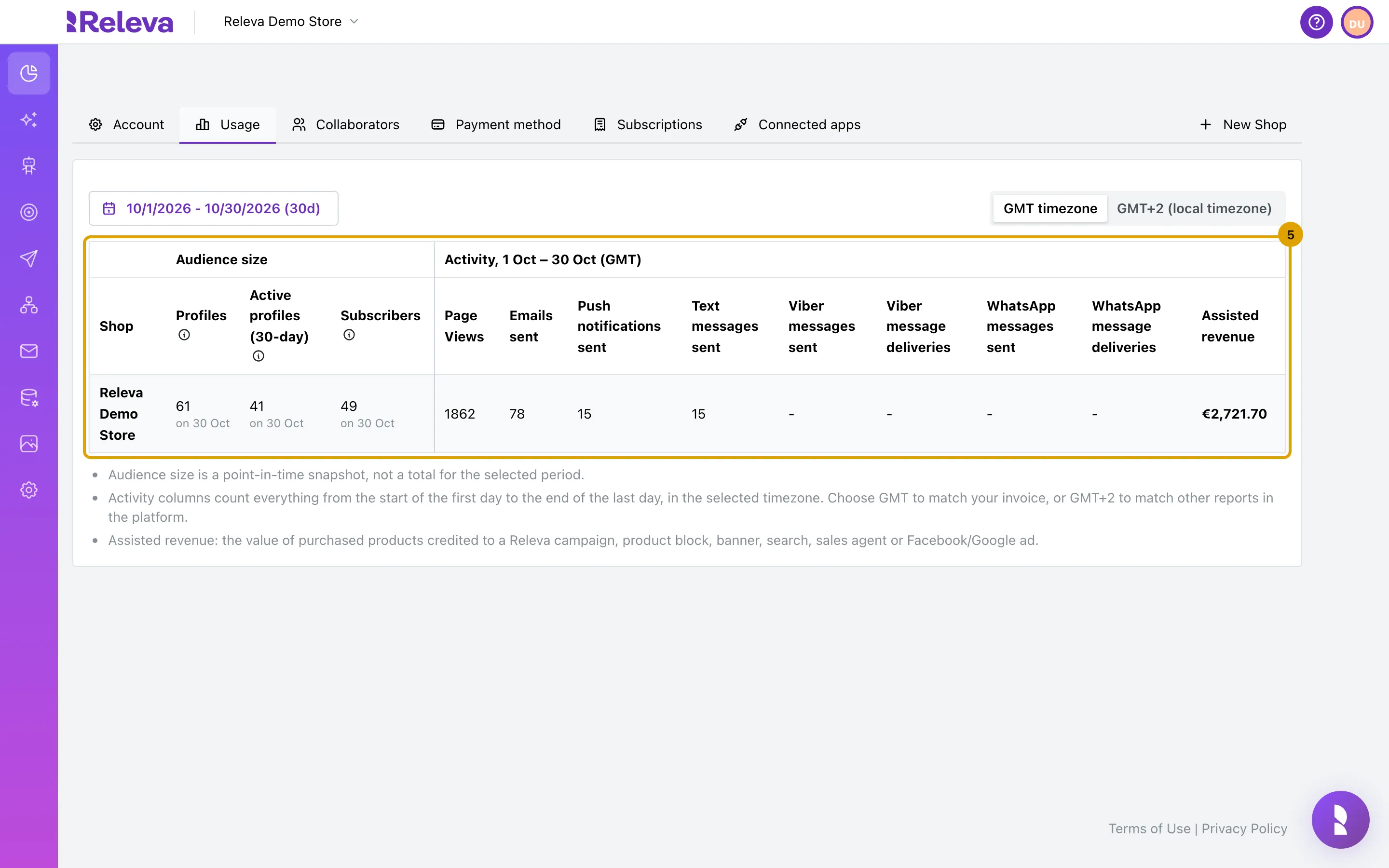
-
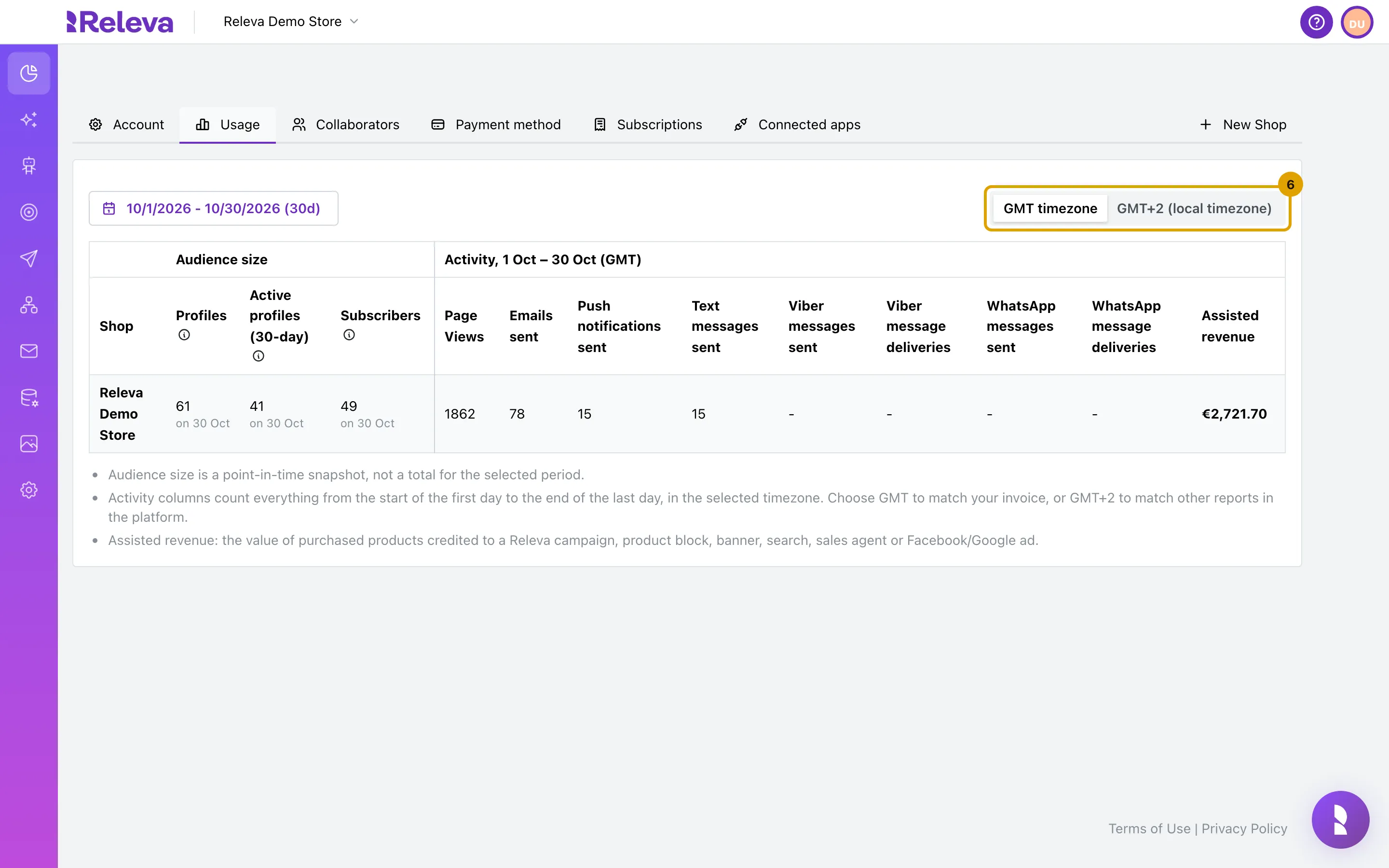
Keep GMT timezone to match your invoice, or choose your local timezone to match the other reports in Releva.
Billing periods run in GMT. The other analytics pages use your local timezone, so the same day can hold different events in each view.
-
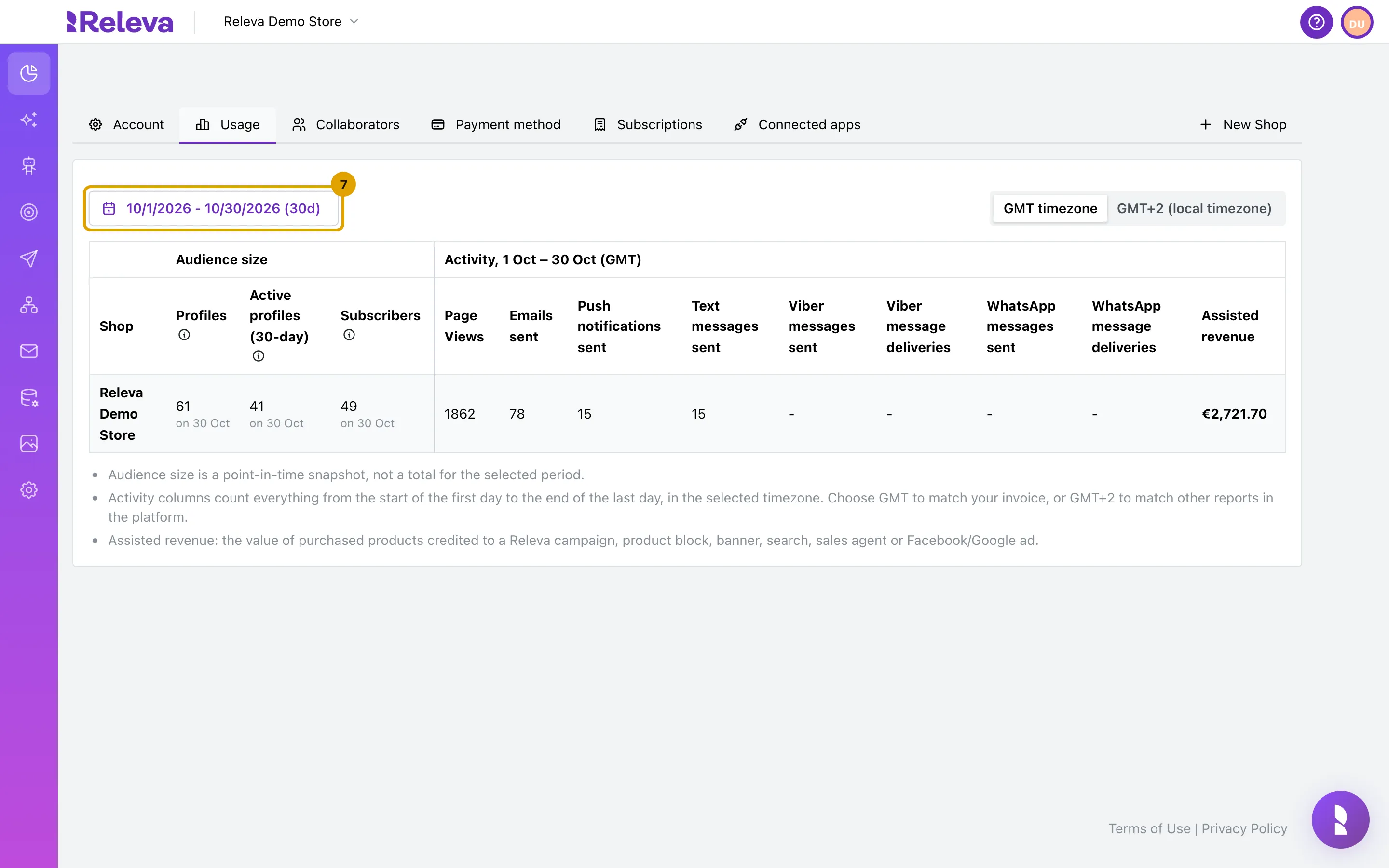
To change the period, select the date range.
-
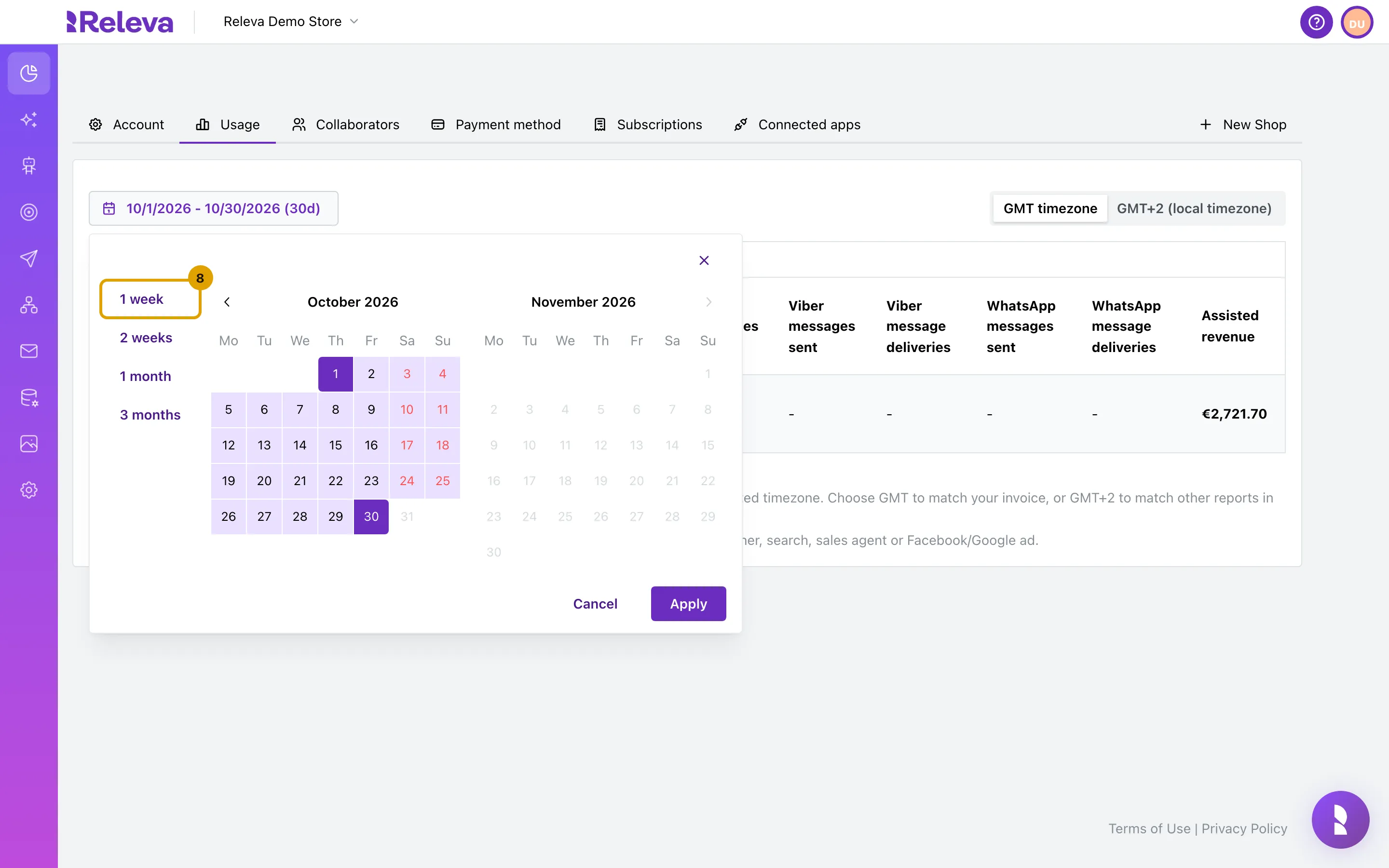
Choose a preset such as 1 week, or pick a start and an end date and select Apply.
The presets are 1 week, 2 weeks, 1 month and 3 months. A preset applies at once; a custom range needs Apply. The table reloads after every change.
-
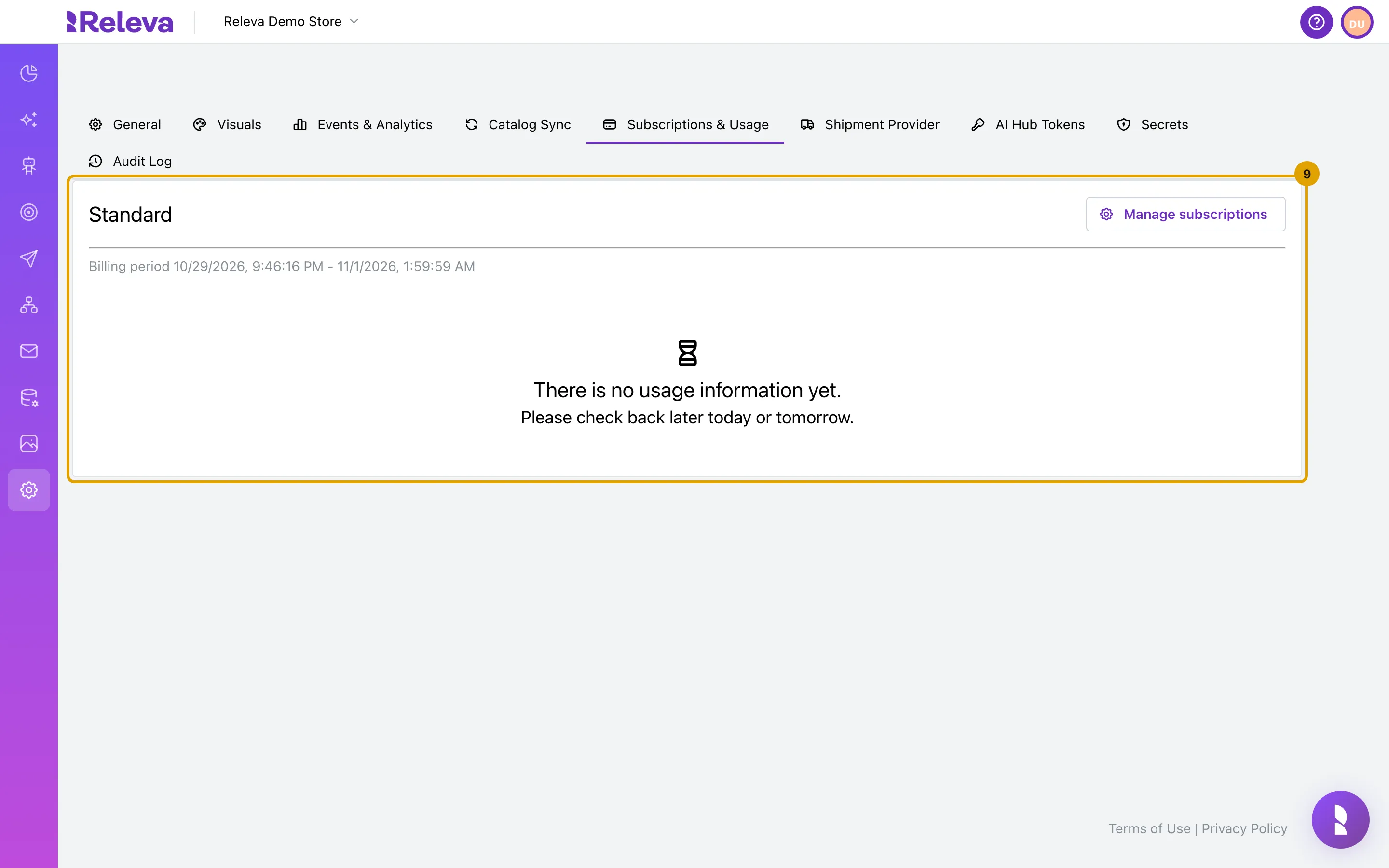
To see one shop’s plan, open Settings › Shop & Integration › Subscriptions & Usage. The card shows the plan name and the current billing period.
Once the daily usage run has written a record for the billing period, the card also shows a Usage: bar when the shop has a spending limit, and a price table with Price Component, Unit Price, Quantity, Billable Qty and Total Price. Until then it says There is no usage information yet. If your account can manage its own subscriptions, the card has a Manage subscriptions button. A shop without a standard plan shows You are on a custom subscription instead.
Check it worked
Section titled “Check it worked”- The Usage tab shows a header Activity,
<start>–<end>(GMT) that matches the period you chose, and the URL ends with?tab=usage. - Every shop of your account has a row under Shop, with a date under each audience number.
- On the shop’s Subscriptions & Usage tab you see your plan name and billing period (with its price table once the daily usage run has written a record), or You are on a custom subscription.
What the columns mean
Section titled “What the columns mean”| Column | Meaning |
|---|---|
| Profiles | Total profiles stored for the shop on the date shown. |
| Active profiles (30-day) | Profiles with at least one page view in the 30 days before the date shown. Depending on your contract, your plan is billed on the highest value during the billing period or on the value at the end of it; the help icon tells you which. |
| Subscribers | Profiles you can reach by e-mail or push notification on the date shown. Plans priced per subscriber are billed on the value at the end of the billing period. |
| Page Views, Emails sent, Push notifications sent, Text messages sent, Viber messages sent, Viber message deliveries, WhatsApp messages sent, WhatsApp message deliveries | Everything from the start of the first day to the end of the last day of the period, in the selected timezone. |
| Assisted revenue | The value of purchased products credited to a Releva campaign, product block, banner, search, sales agent or Facebook/Google ad, in the shop’s currency. |
Audience size is a point-in-time snapshot, not a total for the selected period.
Troubleshooting
Section titled “Troubleshooting”The table shows a spinner for a while after I change the period. The usage is fetched again for the new range. Wait for the table to come back before you read the numbers.
A cell shows -. No snapshot or no activity exists for that shop and period. New shops get their first audience snapshot after the daily usage run.
The numbers differ from the Analytics pages. The Usage tab counts in GMT by default and the analytics pages in your local timezone. Switch to your local timezone to compare them, or keep GMT to match your invoice.
The shop’s tab says “There is no usage information yet. Please check back later today or tomorrow.” The shop has a plan but the daily usage job has not written a record for this billing period yet.
The shop’s tab says “Your subscription is no longer active”. Every plan of the shop was cancelled, so nothing is billed and no usage is recorded. For a Shopify shop, reinstalling the Releva app brings it back; otherwise contact support@releva.ai.
I cannot see the Payment method or New Shop tab. Your current shop is a Shopify shop. Shopify bills you through your Shopify account, so these tabs are hidden.