

Upload a file and use it in your messages
Assets › Files holds the images and documents your emails, push notifications, Viber and WhatsApp messages, banners and Facebook ads use. You upload a file once, Releva hosts it and gives it a public link, and you paste that link or pick the file wherever you need it. This guide uploads a file, finds it, copies its link, and then shows how to change or delete it. For the accepted formats and every place files are used, read How files work.
Before you start
Section titled “Before you start”- Your plan includes Files. If the sidebar link shows an unlock button, ask your account owner.
- The file is ready on your computer. Images: JPG, PNG or GIF, up to 5 MB. Documents: PDF, Word, Excel or plain text.
- You have a name for it that no other file in this shop uses. Names are unique within a shop.
- The file can be public. Anyone with its link can open it, so do not upload anything you would not put on your website.
Upload a file
Section titled “Upload a file”-
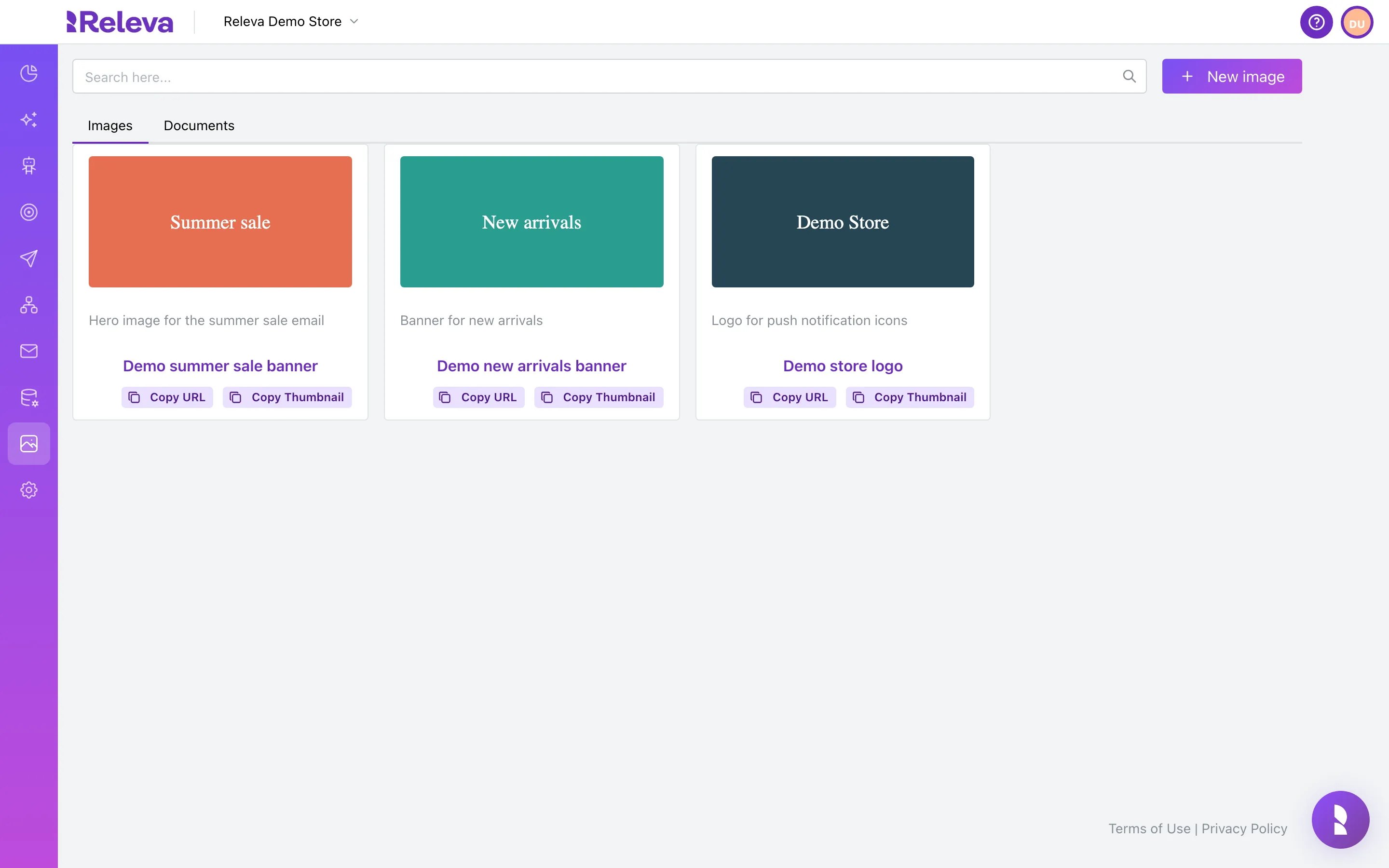
Go to Assets › Files. The Images tab opens first and shows your images, newest first.
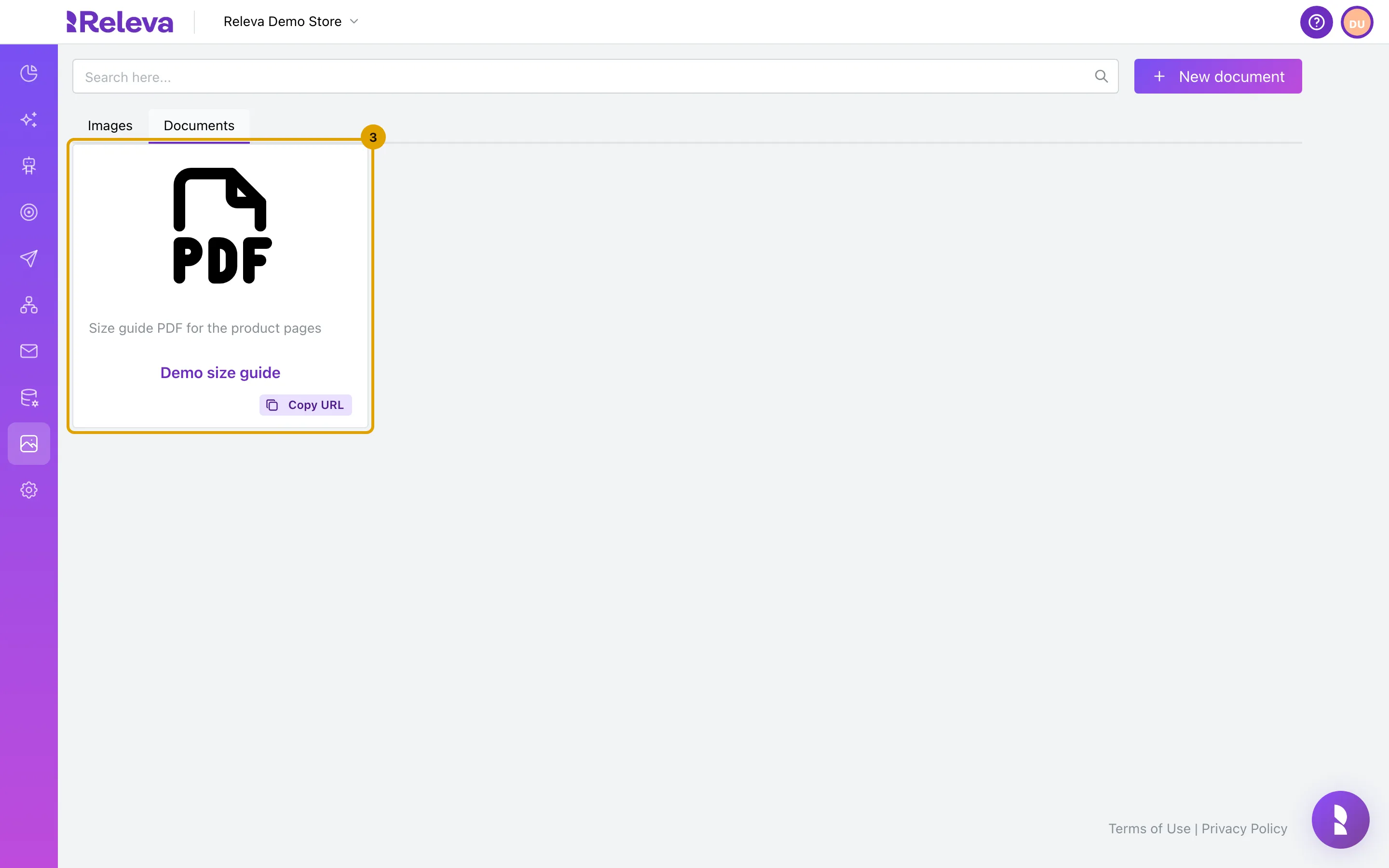
To upload a document, select Documents first. Each tab uploads its own kind of file.
-
Select New image on the Images tab, or New document on the Documents tab.
-
Replace Name and Description. They start as “New file” and “New description”.
Both are required and both are searchable. Put the words you will search for later in the description, such as the campaign or product line.
-
Select Upload File to import and choose the file.
-
Select Save.
You are back on the same tab, and the new file is first on the list.
Find a file and copy its link
Section titled “Find a file and copy its link”-
On Assets › Files, pick the Images or Documents tab.
Documents show a file-type icon instead of a preview. Each card has the description, the name and Copy URL. Image cards also have Copy Thumbnail.
-
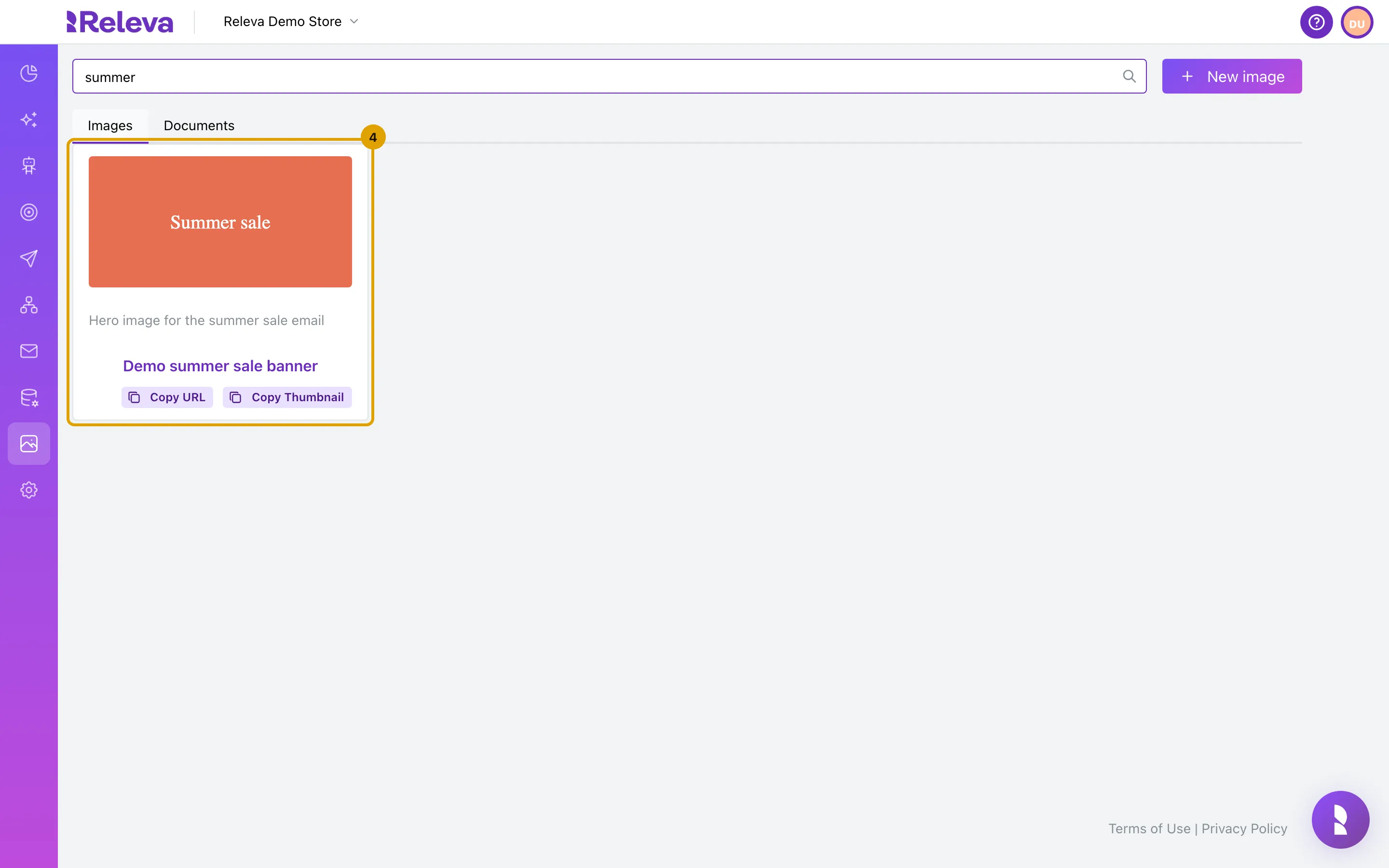
If the list is long, type the start of a word from the name or description in Search here….
The list refreshes as you type. summer finds “Demo summer sale banner”; so does hero, which only appears in its description. Search is not case-sensitive, and switching tabs keeps the search term.
-
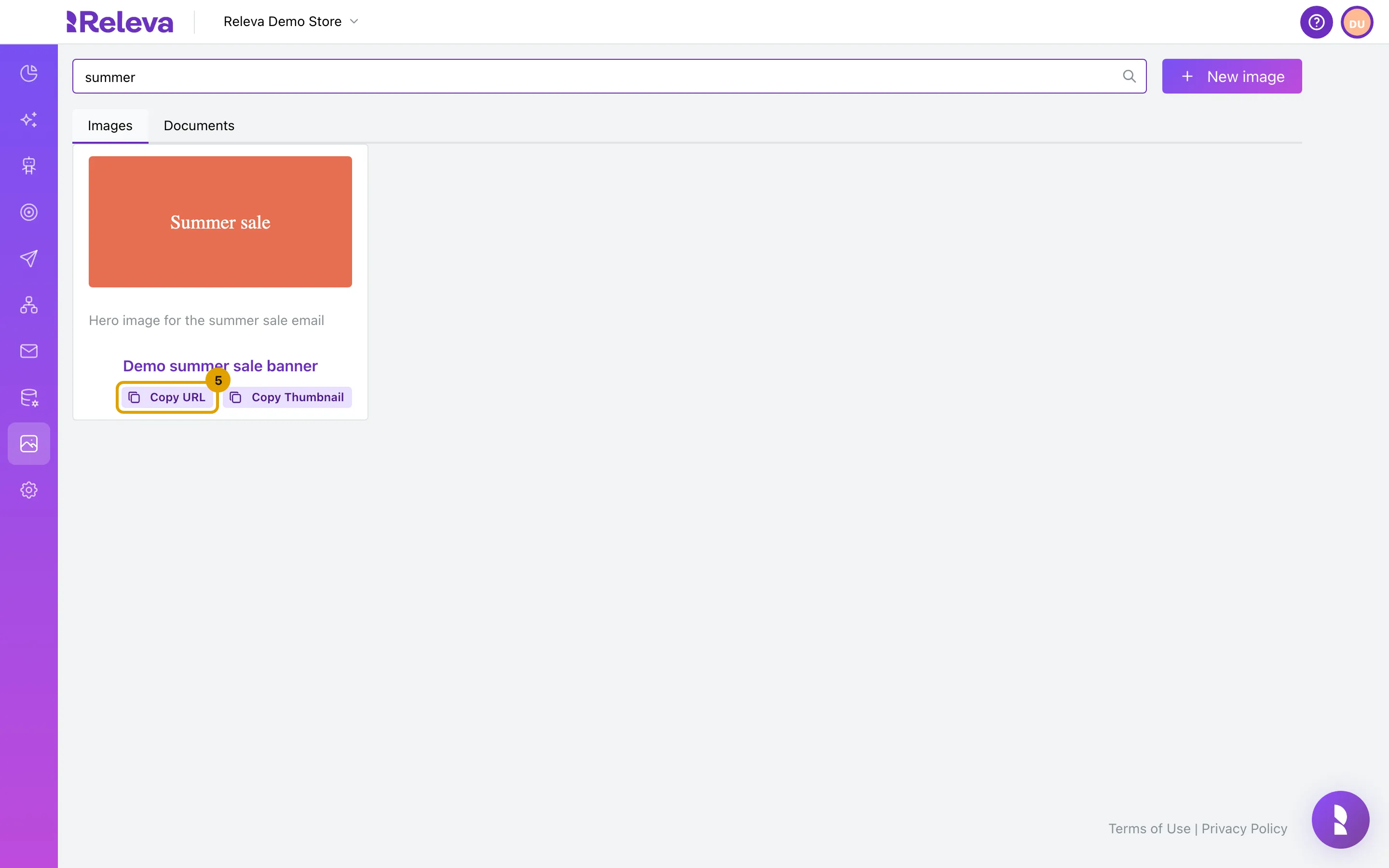
Select Copy URL to copy the link to the full-size file. On an image, Copy Thumbnail copies the link to a small version, 200 pixels wide.
Nothing on the page confirms the copy.
Use the file in a message
Section titled “Use the file in a message”Paste the link where you need it, or pick the file from the channel’s own picker:
- Push notifications: select Browse next to Icon URL or Image URL and pick the file in Pick Image, or paste the link into the field.
- Viber and WhatsApp messages: select Browse next to the image field.
- Banners in the Releva builder: next to an image field, select the library icon (Choose from the library) and pick the file. The upload icon (Upload an image) uploads a new file and also adds it to Assets › Files.
- Emails, and banners in the HTML editor: select Show Images in the email form or View Images in the banner form, then copy the image link into the editor.
The Pick Image dialog lists documents as well as images, so a clear name helps you pick the right one.
Change a file’s name or description
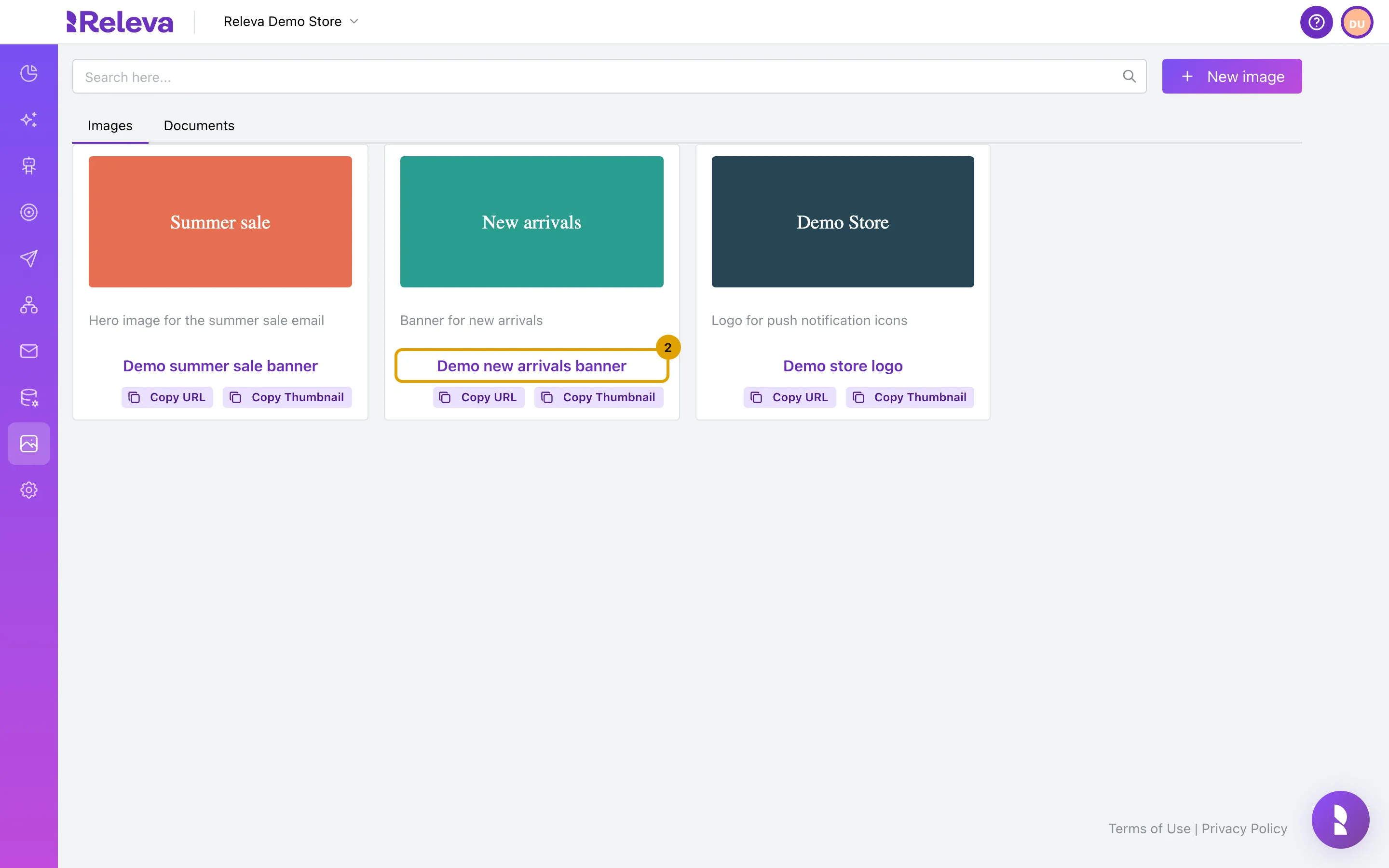
Section titled “Change a file’s name or description”The link does not change, so anything that already uses the file keeps working. You cannot replace the file itself.
-
Select the file’s name on its card to open it.
-
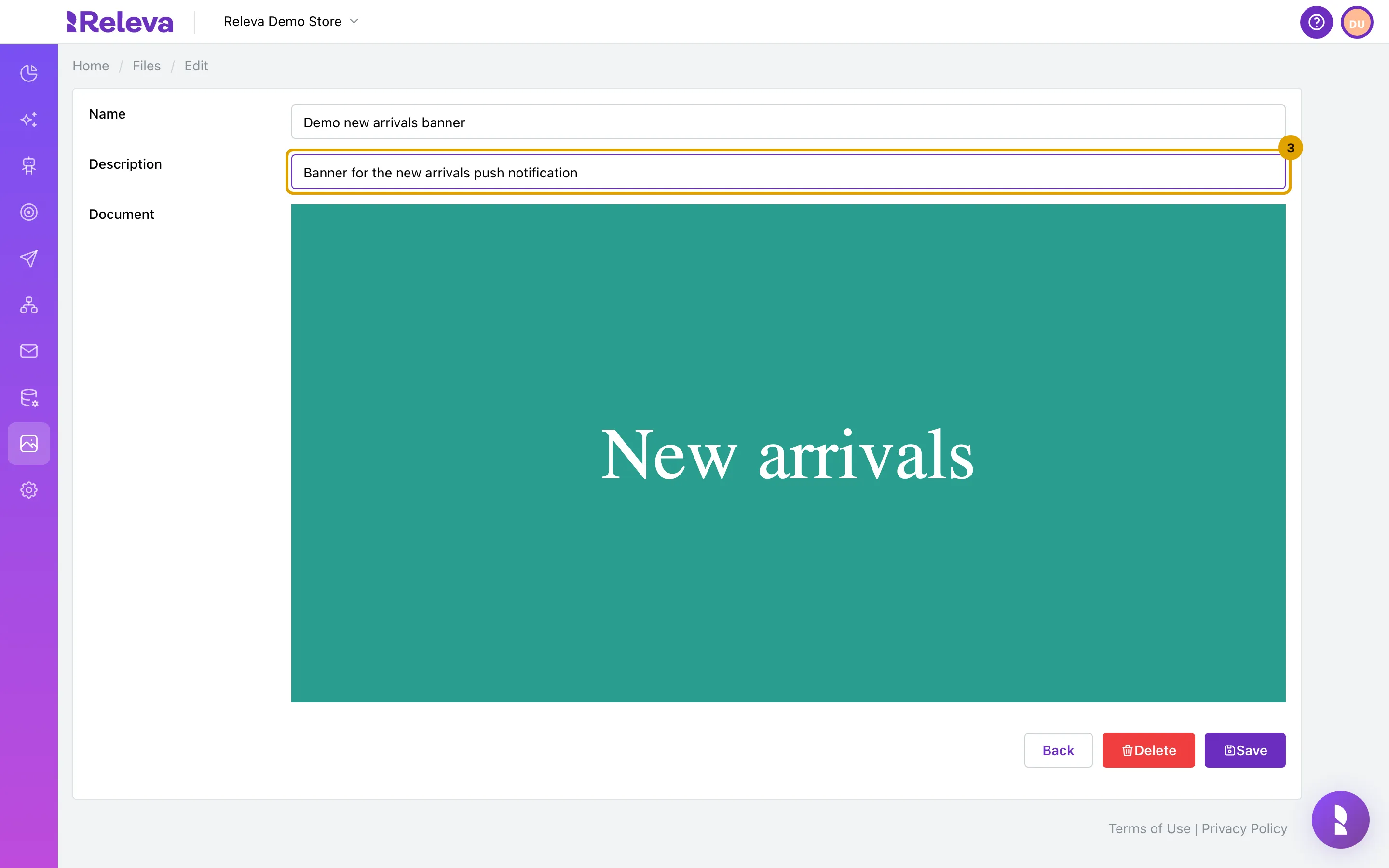
Change Name or Description. Both are required.
The row under the fields shows the image at full width. Its label reads Document for images too.
-
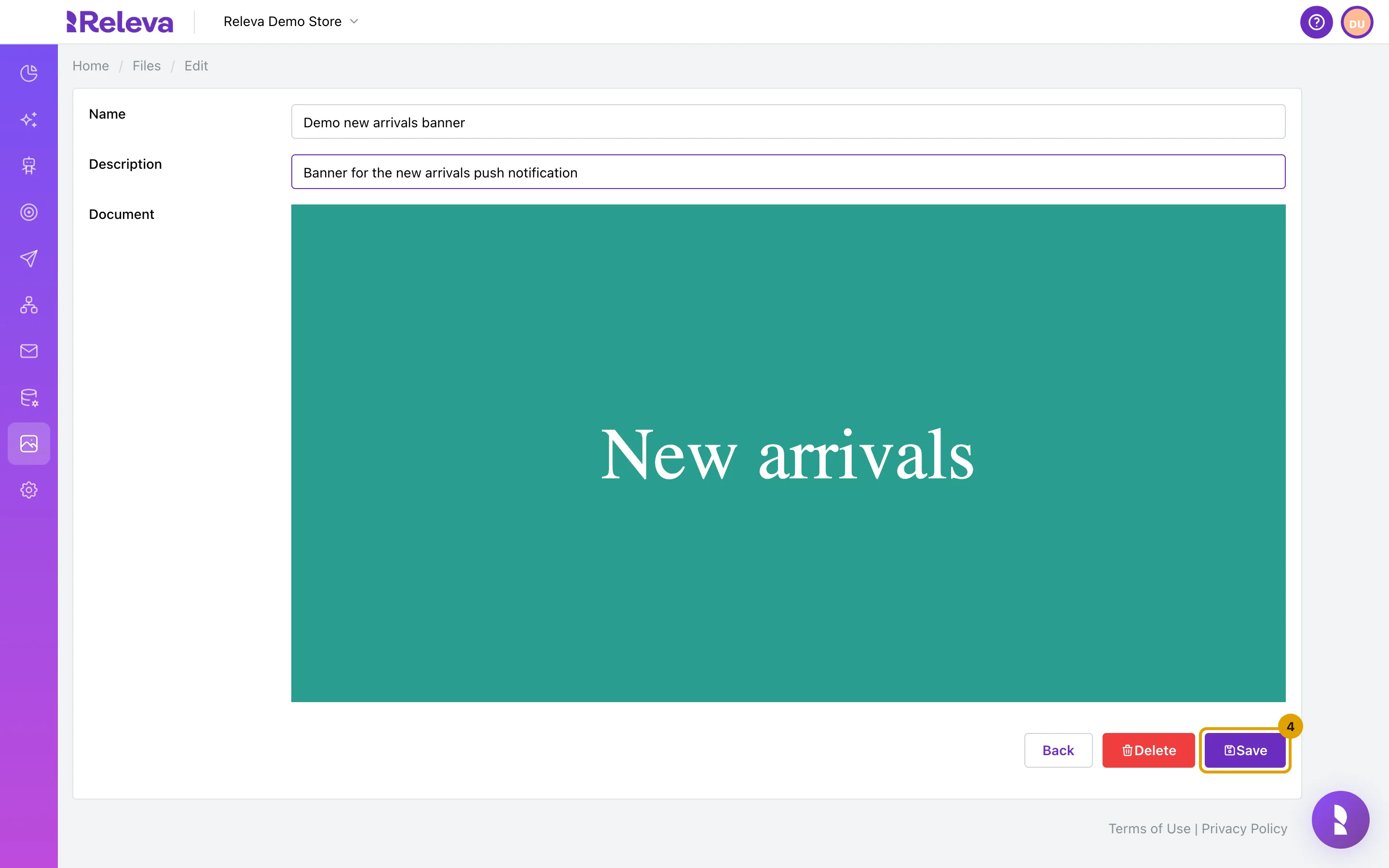
Select Save. Back returns to the list without saving.
-
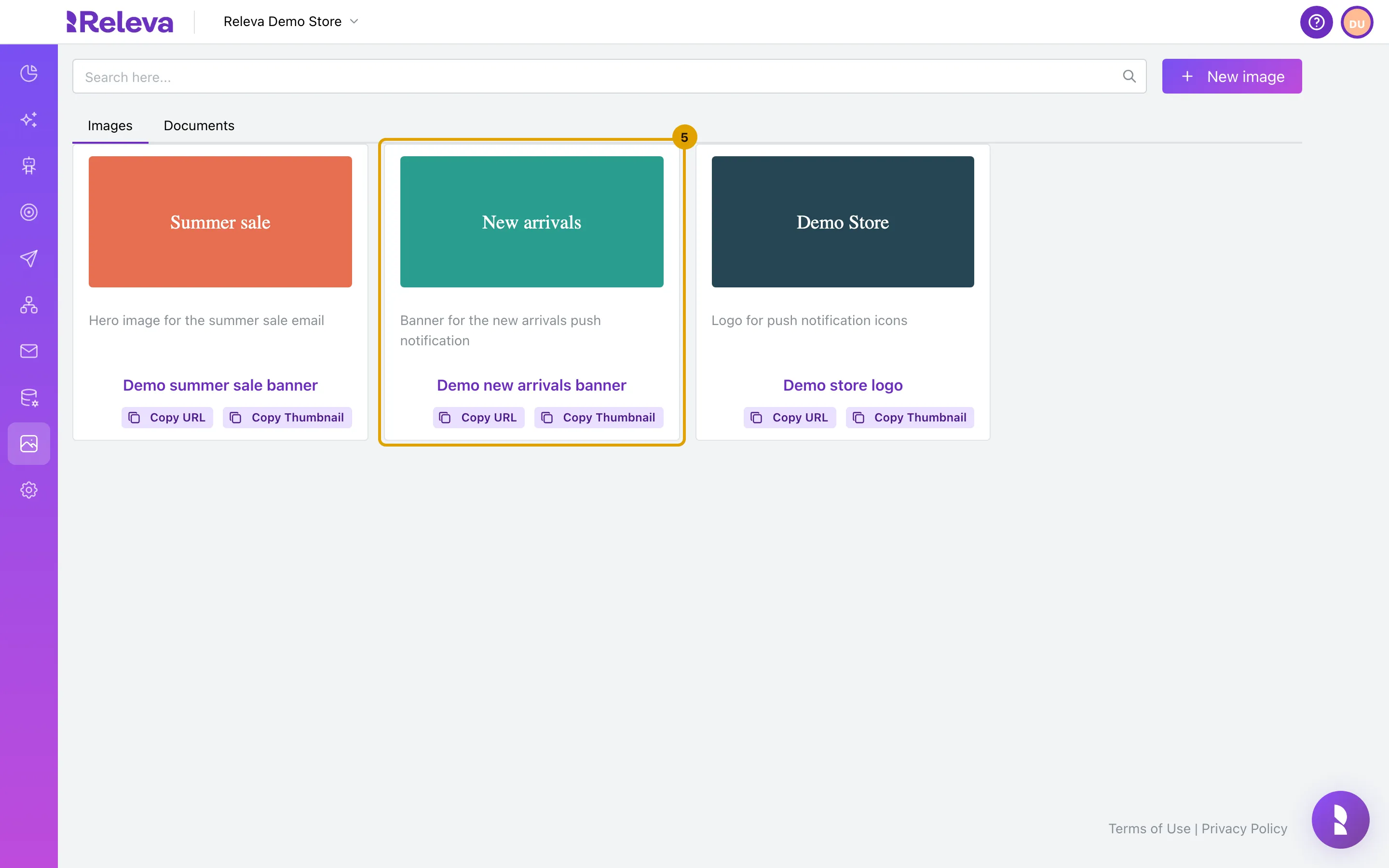
You are back on the list, and the card shows the new text.
Delete a file
Section titled “Delete a file”Open the file, select Delete, then Confirm in Are you sure?. This cannot be undone. The record, the stored file and its thumbnail are removed, so a link already pasted into a sent email, a live push notification or an ad stops working. Replace the link everywhere it is used before you delete the file.
Check it worked
Section titled “Check it worked”- The new file is first on its tab, with the name and description you entered.
- Paste the copied link into the address bar of a new browser tab: the file opens.
- The link starts with
https://storage.googleapis.com/and ends with the file’s extension. A thumbnail link ends with_thumb_200px.png.
Troubleshooting
Section titled “Troubleshooting”Save is disabled. Name or Description is empty. Both are required.
I selected Save on an image and nothing happened. No file was chosen, or the file is not an image. The form shows no message in this case. Choose a JPG, PNG or GIF file and save again.
“Image size is too big. Maximum allowed size is 5MB.” Make the image smaller, or save it as JPG, and upload it again.
“No file selected.” or “File is not a supported document format.” on a document. Choose a PDF, DOC, DOCX, XLS, XLSX or TXT file and save again. CSV and PowerPoint files are not accepted.
My WebP, ICO, SVG or BMP image was not saved. Only JPG, PNG and GIF images are stored, even though the rejected-file message lists .webp and .ico. Upload the image as JPG or PNG instead.
“Name must be unique!” Another file in this shop already has that name. Change the name and save again.
No results found, with “Try a different search term.” No file on this tab matches the search. Search matches the beginning of a word, so sale finds “summer sale banner” but ale does not. Clear the search box and check the other tab.
No results found, without that line. The tab is empty. Images and documents are listed on separate tabs: select the other one.
Copy URL did nothing. The link is copied silently. Paste it to check. If the clipboard stays empty, your browser blocked clipboard access for the page. Open the file by selecting its name, right-click the preview and use your browser’s Copy image address.
I want to upload a new version of the file. The file cannot be replaced. Upload the new version as a new file, copy its link into the places that use the old one, then delete the old file.
Opening a file sends me back to the list. The file no longer exists in this shop, for example because someone deleted it. Find the file again on the list.
The document preview is broken on the edit page. The edit page shows every file as an image, which works for images only. Use Copy URL on the card to open a document.