

Copy a layout and change its HTML
The safest way to restyle the product block of your emails is to copy a layout that works and change the copy. The original keeps serving the emails that use it until you switch them over. This guide copies an Email layout that uses the HTML editor and changes its markup. For the scopes, editors and what a layout may contain, read How layouts work.
Before you start
Section titled “Before you start”- A layout with the Email scope exists under Assets › Layouts. If you have none, follow Create a layout for email product blocks first.
- You know basic HTML. Email layouts are written in HTML with Handlebars expressions; keep styles inline, because email clients often ignore
<style>blocks. - Your plan includes creating layouts. If Make a copy shows a lock with Unlock feature., ask your account owner.
-
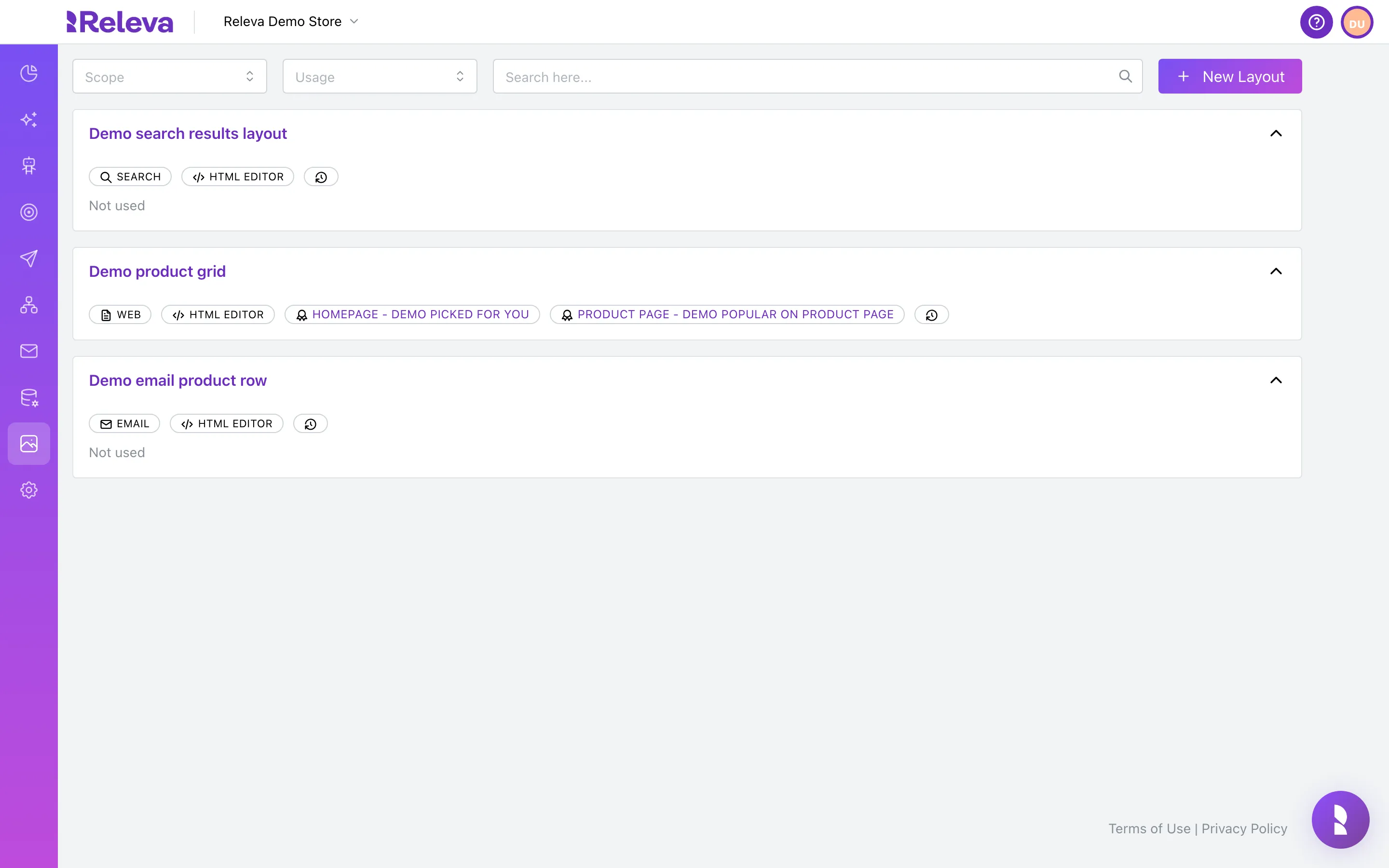
In the left menu, select Assets › Layouts.
-
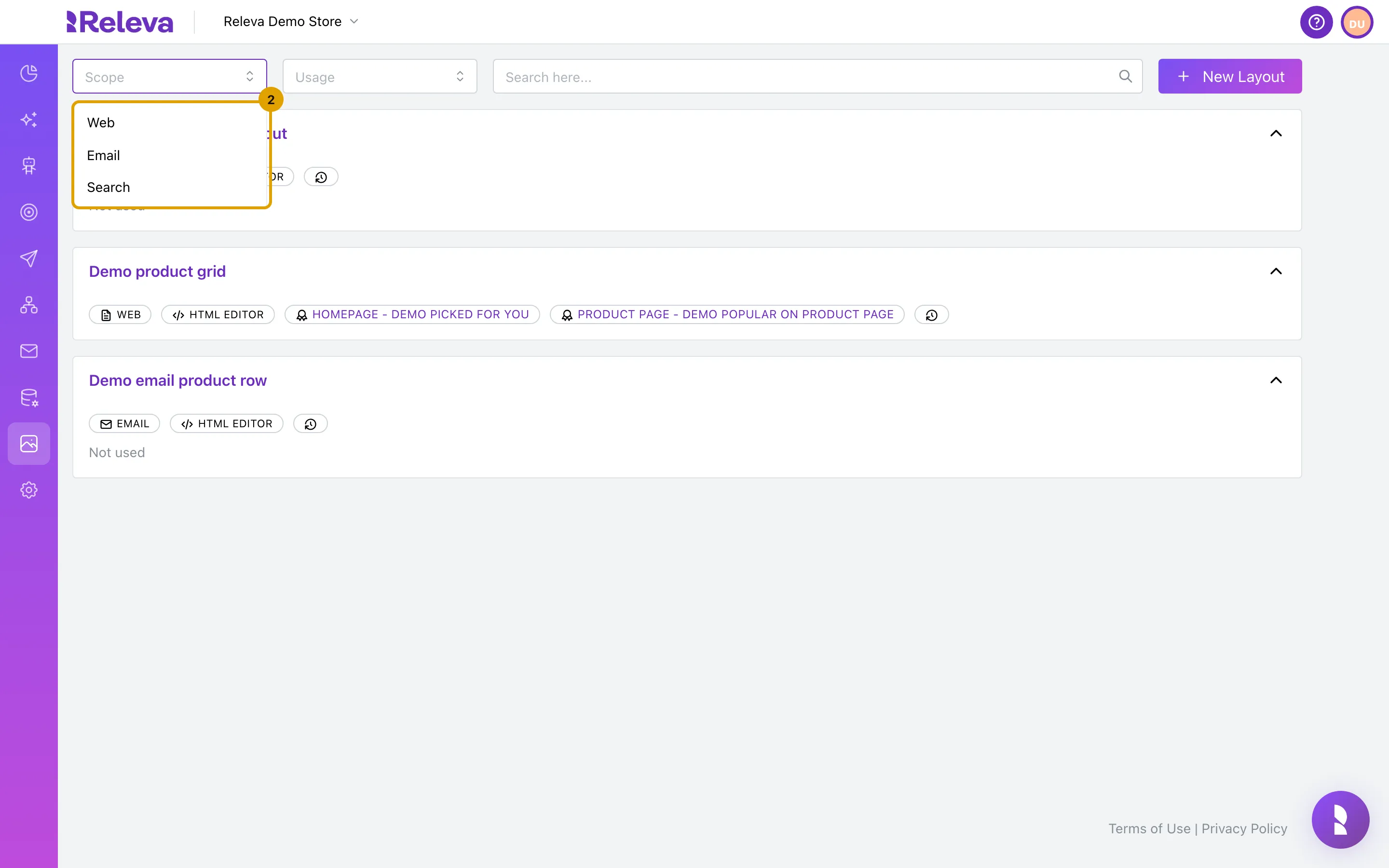
To narrow the list, open Scope and select Email. Usage filters the list to layouts that are Used or Not used.
The search box above the list matches the beginning of words in the layout name.
-
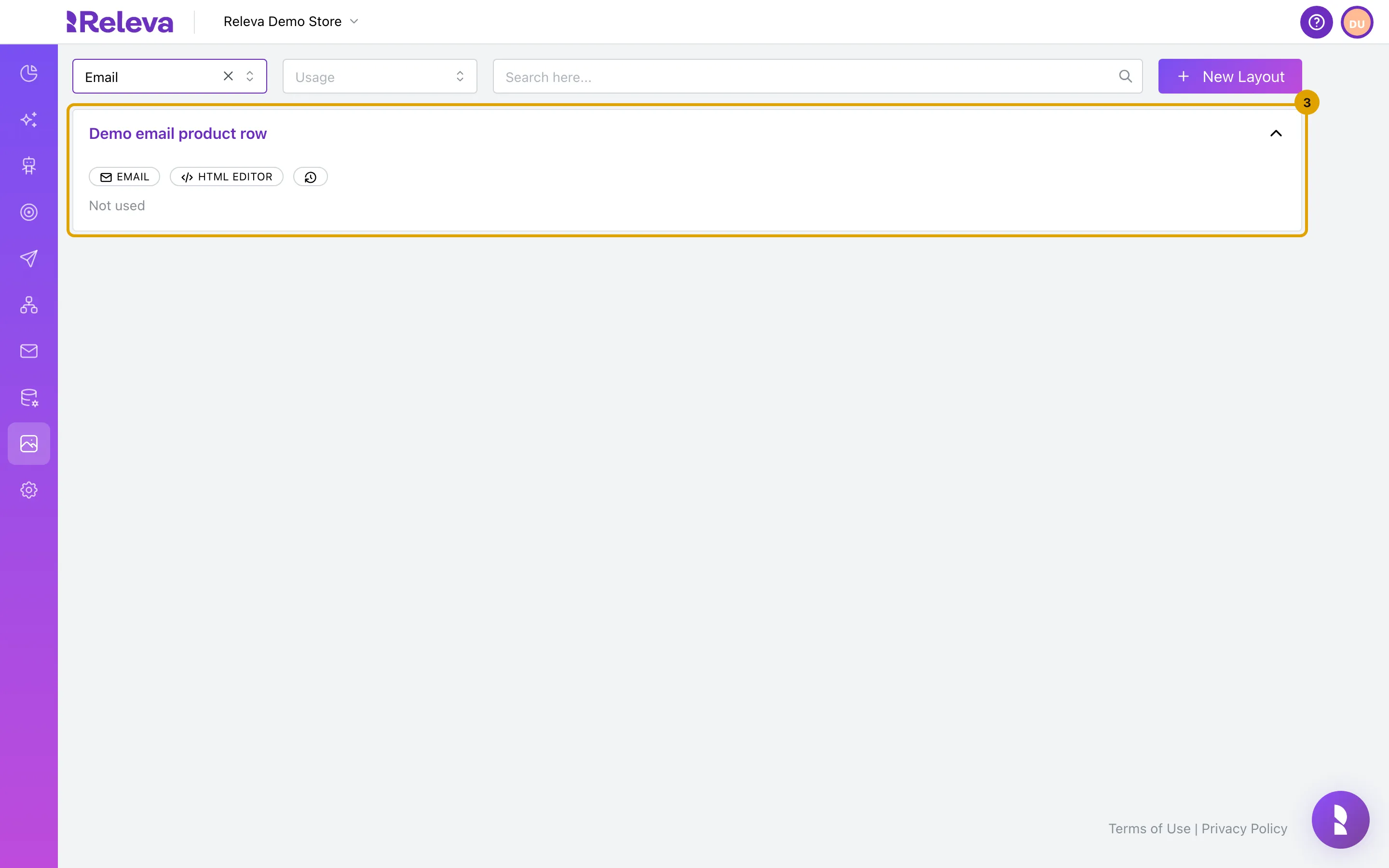
Select the name of the layout you want to start from, for example Demo email product row.
The badges on the card tell you the scope (EMAIL), the editor (HTML EDITOR or VISUAL EDITOR) and, for a used layout, the emails that use it.
-
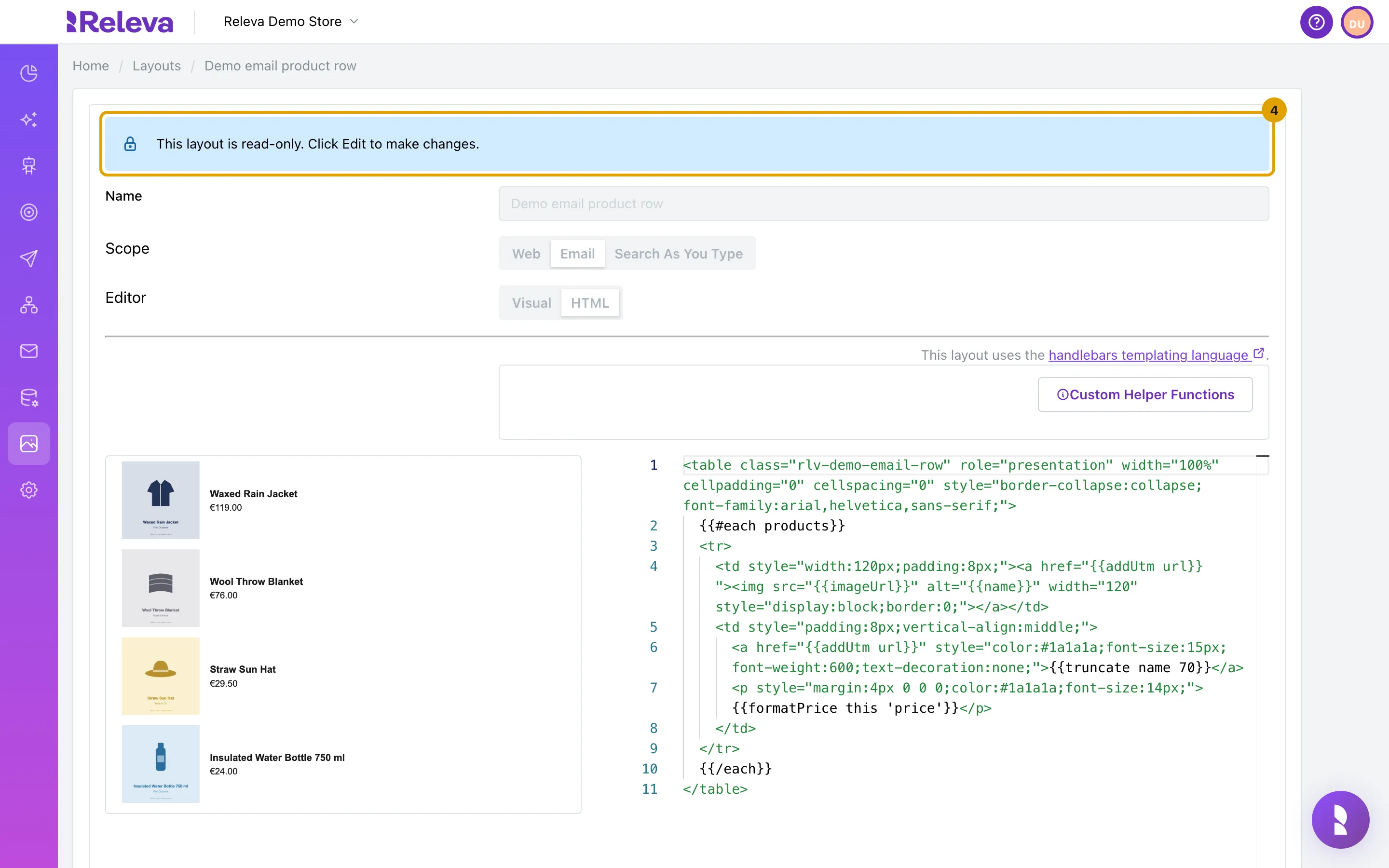
The layout opens read-only, so you cannot change it by accident.
To change the original instead of a copy, select Edit. The form then warns you which account and shop you are editing in.
-
Select Make a copy.
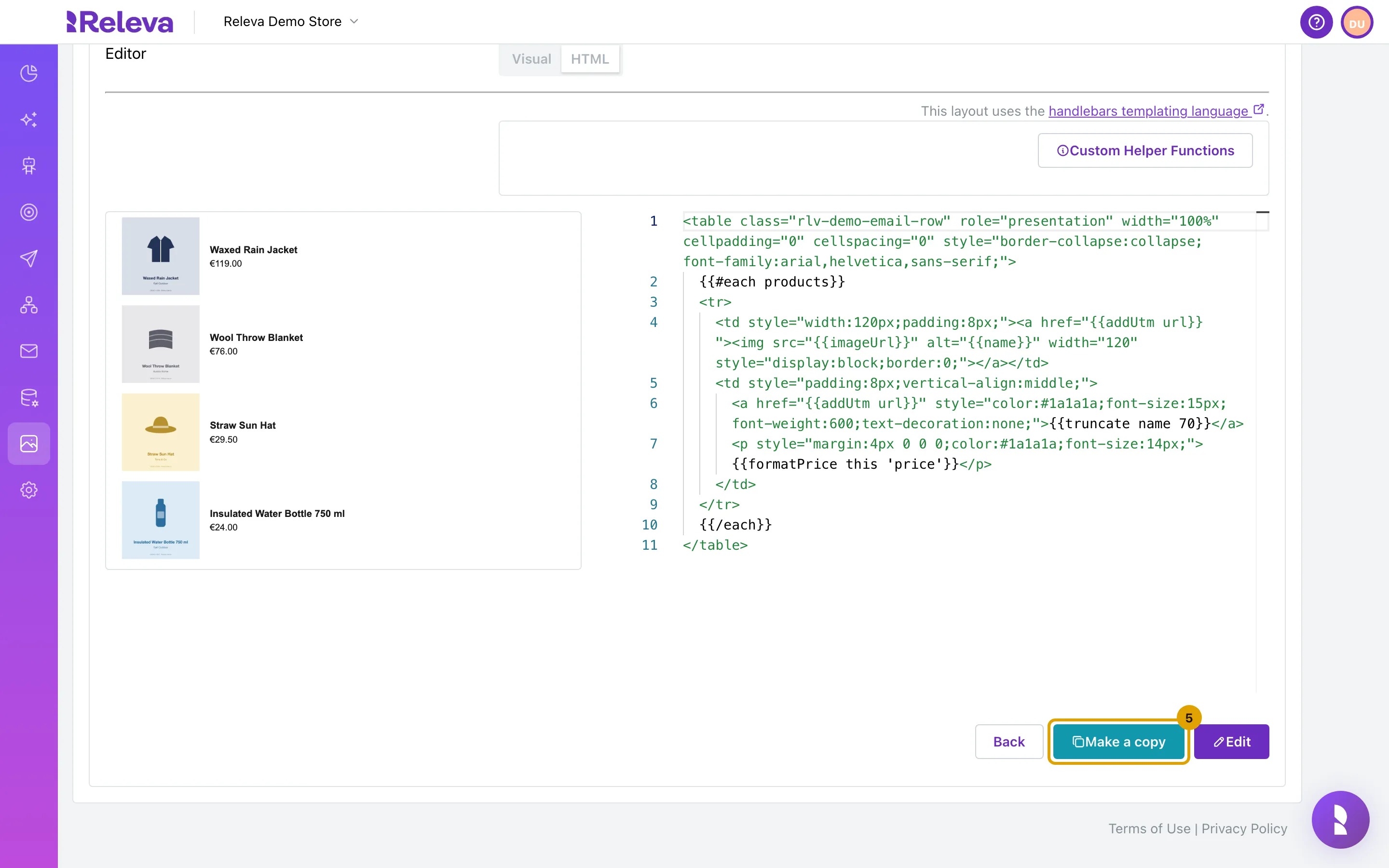
-
The copy opens as a new layout called “Copy of” plus the original name, with the same scope and editor. In Name, enter a new name, for example “Demo email product row for sales”.
Scope and editor are locked on the copy: an HTML email layout stays an HTML email layout.
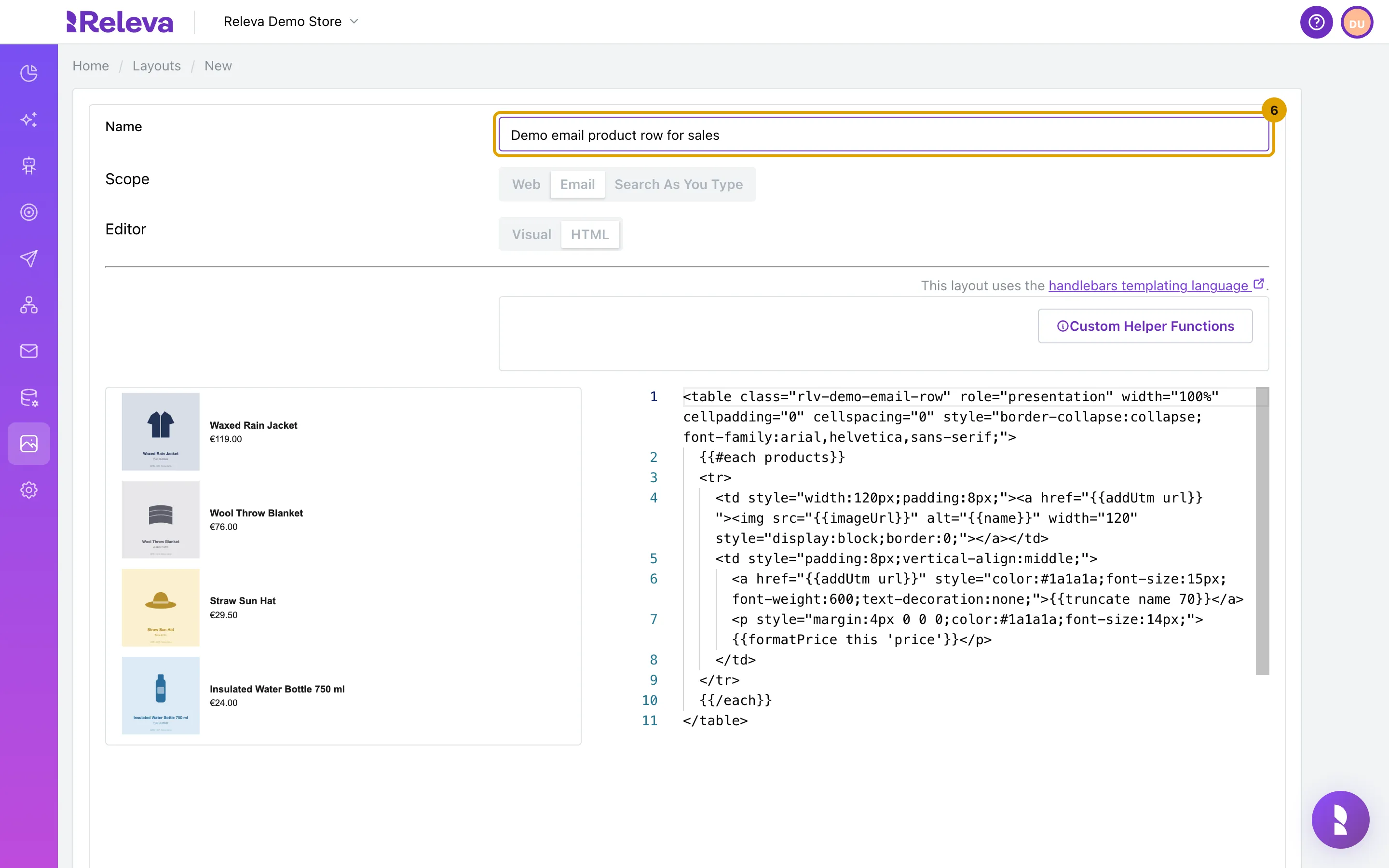
-
Change the markup in the HTML editor. The preview on the left shows the result with products from your catalog. Inline
styleattributes are the safest way to style an email.The layout loops over
productswith{{#each products}} … {{/each}}and prints each product’s fields, for example{{name}},{{imageUrl}}and{{addUtm url}}. Select Custom Helper Functions for the list of helpers you can use, such asformatPriceandtruncate. Inside a Handlebars expression that sits in an HTML attribute, use single quotes:class="{{#if a}}'x'{{/if}}".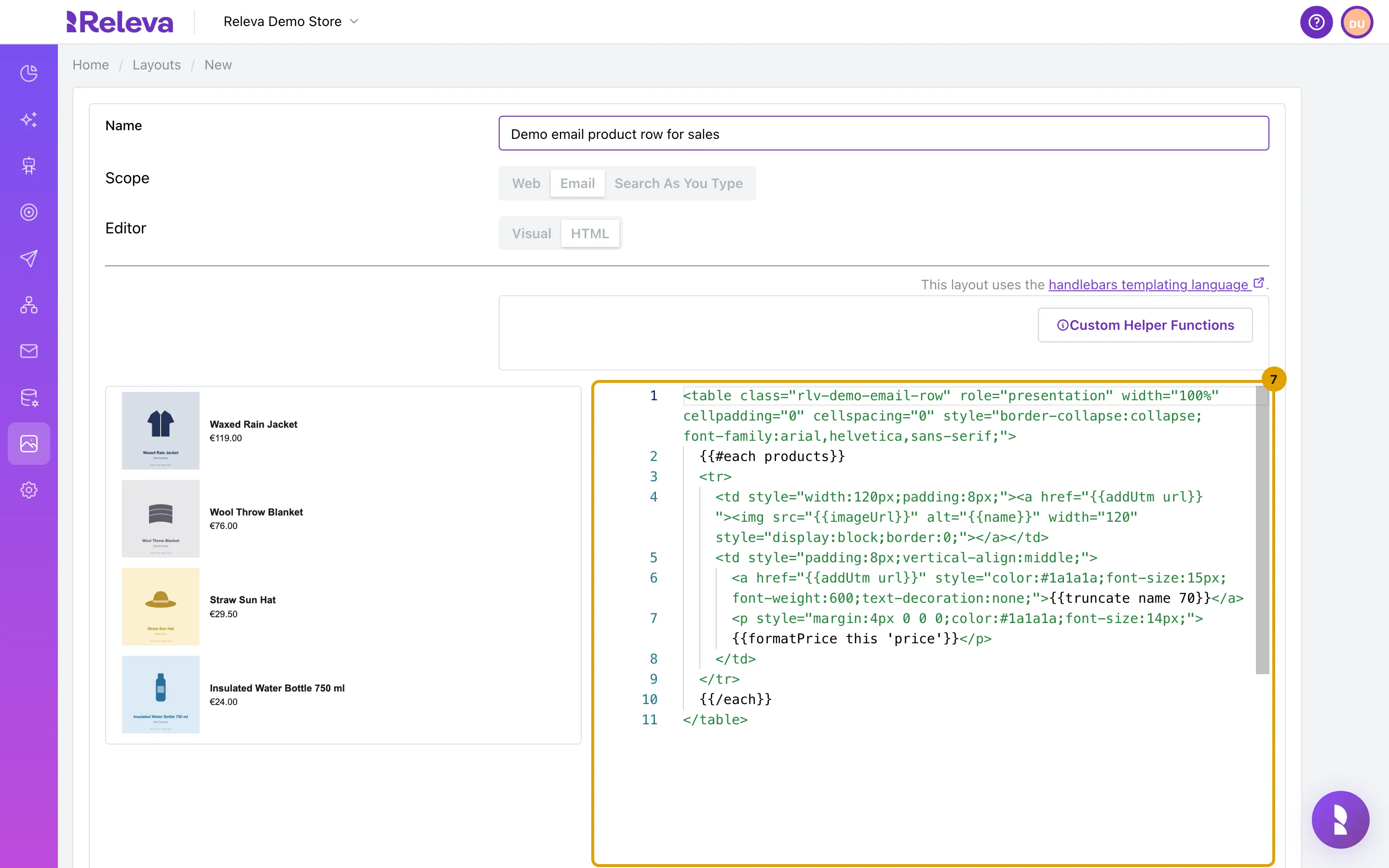
-
Select Save & close.
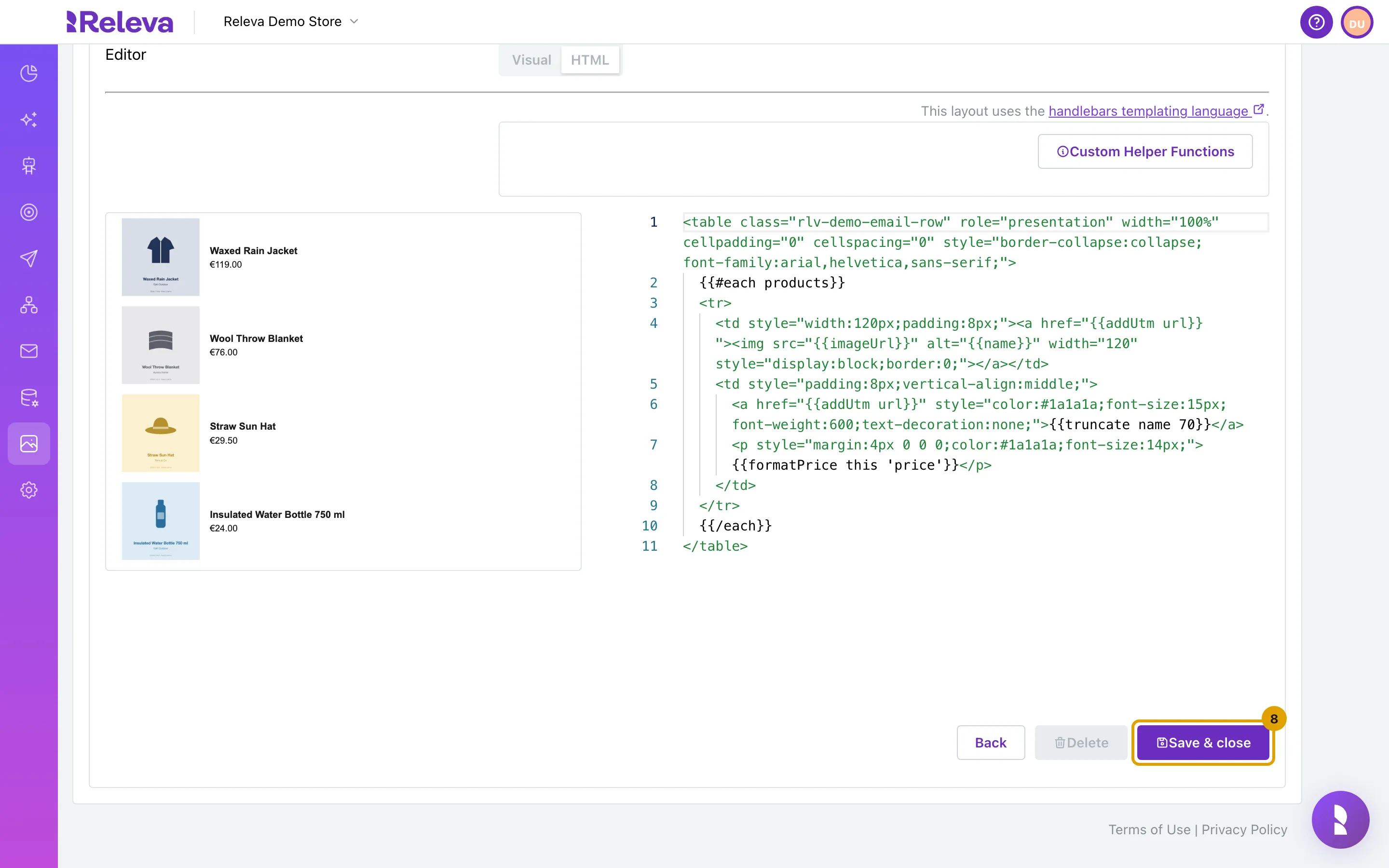
-
The copy is in the list. Choose it as the template of an email’s product block to use it.
Check it worked
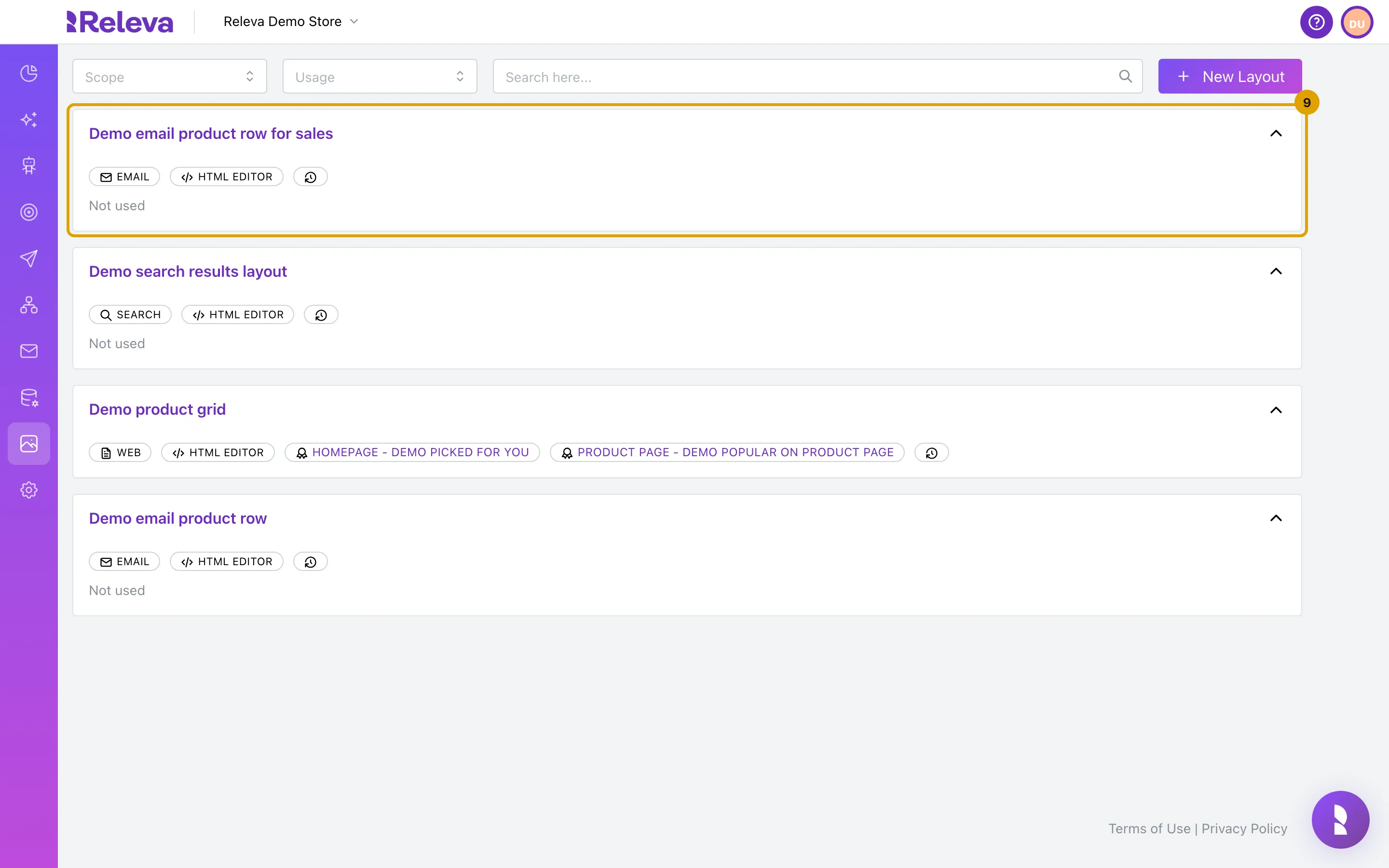
Section titled “Check it worked”- The copy is the first card under Assets › Layouts with the EMAIL and HTML EDITOR badges and Not used.
- Open the copy: the markup is the one you saved and the preview draws your products with it.
- Open the original: it is unchanged and, if it was in use, still lists its emails.
- Pick the copy in the product block of an email (see Personalisation in How emails work) and send yourself a test email.
Troubleshooting
Section titled “Troubleshooting”Layout Name must be unique! appears after you save. Another layout of this shop already has that name, in any capitalisation. Change the name.
The layout markup could not be parsed: Parse Error: … appears after you save. The HTML could not be read. The message ends with “A common cause is a Handlebars expression using double quotes inside an HTML attribute; use single quotes inside the expression instead.” Fix the markup at the quoted position and save again.
The preview is blank or shows “Unable to show preview due to template markup errors”. A Handlebars expression does not compile, for example an unclosed {{#each}}. Fix the expression; the preview updates as you type.
The layout cannot be deleted. Delete is disabled while a product block or an email uses the layout; hover over it to see which. Remove the layout from them first.
My HTML comments disappeared. Releva minifies the markup when it saves it and removes comments. Emails render the minified markup, so do not rely on comments.
The copy has no Edit on my site button. That button exists only for Web and Search As You Type layouts, which run on your site. Email layouts are checked in the preview and in a test email.