

Create a layout for email product blocks
A layout is the markup Releva uses to draw the products of a product block. This guide creates one with the Email scope in the Visual editor, so you can style it without writing HTML. For what the three scopes and two editors mean, read How layouts work.
Before you start
Section titled “Before you start”- Your catalog has products. The preview on the right of the editor shows up to four products from your catalog (up to two with a discount and two without); with an empty catalog the preview is empty.
- Your plan includes creating layouts. If New Layout shows a lock icon, ask your account owner.
- You know where you will use the layout. The scope cannot be changed after you choose it.
-
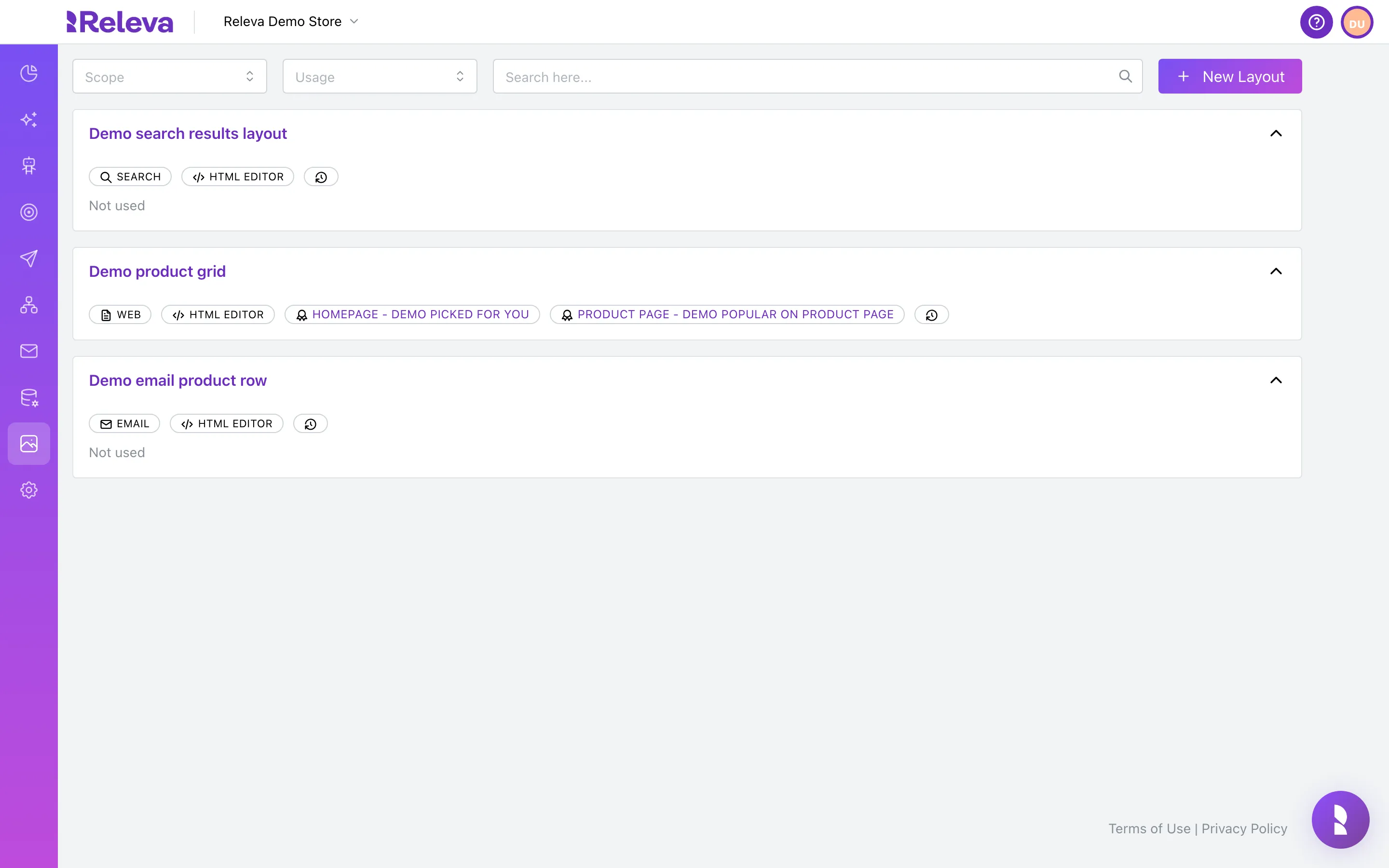
In the left menu, select Assets › Layouts.
-
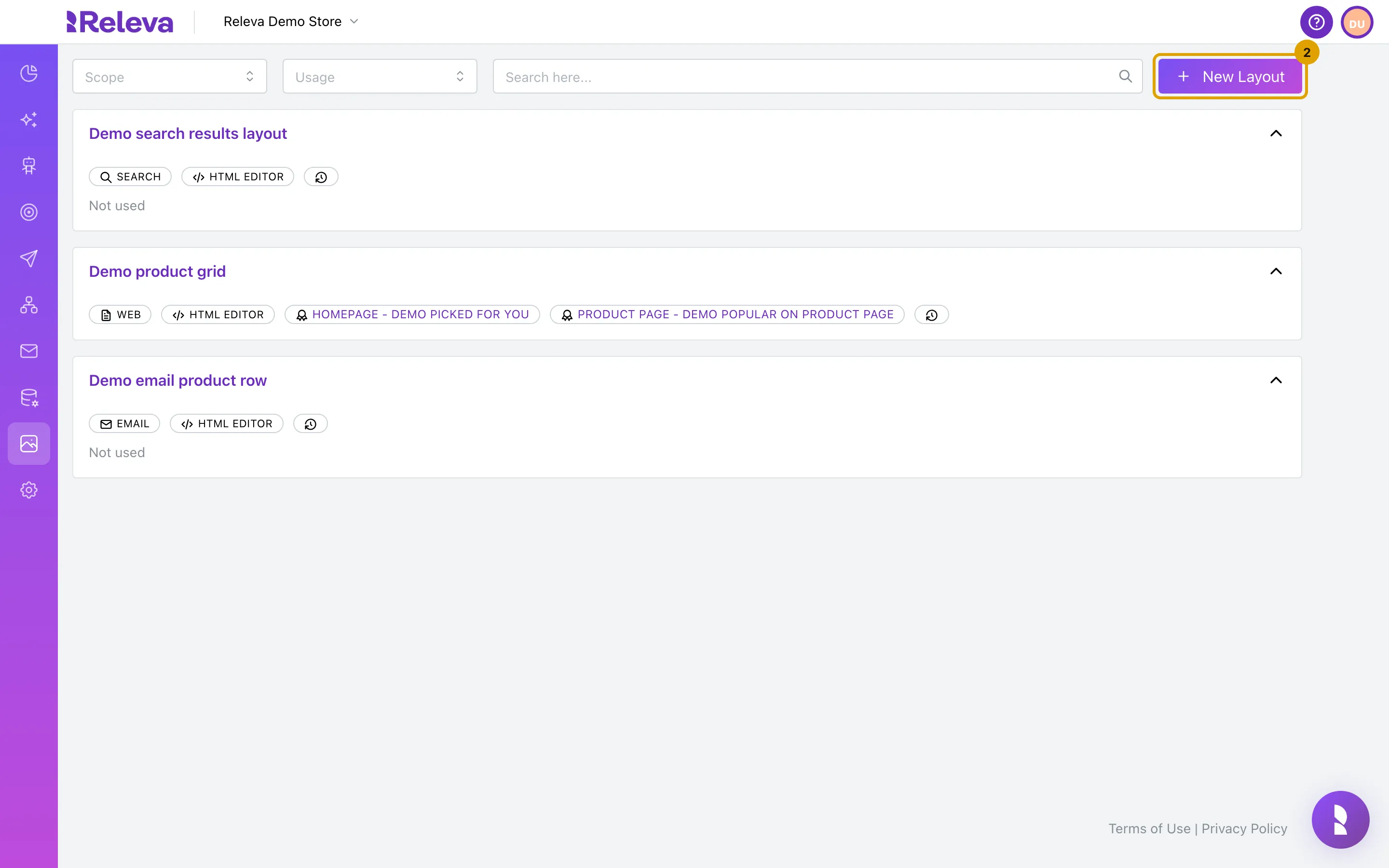
Select New Layout.
-
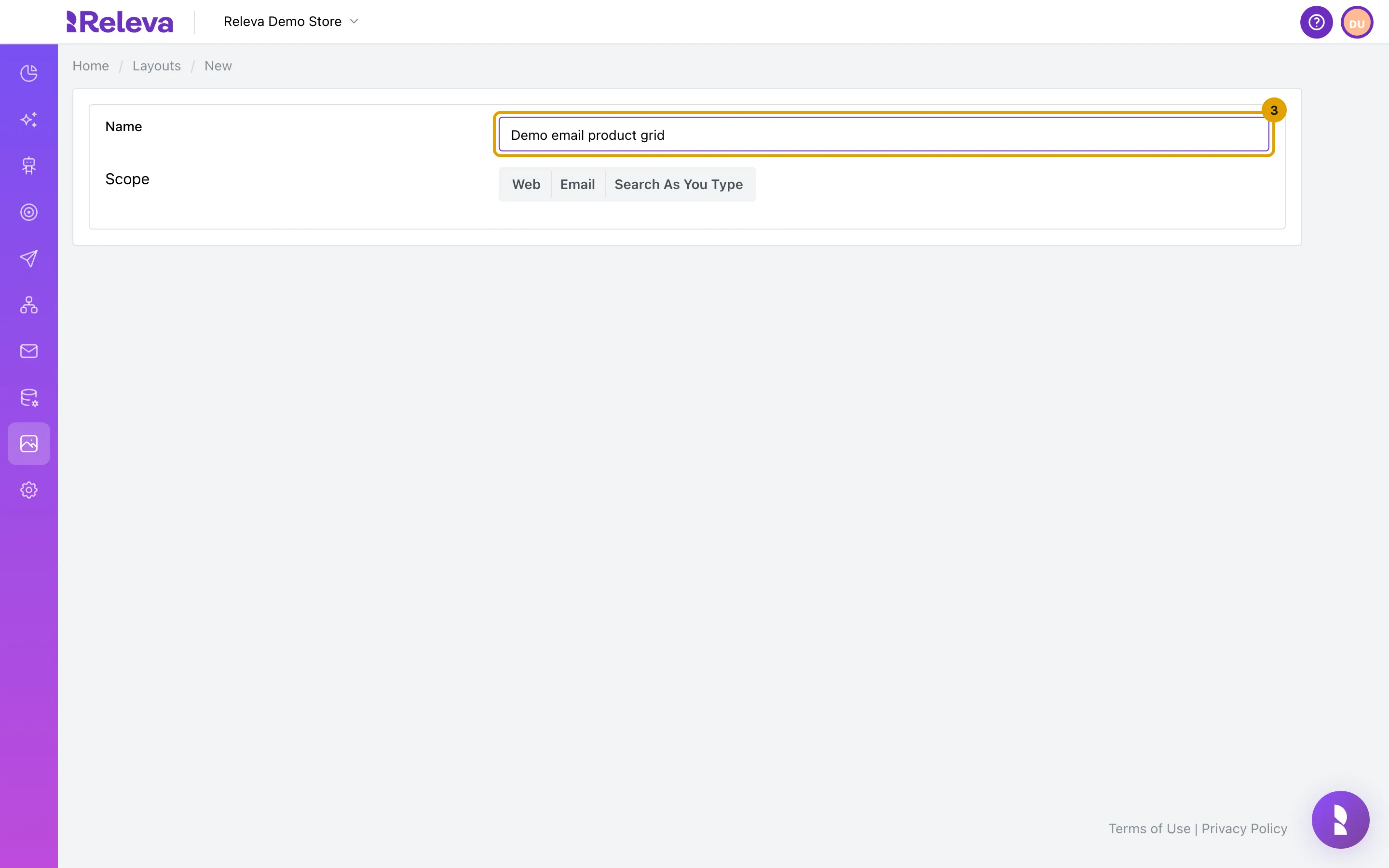
In Name, replace “New layout” with a name you will recognise when you pick it in an email, for example “Demo email product grid”.
Names are unique per shop and the check ignores upper and lower case. Save & close stays disabled while the name is empty.
-
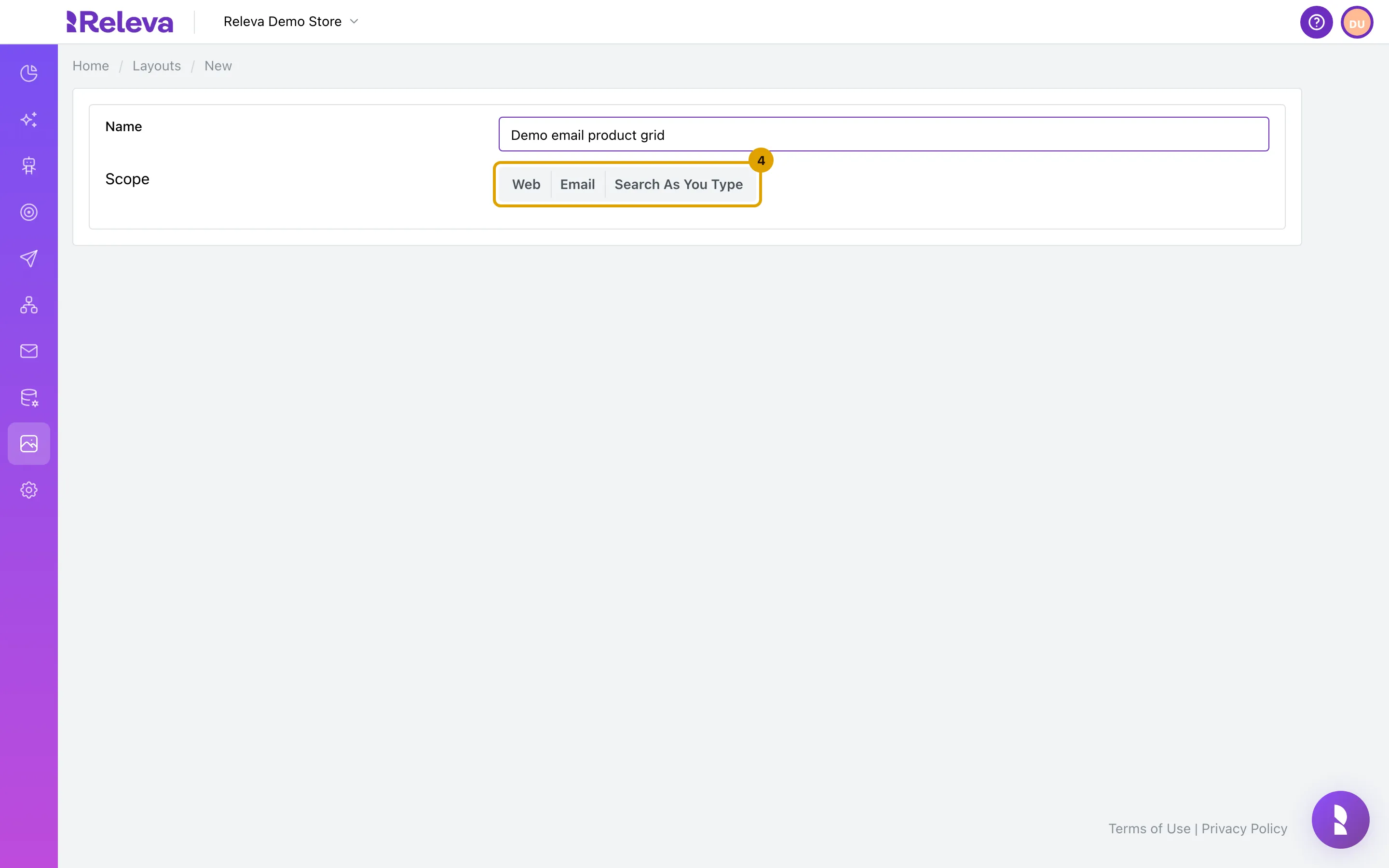
Under Scope, select Email. You cannot change the scope after you choose it.
Until you choose a scope the form shows only Name and Scope. Web is for product blocks on your site, Search As You Type for the search dropdown (it always uses the HTML editor).
-
The layout opens in the Visual editor. The style sections are on the left and a preview with products from your catalog is on the right.
An Email layout has six sections: General, Discount Badge, Product Name, Product Price, Product List Price and Product Discount Price. A Web layout adds Block Styles, Top Call to Action, Block Title, Slider Navigation Styles and Bottom Call to Action. Switch Editor to HTML only if you want to write the markup yourself: the switch asks for confirmation and cannot be undone.
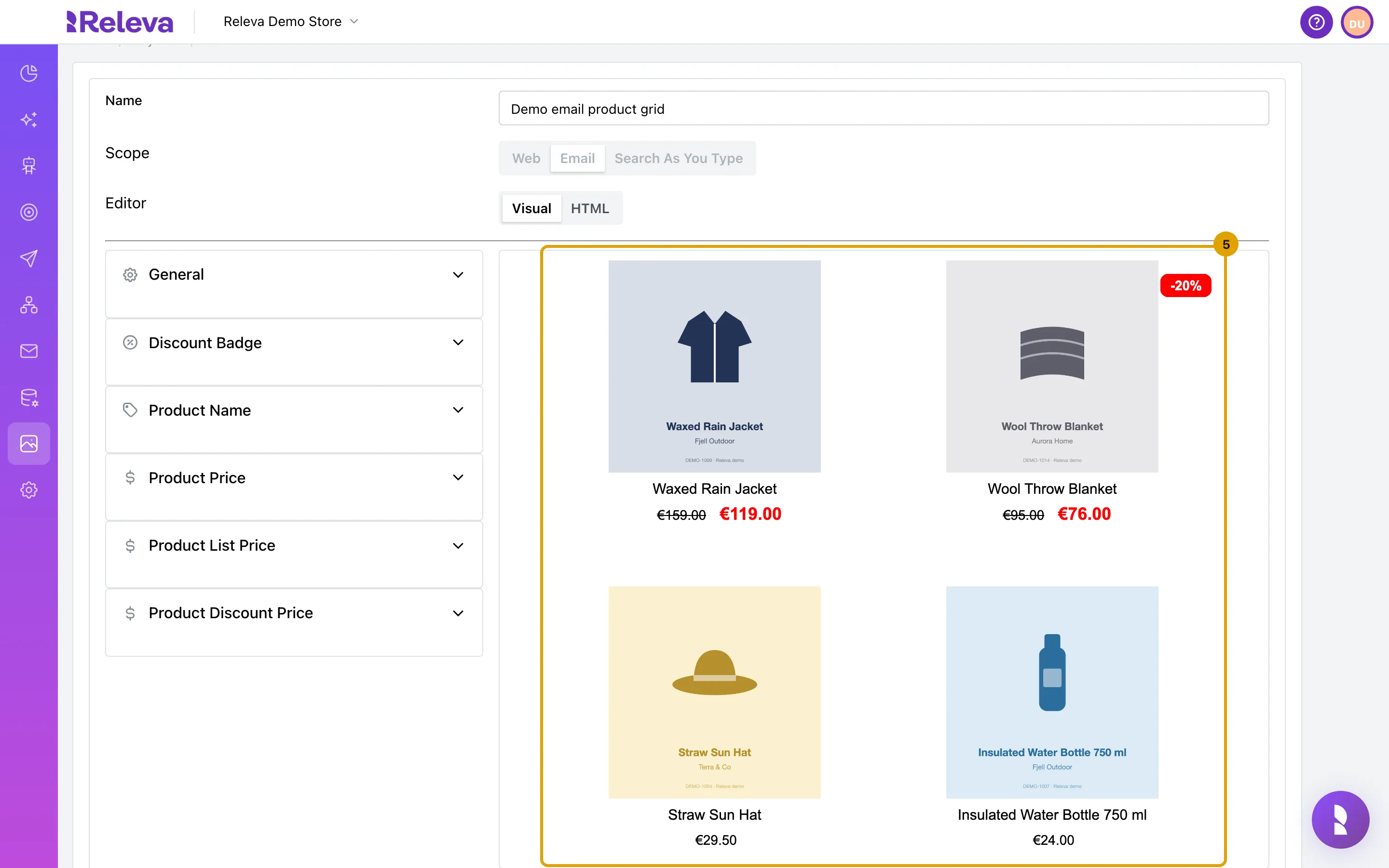
-
Open Product Name to style the product names.
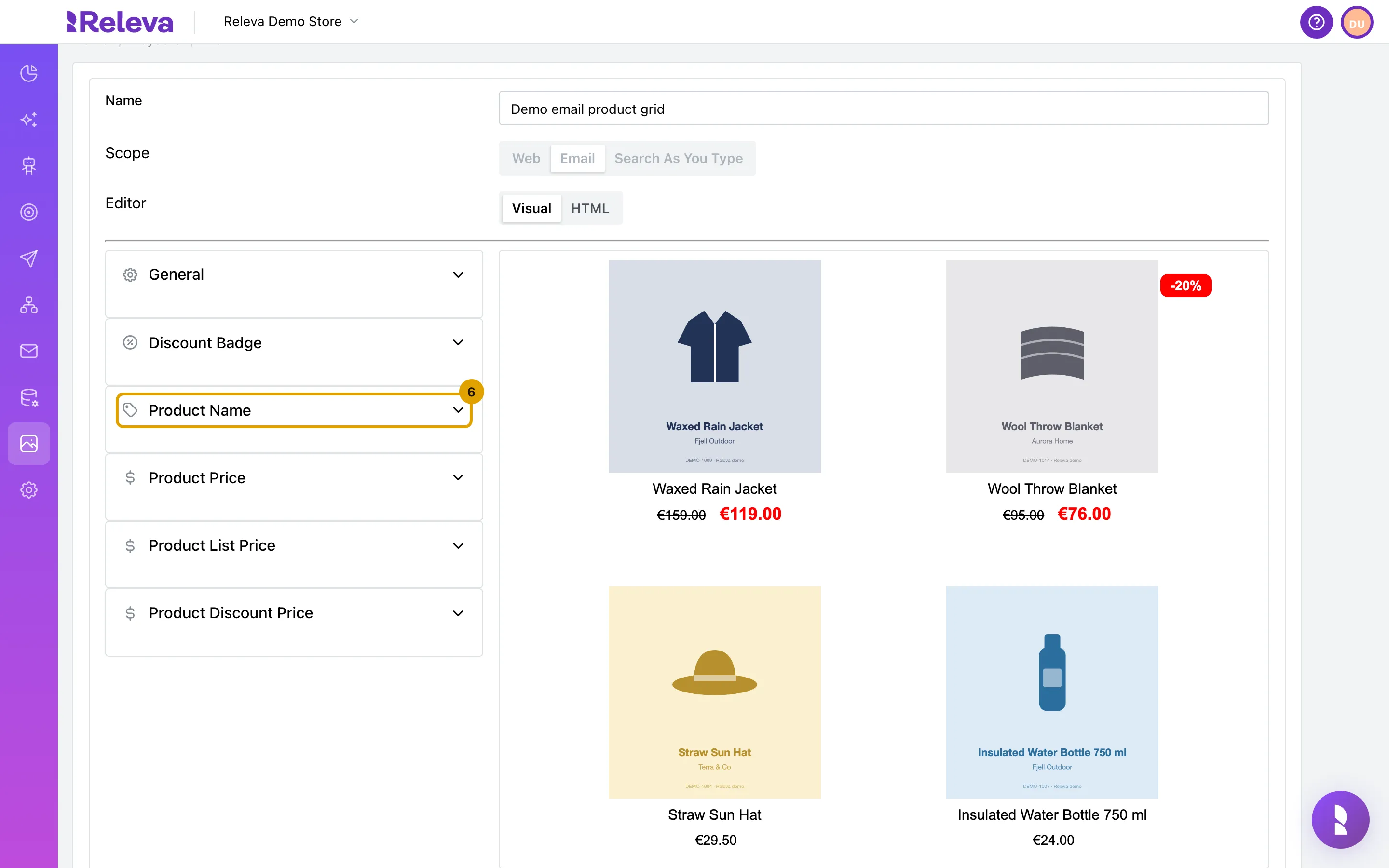
-
Change the values you need, for example Font Size to 16. The preview updates as you type.
Each section has text fields, drop-downs and colour swatches. Select a swatch to open the colour picker.
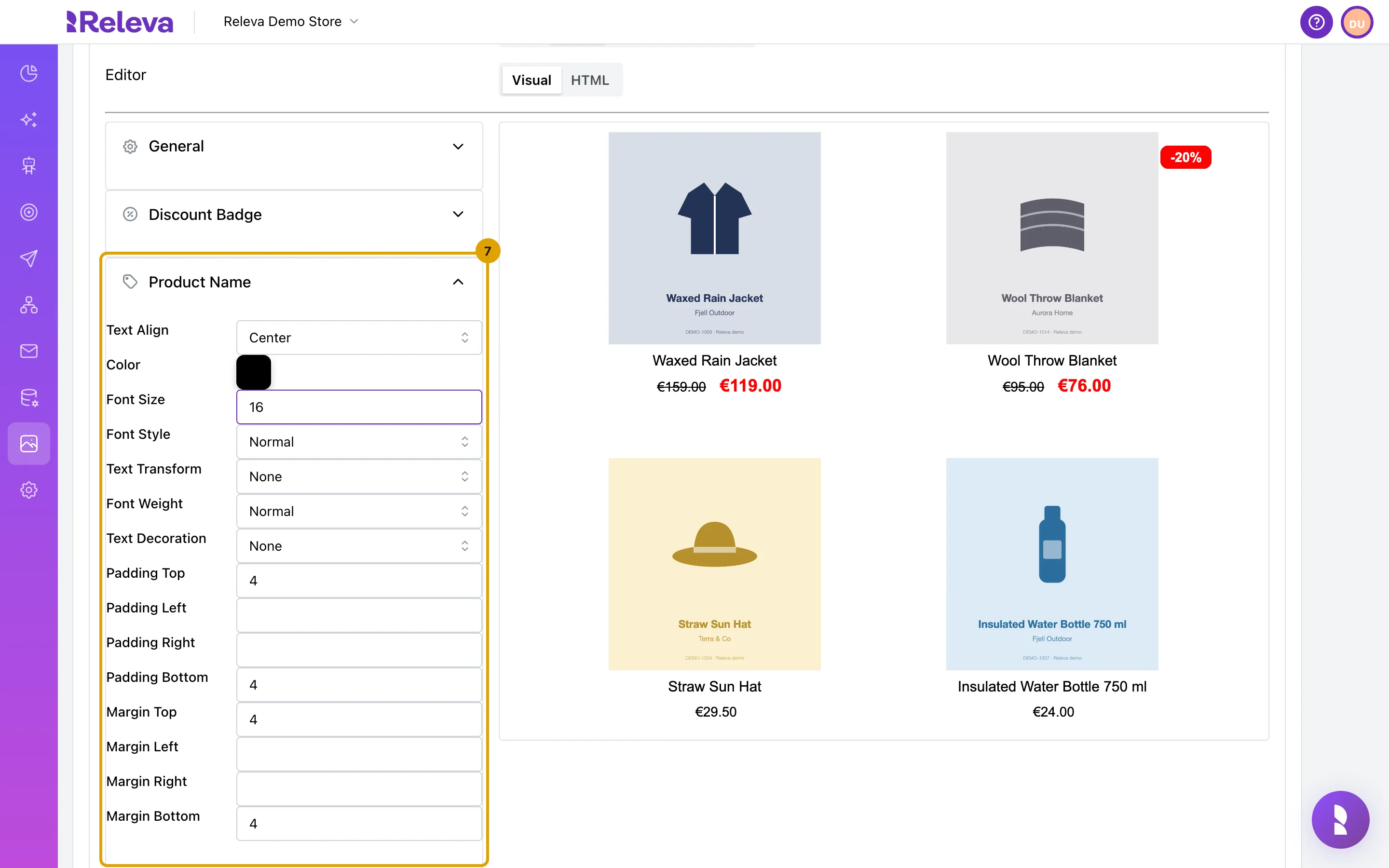
-
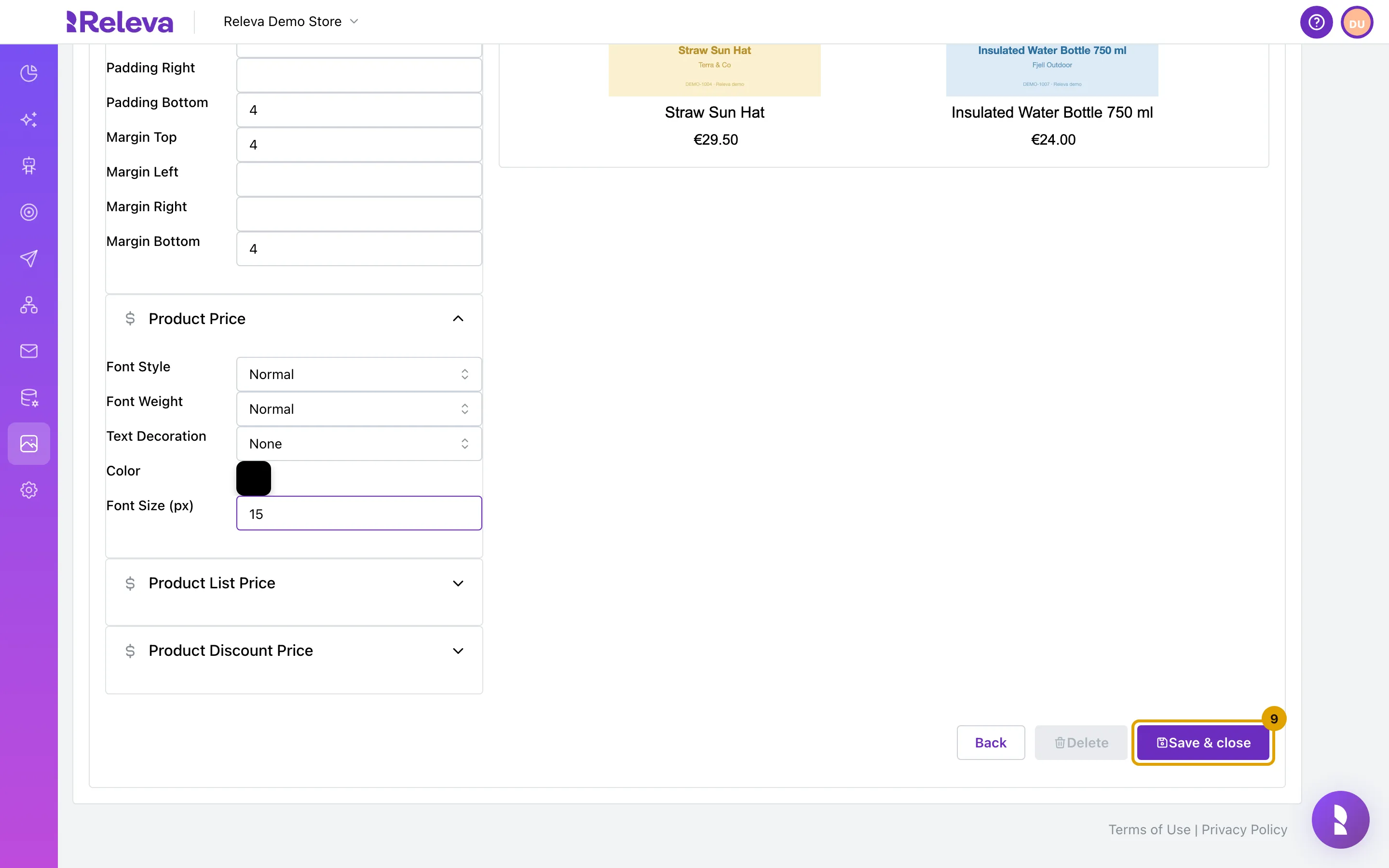
Open the other sections in the same way, for example Product Price, and set Font Size (px) to 15.
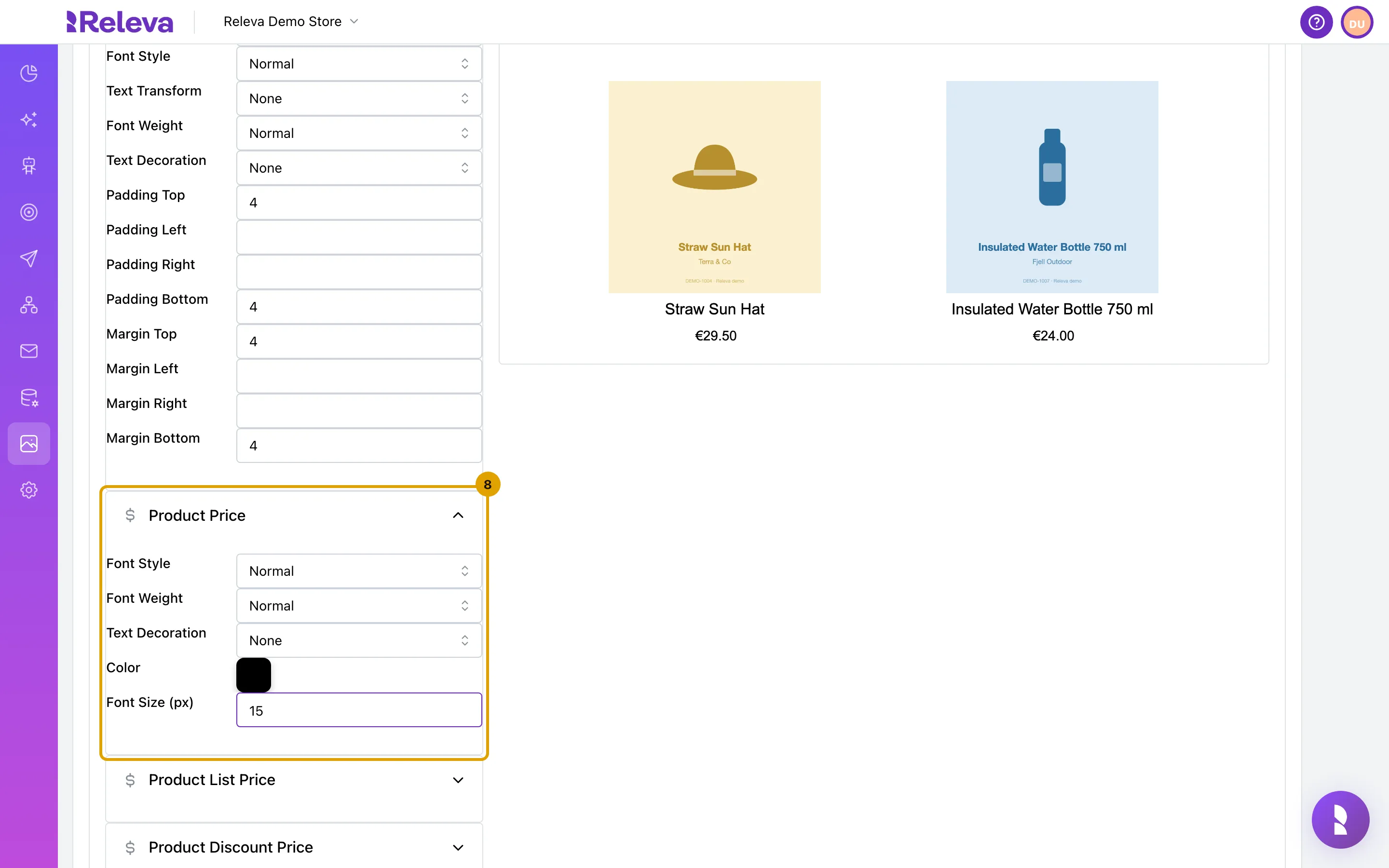
-
Select Save & close.
-
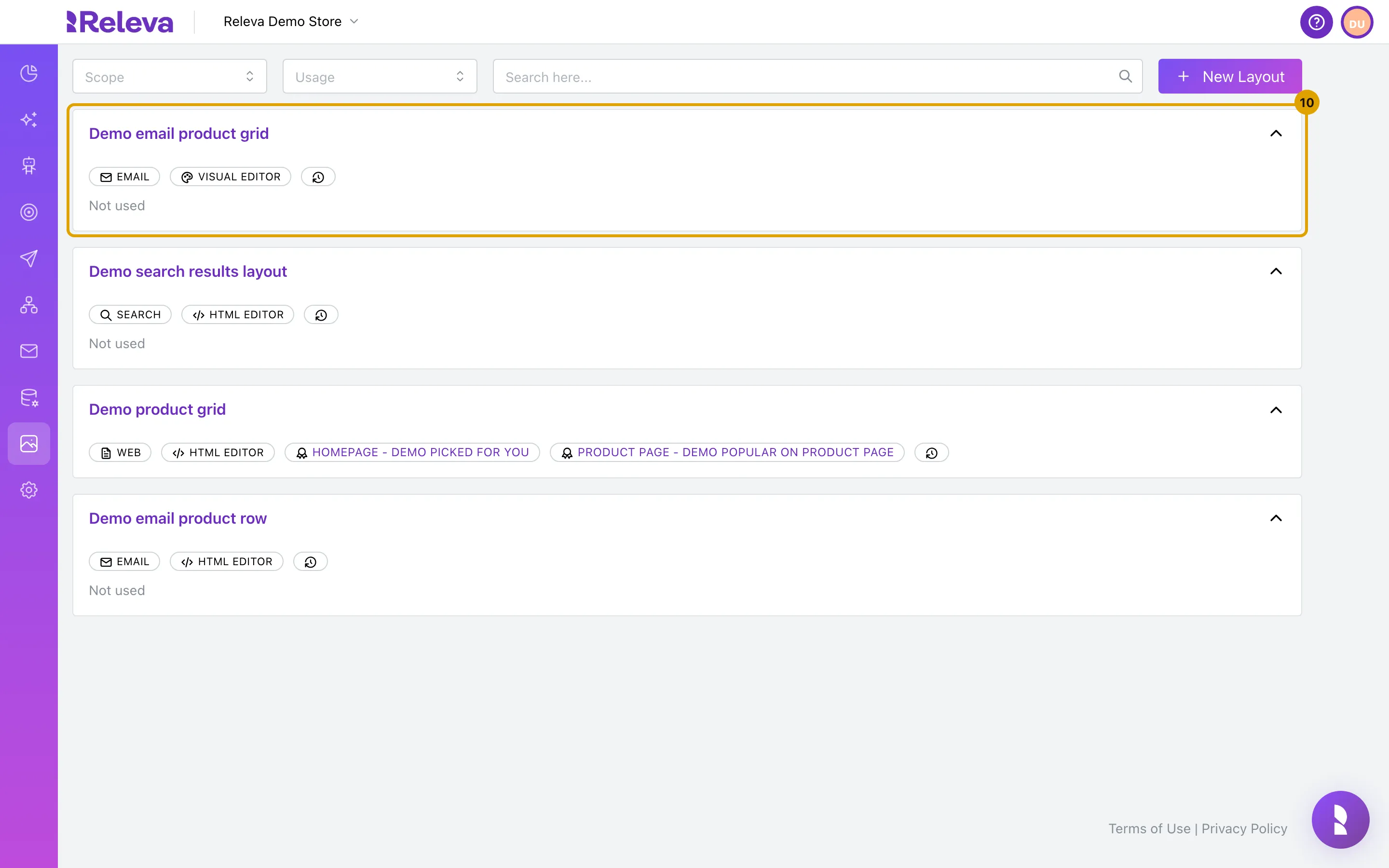
The new layout is at the top of the list with the Email and Visual Editor badges. It shows Not used until you choose it in an email’s product block.
Check it worked
Section titled “Check it worked”- The layout is the first card under Assets › Layouts, with the badges EMAIL and VISUAL EDITOR and the text Not used.
- Open it: the form says This layout is read-only. Click Edit to make changes., and Scope and Editor are greyed out.
- Open the product block in an email under Marketing Channels › Emails: the layout is in its template list. See Personalisation in How emails work.
Troubleshooting
Section titled “Troubleshooting”Save & close is disabled. The name is empty or no scope is chosen. In the HTML editor the markup must not be empty either.
Layout Name must be unique! appears under the form after you save. Another layout of this shop already has that name, in any capitalisation. Change the name.
The preview is empty or shows only text. The preview takes products from your catalog; with no products it stays empty. Product pictures are loaded from your shop, so a picture that is not reachable shows as its name.
I want to change the scope. You cannot. Create a new layout with the right scope, or open a layout of that scope and select Make a copy.
I switched to HTML and want the Visual editor back. The switch is one way. Create a new layout, or copy a layout that still uses the Visual editor.
Product List Price and Product Discount Price show the same values as Product Price. Known display issue: the two sections show the Product Price values instead of their own. The values you type are still saved to the right section; check the result in the preview.