

Create a Viber message
A Viber message is a saved text (optionally with a button and an image) that Releva sends to the phone numbers of your profiles through your Viber provider. Saving it sends nothing: a workflow decides who receives it and when. This guide creates a Marketing message in Text mode. For transactional notifications, which need an approved Viber template, read Create a transactional Viber message. For what happens at send time, read How Viber messages work.
Before you start
Section titled “Before you start”- A Viber provider is set up under Settings › Messaging, tab Viber Messages (Message Sender Mobica, Routee or Link Mobility, with its user and password). Without one, the list shows Please fill in your Viber Message credentials because we cannot send messages without them! and New Viber Message is disabled.
- Your plan includes Viber messages. If New Viber Message shows a lock, ask your account owner to unlock it.
- You know what the message should say. Links are allowed and are shortened at send time; keep the text under 7000 characters.
-
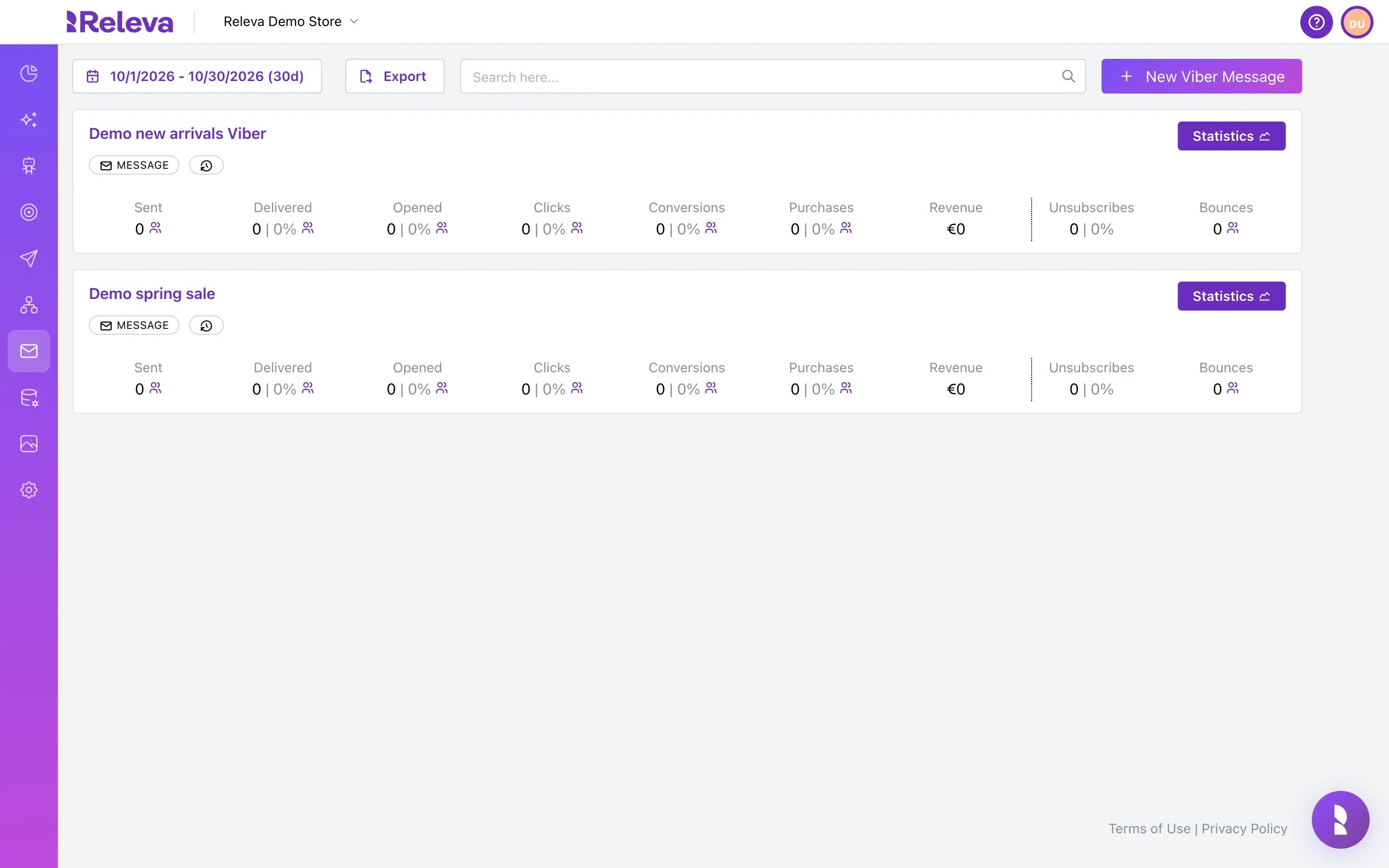
Go to Marketing Channels › Viber Messages.
Each saved message is a card with its name, a MESSAGE or RECOMMENDER badge and its statistics for the selected period (30 days by default).
-
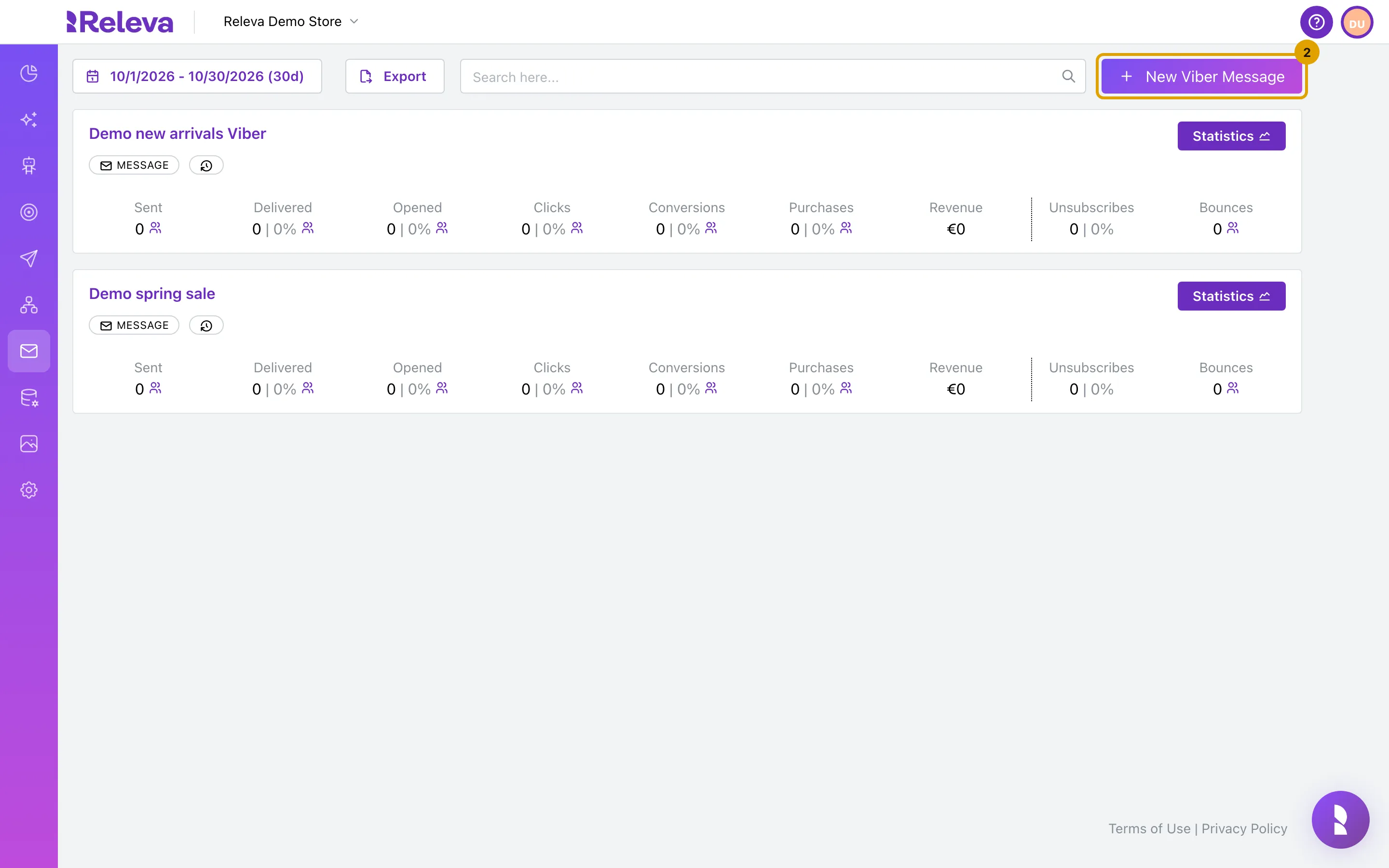
Select New Viber Message.
-
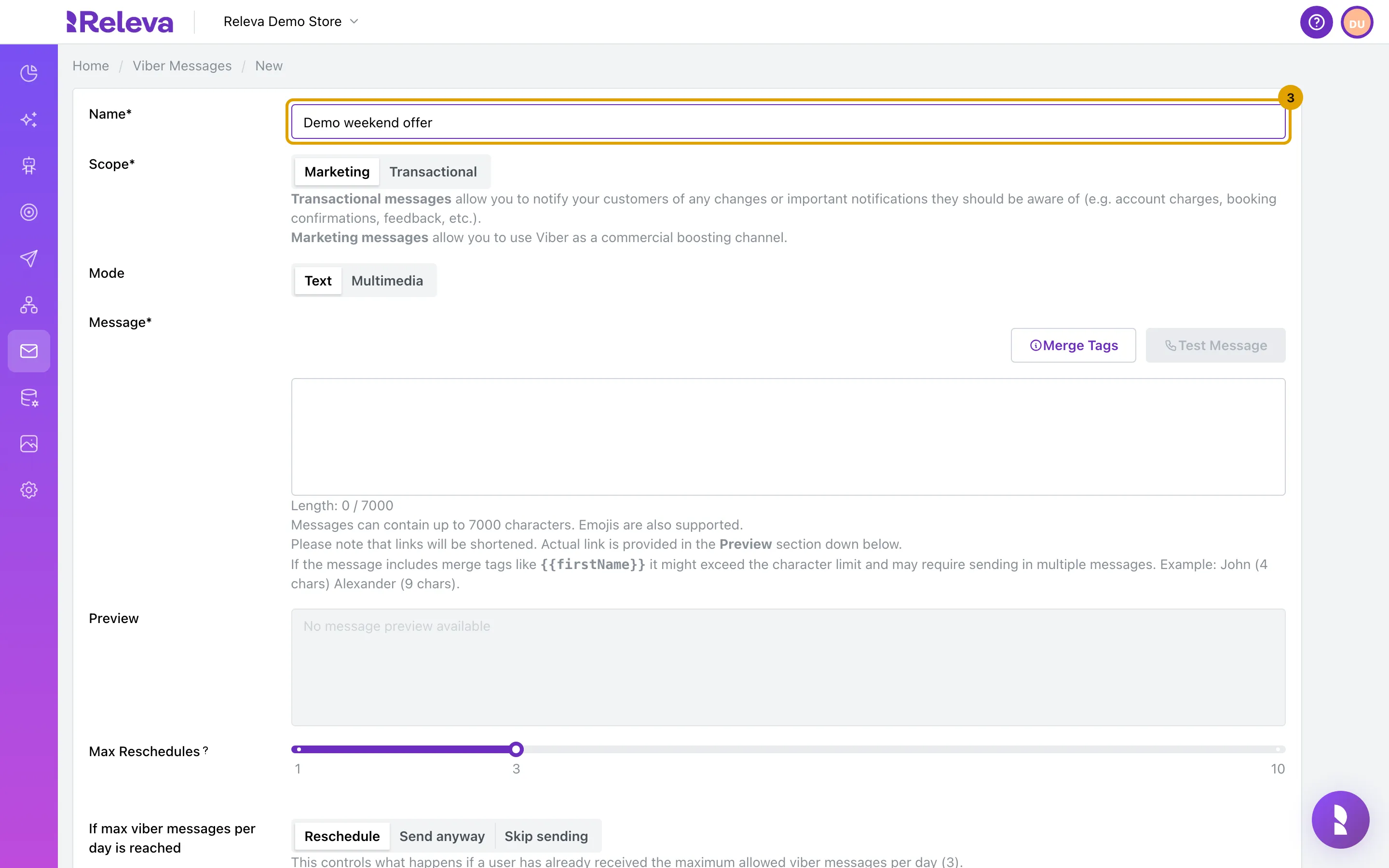
In Name, replace “New Viber message” with a name you will recognise in campaigns and workflows.
Names must be unique within the shop. If a message with the same name exists, Save fails with Viber Message Name must be unique!
-
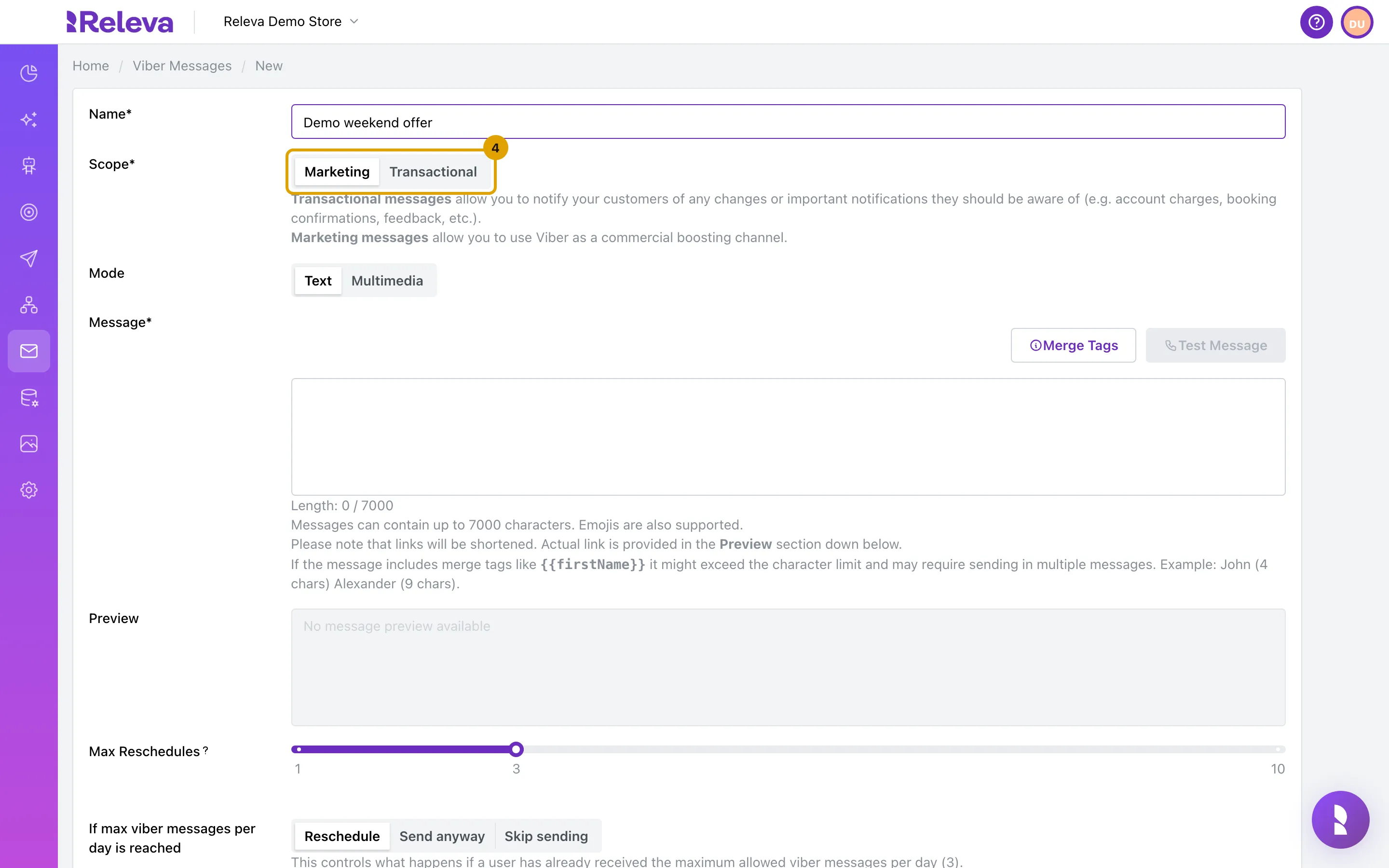
Leave Scope on Marketing and Mode on Text.
Scope and Mode are fixed after the first save. Multimedia adds Button Text, Button URL and Image URL, and a Type switch between Message and Recommender (one product per recipient from a product feed). Transactional messages are text only.
-
In Message, type the text your customers receive.
Merge Tags lists the placeholders you can use, such as
{{firstName}}. To give each recipient their own coupon code, copy the pattern of your list’s Dynamic coupon: … entry, for example{{dynamicCoupons.welcome_10}}, into Message; this works in Text and Multimedia mode. See How dynamic coupons work. Length counts the characters; the limit is 7000 (5000 for a Recommender) and emojis are supported. A broken merge tag shows Invalid merge tag: … under the field and disables Save.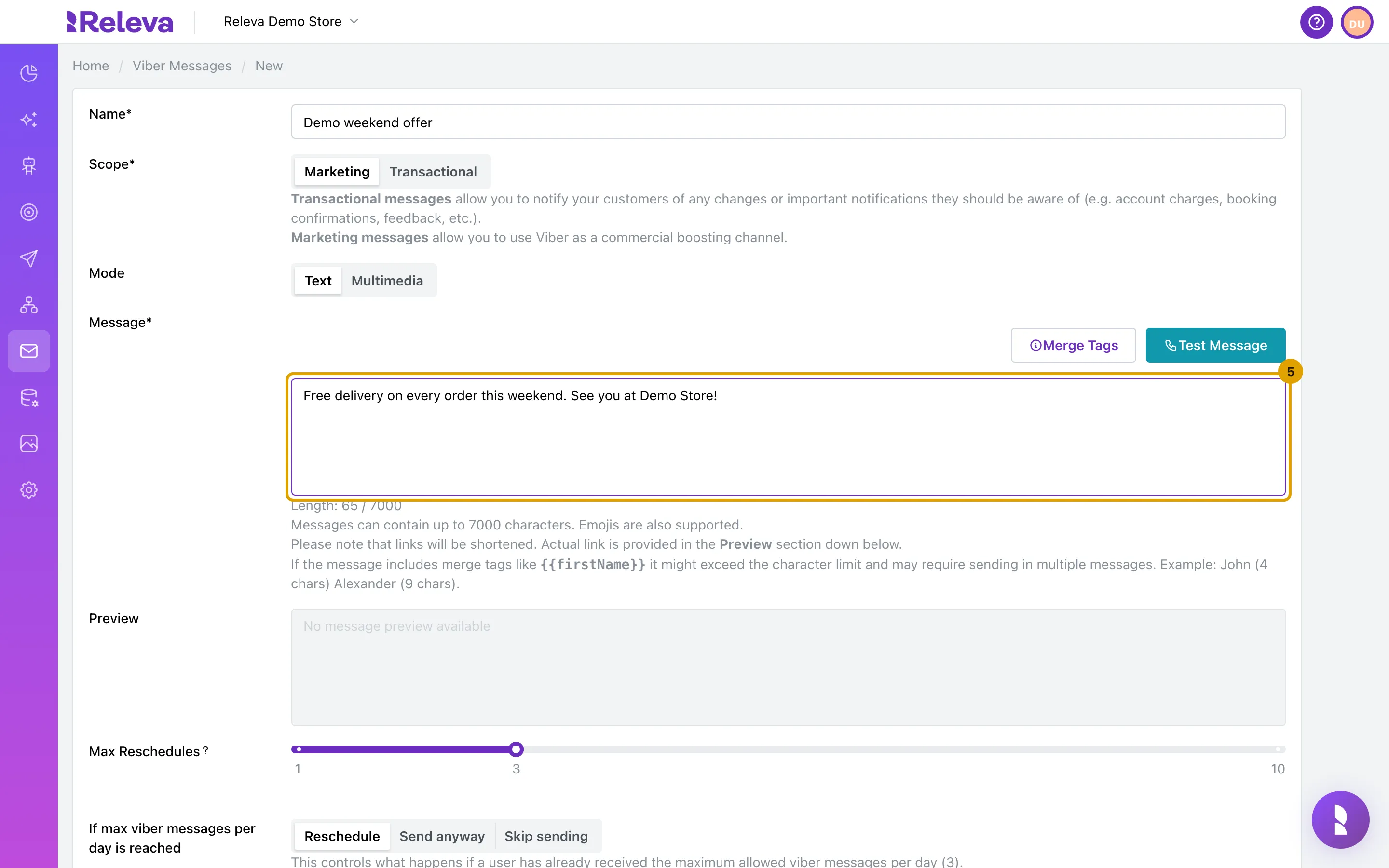
-
Check the Preview. It shows the message as it is sent, with links shortened.
The preview comes from the server about half a second after you stop typing. Every
http://orhttps://link in the text is replaced by a short tracking link, so the sent text can be longer or shorter than what you typed.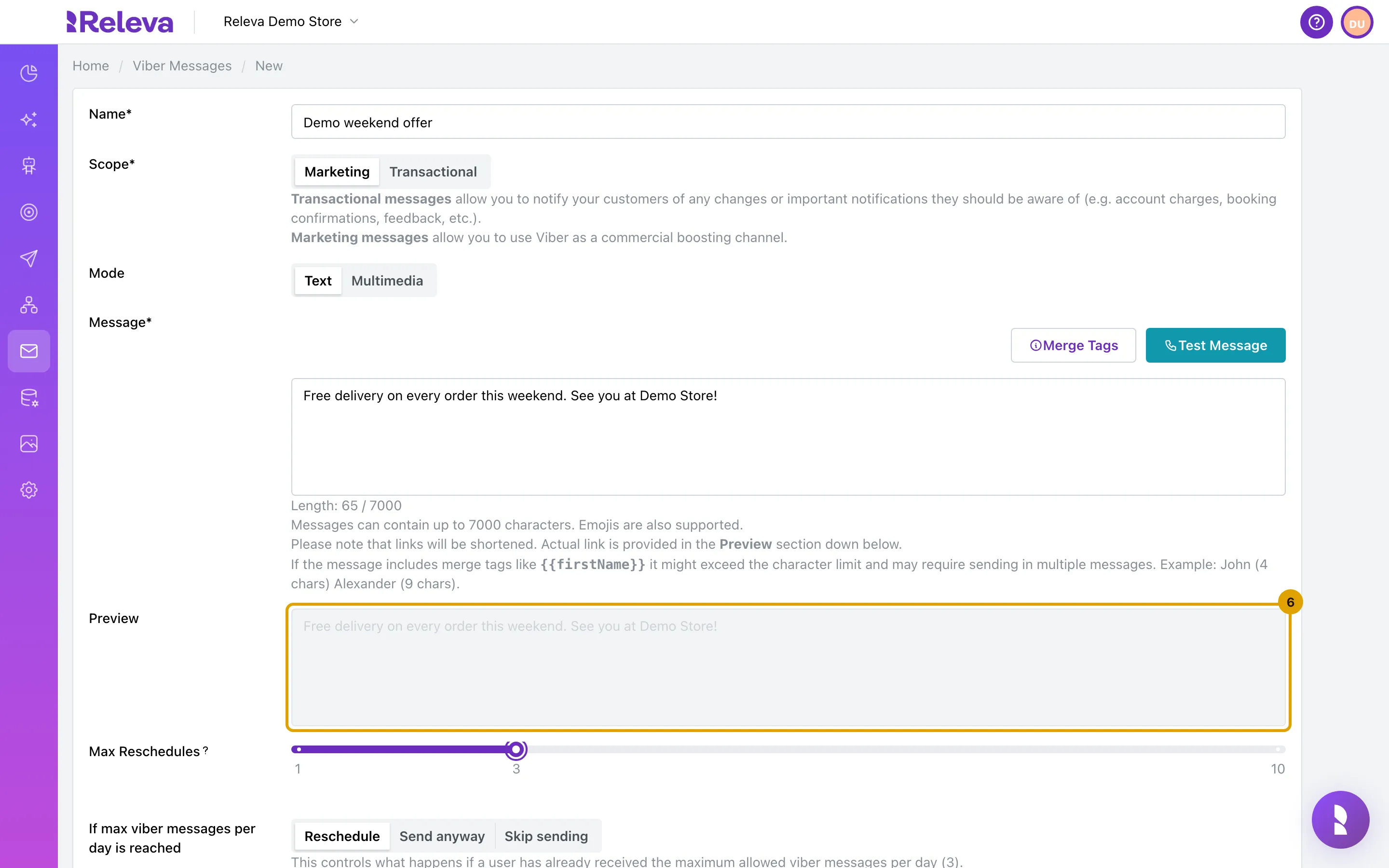
-
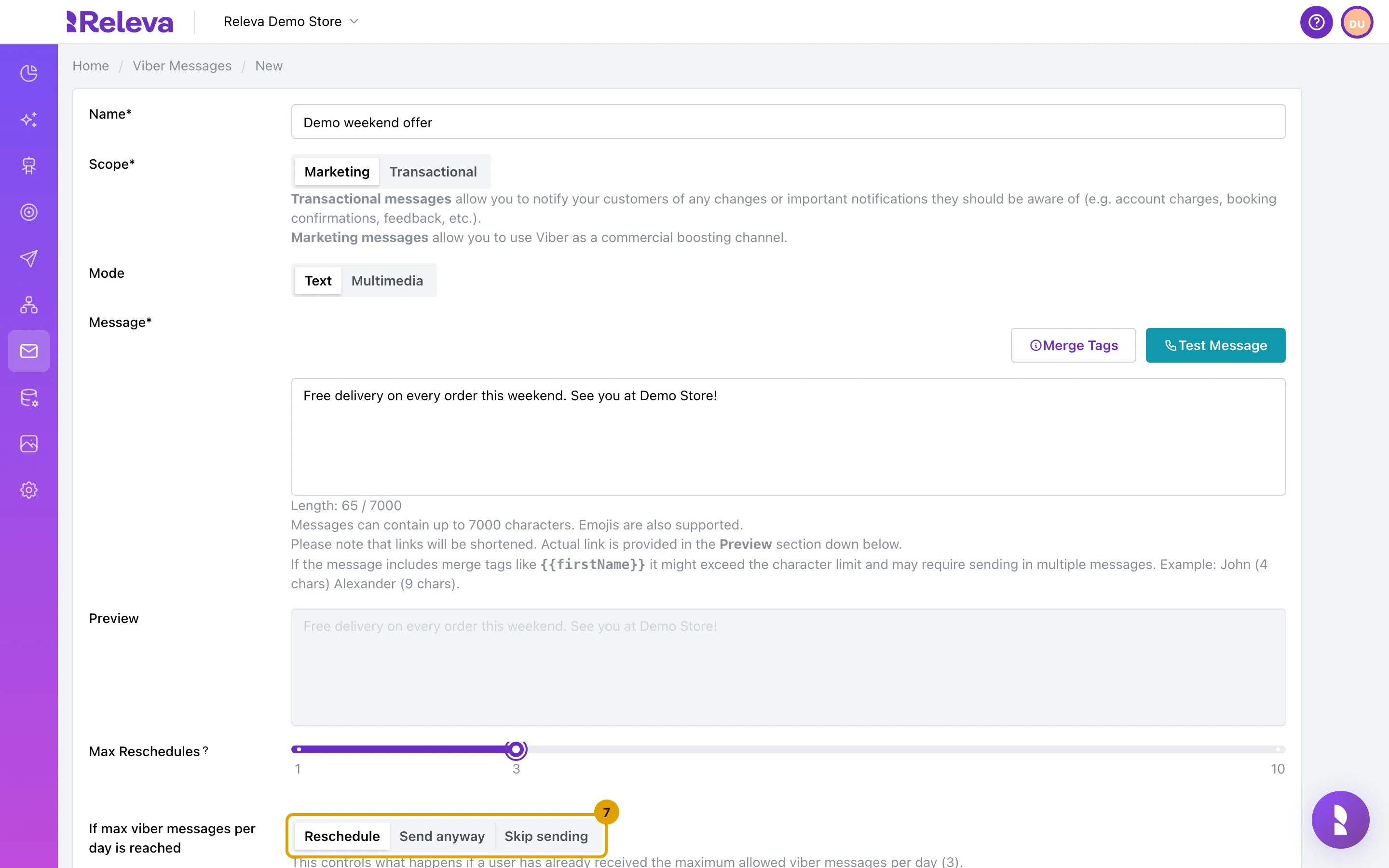
Under If max viber messages per day is reached, choose Reschedule, Send anyway or Skip sending.
The number in brackets is your shop’s daily limit per profile (3 by default). With Reschedule, Max Reschedules (1 to 10, default 3) is how many days Releva retries a profile that was over the limit. The setting applies to one-off and continuous sends, not to triggered workflows.
-
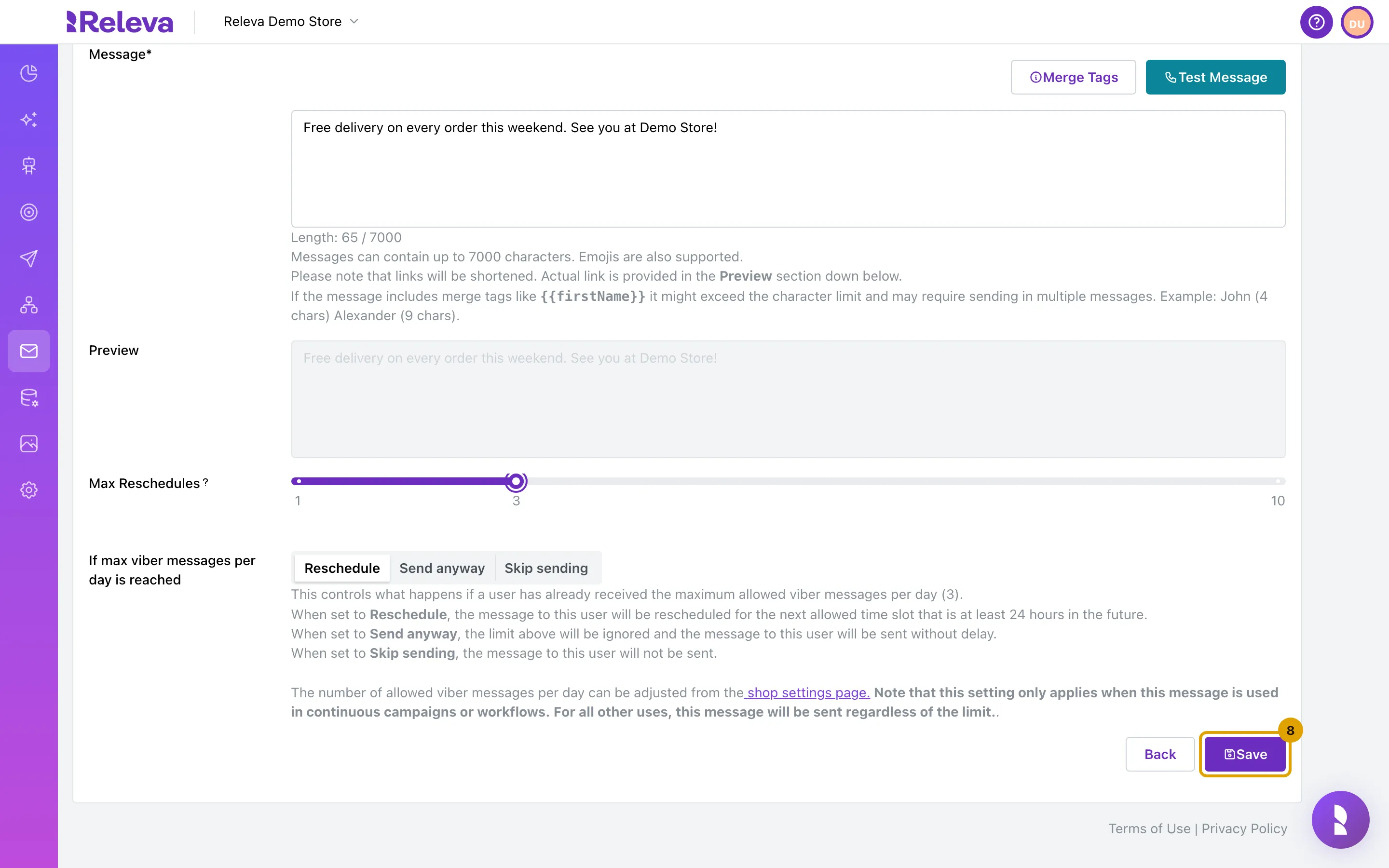
Select Save.
Save stays disabled until the name and the message are filled in and the merge tags are valid. Test Message next to Merge Tags sends the text for real through your provider; this guide does not use it.
-
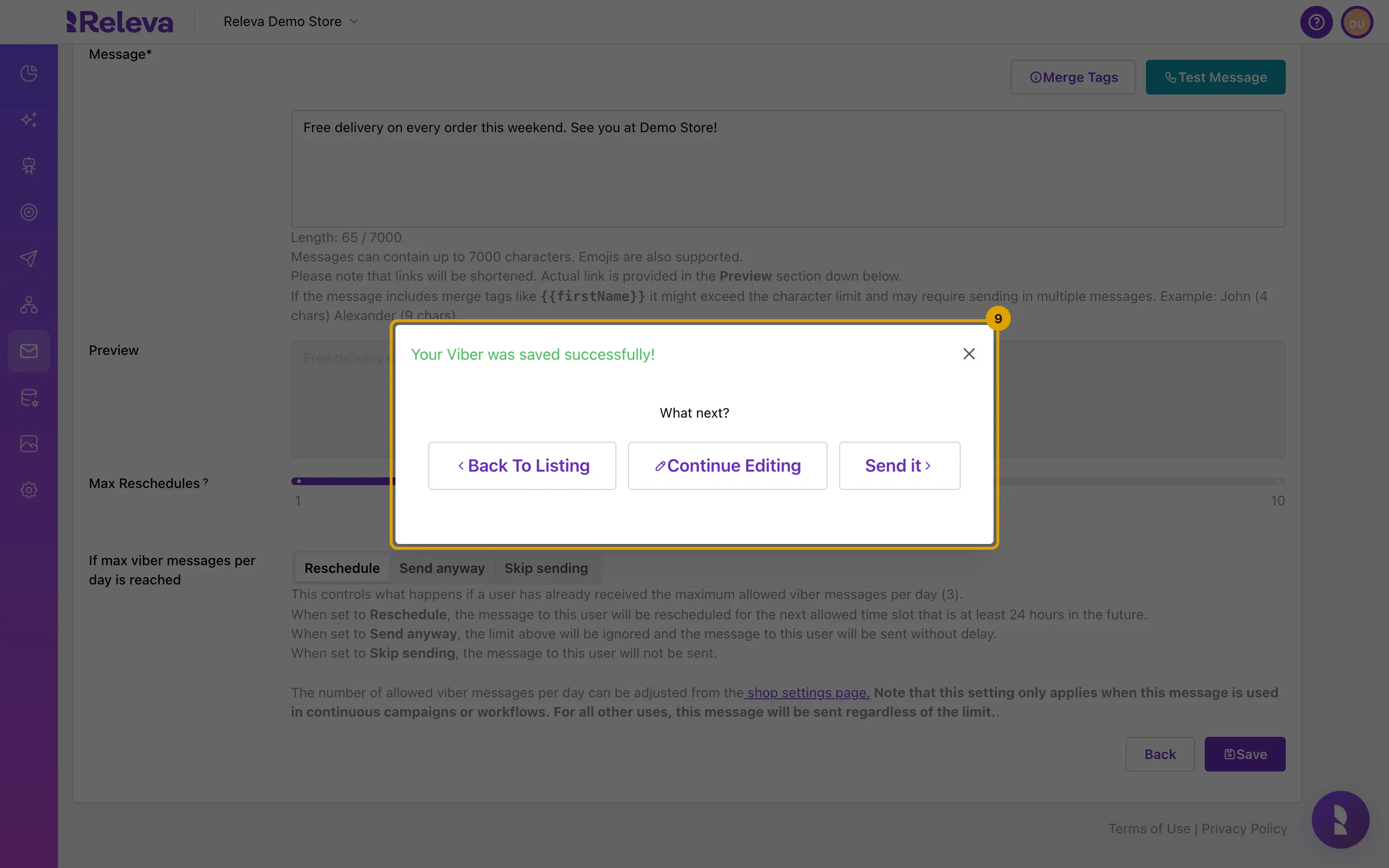
The message is saved. Select Back To Listing.
The Your Viber was saved successfully! window offers Back To Listing, Continue Editing and Send it. Send it opens the workflow picker; nothing is sent until a workflow is launched.
-
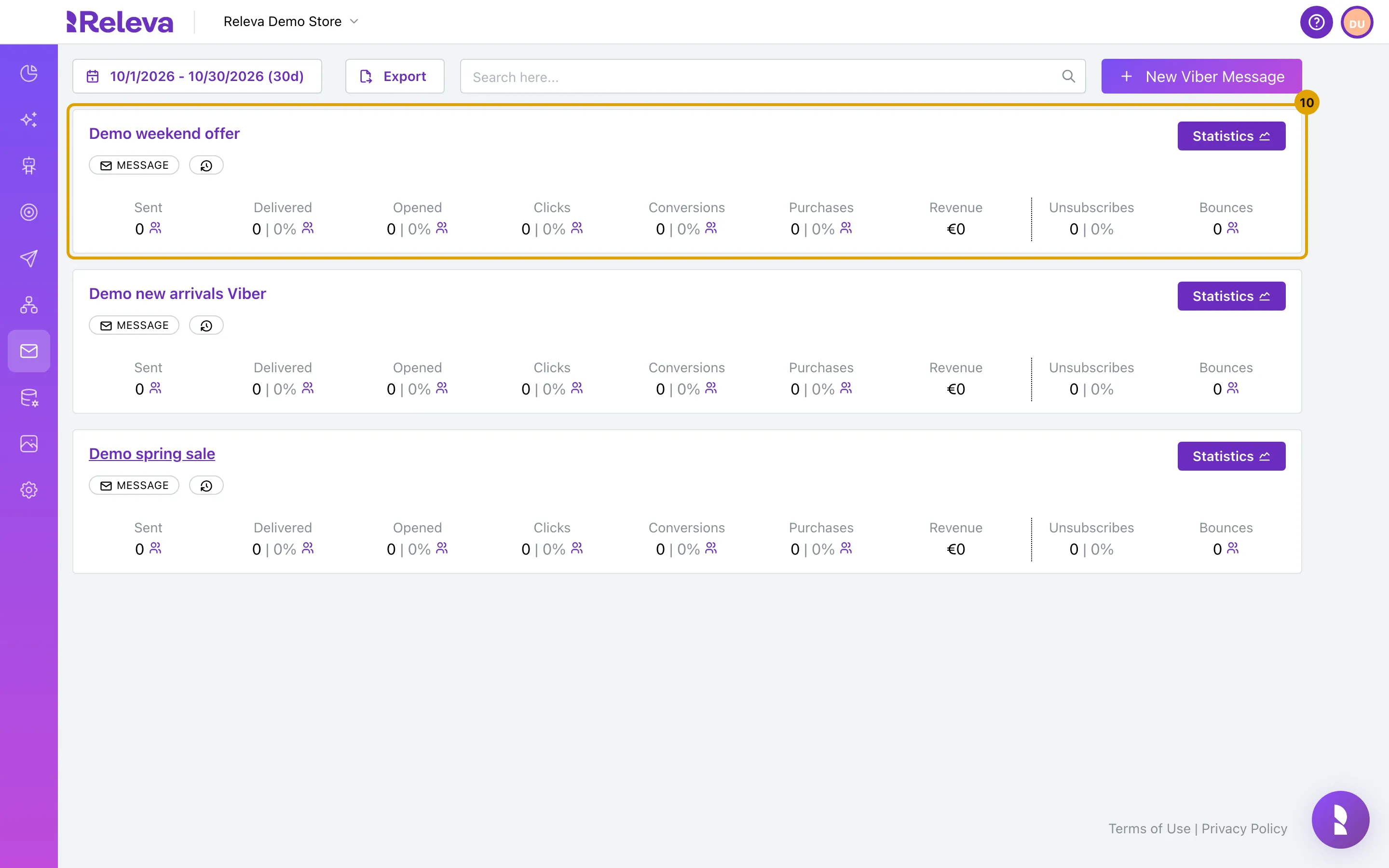
The new message has its own card on the Viber Messages list.
Check it worked
Section titled “Check it worked”- The new message is the first card on the Viber Messages list, above your older messages, with a MESSAGE badge and all counters at 0.
- Open the card: the breadcrumb reads Home / Viber Messages / <name> / Edit, Scope and Mode are greyed out, and the form now has Delete, Make a copy and Send next to Save.
Troubleshooting
Section titled “Troubleshooting”New Viber Message is disabled. No Viber provider is set up, or its user or password is missing. Follow the You can fill your credentials here. link in the alert to Settings › Messaging, tab Viber Messages.
Save is disabled. The name or the message is empty, the message is over the limit, or a merge tag is broken (the error appears under Message). In Multimedia mode, Button Text and Button URL must both be filled in or both be empty, and the URL must be a full address such as https://demo-store.example.com/sale or a merge tag.
Save fails with “Viber Message Name must be unique!” Another message in this shop has the same name. Change the name and save again.
The preview is empty. It shows No message preview available until there is text, and it is fetched from the server, so it needs a moment. If an error appears under Preview, the preview request failed; the message can still be saved.
I cannot change Scope or Mode. Both are fixed once the message is saved. Select Make a copy to start a new message with the same text, or create a new one.