

Create a WhatsApp template message
A WhatsApp message in Releva is a template: Meta must approve the text before it can be sent. Saving a template submits it to Meta (or to your Business Solution Provider) for review; nothing is sent to customers. Once approved, a workflow sends it: see Send a WhatsApp template with a workflow. This guide creates a text-only template. For media and carousel templates, statuses and sending, read How WhatsApp messages work.
Before you start
Section titled “Before you start”- Your shop has a connected WhatsApp Business Account. Without one, the list shows Connect your WhatsApp Business Account (WABA) to enable the creation of template messages. and New Whats App Message is disabled. See Connect WhatsApp through a Business Solution Provider.
- Your plan includes WhatsApp messages. If the button shows a lock, ask your account owner.
- If you also run Facebook ads with Releva, connect Facebook too: see Connect your Meta account to Releva.
- You know the exact text. The name cannot be changed after saving, and Meta rejects a message that starts or ends with a merge tag.
-
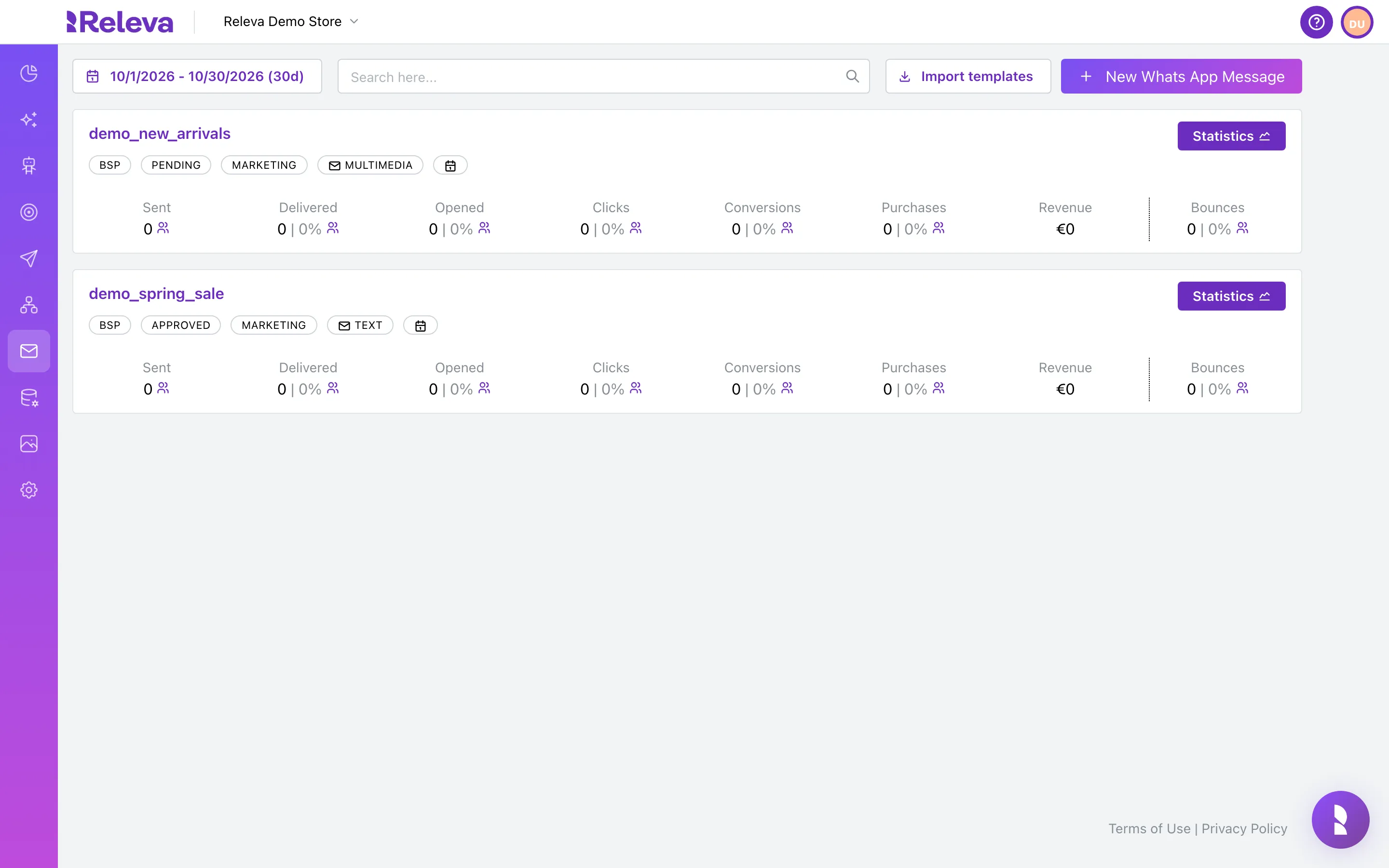
Go to Marketing Channels › WhatsApp Messages.
-
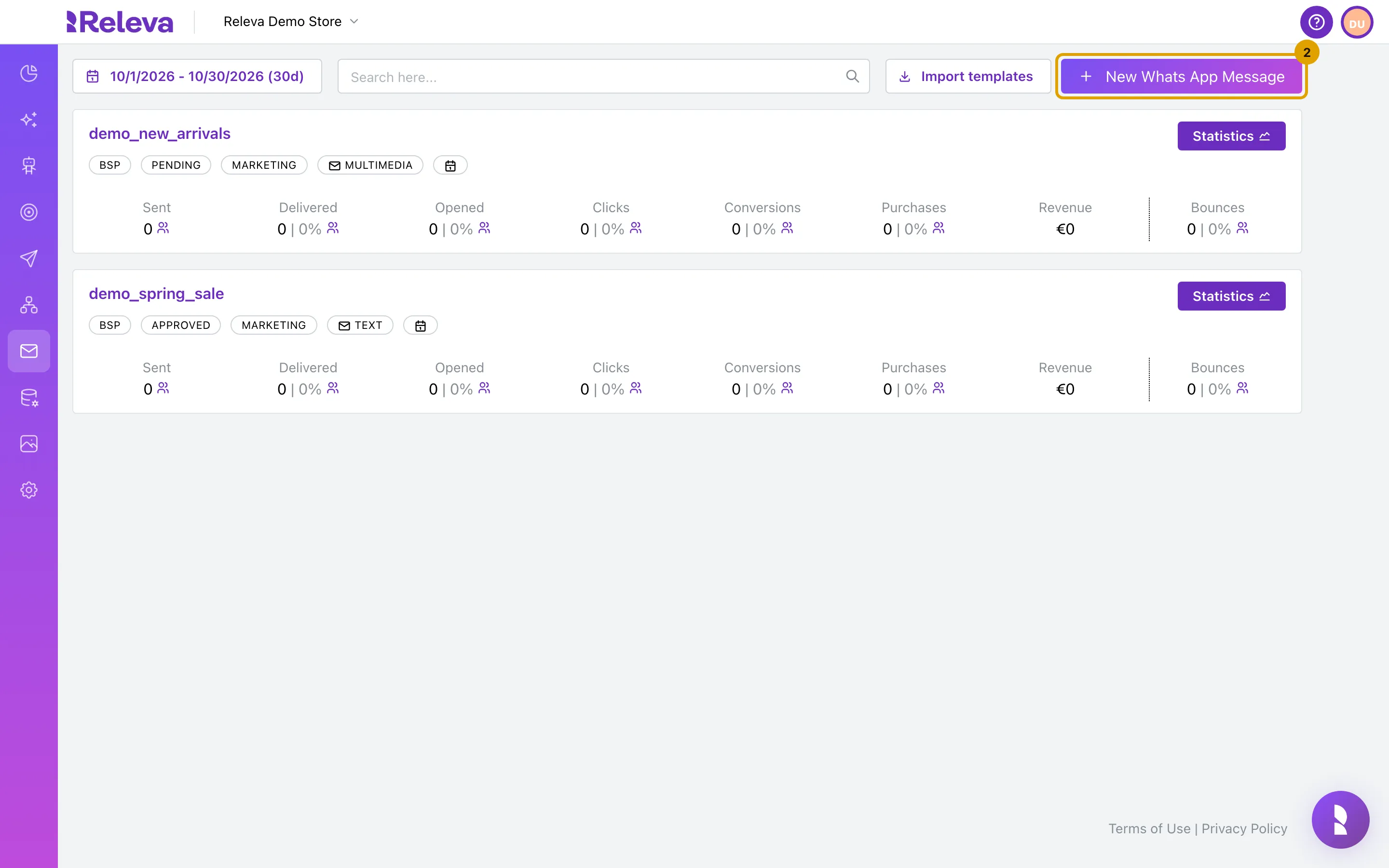
Select New Whats App Message.
The form opens with the name new_whatsapp_message, Text-Based selected, Max Reschedules at 3 and Reschedule selected.
-
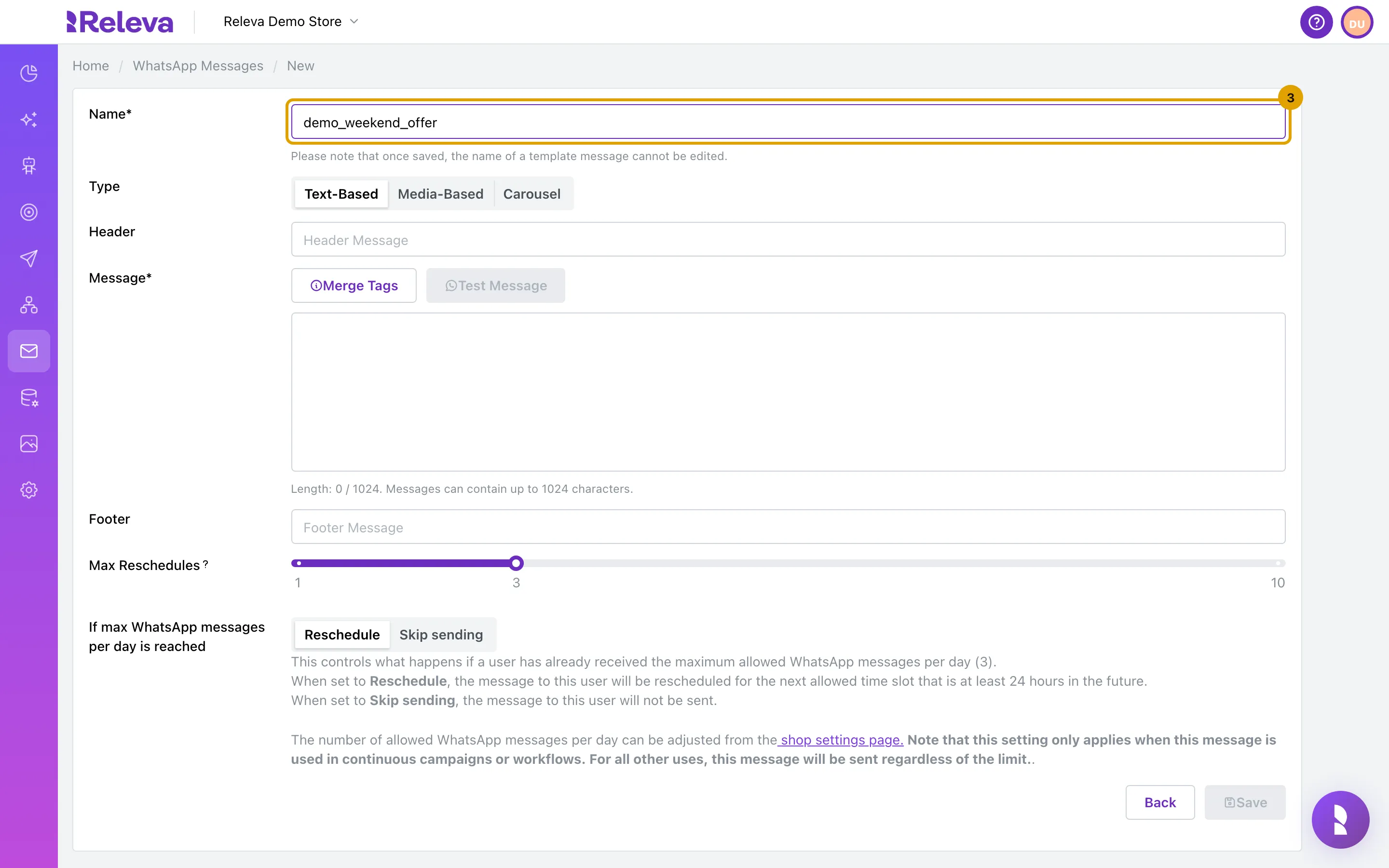
In Name, enter a name using only lowercase letters, numbers and underscores. You cannot change it after saving.
The form says Please note that once saved, the name of a template message cannot be edited. Any other character shows Please use only lowercase letters, numbers, or underscores ( _ ). The name must be unique in your shop.
-
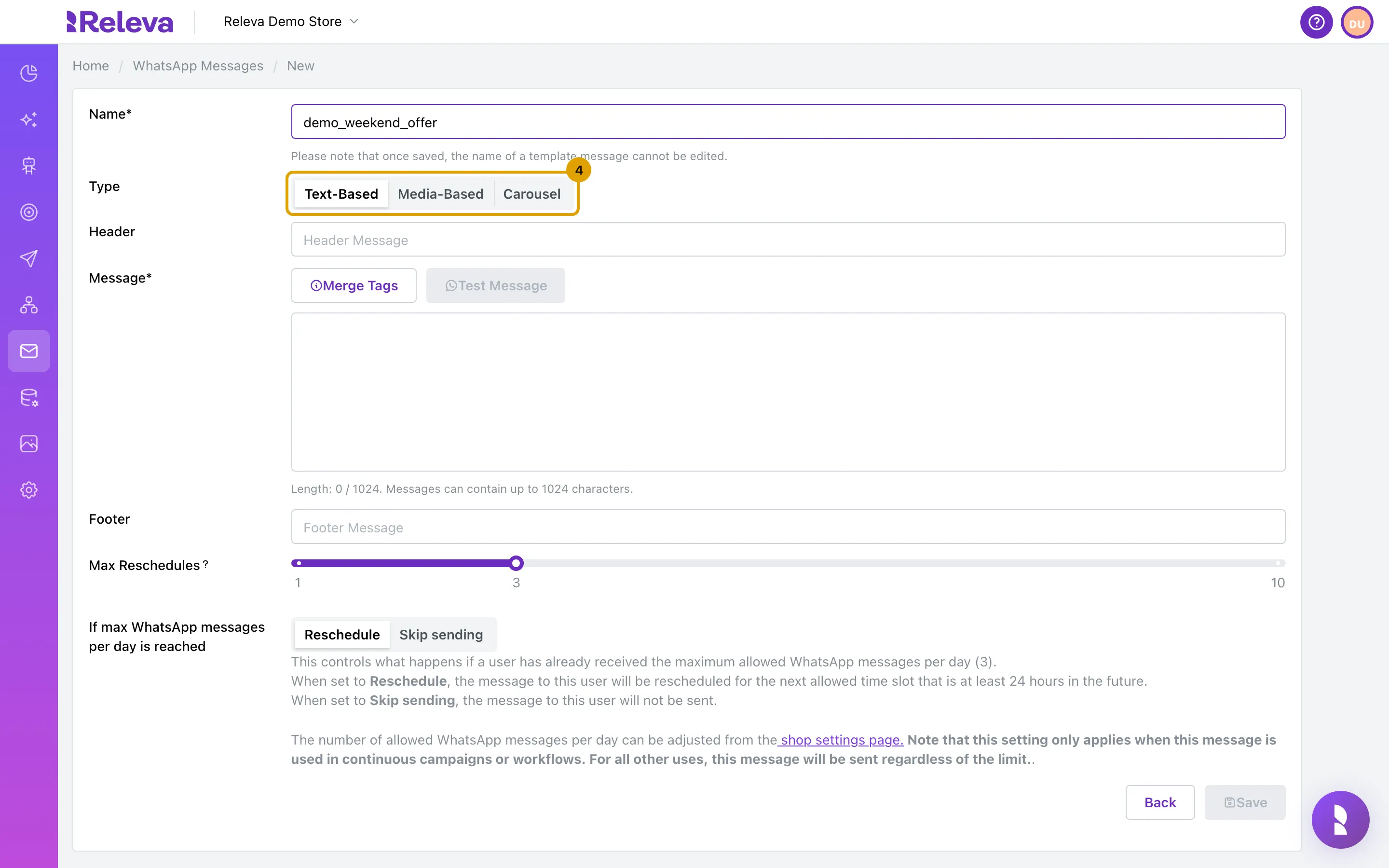
In Type, keep Text-Based for a message with text only. Choose Media-Based to add an image and a button, or Carousel for 2 to 10 cards.
The type is fixed after saving. Switching type clears the fields the new type does not use.
-
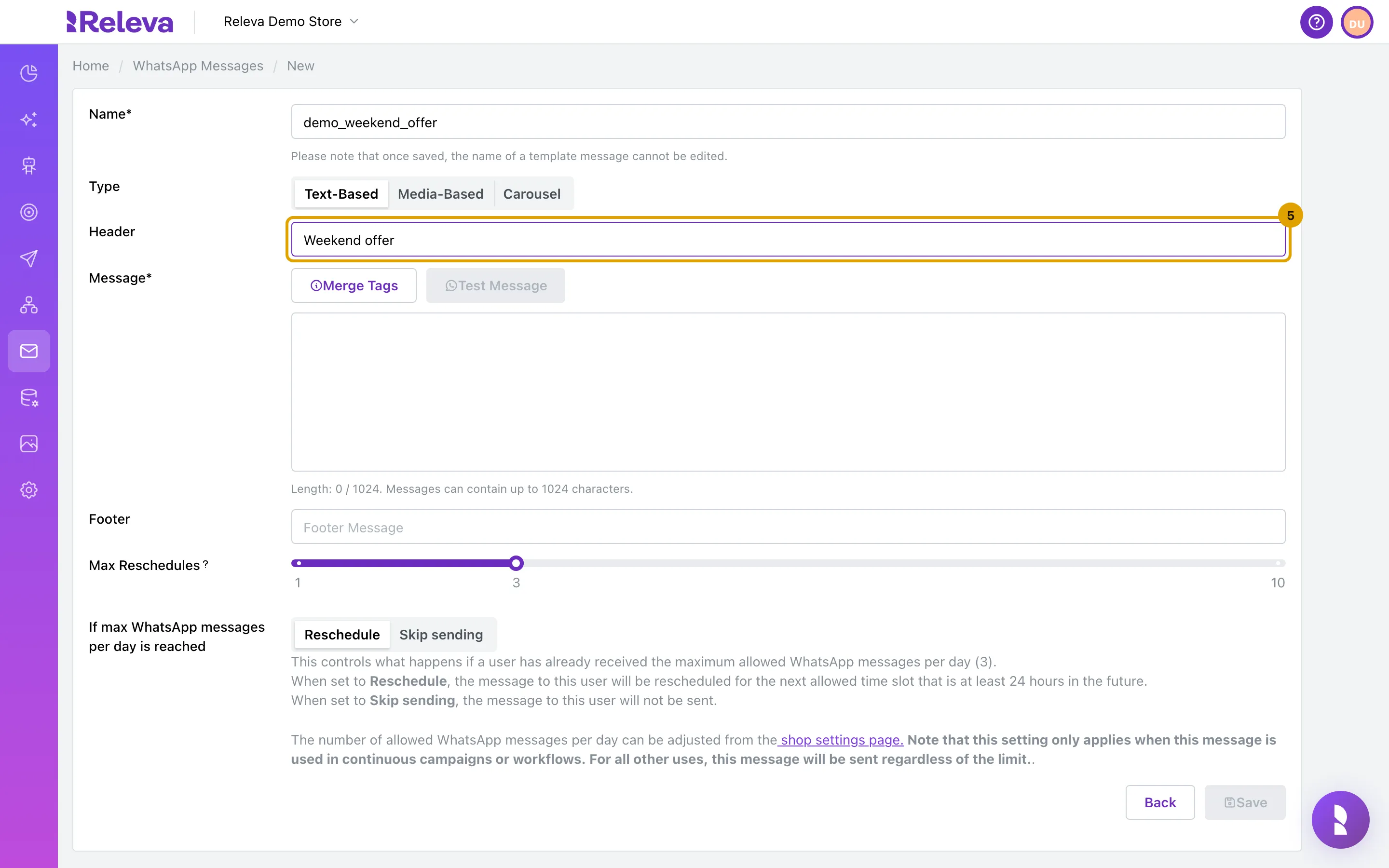
Optionally, enter a Header of up to 60 characters.
Longer headers show Header text must be less than 60 symbols. The header is available for text-based templates only.
-
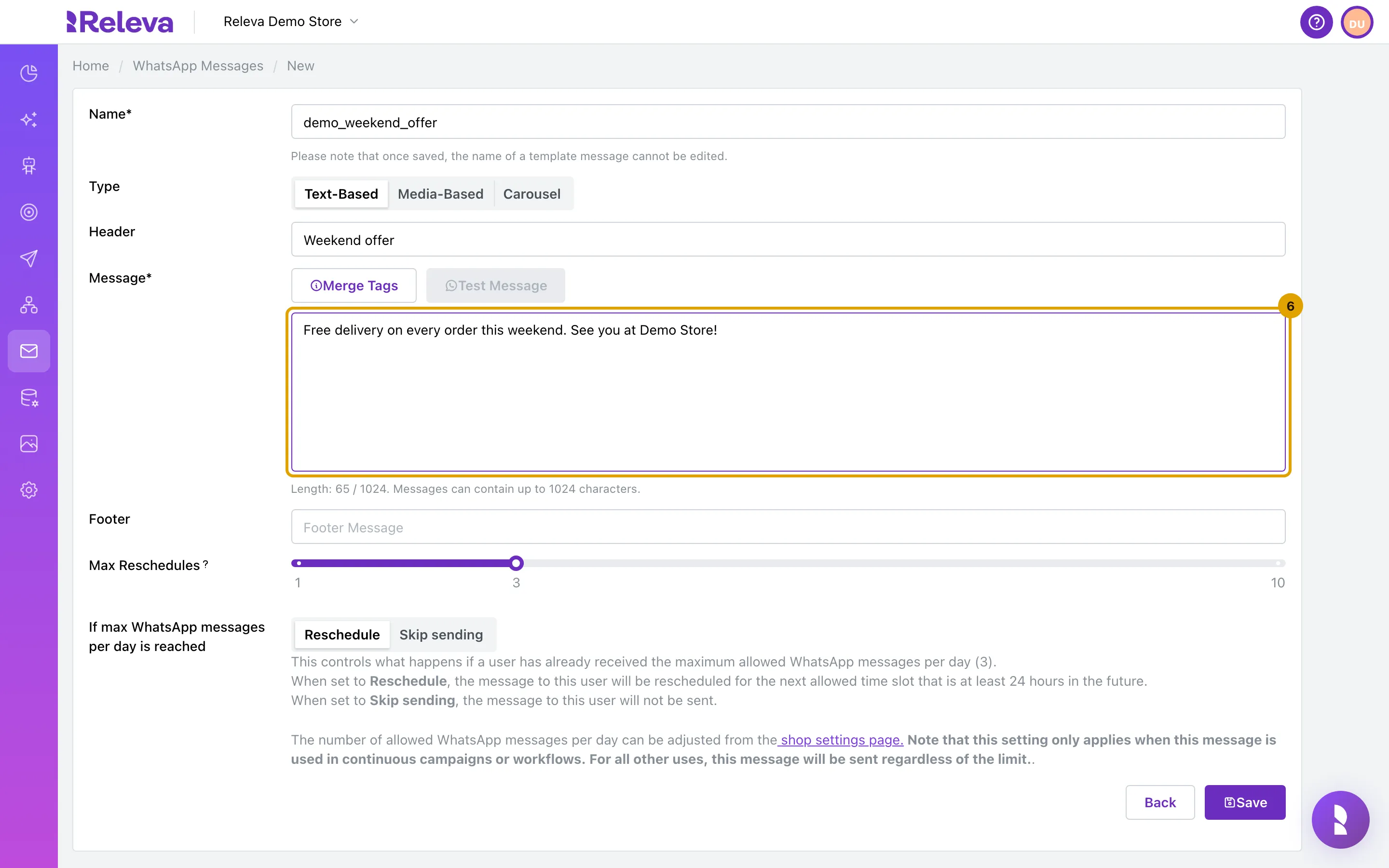
In Message, enter the text of the message, up to 1024 characters.
Length under the box counts the characters. Save becomes enabled as soon as the name and message are valid.
-
To personalize the message, select Merge Tags and copy a pattern from the list into the message. The message cannot start or end with a merge tag.
The list shows each tag’s Pattern and Label, for example
{{firstName}},{{unsubscribeLink}}and your custom profile fields. If the text starts or ends with a tag, the form shows Body cannot start or end with a merge tag — Meta rejects this for all template bodies. Add text before/after the tag. Select Merge Tags again to close the list.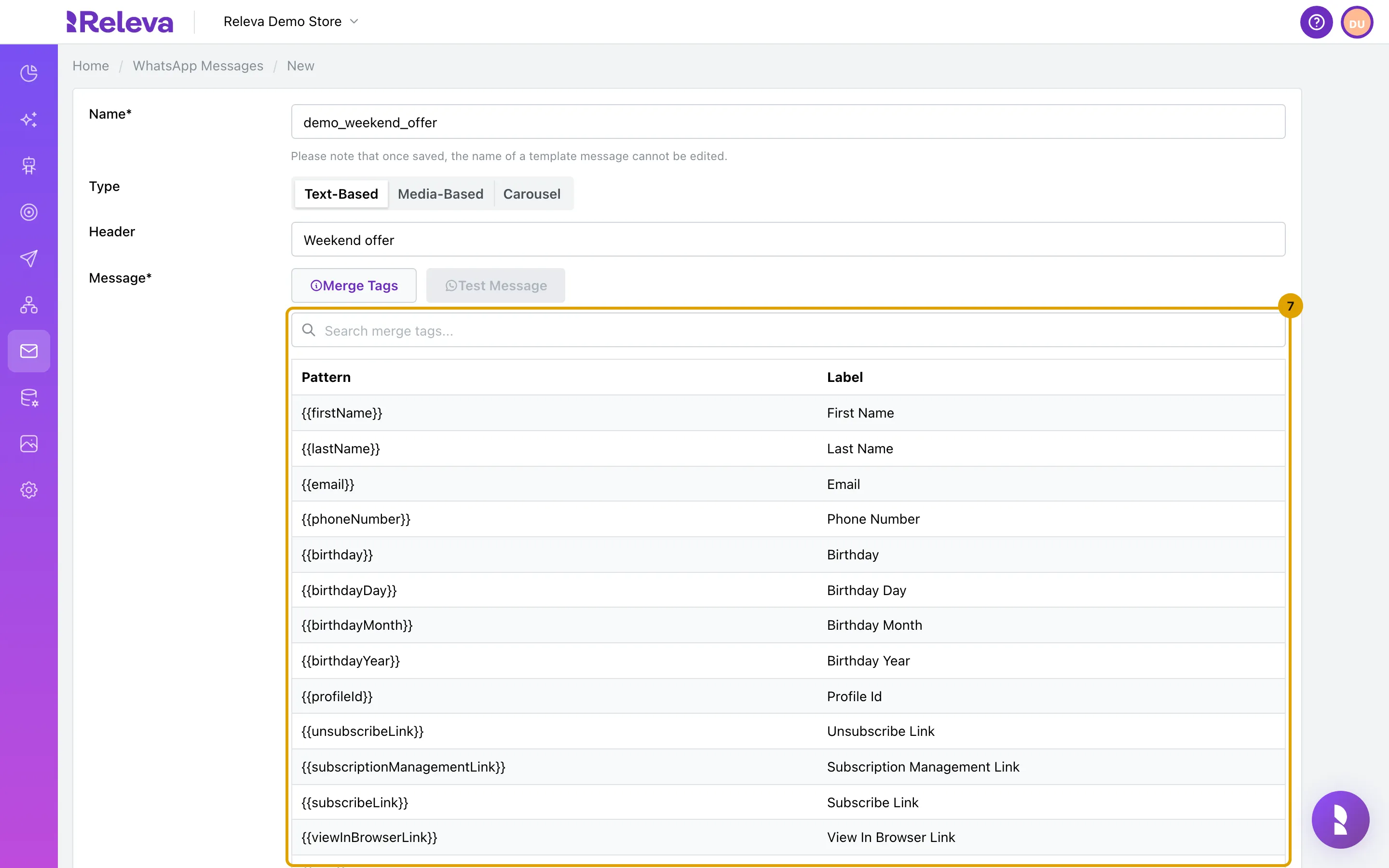
-
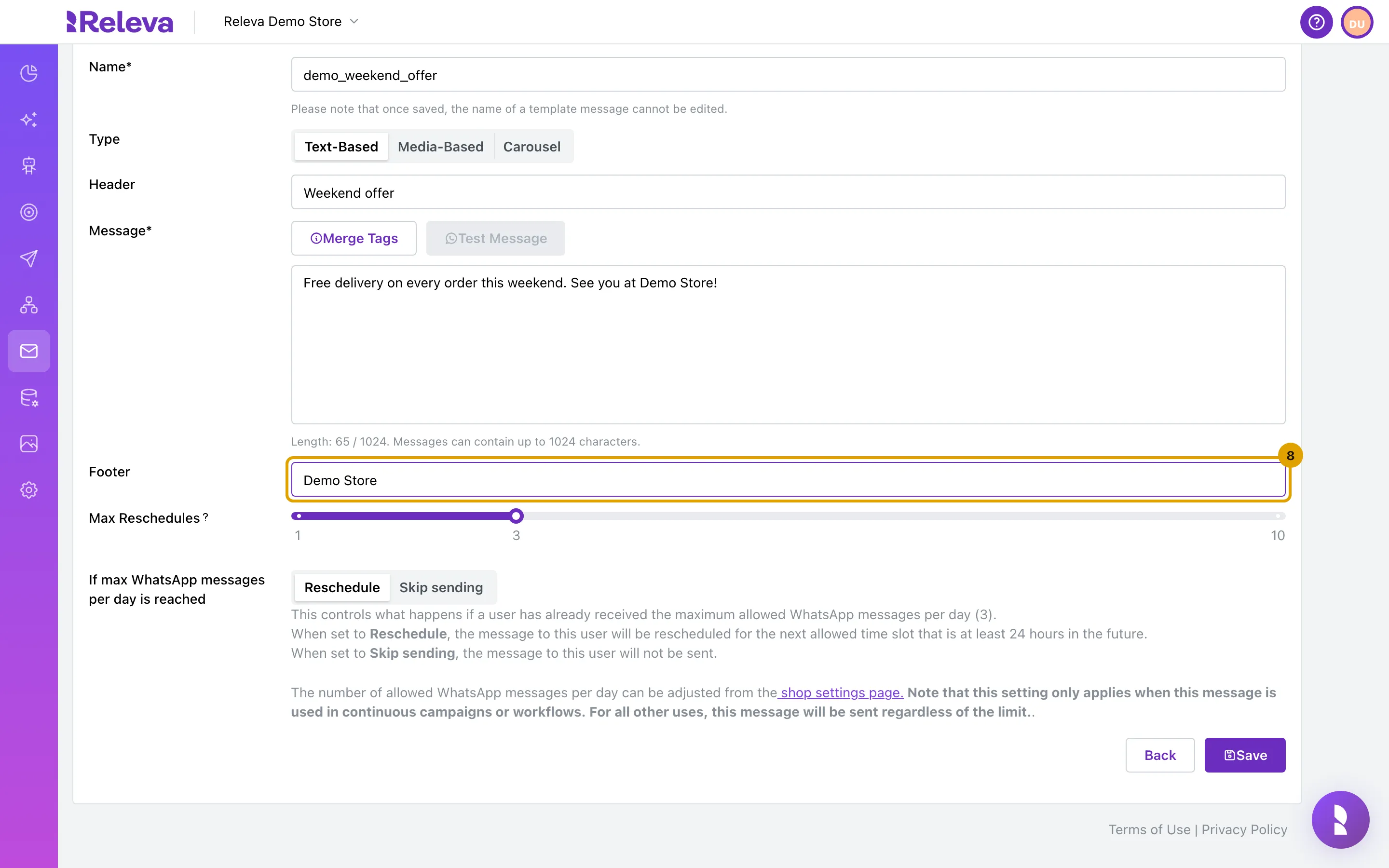
Optionally, enter a Footer of up to 60 characters. Merge tags are not allowed in the footer.
Otherwise the form shows Footer text must be less than 60 symbols and Merge tags are not allowed.
-
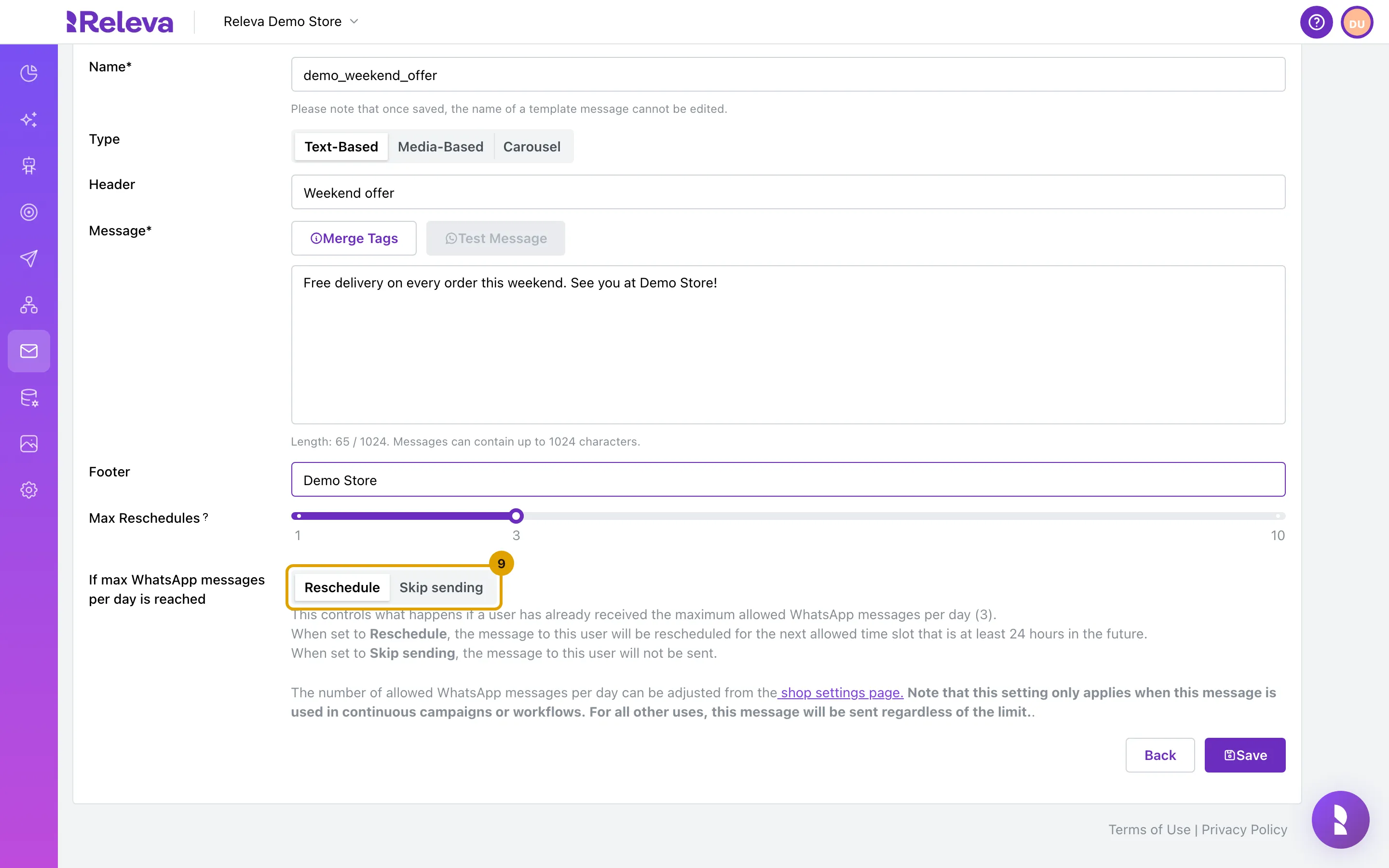
In If max WhatsApp messages per day is reached, choose Reschedule or Skip sending. It applies to one-off and continuous sends, not to triggered workflows.
The help text quotes your shop’s daily limit (3 by default). With Reschedule, Max Reschedules (1 to 10) is how many times Releva retries a customer who was over the limit. There is no Send anyway option for WhatsApp.
-
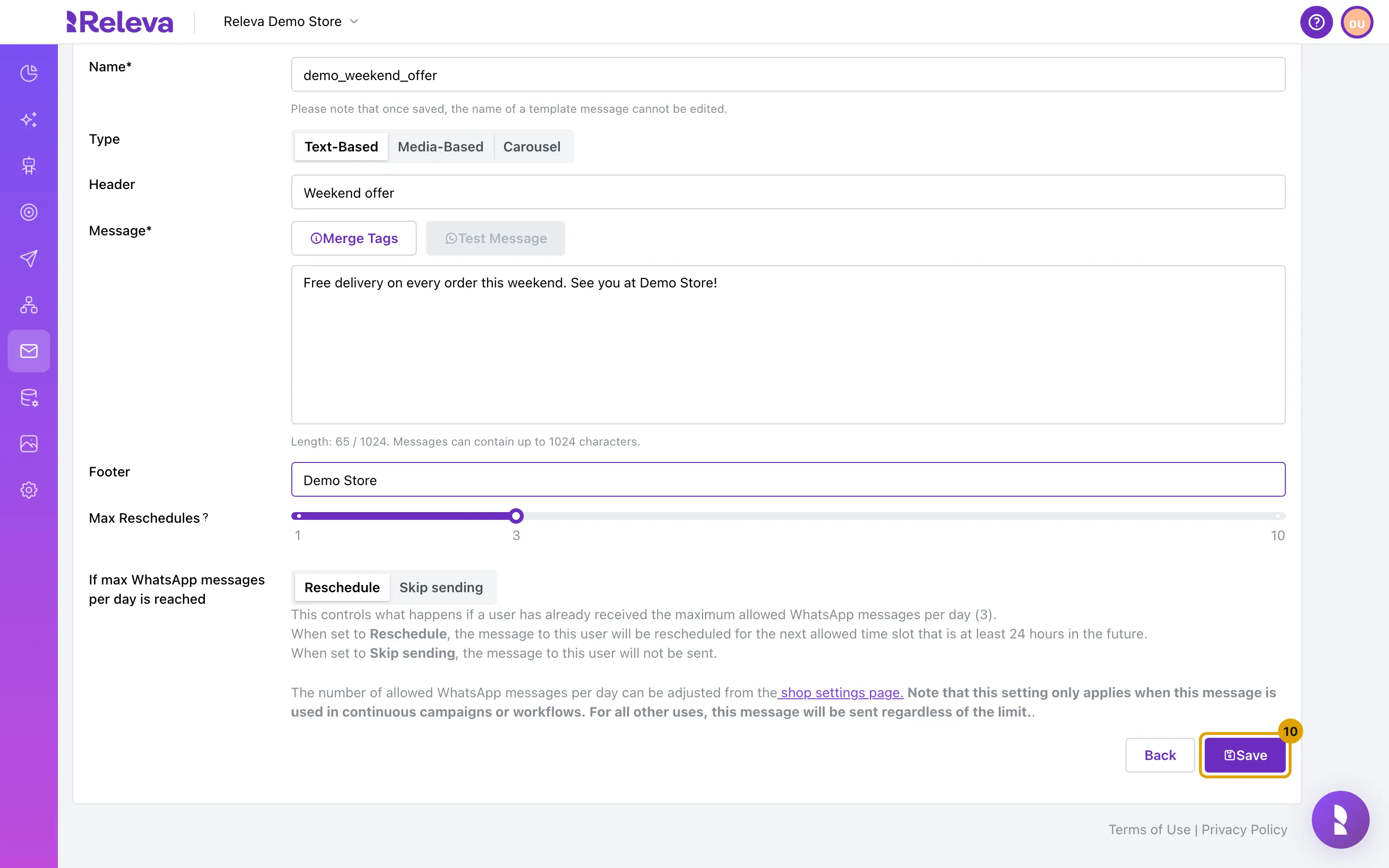
Select Save. Releva submits the template to Meta for approval.
Releva uploads the template to Meta (or to your provider) inside the save. If Meta rejects the request, nothing is saved and the error is shown.
Check it worked
Section titled “Check it worked”- The window Your Whatsapp Message was saved successfully! appears and you return to the list.
- The new template is the first card on Marketing Channels › WhatsApp Messages, with a PENDING badge, a MARKETING badge, a TEXT badge and the sender badge (BSP or WhatsApp Manager). All counters are 0.
- When Meta approves the template, the badge changes to APPROVED. Releva learns this from a Meta webhook and also checks Meta once an hour, so allow up to an hour after the approval e-mail.
Troubleshooting
Section titled “Troubleshooting”Save is disabled. The name or the message is empty or invalid, or another field shows an error.
New Whats App Message is disabled. No WhatsApp account is connected: follow the link in the alert to Settings › Facebook & Whatsapp. The list may also show Upgrade your subscription to access this feature. in this state; the missing account is the real cause.
“Invalid merge tag: Parse error on line 1: …” under the message. A tag is not closed or not valid. Fix the tag; Save stays disabled until the text parses.
The template stays PENDING and most fields are greyed out. While a template is not APPROVED, REJECTED or PAUSED, the buttons, URLs, image and footer are locked and Save is disabled. Wait for Meta’s review. If it stays pending for more than a day, check the template in your Meta Business Manager.
Test Message is disabled. It is enabled only after the template is saved and while the form is valid. Sending a test from a PENDING template answers The WhatsApp template message is pending. Please try again later.; only APPROVED templates can be sent.
I need a header on a media or carousel template. Only text-based templates have a Header field; media templates use the image as the header.