

Find an email and check its results
Every email you build in Releva has a card on the Emails list. The card shows the email’s name, subject and editor, and the results for the period you choose. This guide finds one email and reads its card. To see a click map and a daily chart for one email, read Check how an email performs. For what an email is and how it gets sent, read How emails work.
Before you start
Section titled “Before you start”- You know part of the email’s name. Search matches the start of a word in the name, not the subject.
- Your plan includes the Emails channel. If Marketing Channels › Emails is missing from the sidebar, ask your account owner.
- Results appear only for emails that a campaign or workflow has sent. An email that was never sent shows 0 everywhere.
-
Go to Marketing Channels › Emails
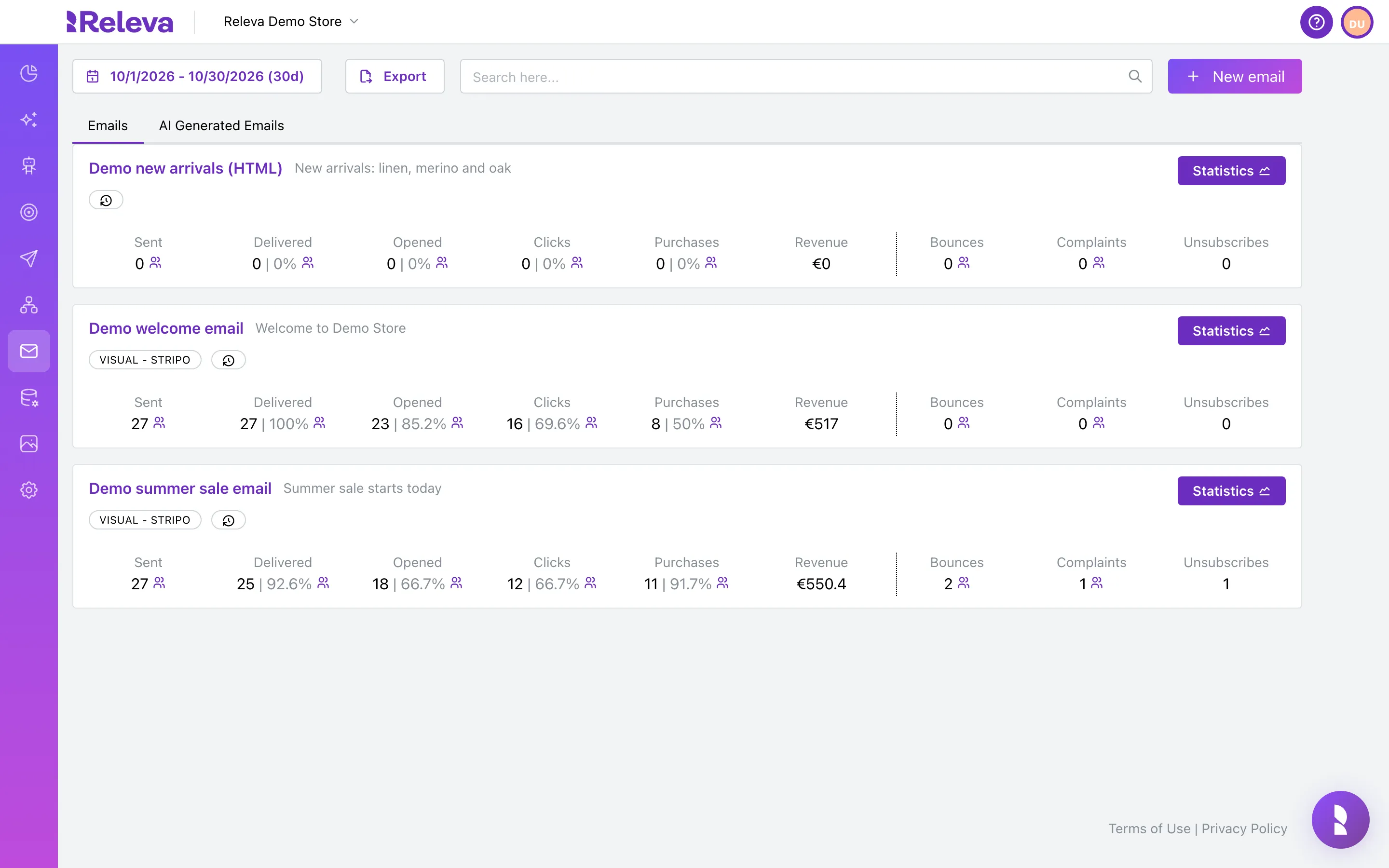
-
The date range at the top sets the period for the numbers on every card (the last 30 days, today included, by default)
Select it, then pick a preset (1 week, 2 weeks, 1 month, 3 months), which applies at once, or select a start and end day and select Apply.
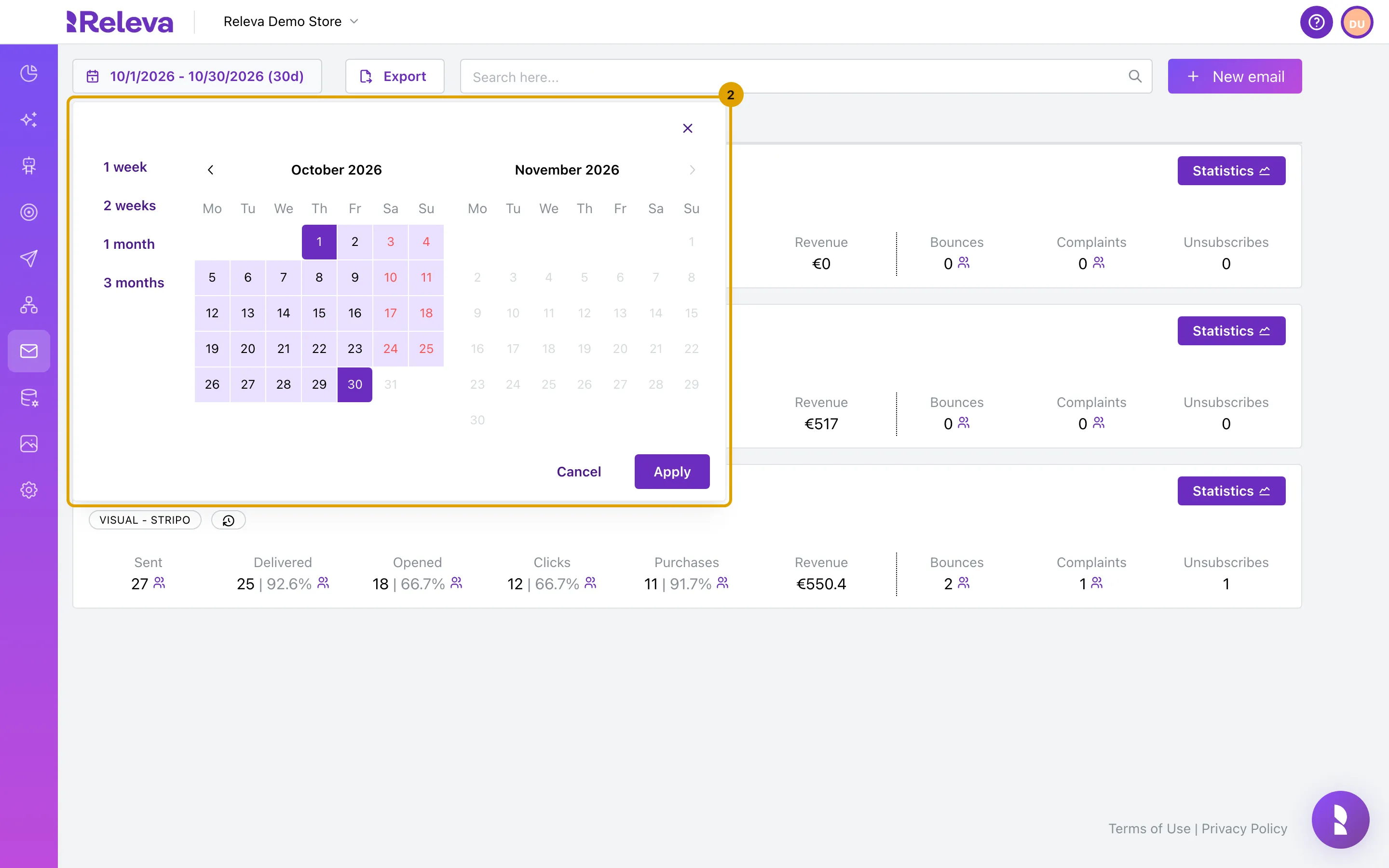
-
In Search here…, type the start of a word in the email’s name, for example summer
The list filters a moment after you stop typing. Clear the box to see every email again.
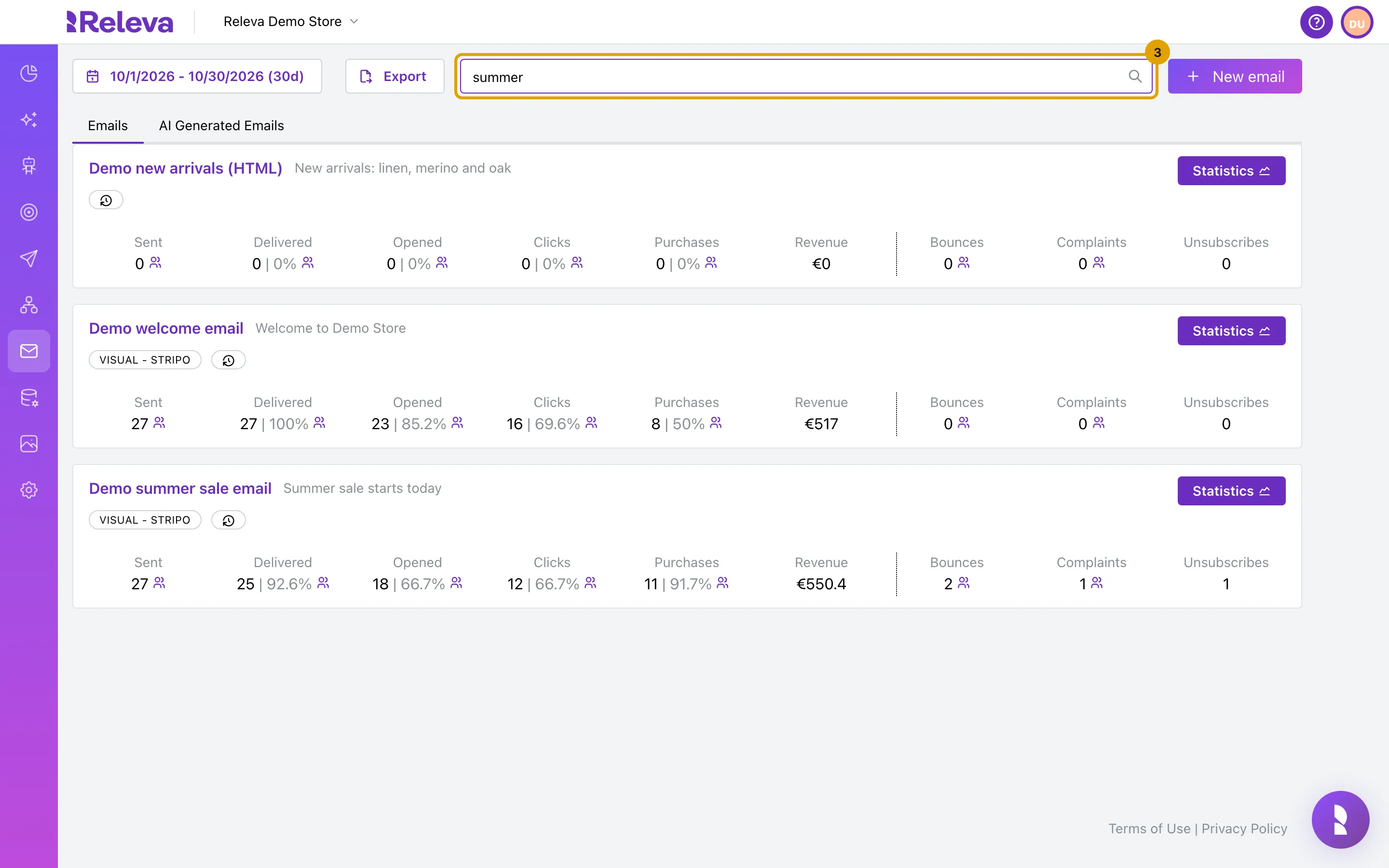
-
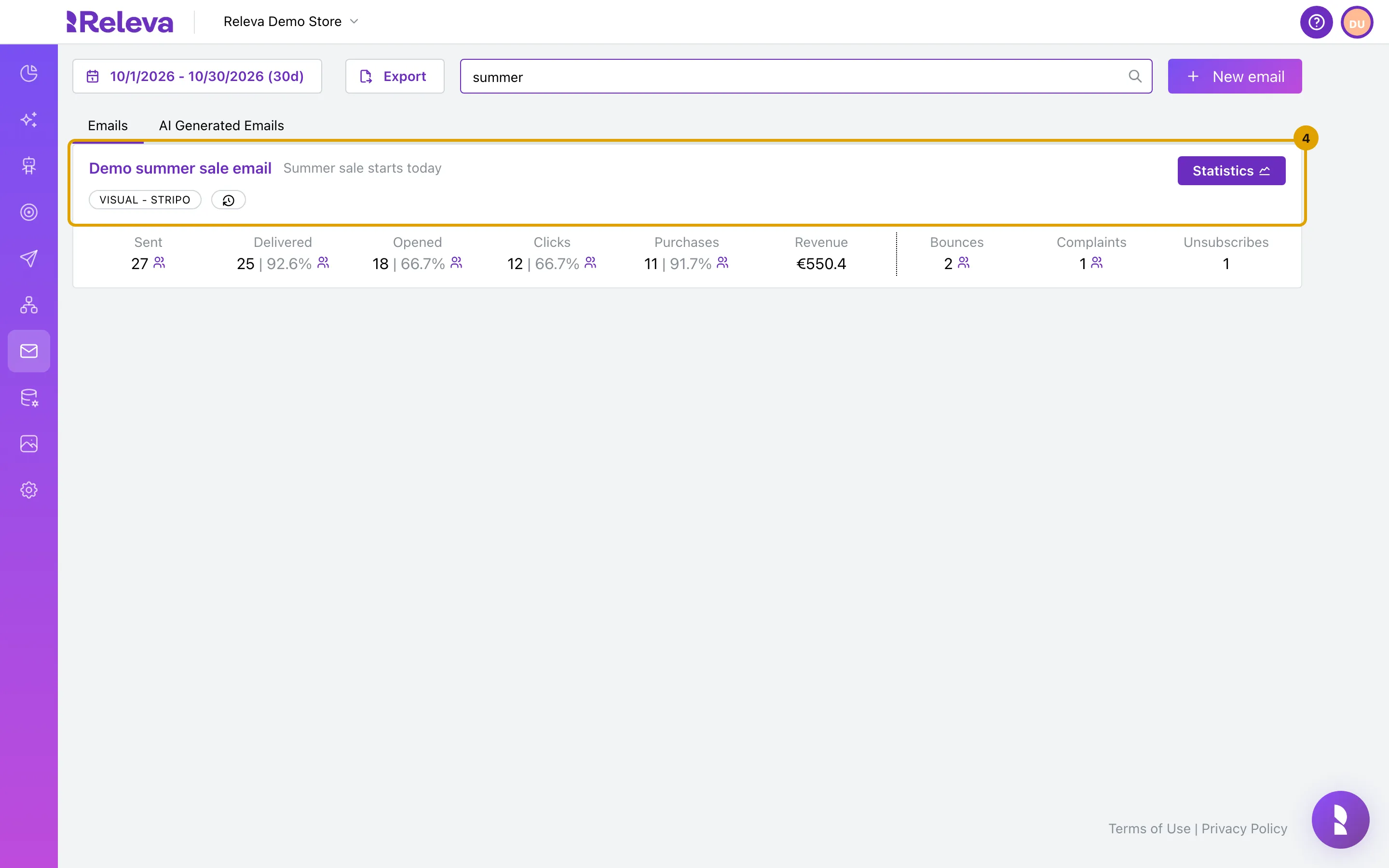
Only the emails that match stay in the list. Each card shows the email’s name, its subject and the editor it was built with
The badge reads VISUAL - STRIPO for emails built in the visual editor. HTML emails have no editor badge. A clock badge shows when the email was created and last updated. An email with a product block also shows a badge for each product feed it uses.
-
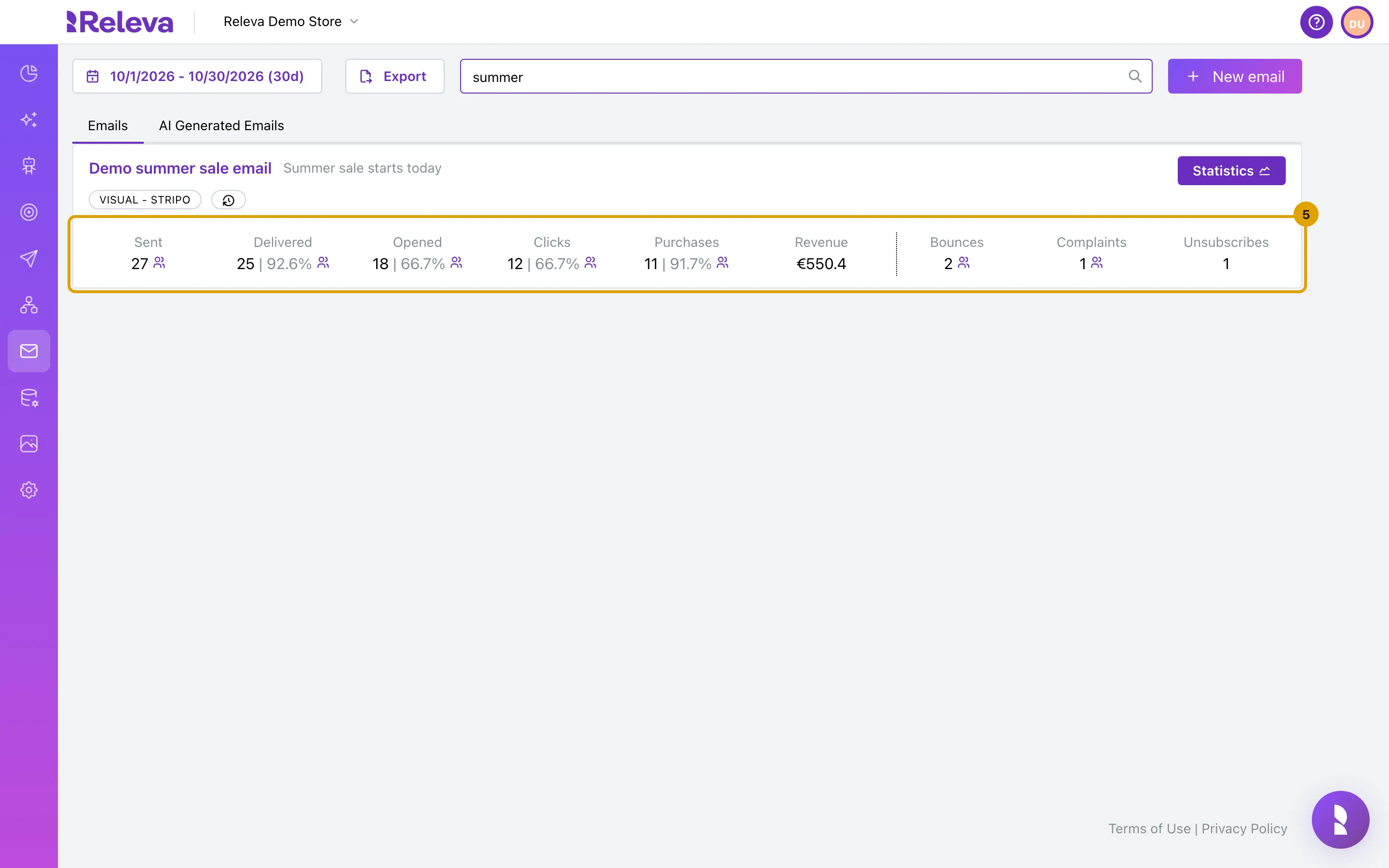
Read the results for the period. Delivered and Opened show a share of Sent, Clicks a share of Opened and Purchases a share of Clicks; Revenue is the value of those purchases
In this example, 27 emails were sent, 25 delivered (92.6%) and 18 opened (66.7%), with 12 clicks (66.7% of opened), 11 purchases (91.7% of clicks) and €550.4 in revenue. Bounces, Complaints and Unsubscribes are on the right. The people icon next to a number opens a new segment of exactly those profiles, for example everyone who opened this email in the period.
-
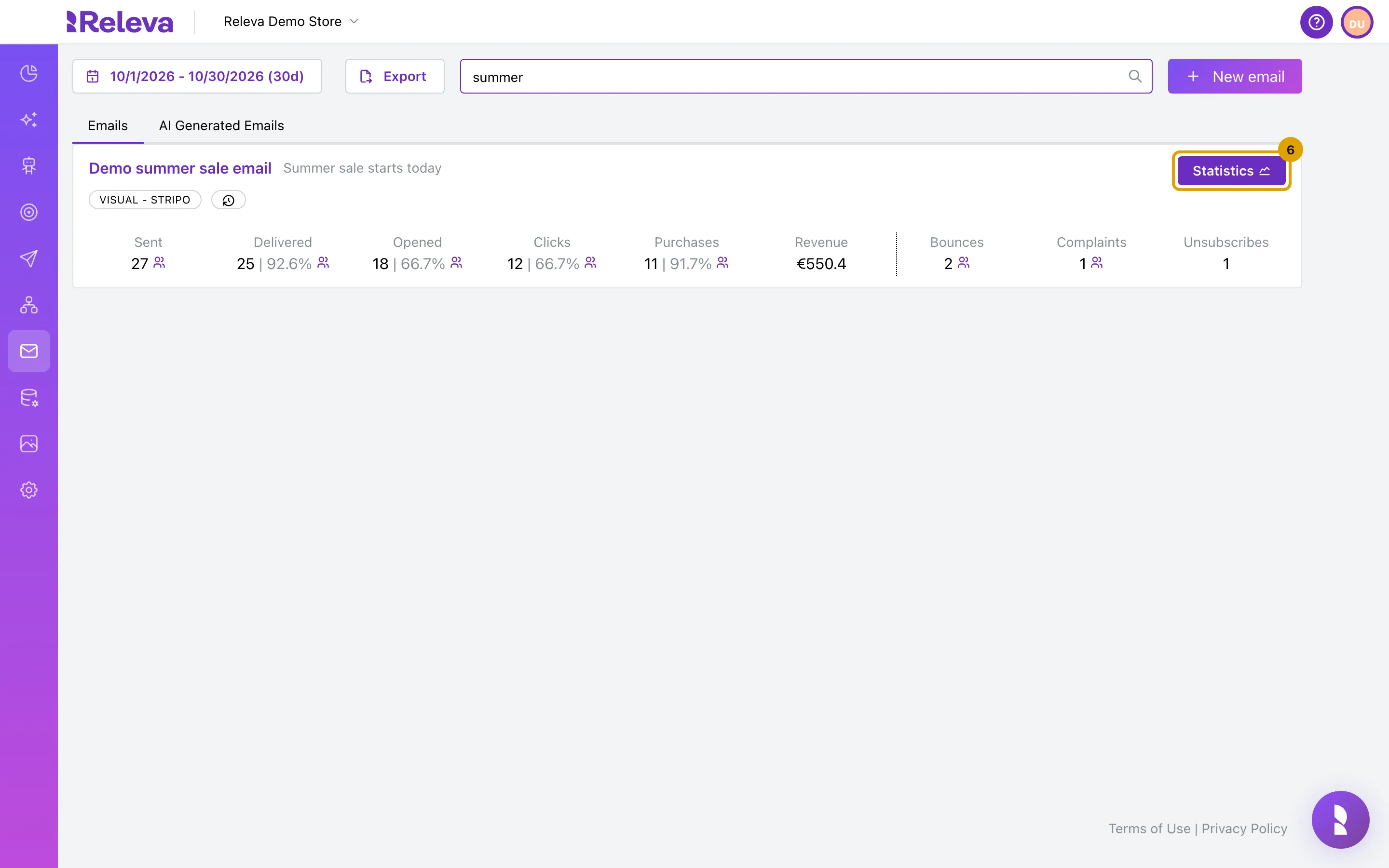
To see the daily chart and click map of one email, select Statistics on its card
Check how an email performs explains that page.
-
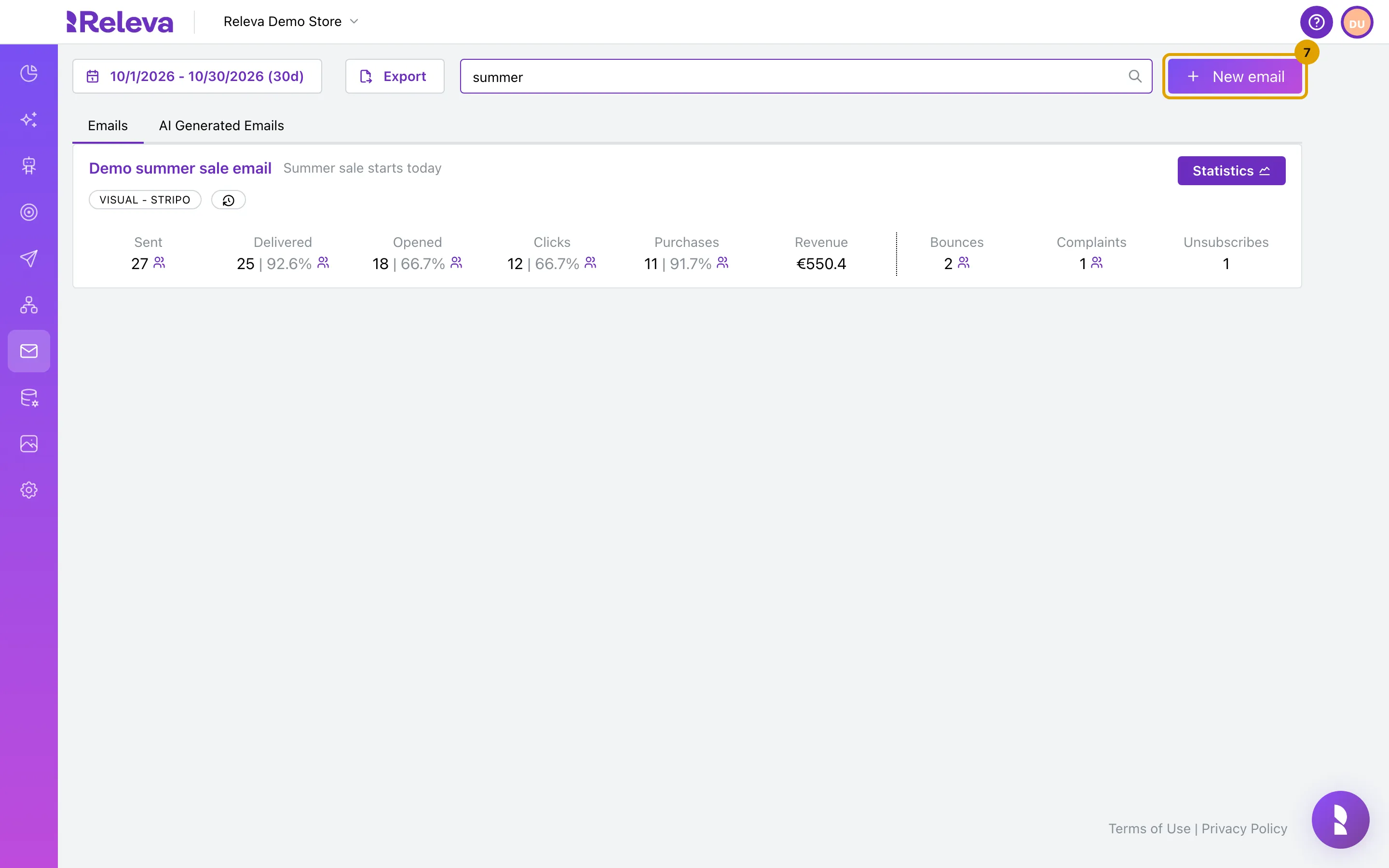
To start a new email, select New email
-
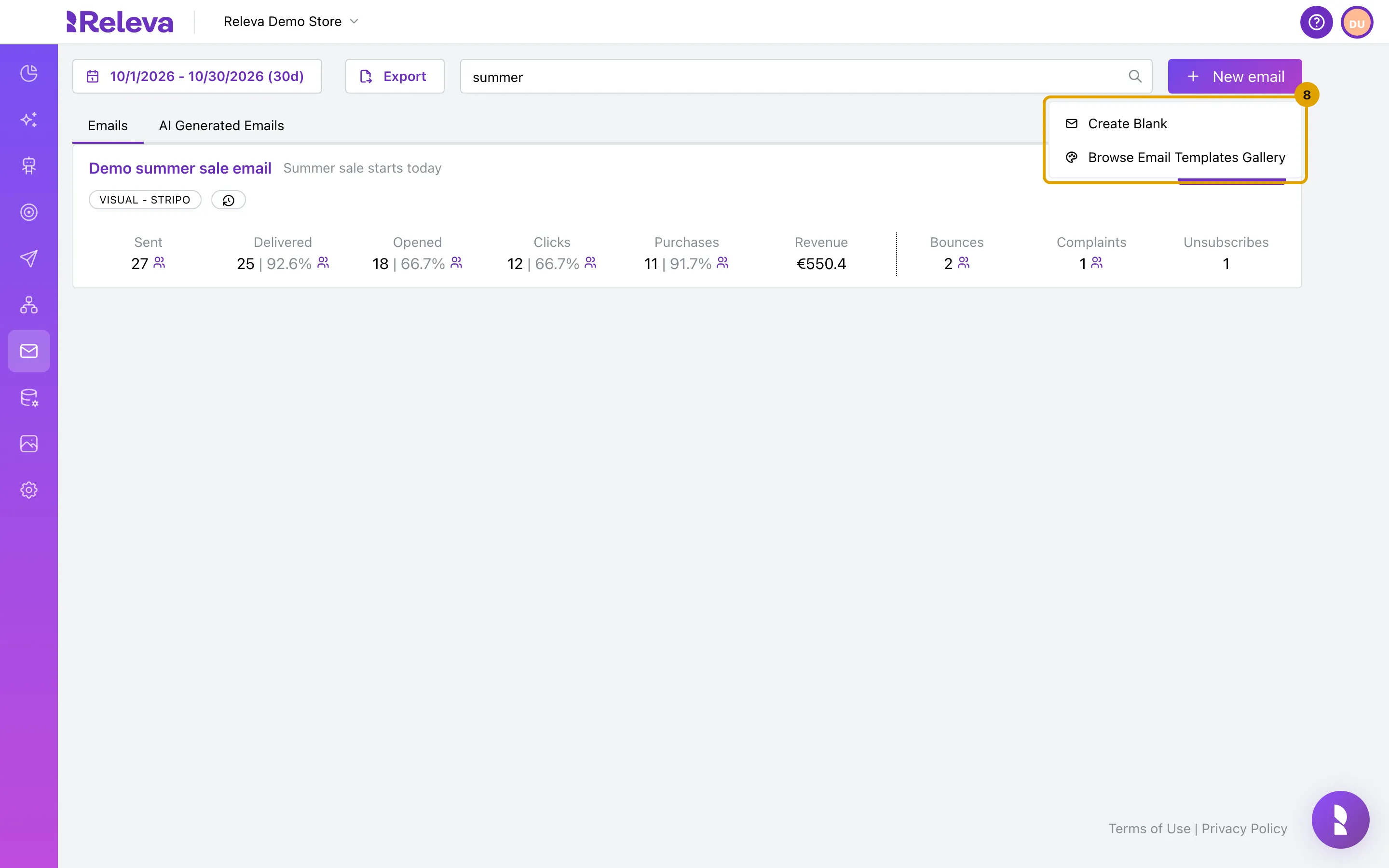
Choose Create Blank to start from an empty design, or Browse Email Templates Gallery to start from a template
Both open the visual editor. Creating an email is not covered in this guide; see How emails work for what the editor asks for.
Check it worked
Section titled “Check it worked”- The list shows only cards whose name contains your search word, and the address bar contains
searchTerms=<your word>. - The date range button shows the period you chose, with the number of days in brackets, for example (30d).
- The card’s numbers change when you change the period.
Alerts on the Emails list
Section titled “Alerts on the Emails list”A red alert at the top of the Emails list means Releva has stopped sending your emails. You can still search and read results. Shops that send email through Klaviyo never see these alerts.
| Alert starts with | What it means | What to do |
|---|---|---|
| Email sending is paused: your sending domain … is listed on Spamhaus DBL | Your sending domain is on the Spamhaus domain blocklist since the date shown. | Select Request removal and follow the Spamhaus steps. Sending resumes automatically within a few hours of the listing clearing. |
| Email sending is paused: receiving mail servers are rejecting your messages because your sending domain is on a blocklist | Mailbox providers refuse your emails. | Nothing to do in Releva. Sending resumes automatically once the rejections stop and the domain is clear. |
| Email sending is paused: more than 10% of the emails sent in the last 7 days went to addresses that do not exist | Your contact list is outdated or was bought. | Remove the invalid addresses from your list, then contact support to resume sending. |
| Email sending is disabled. Please reach out to support@releva.ai in order to enable it. | Too many of your emails bounced, so email sending was switched off. This alert shows on every page of your shop. | Write to support@releva.ai. |
Troubleshooting
Section titled “Troubleshooting”No results found. Try a different search term. No email name starts with that word. Search matches the beginning of a word in the name (sum finds “Summer sale”, ale does not). The subject is not searched.
Every number is 0. Nothing was sent in the period, or the email was never used in a campaign or workflow, like Demo new arrivals (HTML) in the step 1 screenshot. Widen the date range first. Results are counted from the sending events, so an email that was never sent shows zeros.
I cannot see an email that exists. Emails generated by the AI Hub are on the AI Generated Emails tab, not on Emails. Operational emails (order confirmations and similar) are not listed here.
Red alerts about DNS records at the top. Campaign sending is disabled until the click-tracking DNS record is in place for your sender domain and Email sending is disabled until the DKIM DNS record is in place for your sender domain mean that sending is blocked until those records exist. Open Shop Settings from the alert to see the values to add. You can still search and read results.
New email shows a lock. Your plan does not include creating emails. Ask your account owner.
Export. Export next to the date range creates a report of every email’s results for the period and e-mails it to you (“You will receive your export via email shortly!”).