Connect WhatsApp with WhatsApp Manager
Before Releva can create WhatsApp templates or send WhatsApp messages, your shop needs a connected WhatsApp Business Account (WABA). With WhatsApp Manager, you connect it directly with Meta: Releva opens Meta’s sign-up window, you pick or create the account and phone number there, and Releva keeps the connection. If a Business Solution Provider (BSP) gave you a token instead, read Connect WhatsApp through a Business Solution Provider. For how the two methods differ, read How WhatsApp messages work.
Before you start
Section titled “Before you start”- If you also use Facebook ads, product sets or audiences, connect Facebook as well, under the Facebook tab; see Connect your Meta account to Releva. WhatsApp does not need that connection: Meta’s sign-up window logs you in on its own.
- You can log in to Facebook as a user who is an admin of your Meta business, so you can create or choose a WhatsApp Business Account in it.
- You have a phone number that can receive a code by SMS or call and is not used in the WhatsApp or WhatsApp Business app.
- Your shop has no WhatsApp account connected yet. The Connection Method control is shown only while nothing is connected.
- Your browser does not block Facebook. Ad blockers and strict privacy settings can stop the Facebook window from loading.
-
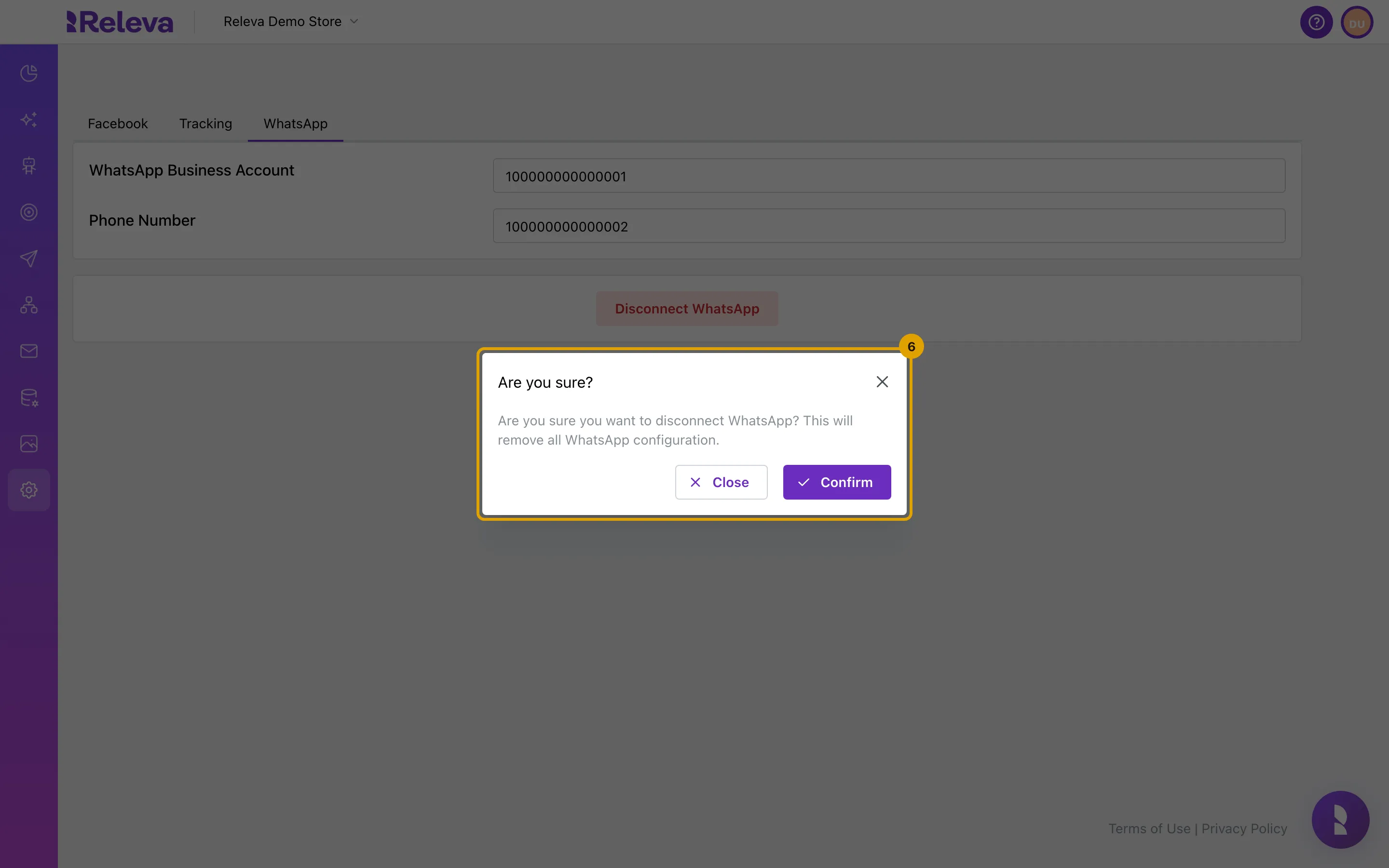
Go to Settings › Facebook & Whatsapp and select the WhatsApp tab
The WhatsApp tab has its own buttons. The page-level Save and Cancel apply to the Facebook and Tracking tabs only.
-
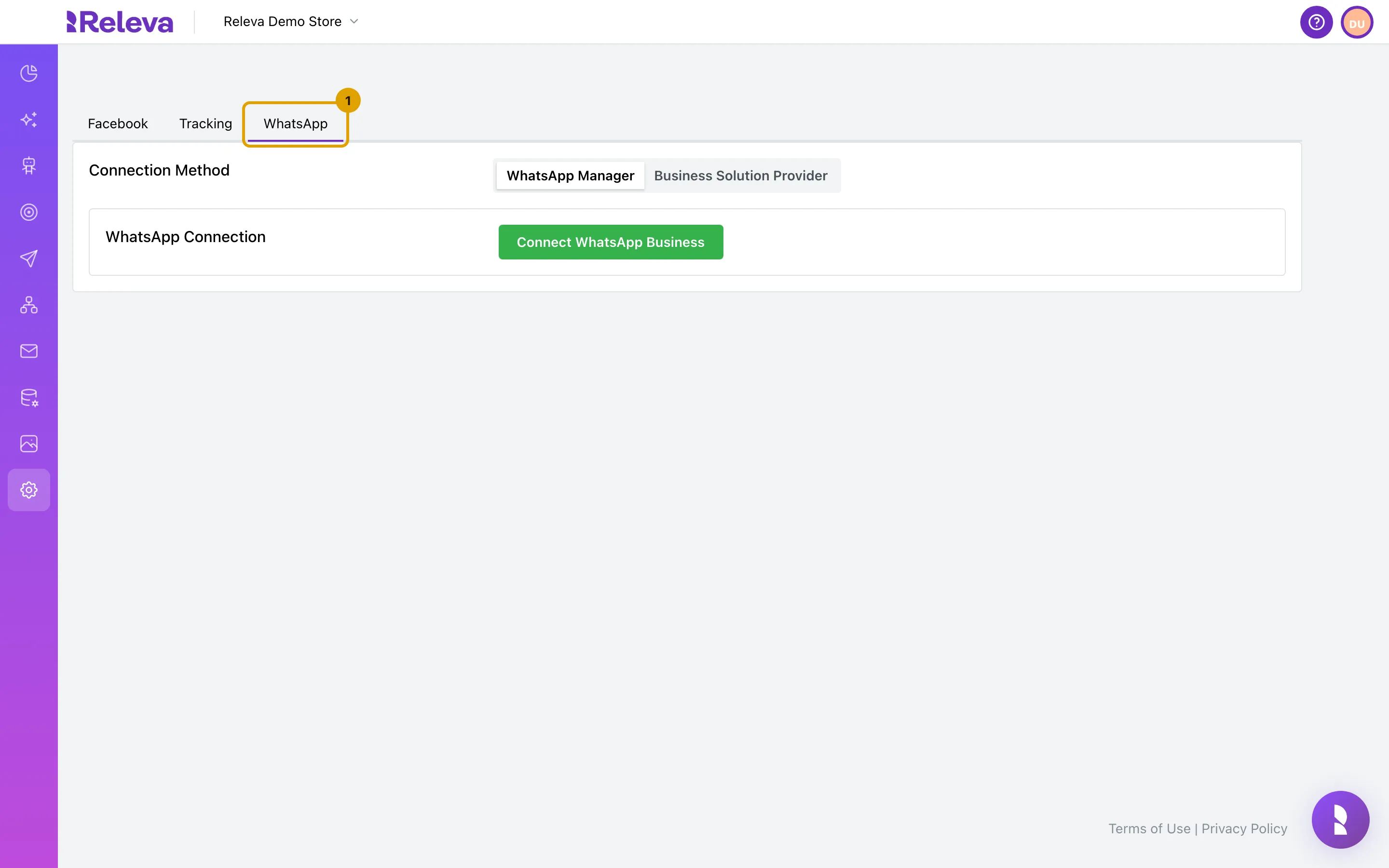
In Connection Method, keep WhatsApp Manager selected
It is selected by default. Business Solution Provider shows a form for a BSP token instead.
-
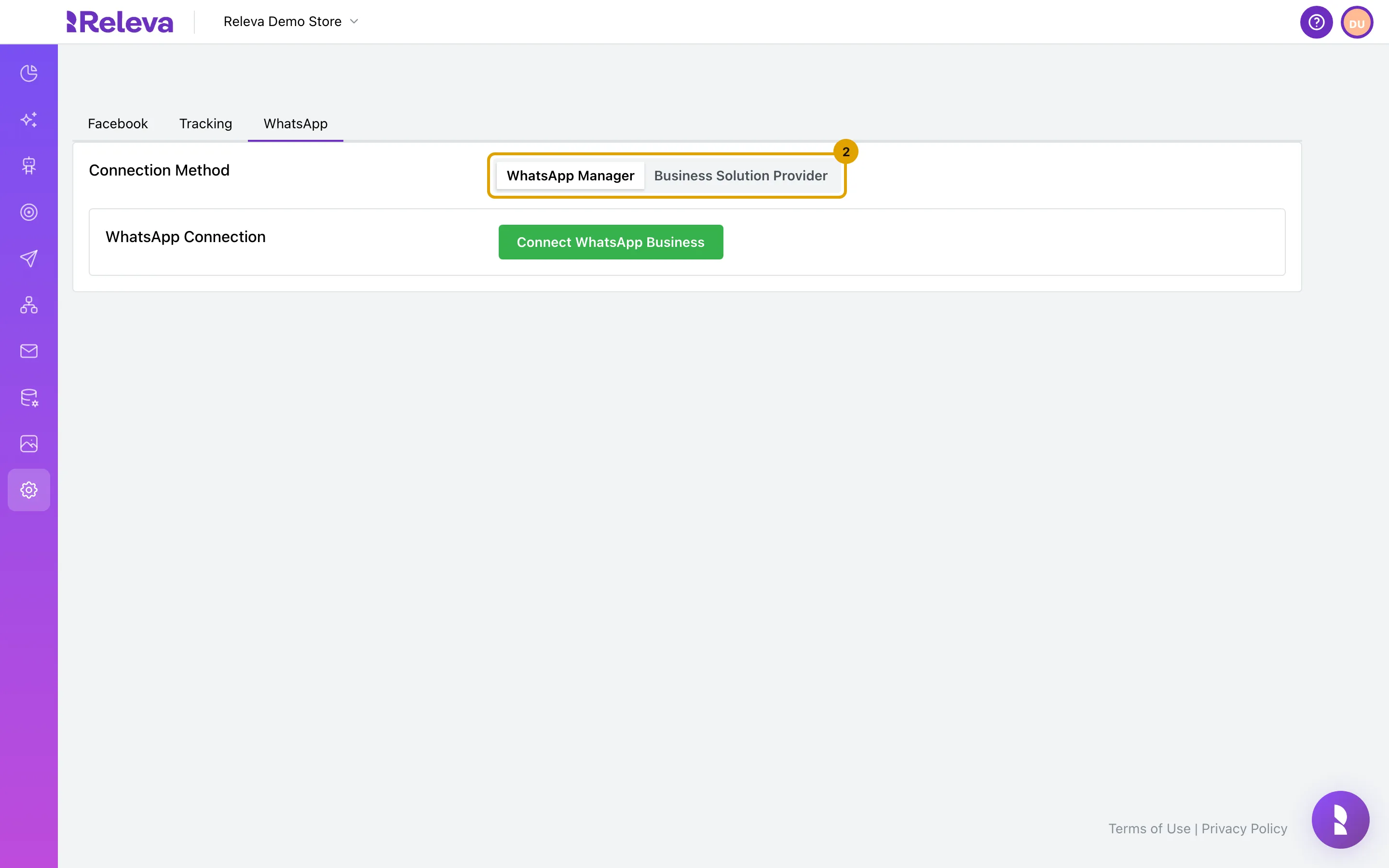
In WhatsApp Connection, select Connect WhatsApp Business
Meta’s sign-up window opens and the button shows Connecting… until you finish. The button stays disabled while the Facebook script loads.
Finish the sign-up in Meta’s window
Section titled “Finish the sign-up in Meta’s window”These screens belong to Meta, so their labels can change.
- Log in to Facebook, or continue as the user you are logged in as
- Choose the Meta business (business portfolio) that should own the WhatsApp account
- Choose an existing WhatsApp Business Account or create one, and fill in the business profile Meta asks for
- Add the phone number and verify it with the code Meta sends by SMS or call
- Review the permissions Releva asks for, allow them and finish
When the window closes, Releva saves the connection and the WhatsApp tab shows the connected account.
Register your phone number
Section titled “Register your phone number”-
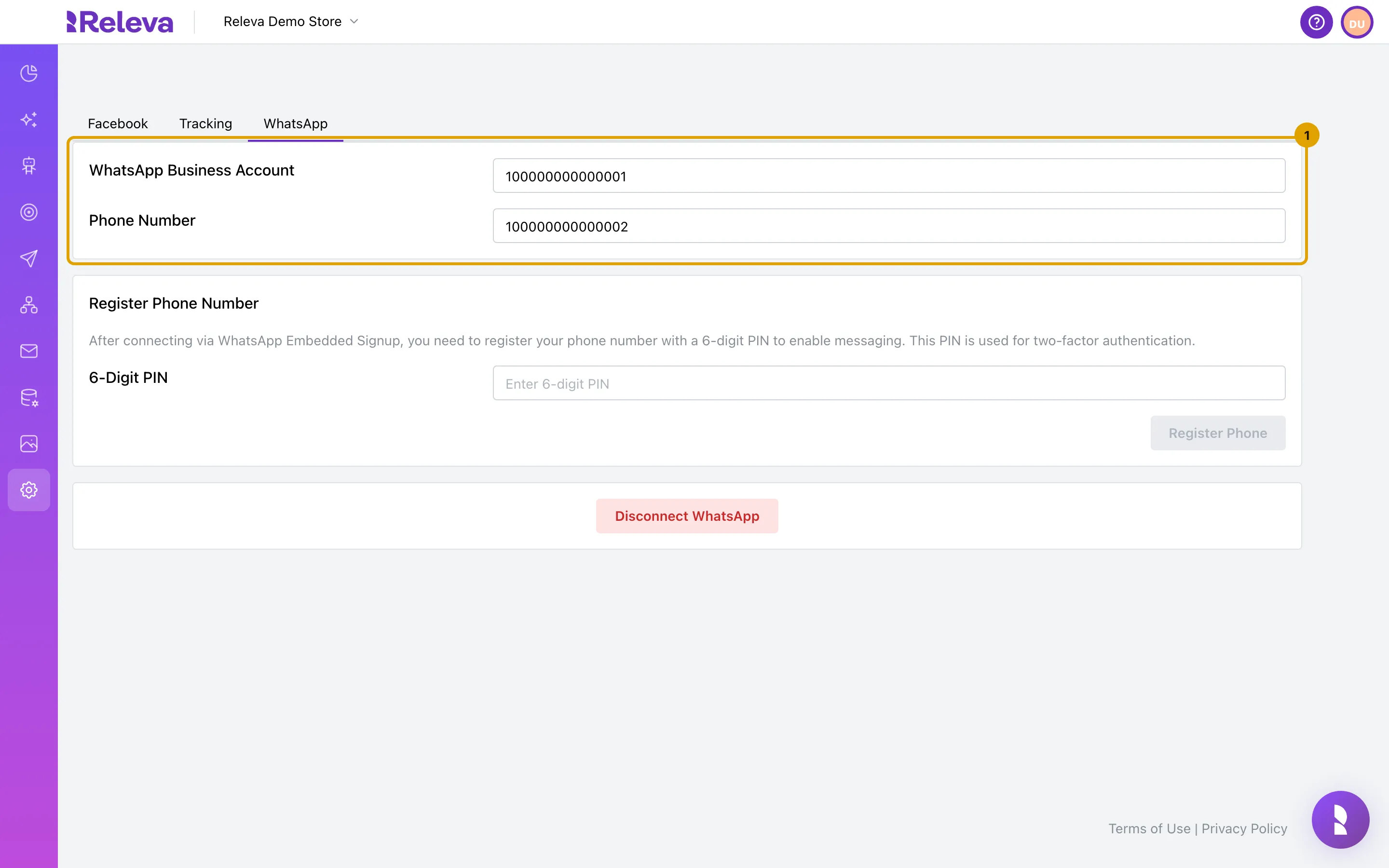
Check the connected account
WhatsApp Business Account shows your WABA ID. Phone Number shows the Phone Number ID Meta gave your number, not the phone number itself. Both are read-only.
-
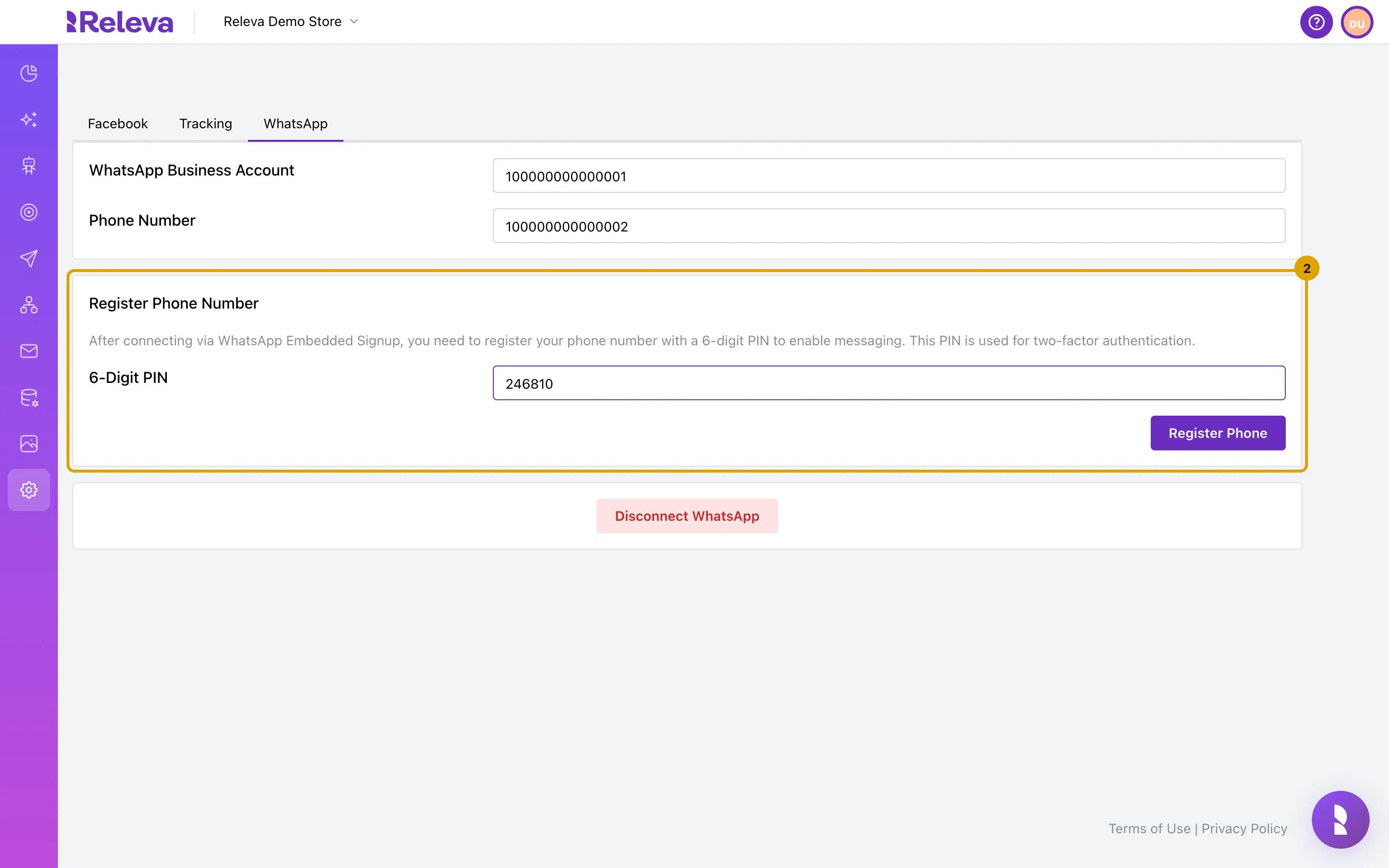
In Register Phone Number, enter a 6-digit PIN in 6-Digit PIN
The PIN turns on two-step verification for the number. If the number already has two-step verification, enter that PIN. Keep the PIN: Meta asks for it when you move the number later. The field accepts digits only.
This card is shown only while the number is not registered. If Meta already reports the number as registered, the card does not appear and you can skip to step 4.
-
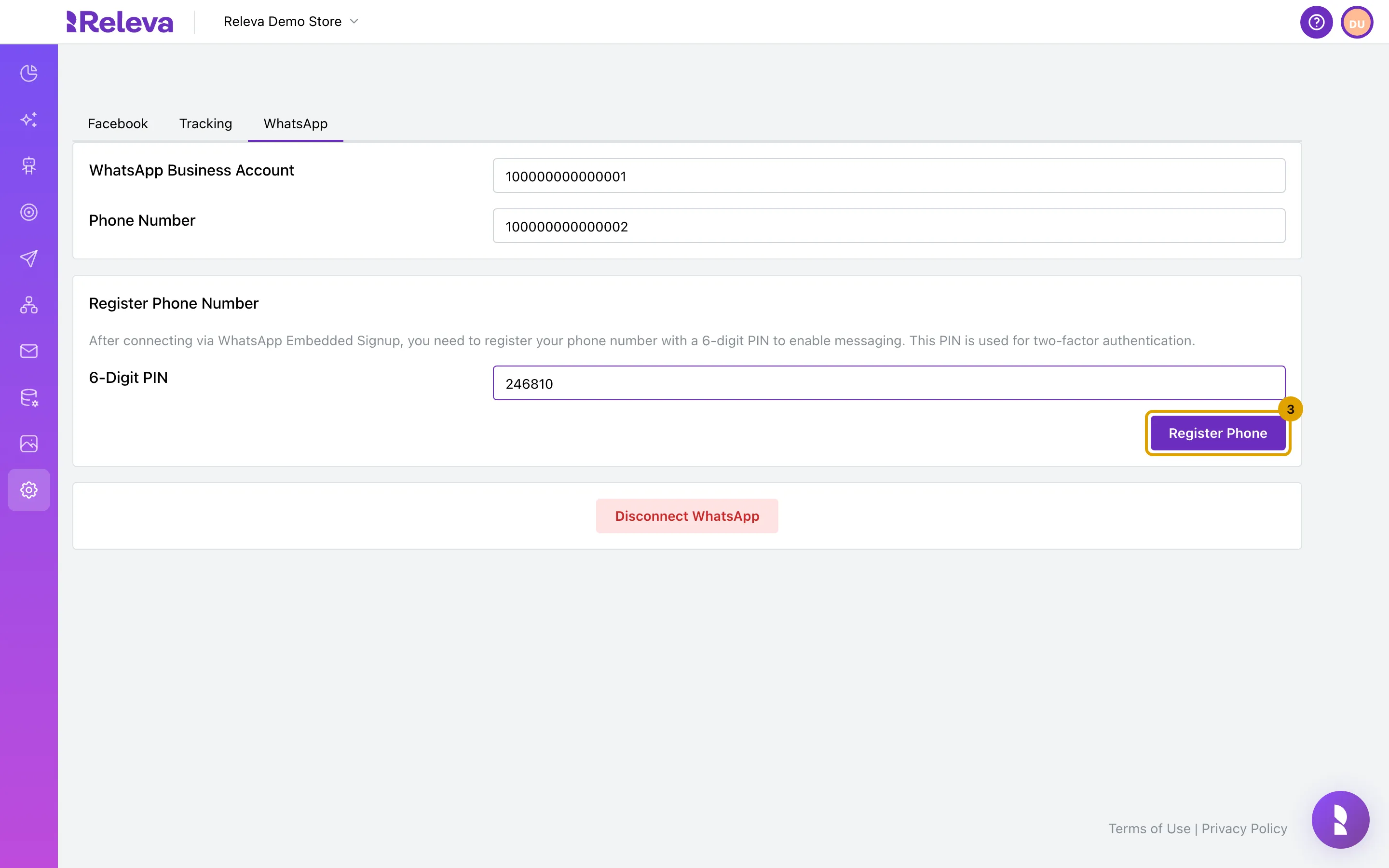
Select Register Phone
The button is enabled once the PIN has 6 digits.
-
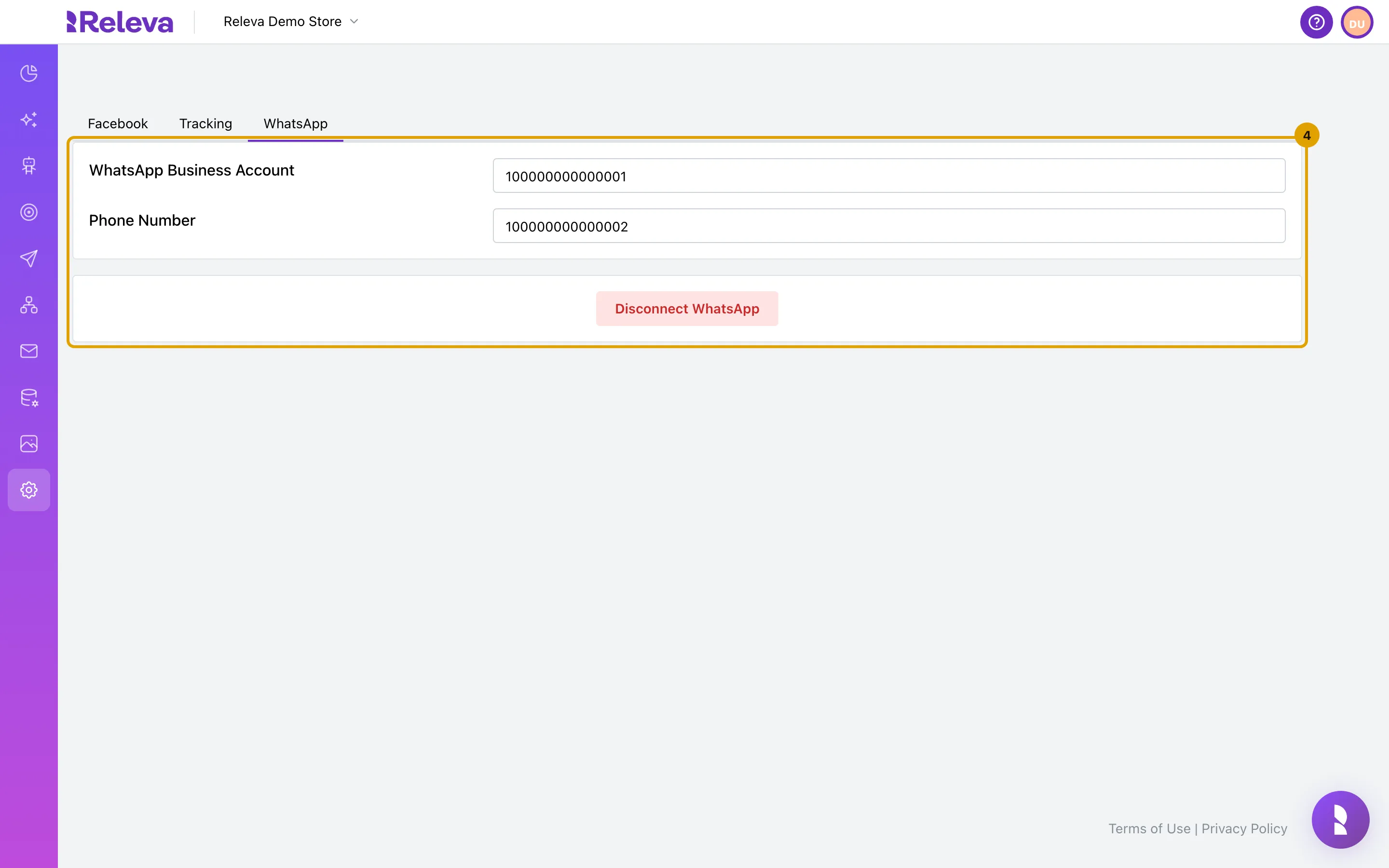
The Register Phone Number card disappears. Only the connected account and Disconnect WhatsApp remain
Check it worked
Section titled “Check it worked”- On the WhatsApp tab, the Connection Method control and the Register Phone Number card are gone, and your WhatsApp Business Account ID is shown.
- On Marketing Channels › WhatsApp Messages, the blue alert Connect your WhatsApp Business Account (WABA) to enable the creation of template messages. is gone, and Import templates and New Whats App Message are enabled.
Troubleshooting
Section titled “Troubleshooting”Connect WhatsApp Business is disabled, or “Facebook SDK failed to load. Please refresh the page.” appears. The Facebook script did not load. Turn off ad blockers for the Releva admin, then reload the page.
“Facebook SDK not loaded. Please refresh the page and try again.” appears. Reload the page and select Connect WhatsApp Business again.
“WhatsApp connection was cancelled or failed” appears. You closed Meta’s window or did not allow the permissions. Select Connect WhatsApp Business and go through the window again.
“WhatsApp Business Account ID is required” appears. Meta’s window closed before the sign-up finished, so Releva did not receive your account. Start again and complete every screen until the window closes by itself.
“Failed to connect WhatsApp. Please try again.” or “WhatsApp configuration ID is missing” appears. Releva could not finish the connection. Try again; if it keeps failing, contact support.
“Failed to register phone number” appears. The PIN is wrong for a number that already has two-step verification, or Meta refused the number. Enter the PIN you set before, or reset it in WhatsApp Manager, then try again.
I want to use a Business Solution Provider instead. Disconnect WhatsApp (see below). The Connection Method control comes back.
Disconnect WhatsApp
Section titled “Disconnect WhatsApp”Disconnecting removes the WhatsApp settings from Releva and unsubscribes Releva from your WhatsApp Business Account at Meta. Your WABA and phone number stay in Meta.
-
On the WhatsApp tab, select Disconnect WhatsApp
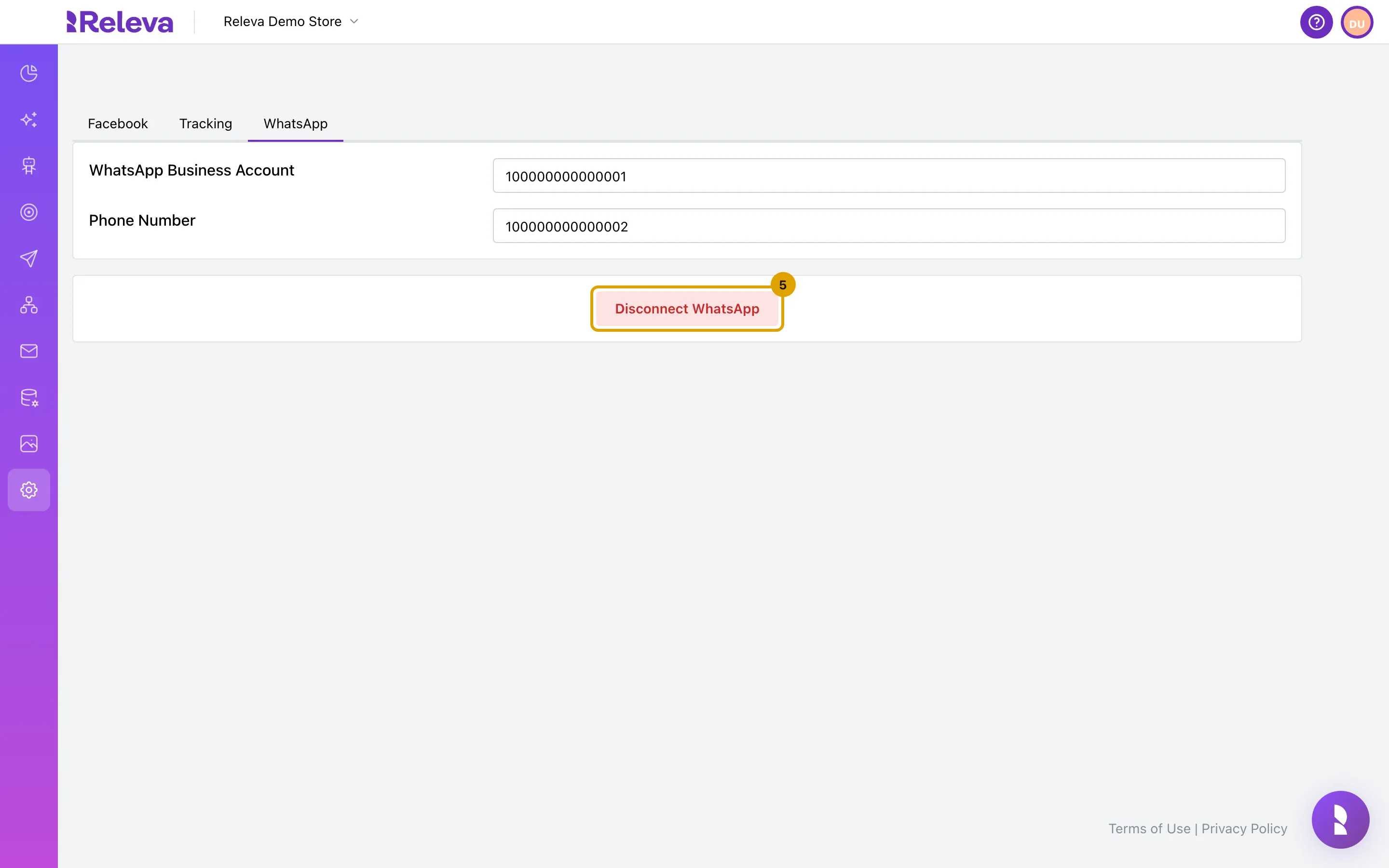
-
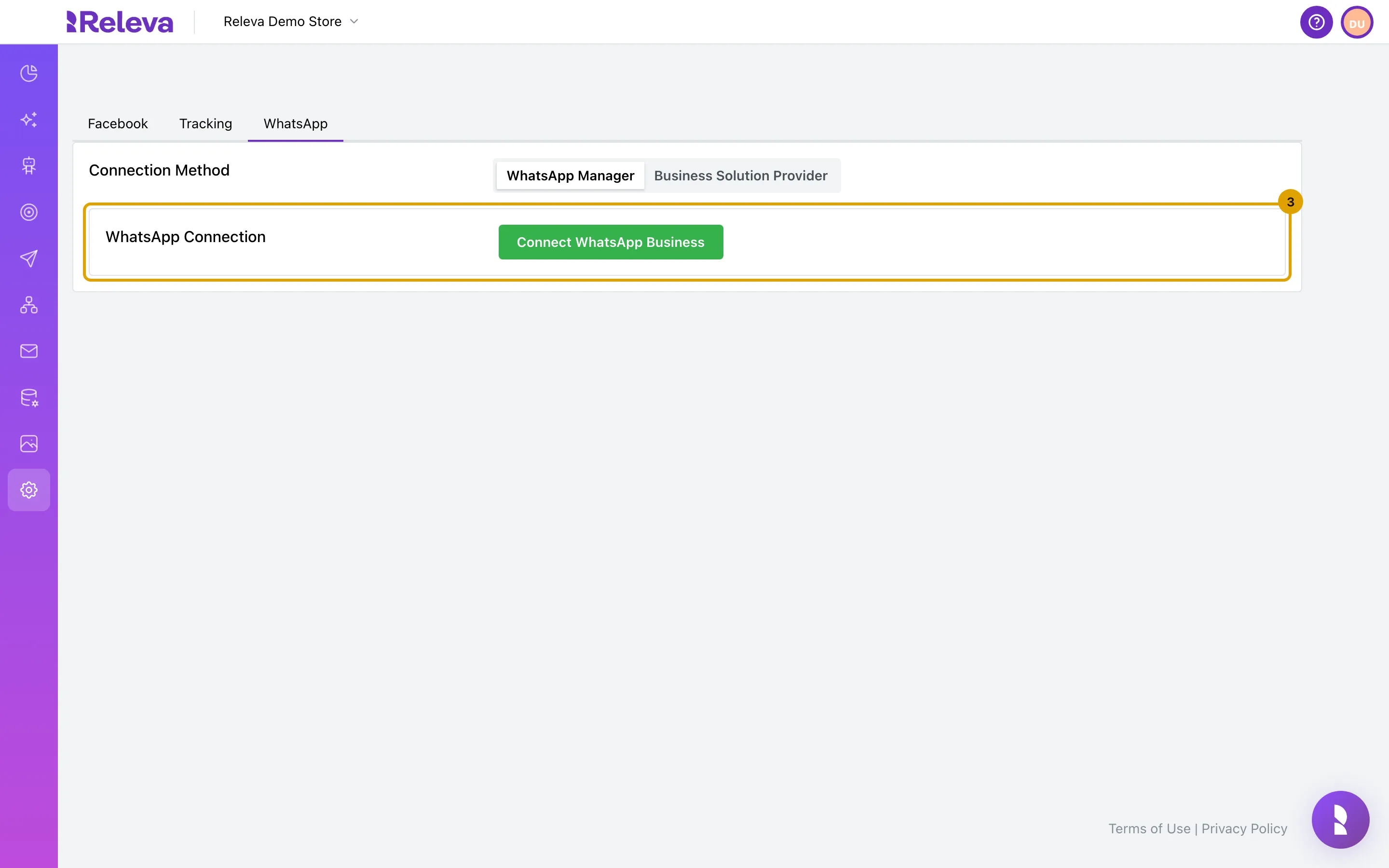
In Are you sure you want to disconnect WhatsApp? This will remove all WhatsApp configuration., select Confirm
Close keeps the connection. After you confirm, the Connection Method control comes back. If Failed to disconnect WhatsApp appears, Meta could not be reached; try again in a few minutes.