

Preview your site as a customer
Impersonate opens your own shop in a new browser tab as one of your customers. Releva then serves that tab the banners, stories and product blocks this customer would get, so you can check that a banner aimed at a segment reaches its members and nobody else. Nothing you do in the preview is tracked: page views, impressions and clicks are not counted, and the customer’s profile does not change.
Use it to test targeting. To see every block on a page, including the ones that are switched off, use debug mode instead.
Before you start
Section titled “Before you start”- Your shop’s address is filled in under Settings › Shop & Integration, on the General tab, in URL, and starts with
http://orhttps://. Without it the Impersonate button does not appear. - Your browser allows pop-ups from the Releva admin. Impersonate opens a new tab.
- The Releva snippet, plugin or app runs on the pages you want to check (Connect your custom website).
- The banner block, story or product block you want to check is switched on. A preview shows what the customer gets today; it does not turn on content that is off.
- You know which segment the banner targets, and a customer who is in it. A segment’s members are recalculated about every 30 minutes, and only while a running block or campaign uses the segment. After you aim a banner at a new segment, wait up to 30 minutes before you test it.
-
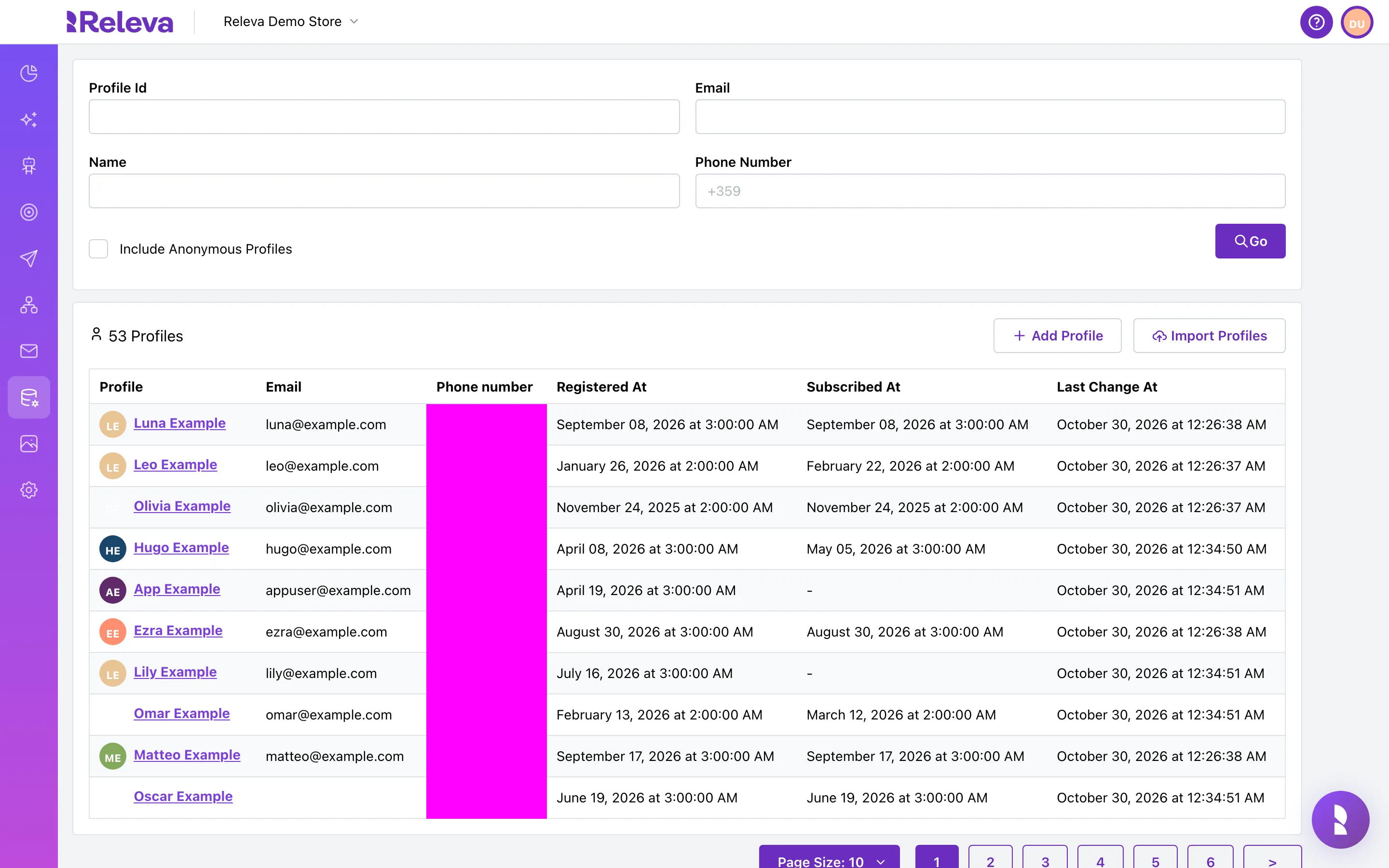
Go to Data Platform › Profiles
-
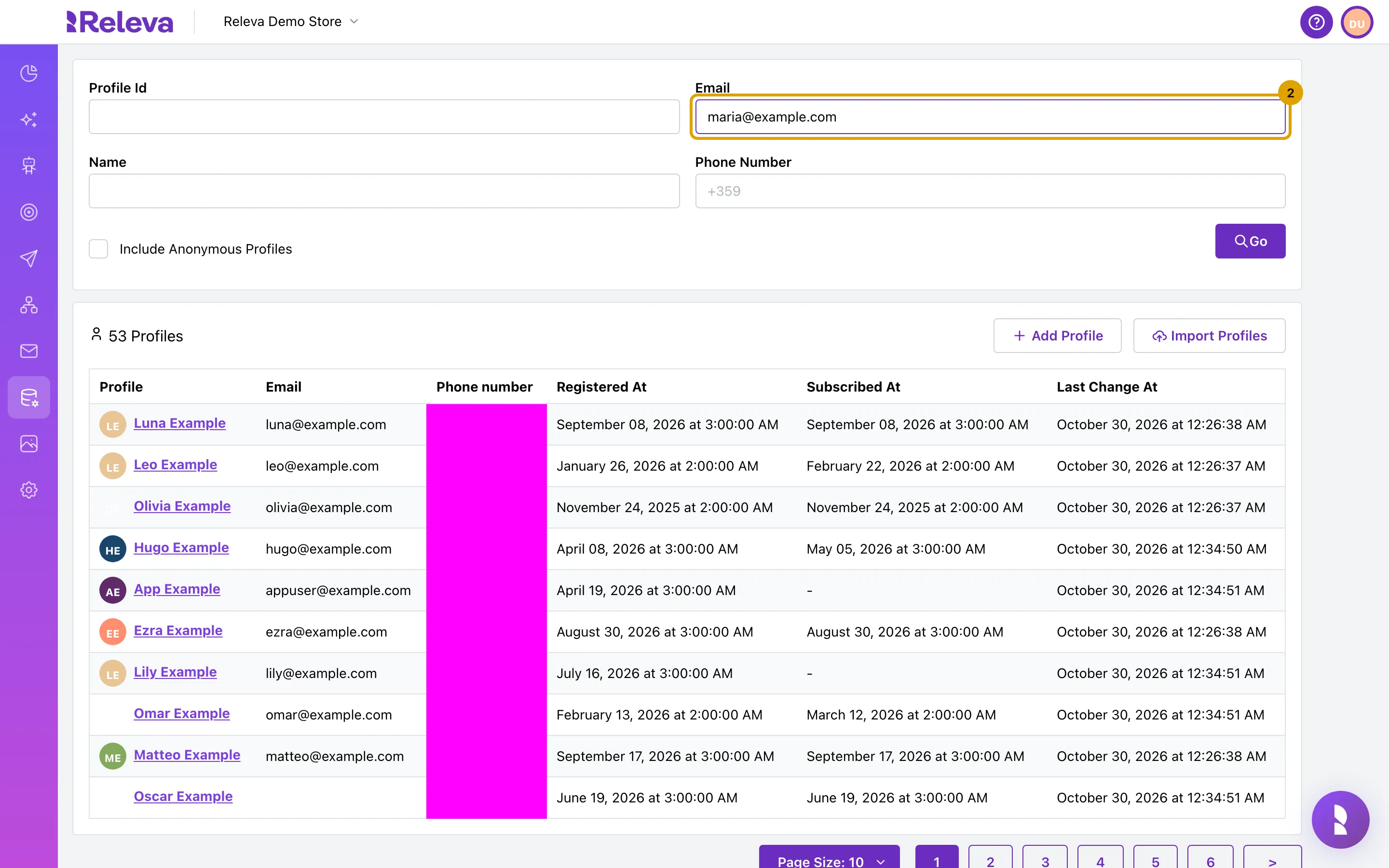
In Email, enter the address of a customer who is in the banner’s segment, here maria@example.com, and select Go
You can also search by Name, Phone Number or Profile Id; see Find a customer profile.
-
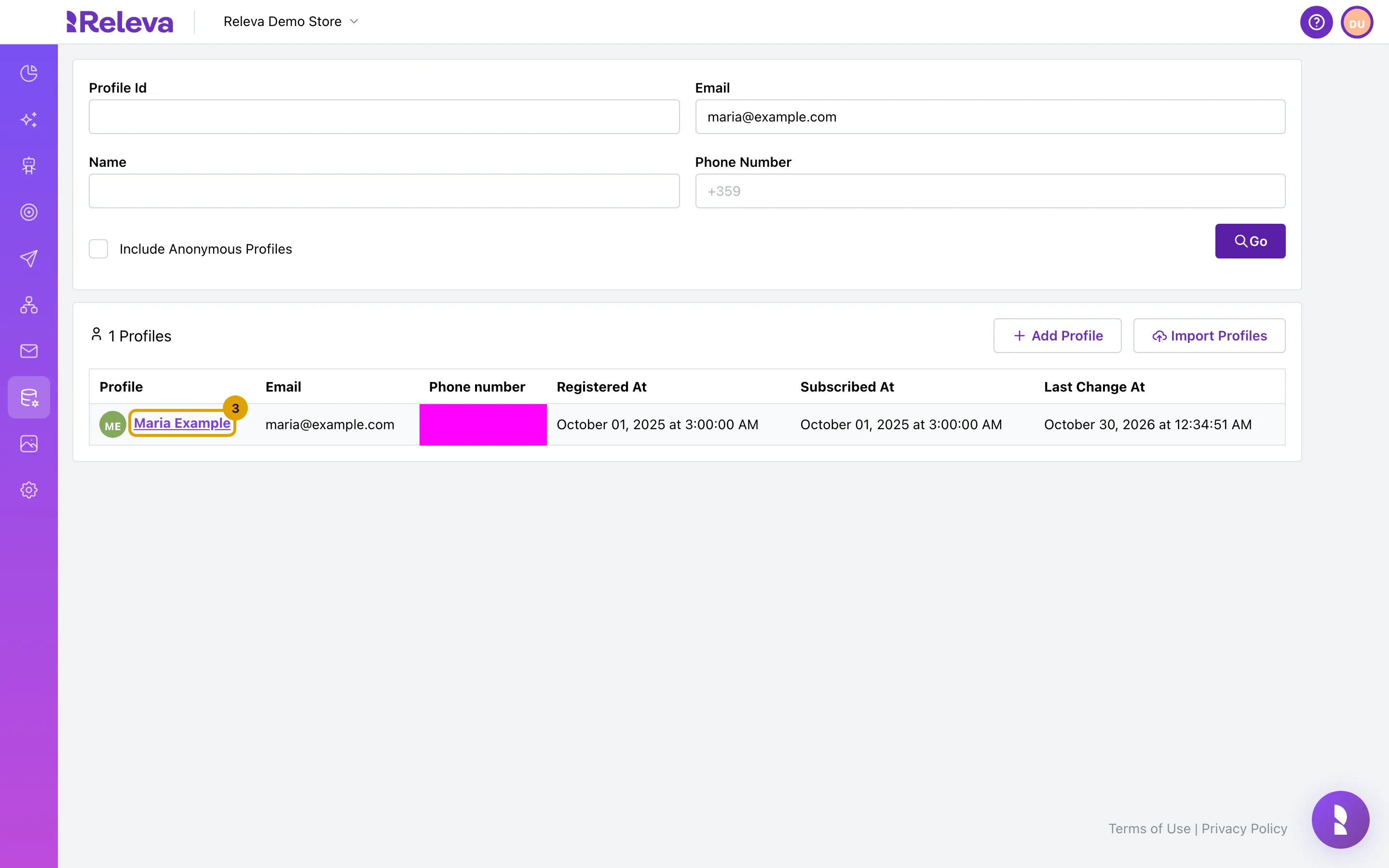
Select the customer’s name to open the profile
-
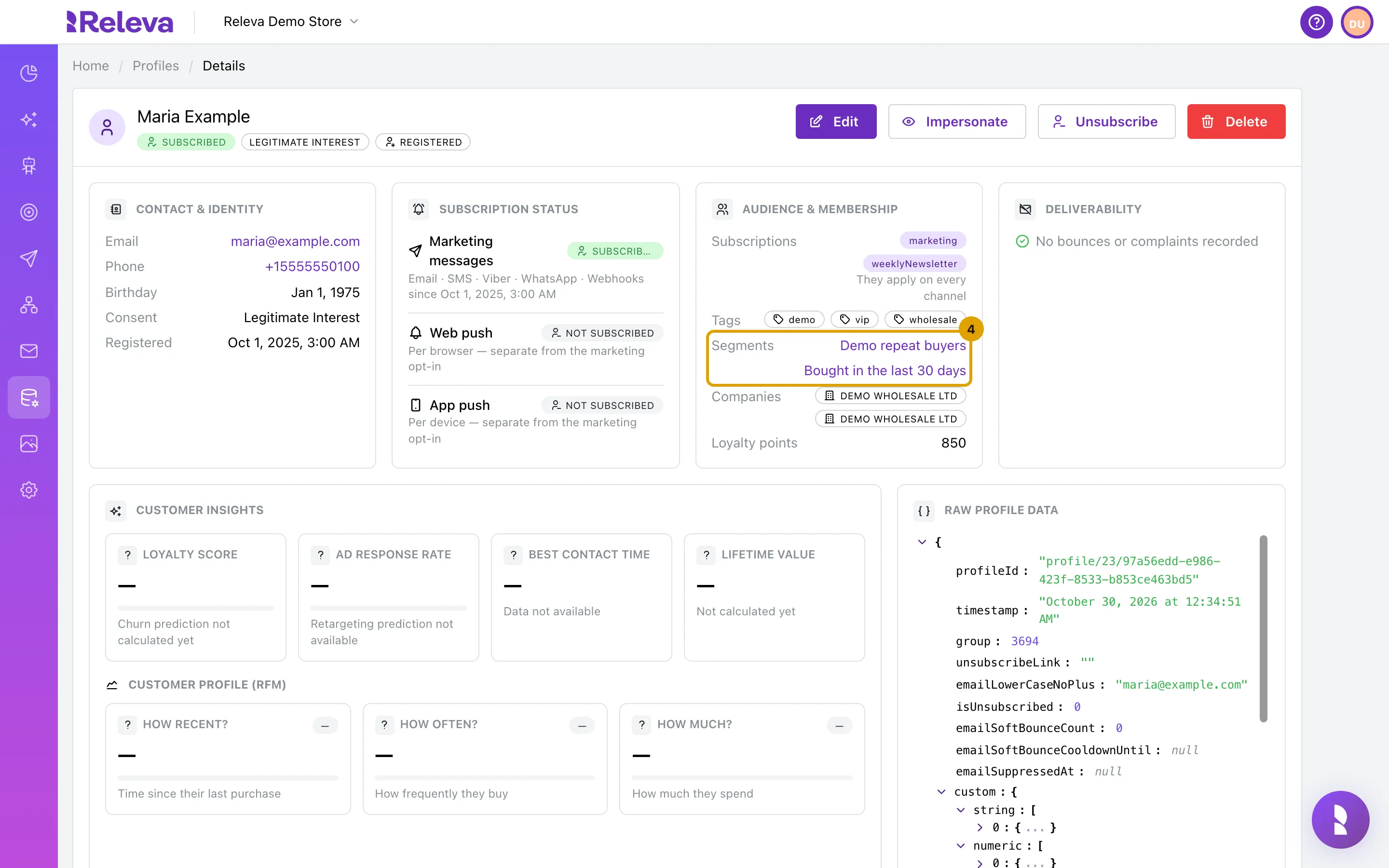
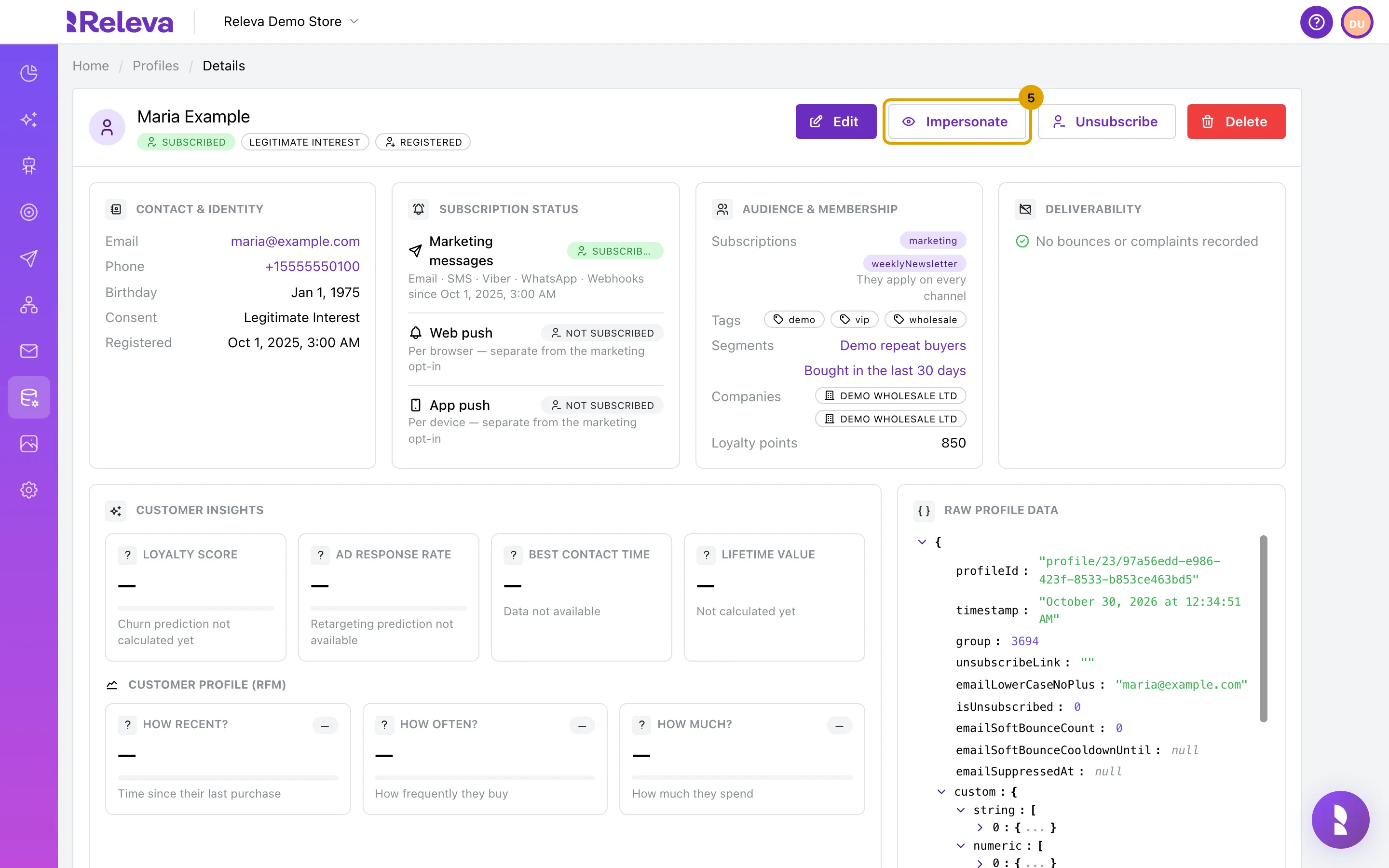
Under Segments, check that the customer is in the segment the banner targets, here Bought in the last 30 days
Segments in the Audience & membership card lists the behavioral segments the customer is a stored member of. If the segment is missing, the customer will not see the banner in the preview either.
-
Select Impersonate
The button sits between Edit and Subscribe or Unsubscribe. The admin tab stays where it is.
-
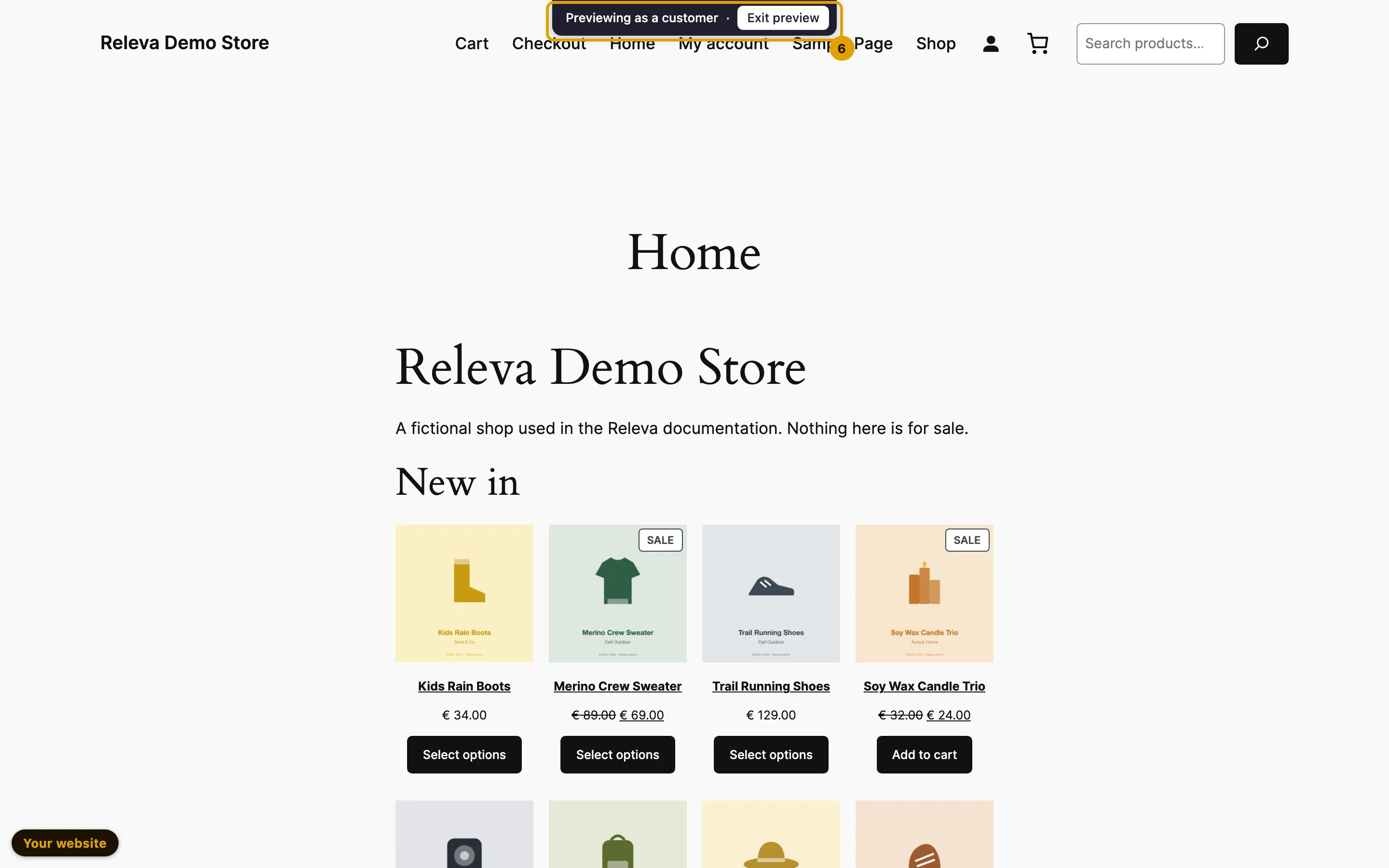
Your shop opens in a new tab as this customer. The bar Previewing as a customer at the top shows that the preview is on
The preview starts on your shop’s home page. It is tied to this tab and lasts 30 minutes.
-
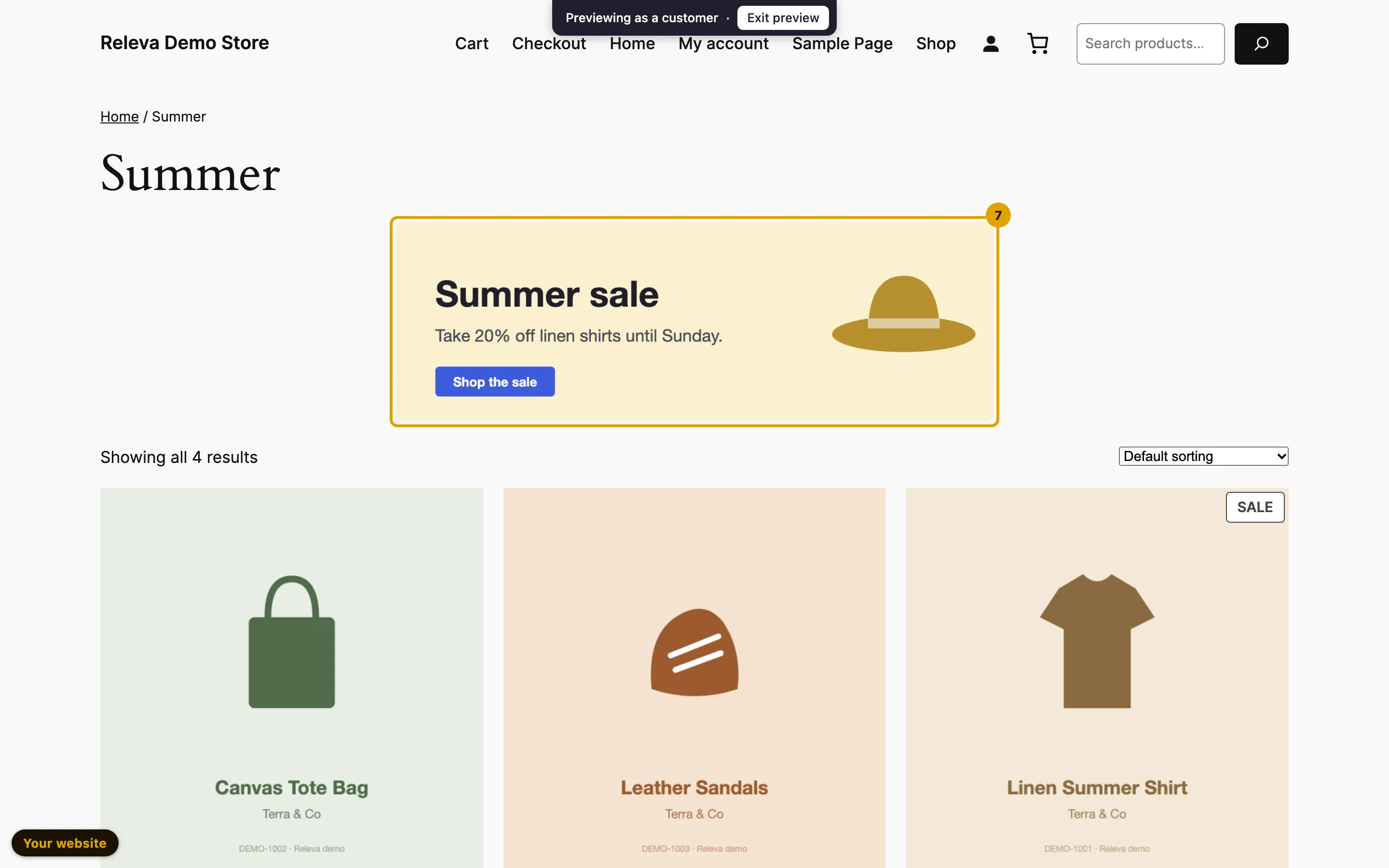
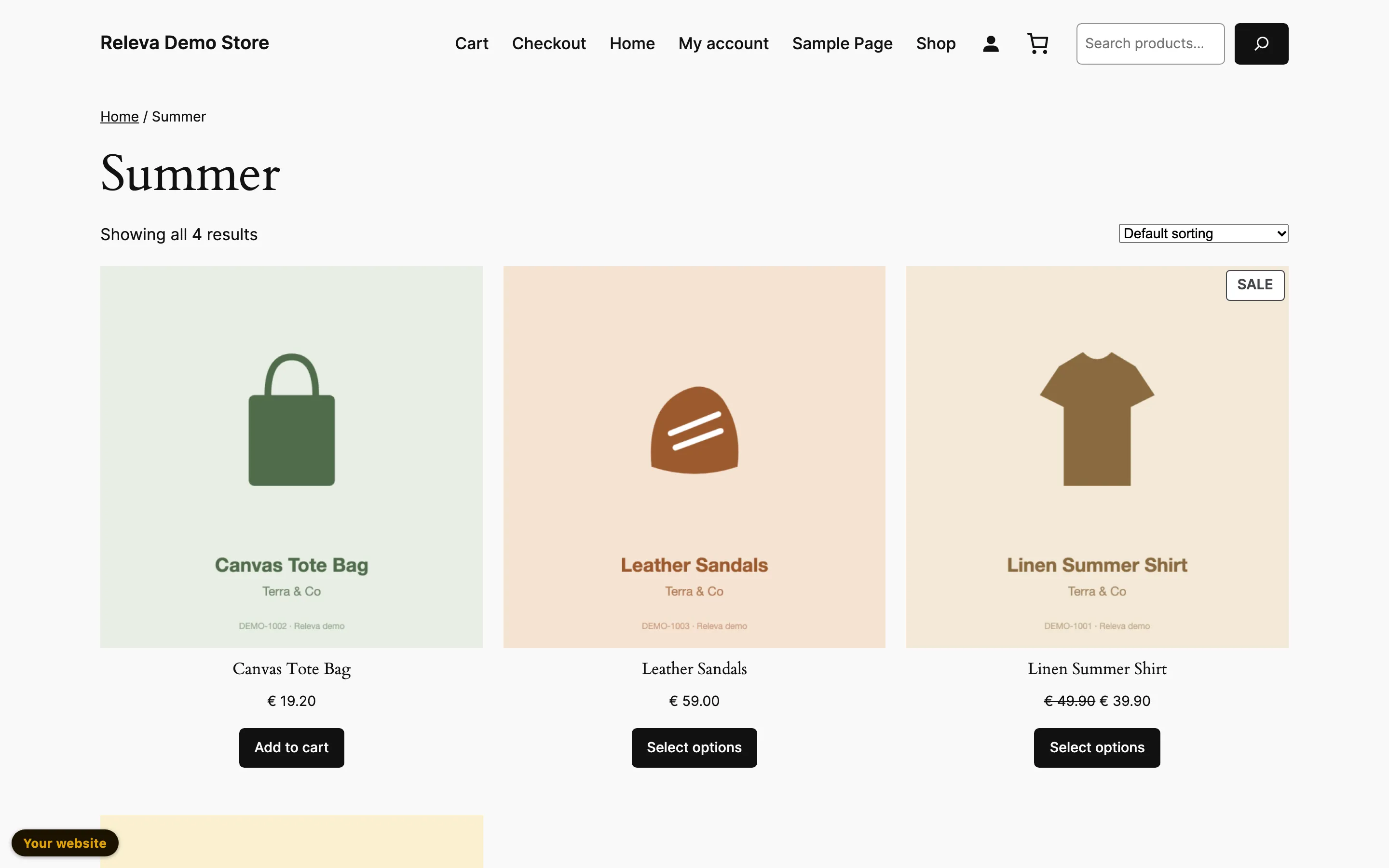
Go to a page where the banner block runs, here the Summer category. The banner shows, because the customer is in its segment
The preview follows you from page to page in the same tab, so you can browse to any page of your shop. Product blocks on these pages are served for the customer you are previewing; only blocks with a personalized algorithm look different from customer to customer.
-
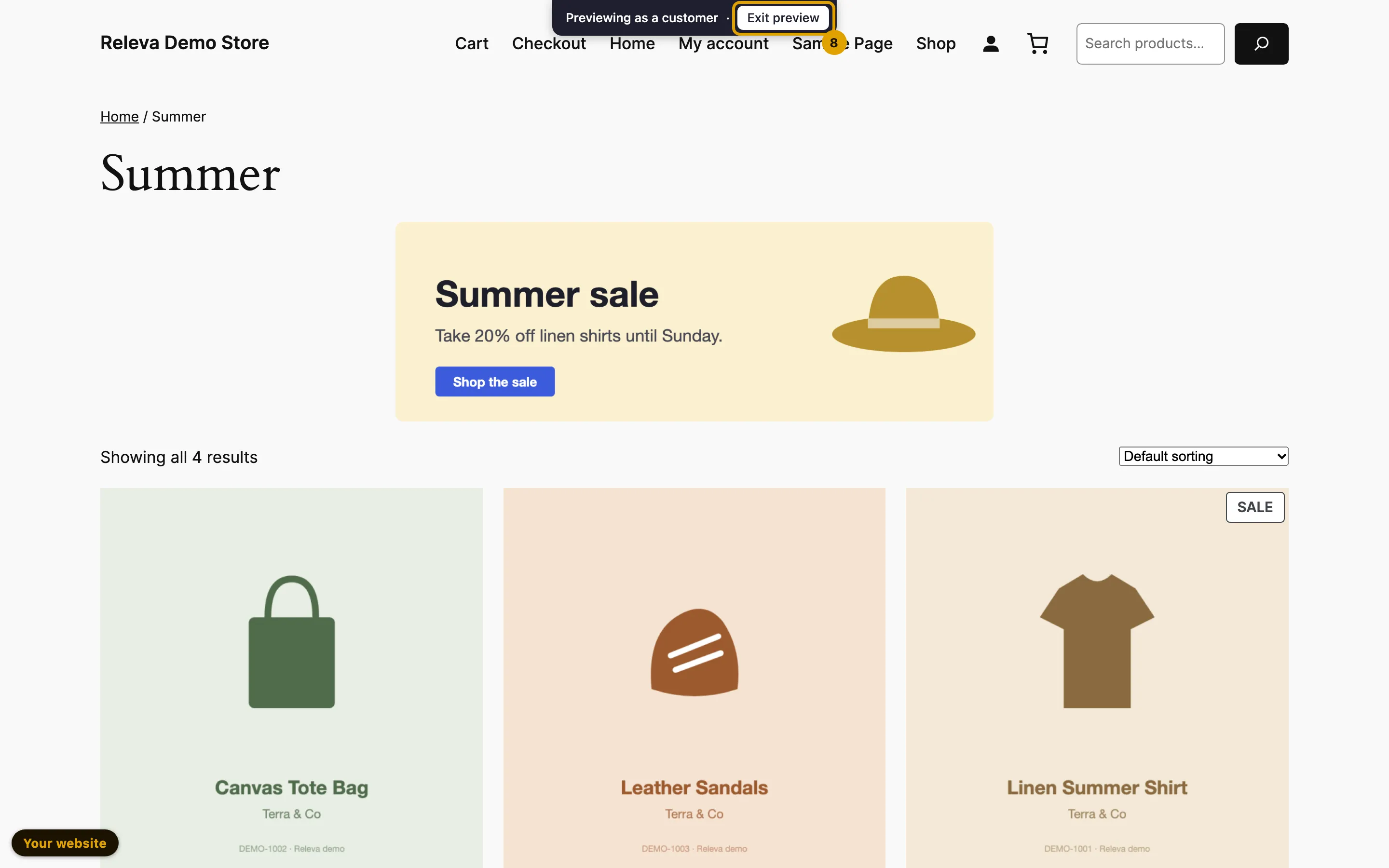
When you are done, select Exit preview
-
The page reloads as an ordinary visitor. The bar is gone, and so is the banner, because you are not in the segment
Check it worked
Section titled “Check it worked”The real test is a customer outside the segment. Back in the admin tab:
-
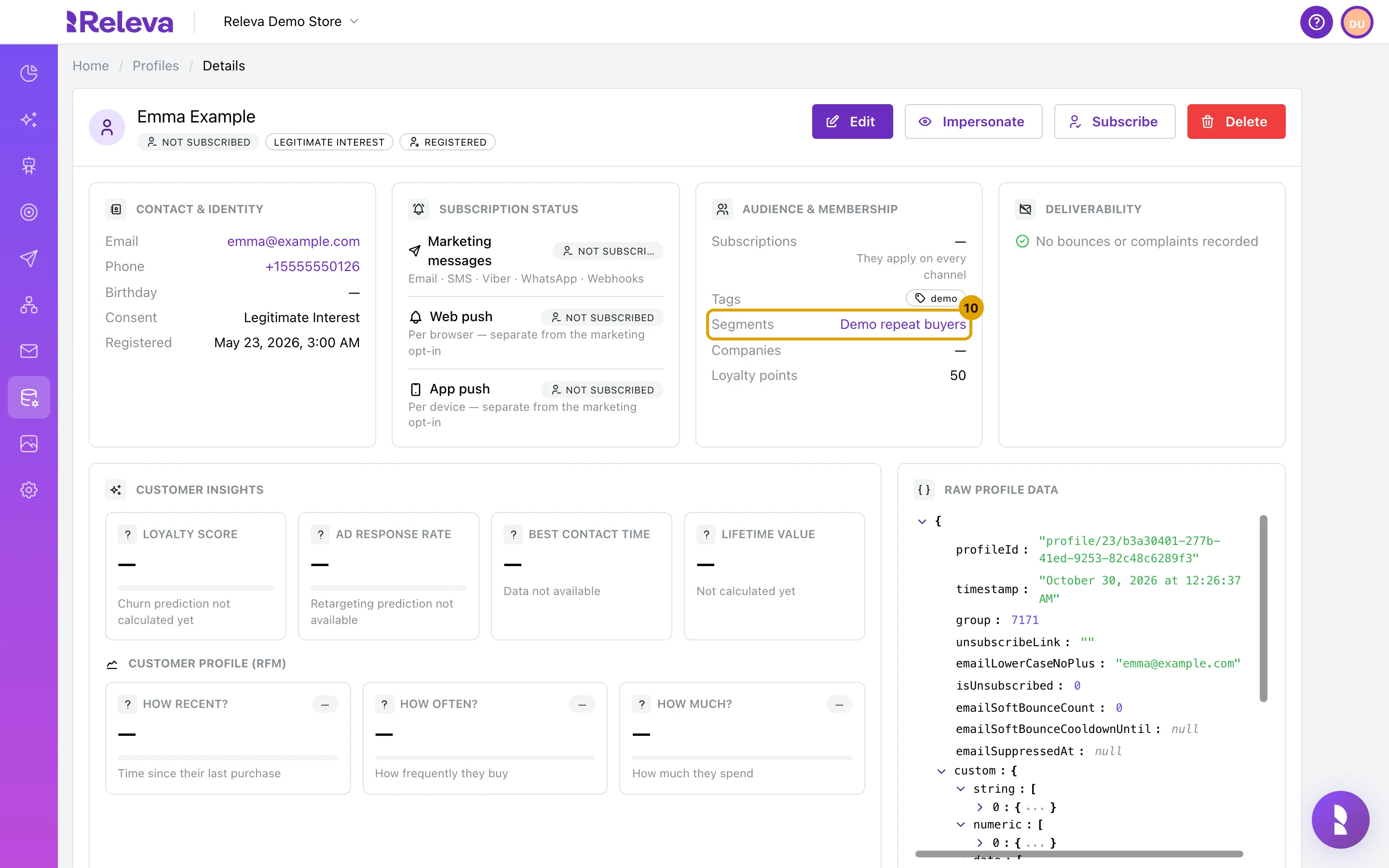
Open a customer who is not in the segment, here Emma Example. Bought in the last 30 days is missing under Segments
-
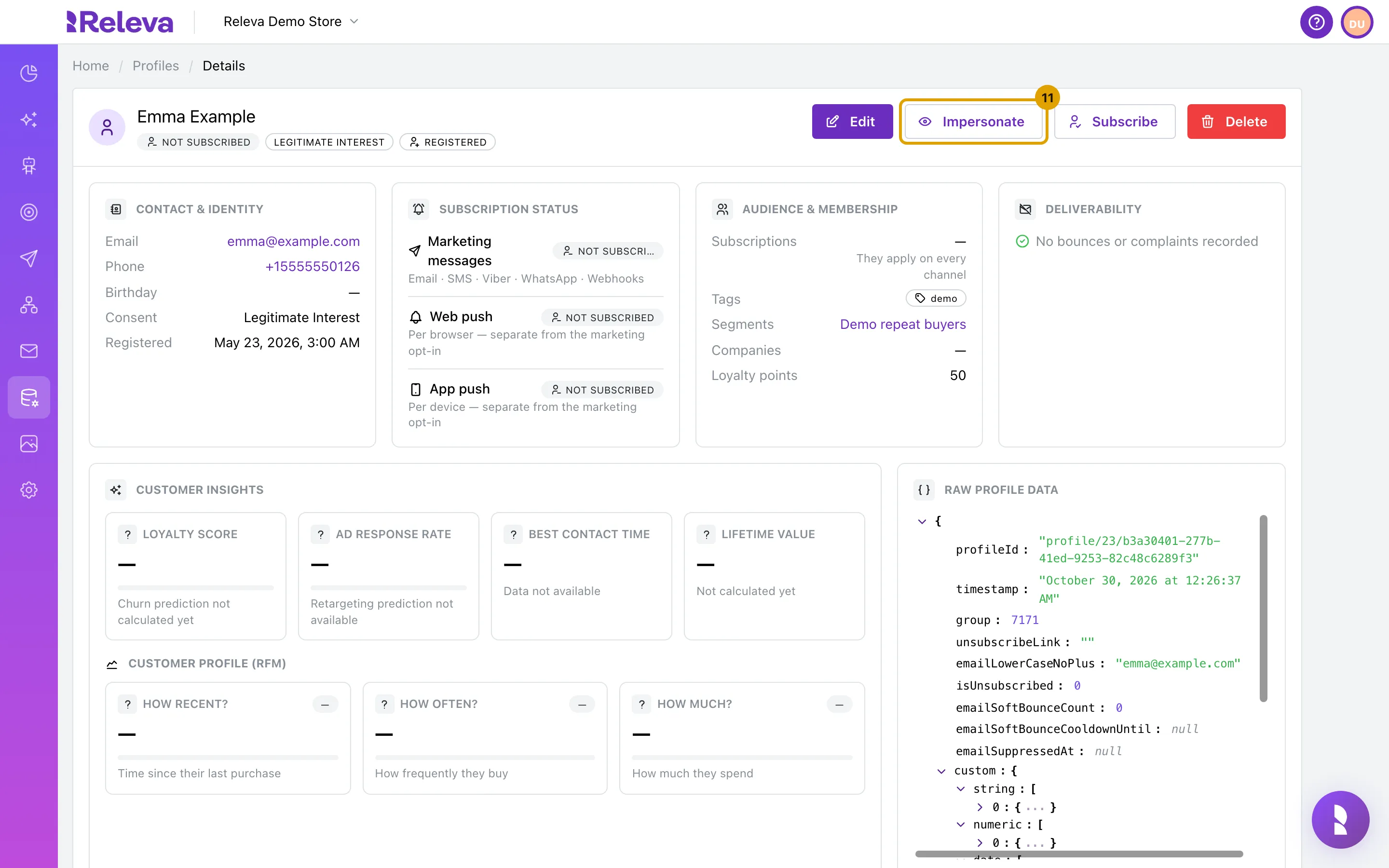
Select Impersonate
-
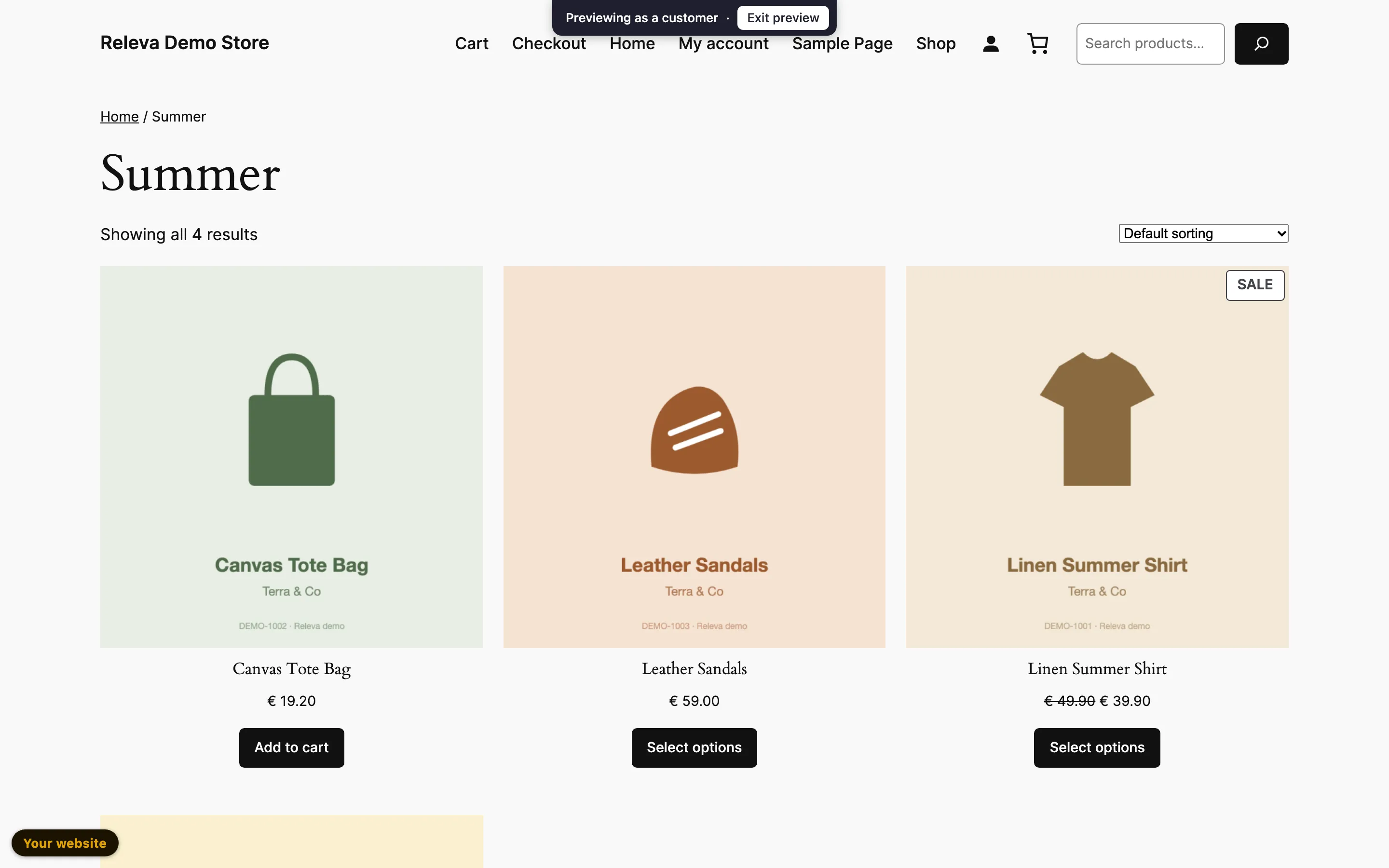
On the same page the banner does not show for this customer. Select Exit preview to end the preview
You can also check that:
- The bar Previewing as a customer stays at the top of every page you open in the preview tab, and disappears after Exit preview.
- The banner’s numbers under Marketing Channels › Banners do not change after your preview. Impressions and clicks in a preview are not counted.
What a preview changes
Section titled “What a preview changes”| Feature | In a preview |
|---|---|
| Banner blocks | The customer’s segment membership decides who sees the banner, as for a real visit. The block’s on/off switch, the banner’s Show when dates, URL filter, store language, Session Interval and Show until click still apply. Only A/B test control groups are skipped. |
| Stories | Served as for the customer. Switched-off stories stay off; A/B test control groups are skipped. |
| Product blocks | Personalized for the customer you preview, as long as the block is switched on. |
| AI sales agent | The chat bot opens in a preview even when it is switched off for shoppers, so you can test it. A/B test control groups are skipped. |
| Search as you type | Served as for the customer when it is switched on; a switched-off search stays off. A/B test control groups are skipped. |
| Tracking | Off. Page views, impressions, clicks and other events from the preview tab are not stored and do not change the customer’s profile. |
Each Impersonate click starts a new, independent preview. A preview ends when you select Exit preview, when you close the tab, or 30 minutes after it started. You do not need a special role: anyone who can open the shop in the Releva admin can impersonate its customers.
Troubleshooting
Section titled “Troubleshooting”There is no Impersonate button on the profile. The shop’s URL under Settings › Shop & Integration › General is empty or does not start with http:// or https://. Fill it in and reload the profile.
Could not open your site as this customer. The message under the title says why. Your browser blocked the new window. Allow pop-ups for this page and click again. means the browser stopped the new tab: allow pop-ups for the Releva admin and select Impersonate again. Profile with this id cannot be found! means the profile was deleted; search for the customer again under Data Platform › Profiles. Any other message: try again, and contact support if it keeps failing.
The shop opened, but there is no bar. The Releva snippet, plugin or app is not running on that page, so there is nothing to show the preview with. Check the install with Connect your custom website. The bar also does not show for pages loaded inside an iframe.
A customer in the segment does not see the banner. Go through the checklist in How banners work: the banner block is switched off, the page or URL filter does not match the page you opened, the Show when dates or the store language exclude it, or Show until click hides it after a click in this tab. If the banner was aimed at this segment less than 30 minutes ago, the segment’s members may not be calculated yet: check that the segment is listed under Segments on the profile, and try again later.
The bar disappeared by itself. The preview lasts 30 minutes. Open the profile and select Impersonate again.
Every banner shows, even for customers outside the segment. The tab is in debug mode (?rlv_mode=debug), which forces every banner on whatever its audience. Close the tab and start the preview again from the profile.
The products in a block look the same for every customer. The block’s feed uses an algorithm that does not depend on the visitor, such as Popular. Only blocks with a personalized algorithm change from customer to customer.