

Create a story
A story is a full-screen, tap-through set of slides that Releva shows on one page of your shop, like a story on Instagram. This guide creates a story with one slide that appears after a visitor has been on the page for 5 seconds, shows it to one behavioral segment and switches it on. For how stories are served and measured, read How stories work.
Before you start
Section titled “Before you start”- Your shop has at least one Personalization page. A story belongs to exactly one page; without a page there is nothing to pick in Page and Save stays disabled.
- You have a Behavior segment for the audience. A story needs one; create it first if you have to (Create a segment).
- Your plan includes creating stories. If New story shows a lock, ask your account owner to unlock it.
-
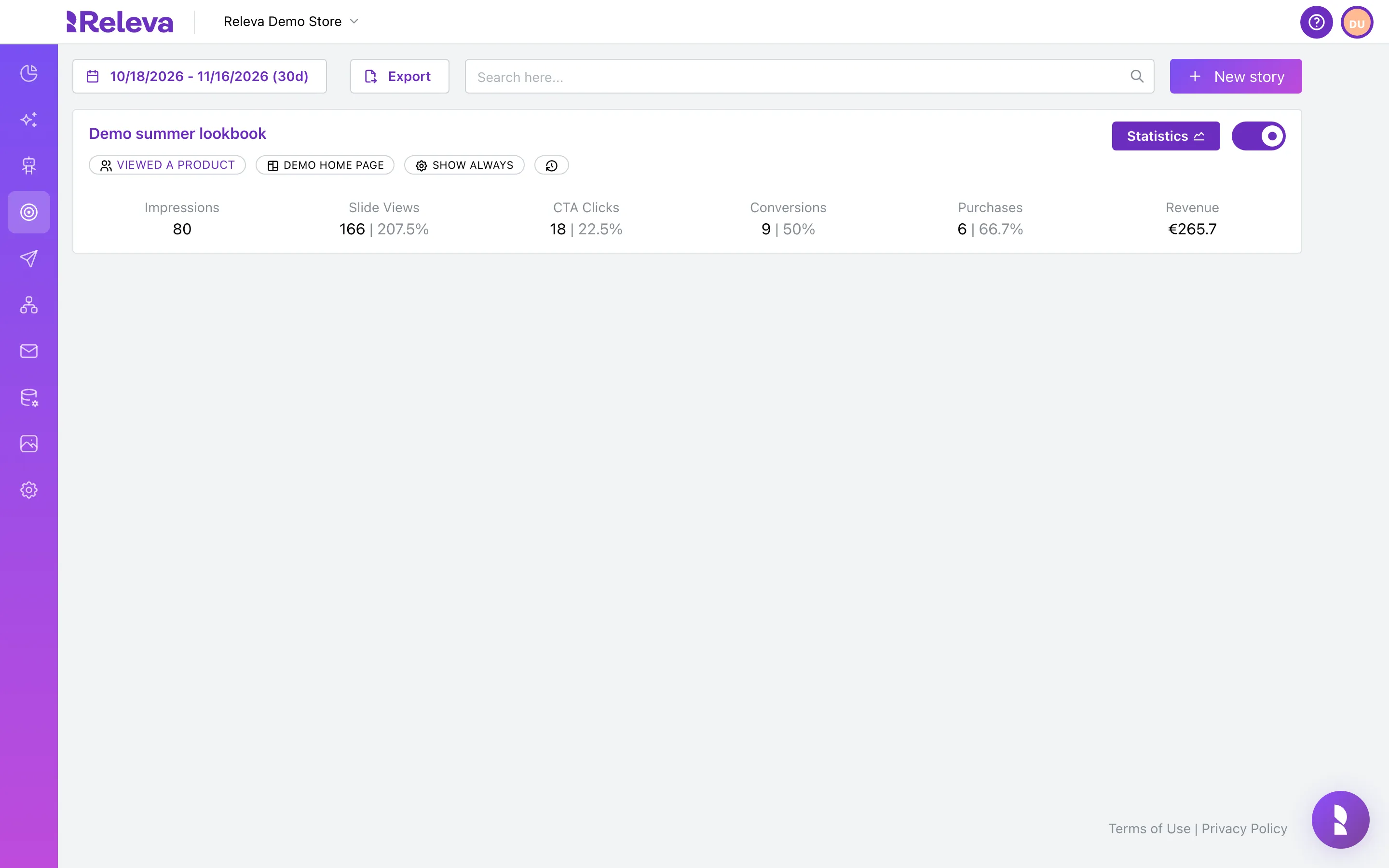
Go to Personalization › Stories.
-
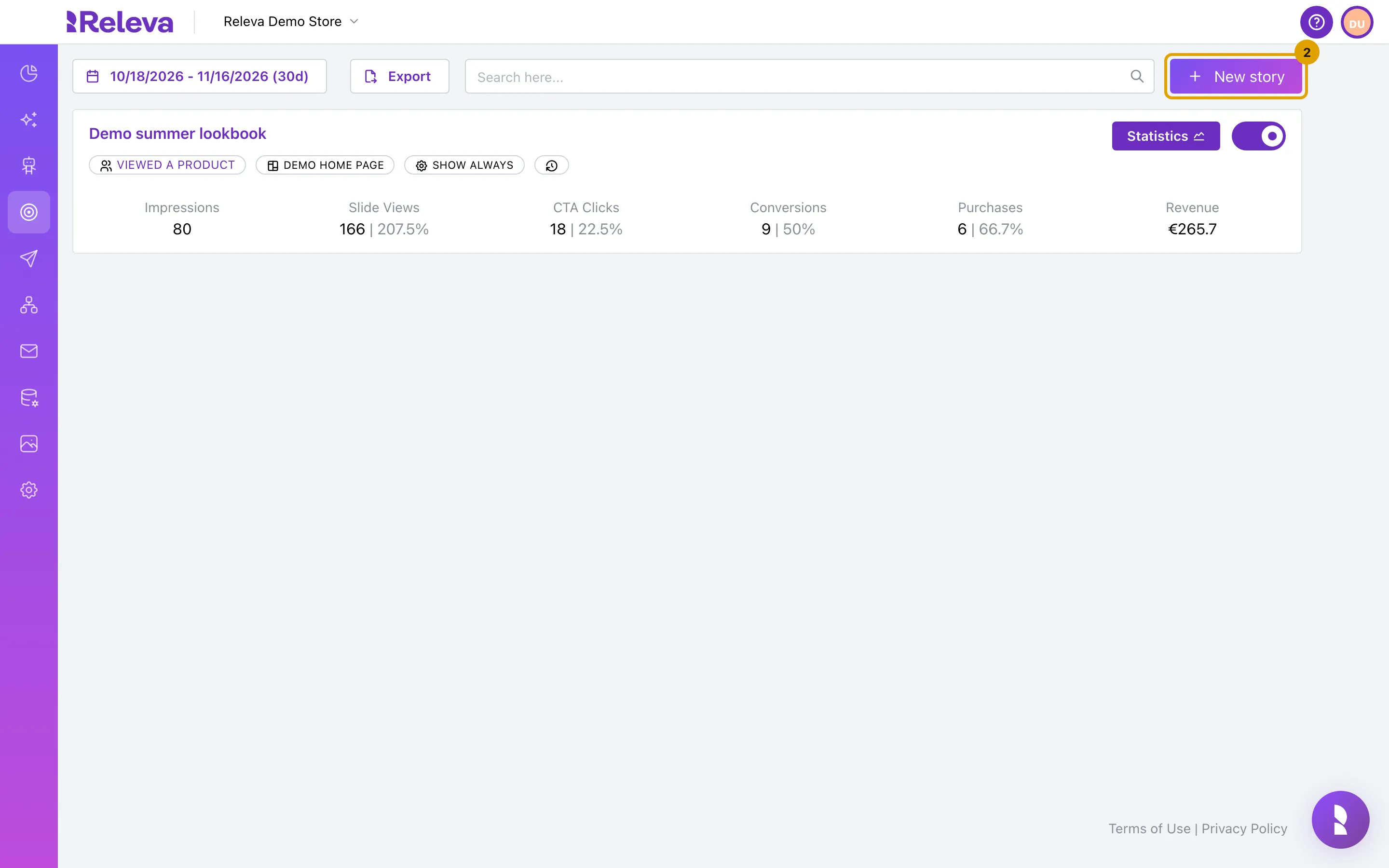
Select New story.
The story form has four tabs: Slides, Display, Audience and Settings. Next takes you through them in order; Save appears on the last tab.
-
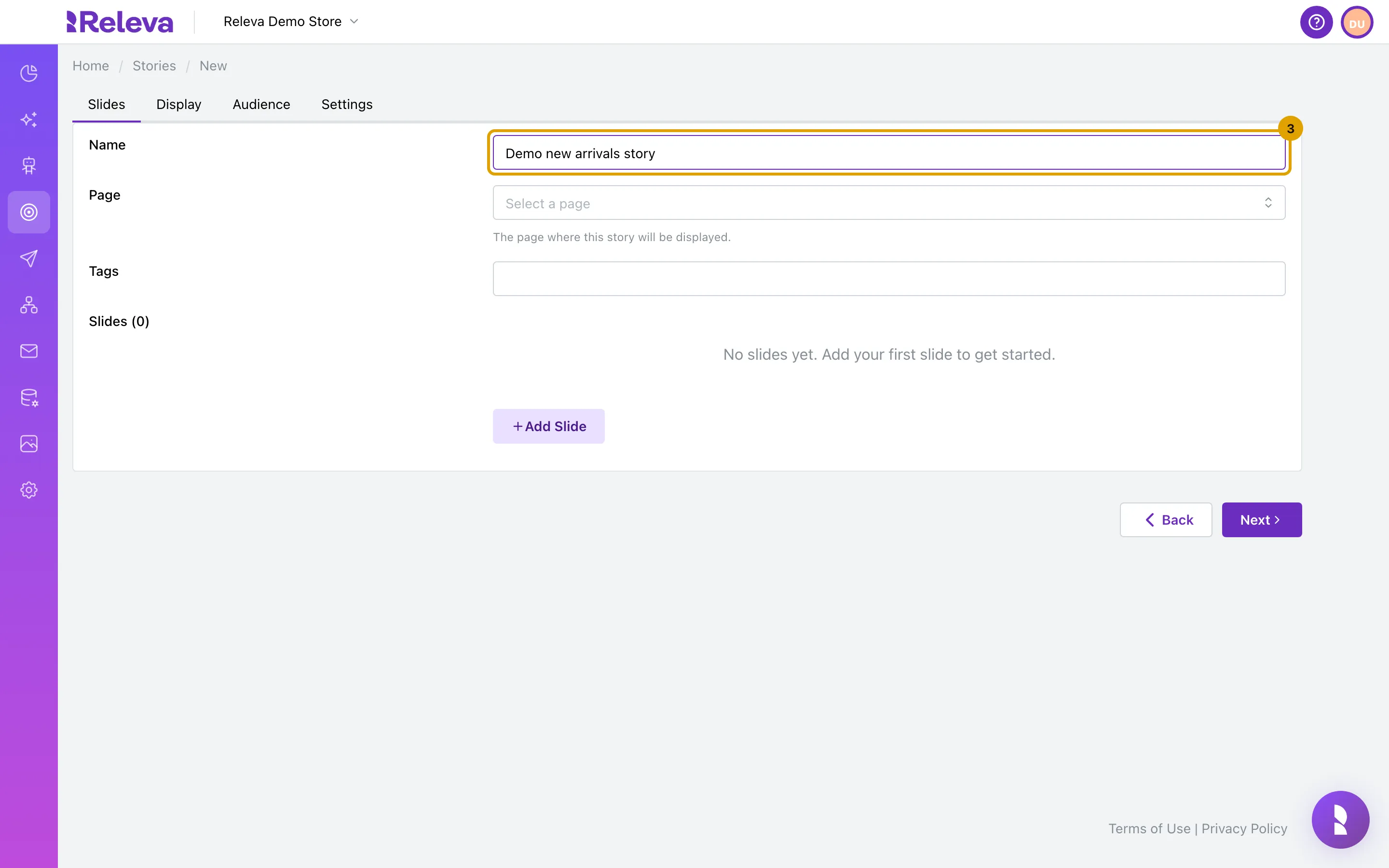
In Name, replace “New story” with a name your team will recognise.
The name must be unique on the page you pick in the next step.
-
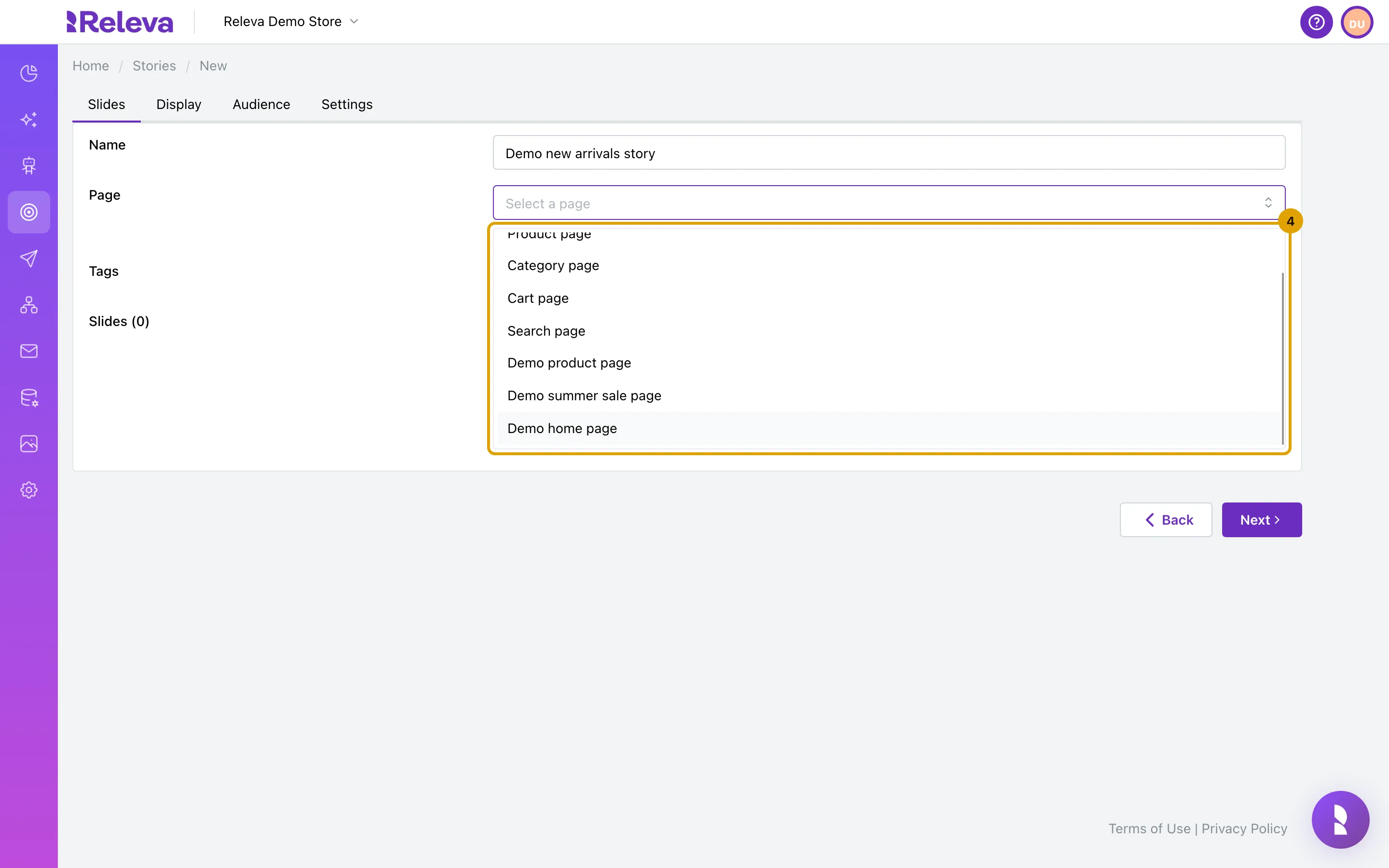
In Page, select the page where the story appears, for example Demo home page.
The list shows the Personalization pages of your shop. Tags is optional: if your page tag sends block tags, only stories with one of those tags are shown.
-
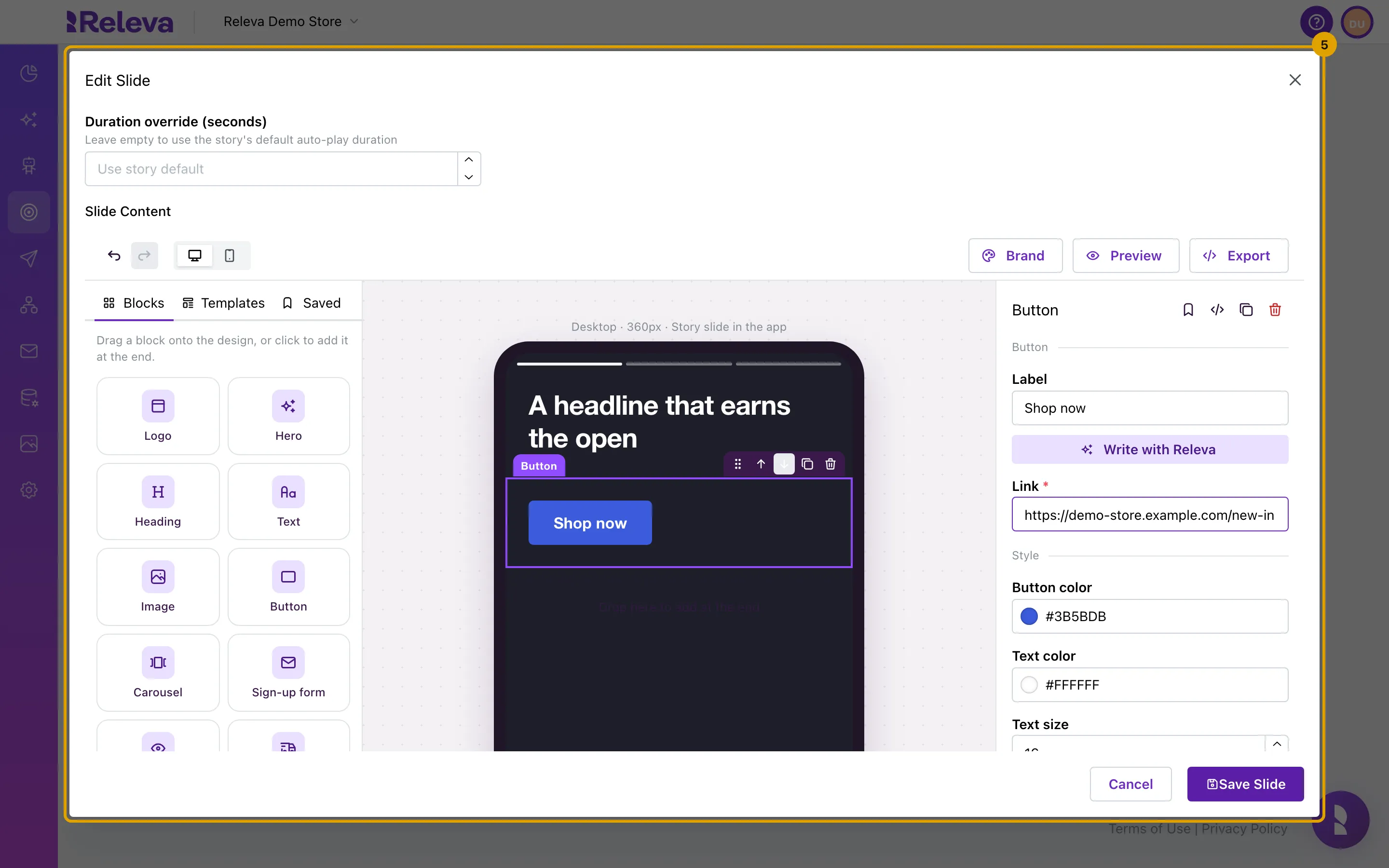
Select Add Slide. Build the slide in the builder by dragging blocks such as Heading and Button from Blocks onto the slide. Select the button and enter its Link, then select Save Slide.
You can also select a block to add it at the end, or start from Templates. With no block selected, the right panel sets the Slide color and an optional Background picture. The Releva mobile SDKs draw headings, text, images, buttons, dividers, spacers and carousels; other blocks show on the web only. Preview lists them under Not shown in the apps.
Duration override (seconds) lets this slide stay longer or shorter than the story default; leave it empty to use the default. A story can have up to 20 slides. Each slide row has a drag handle to reorder, a pencil to edit and a bin to delete.
-
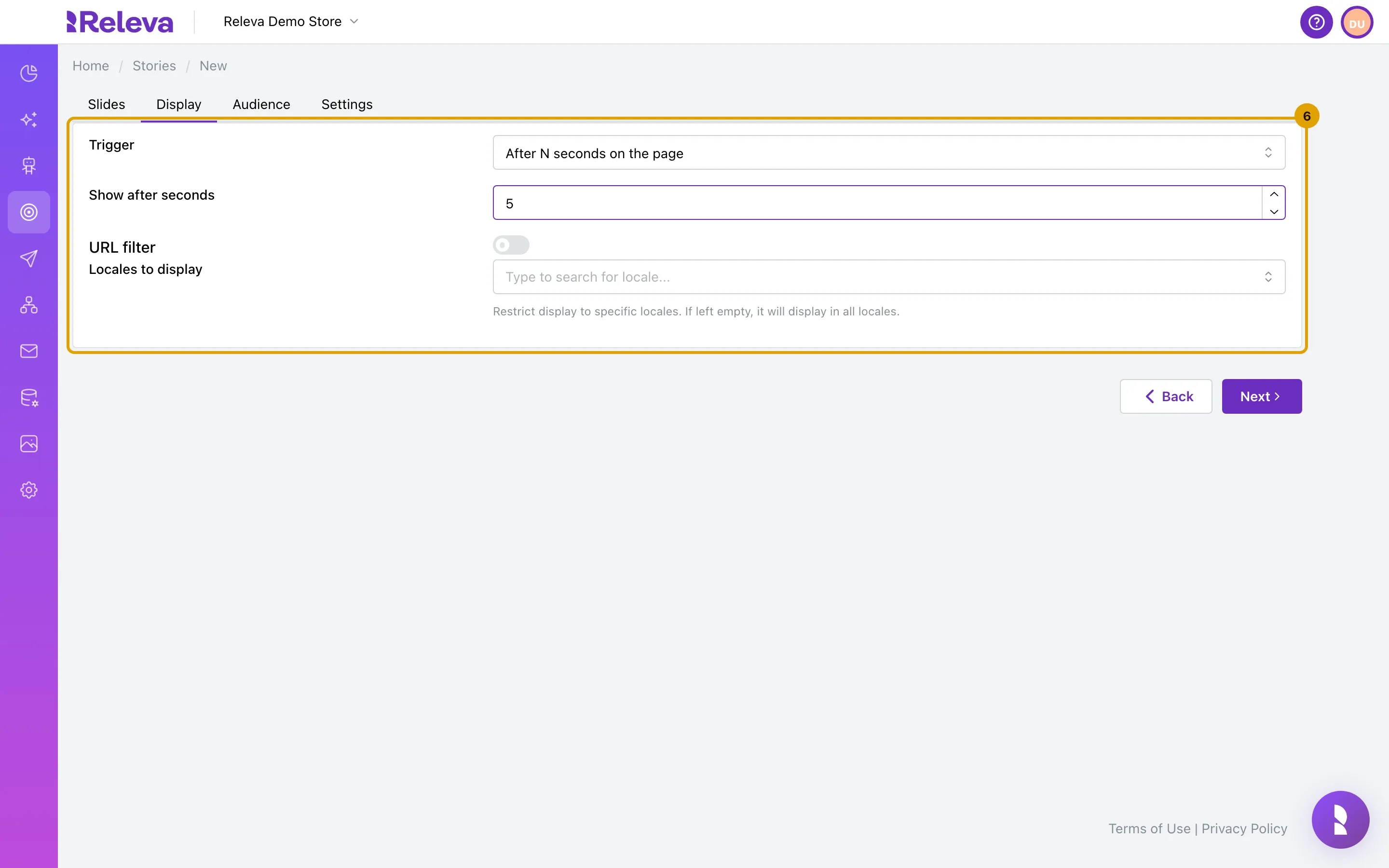
On the Display tab, set Trigger to After N seconds on the page and enter 5 in Show after seconds.
The other triggers are Show immediately, On scrolling down N% of page, On leave intent, Added to Wishlist and Added to Cart. Turn on URL filter to show the story only on URLs that contain a given text, and use Locales to display to restrict it to some shop languages; empty means all.
-
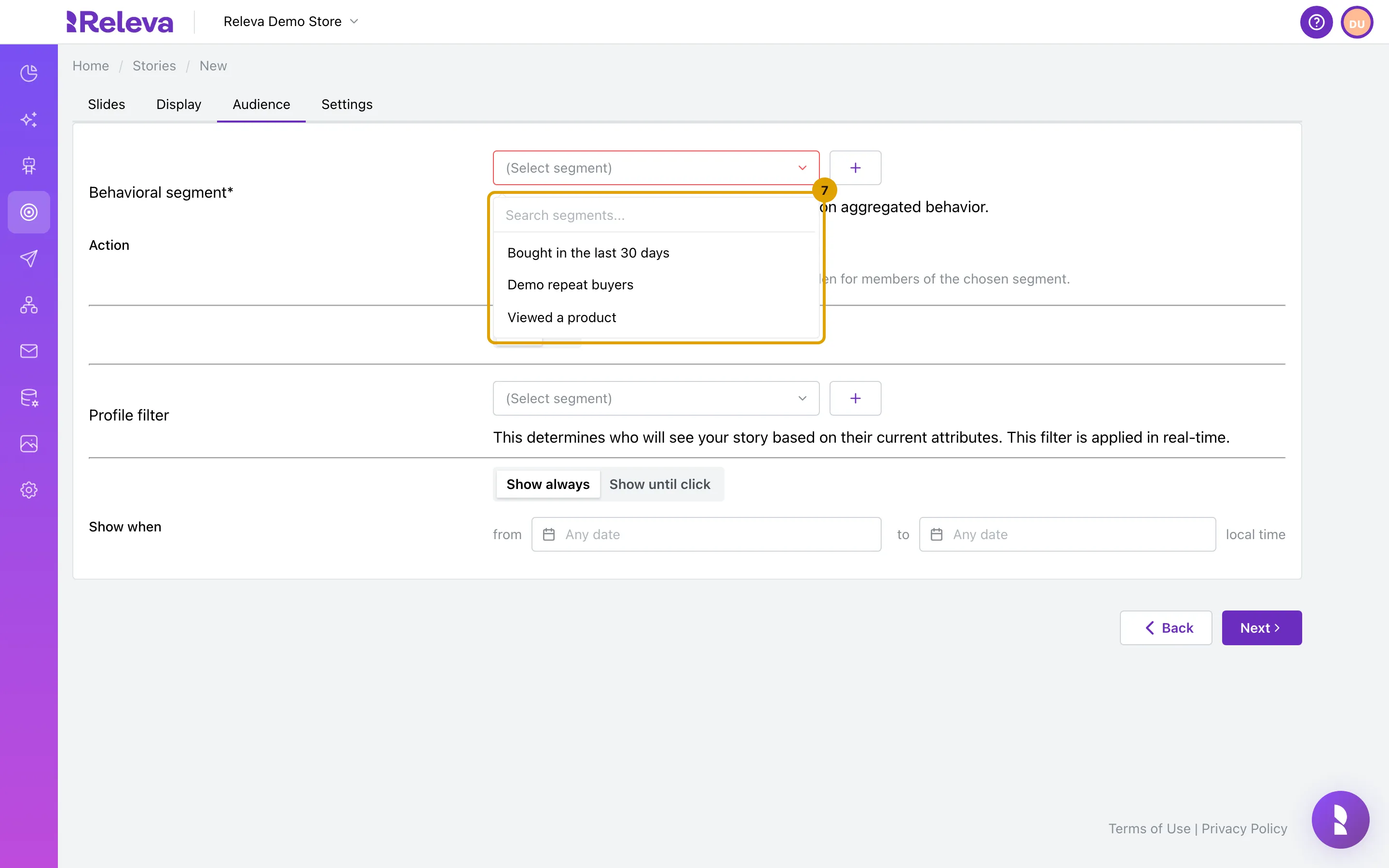
On the Audience tab, in Behavioral segment, select who should see the story, for example Viewed a product.
Action decides whether the segment’s members Show or Hide the story. Profile filter is an optional second segment checked in real time. Show always shows the story on every visit; Show until click stops after the visitor clicks or closes it. Show when limits the story to a date range.
-
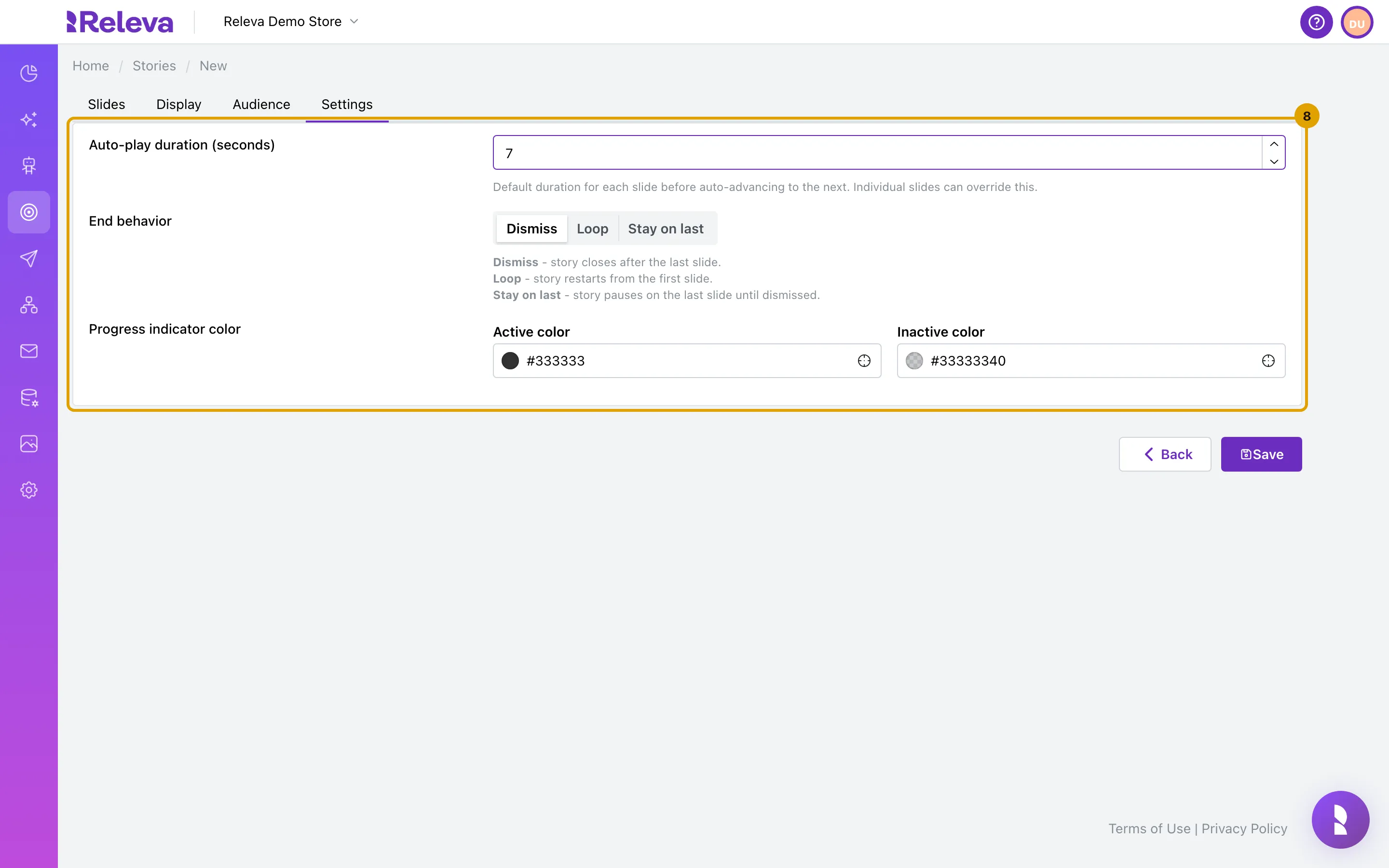
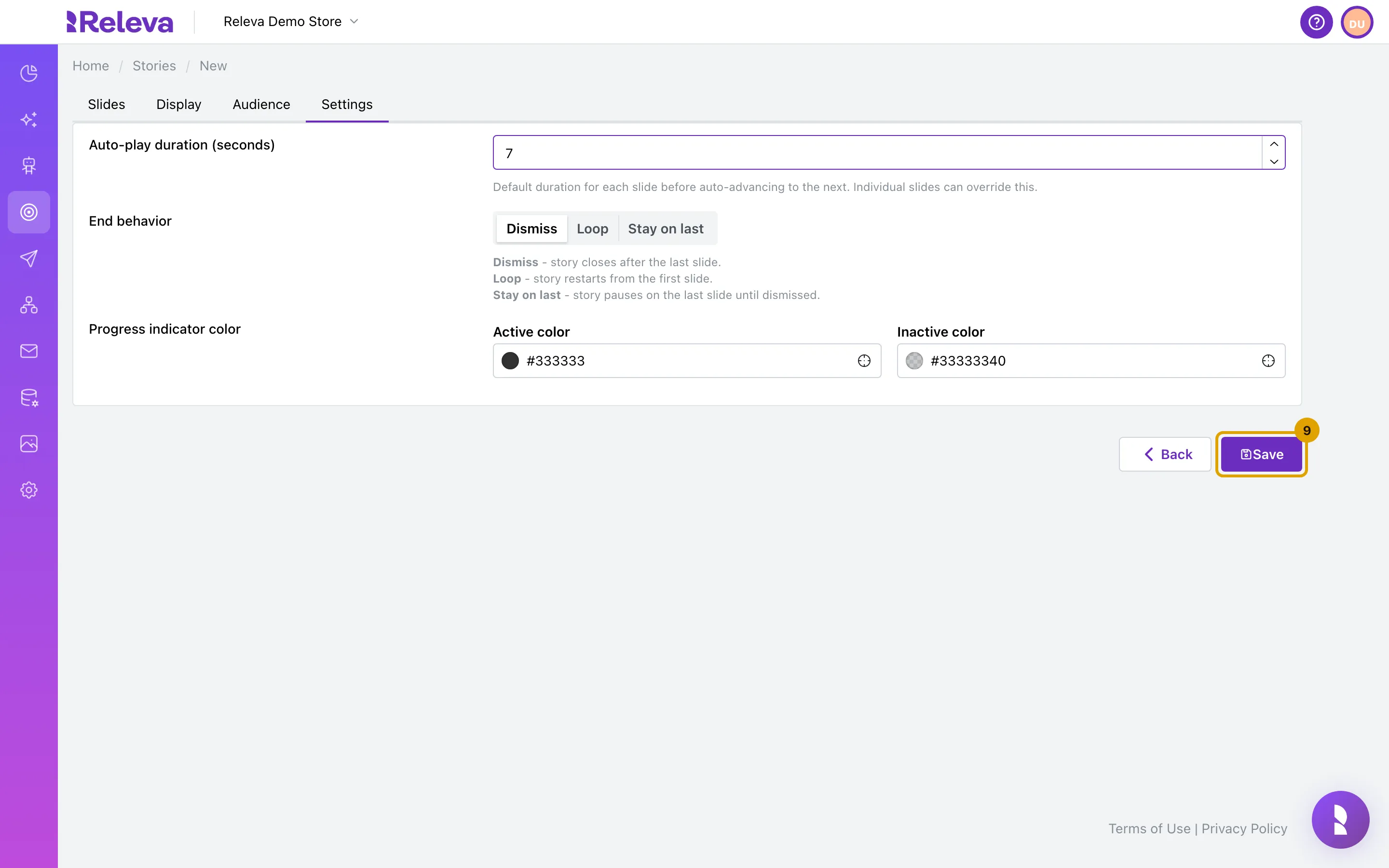
On the Settings tab, set Auto-play duration (seconds) to how long each slide stays on screen and choose an End behavior.
Dismiss closes the story after the last slide, Loop restarts it and Stay on last pauses on the last slide. Active color and Inactive color style the progress bars at the top of the story.
-
Select Save.
Save is disabled until Name, Page and Behavioral segment are set. Slides are not required to save.
-
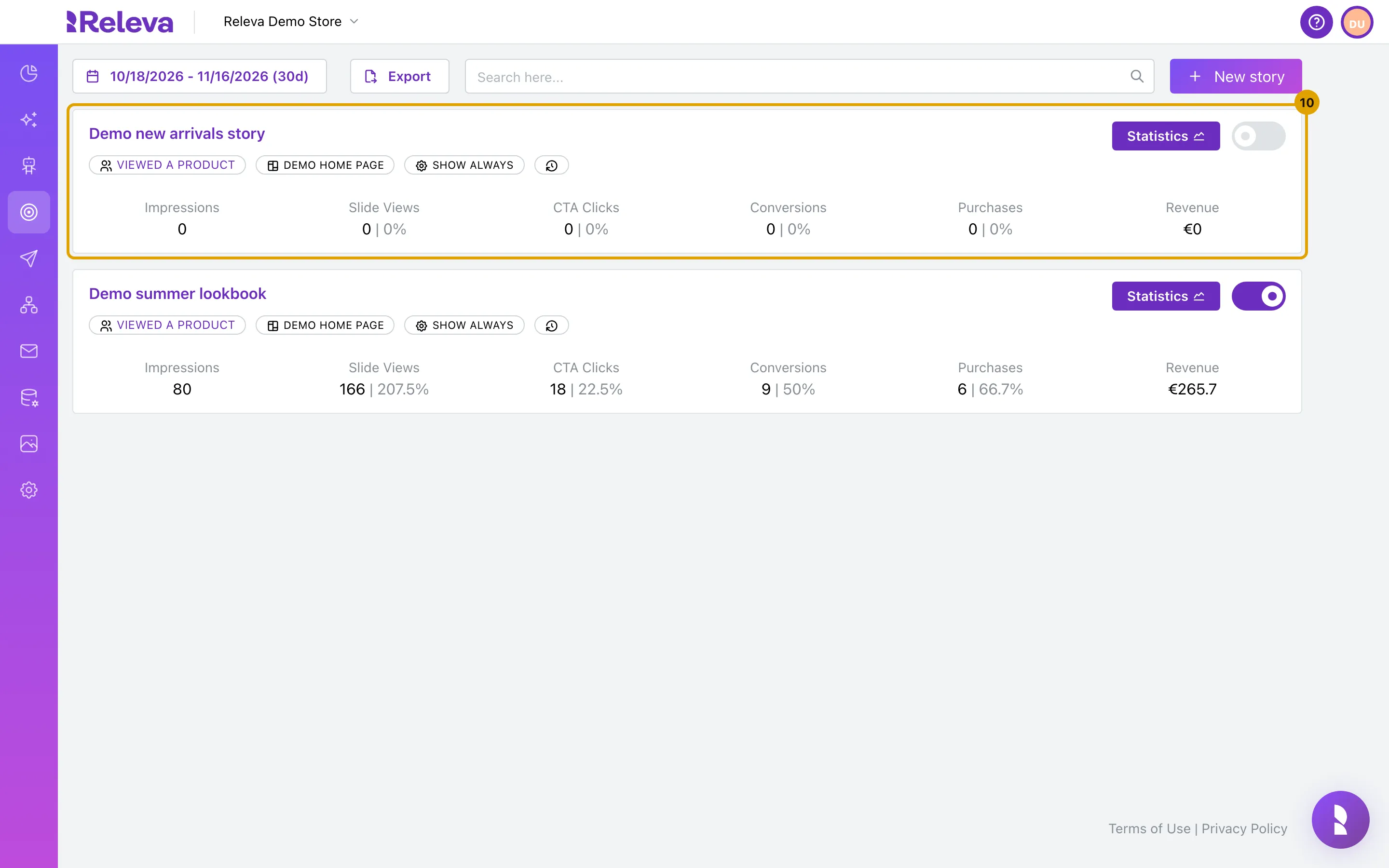
Your story is saved switched off. Turn on the switch on its card to start showing it.
The switch saves at once; there is no confirmation.
Check it worked
Section titled “Check it worked”- The new story is a card on the Stories list, with badges for its segment, its page and SHOW ALWAYS (or SHOW UNTIL CLICK), and the switch on the right is on.
- Open the story name: the slide is listed under Slides (1) with a preview, the Display tab shows your trigger, and the Audience tab shows your segment.
- On the shop page, after 5 seconds a visitor from the segment sees the story. The storefront needs the Releva SDK; see How stories work.
Troubleshooting
Section titled “Troubleshooting”Save is disabled. Name, Page or Behavioral segment is empty. Each one is required; Segment is required appears under the segment field when you leave it empty.
Name must be unique! Another story on the same page already has this name. Choose another name or another page.
Page has nothing to select. Your shop has no Personalization pages yet. Create the page first, then come back.
I selected Cancel in the slide editor and an empty slide appeared. Add Slide adds the slide before the editor opens, so Cancel leaves an Empty slide in the list. Remove it with the red bin.
Add Slide is disabled. The story already has 20 slides, the maximum.
The story does not show on the shop. Check that the switch on the card is on, that the visitor is in the behavioral segment, that the page token or URL matches the page you picked and that Show when is not in the past. New stories are saved switched off.
New story shows a lock. Your plan does not include creating stories. Select it to see the upgrade options or ask your account owner.