

Set up search as you type
Search As You Type shows ranked product results under your shop’s search box while a shopper is still typing. This guide connects it to the search box, picks the layout that draws the results, sets the number of products, adds a Brand filter and switches the feature on. For what happens on the shop and how results are ranked, read How search as you type works.
Before you start
Section titled “Before you start”- The Releva JavaScript snippet (or a platform connector) runs on every page of your shop. Without it nothing can attach to the search box. See How Releva connects to your shop.
- Your catalog is in Releva and your products are available. Only available products appear in results. See How your catalog gets into Releva.
- A layout with the Search scope exists under Assets › Layouts. The results never show on the shop until a layout is chosen.
- You have the CSS selector of your shop’s search box. To find it, open the shop in your browser, right-click the search box, choose Inspect, then right-click the highlighted element and choose Copy › Copy selector.
- The first time you open the page it shows only the switch and a Set up without turning it on button. Select that button to get the settings below without going live.
-
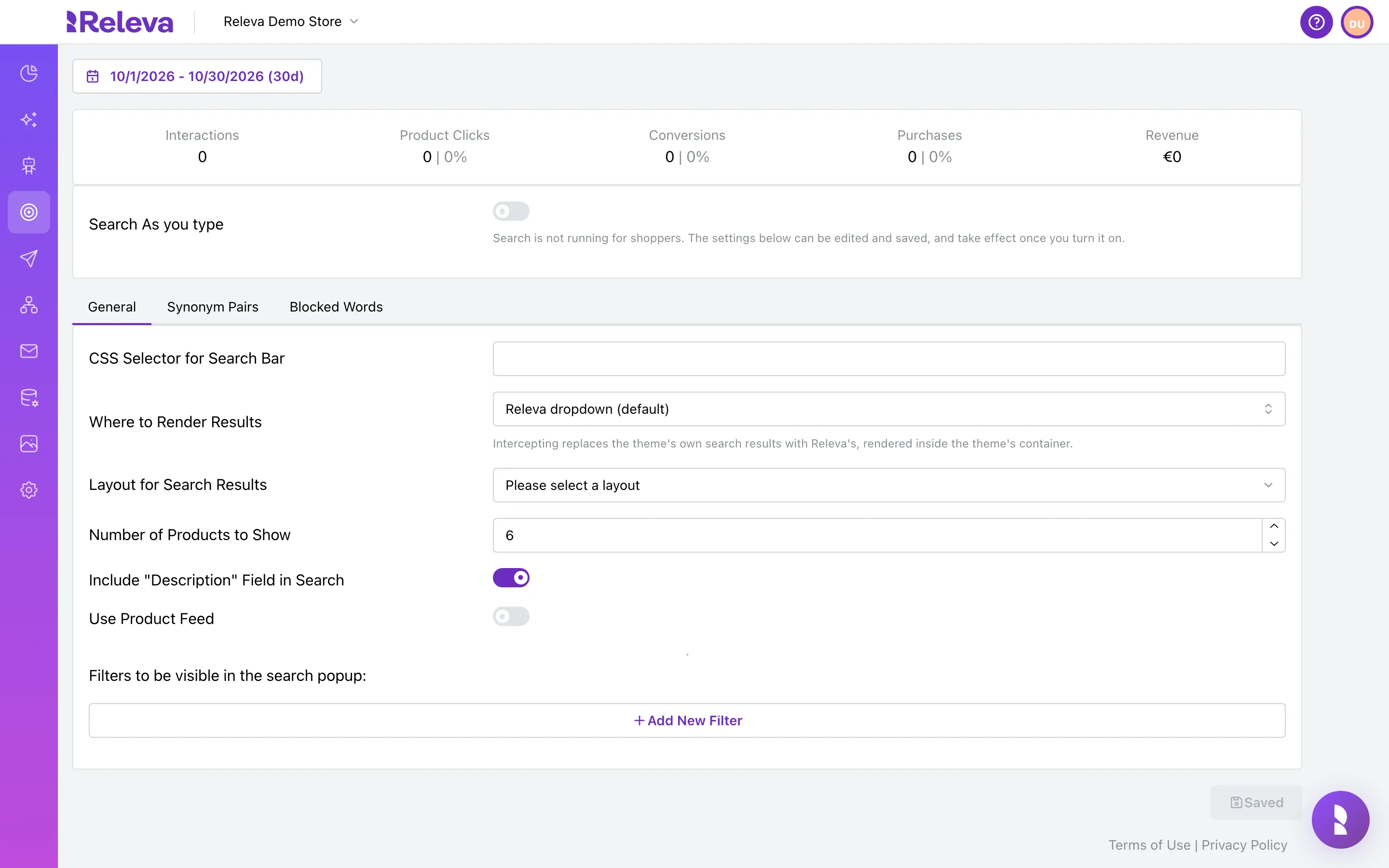
Go to Personalization › Search As You Type.
The settings are on three tabs: General, Synonym Pairs and Blocked Words. The tiles above them show how search performed in the selected period.
-
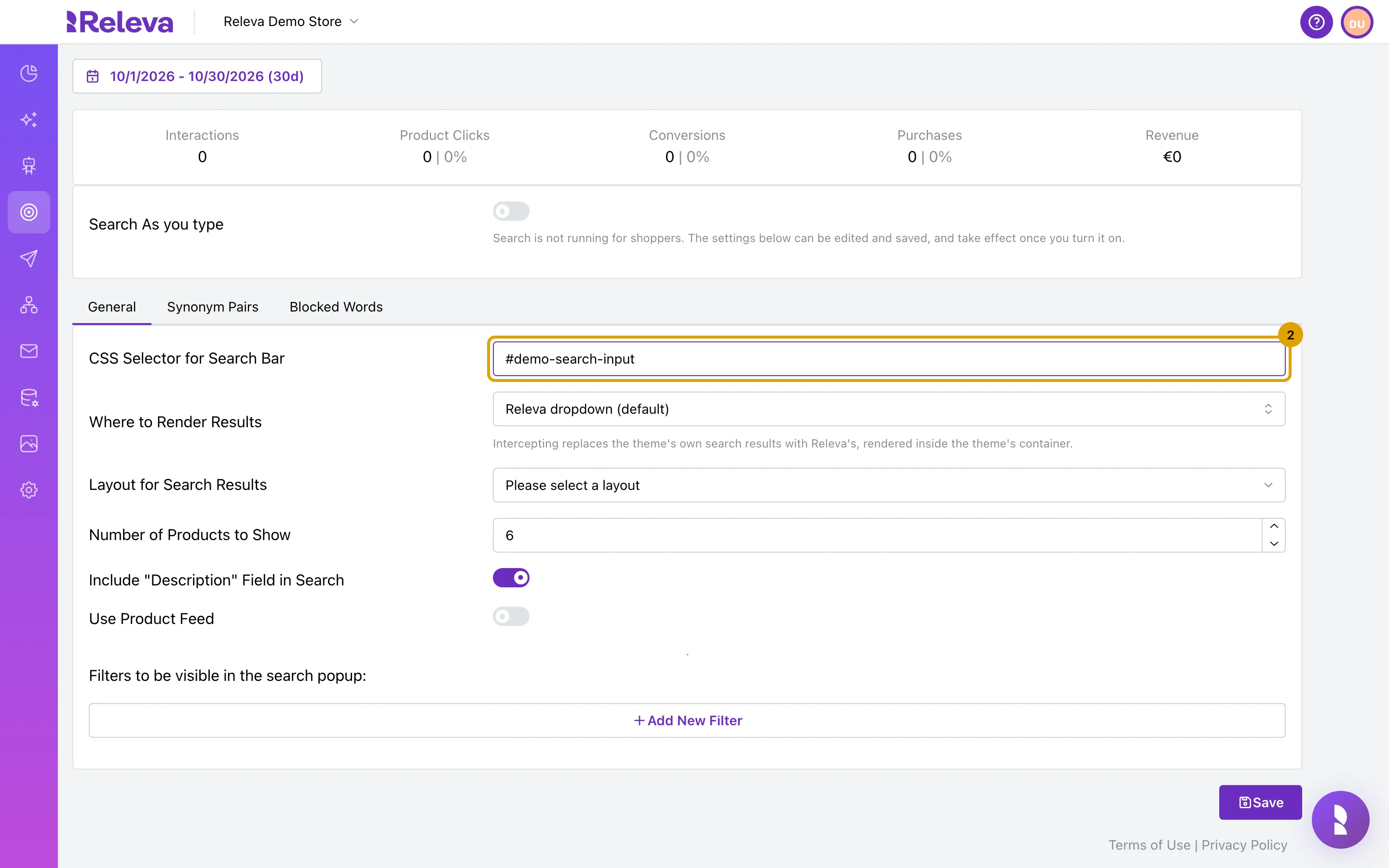
In CSS Selector for Search Bar, enter the CSS selector of your shop’s search box.
Releva attaches to every element the selector matches. The value is not checked, so copy it exactly from your browser.
-
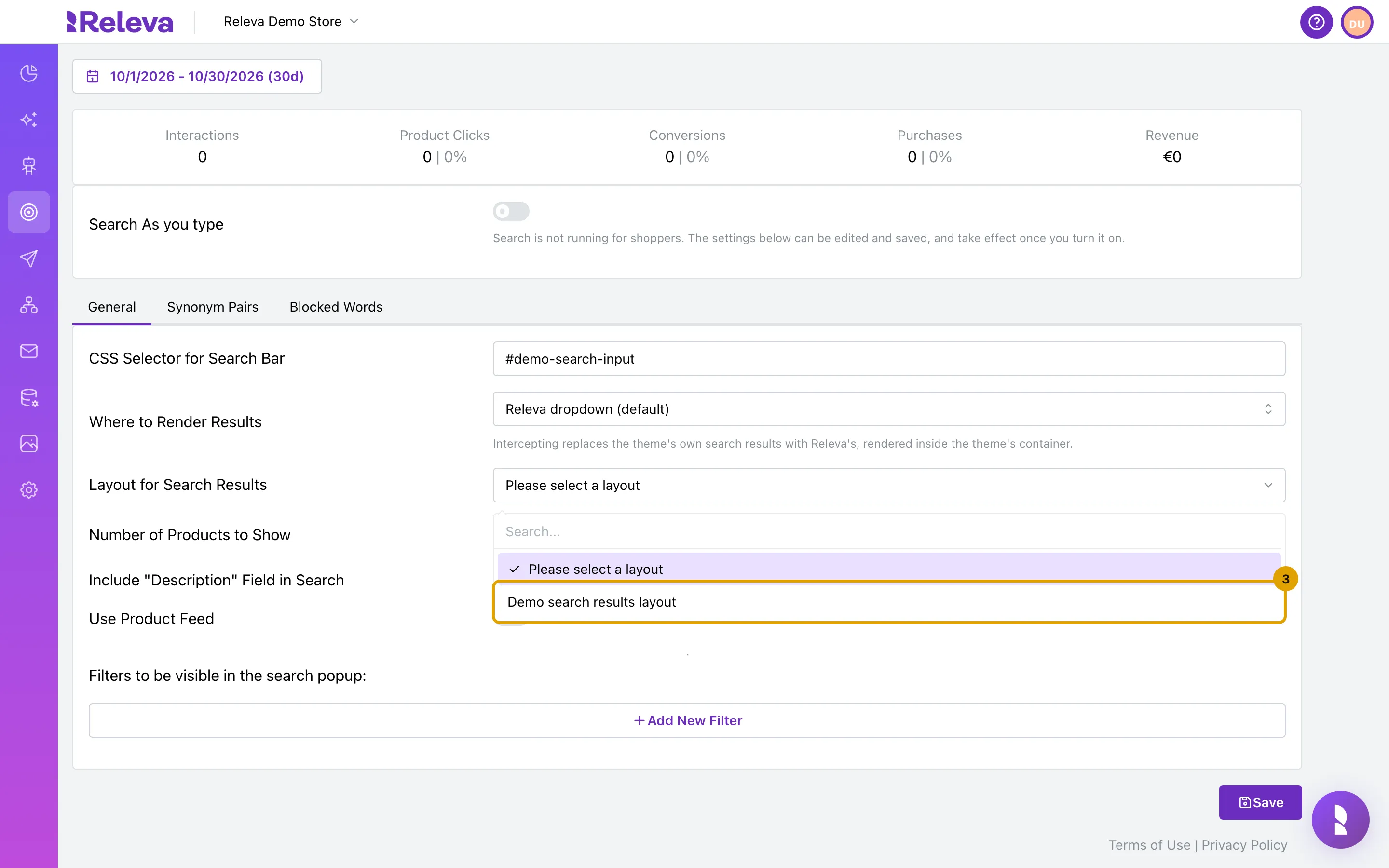
In Layout for Search Results, choose the layout that draws the results.
The list contains every layout with the Search scope. Leave Where to Render Results on Releva dropdown (default) unless a Releva integration engineer asked you to intercept the theme’s own search.
-
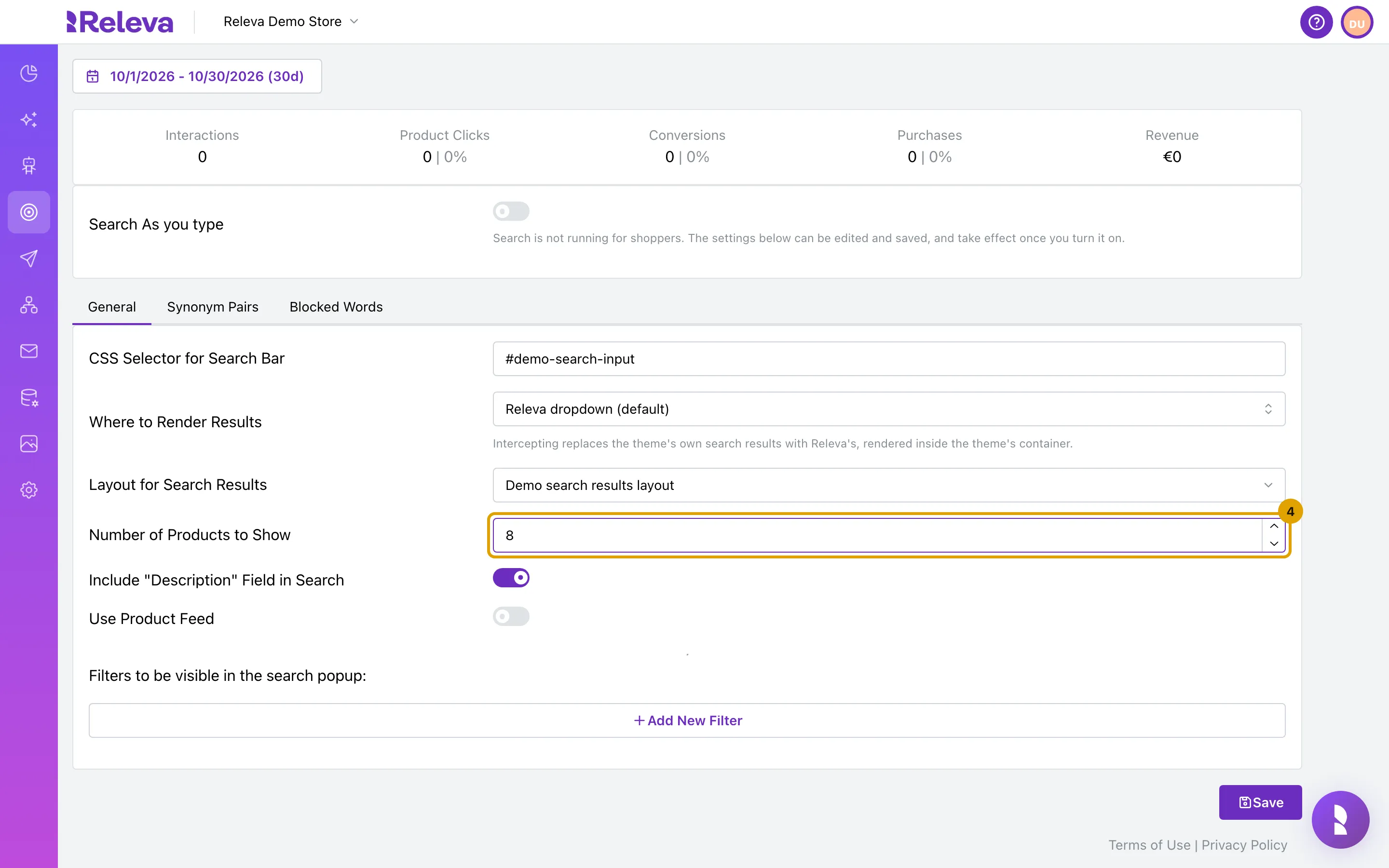
In Number of Products to Show, enter how many products the results show.
The default is 6. Releva still counts every match; this number only caps how many products the panel lists.
-
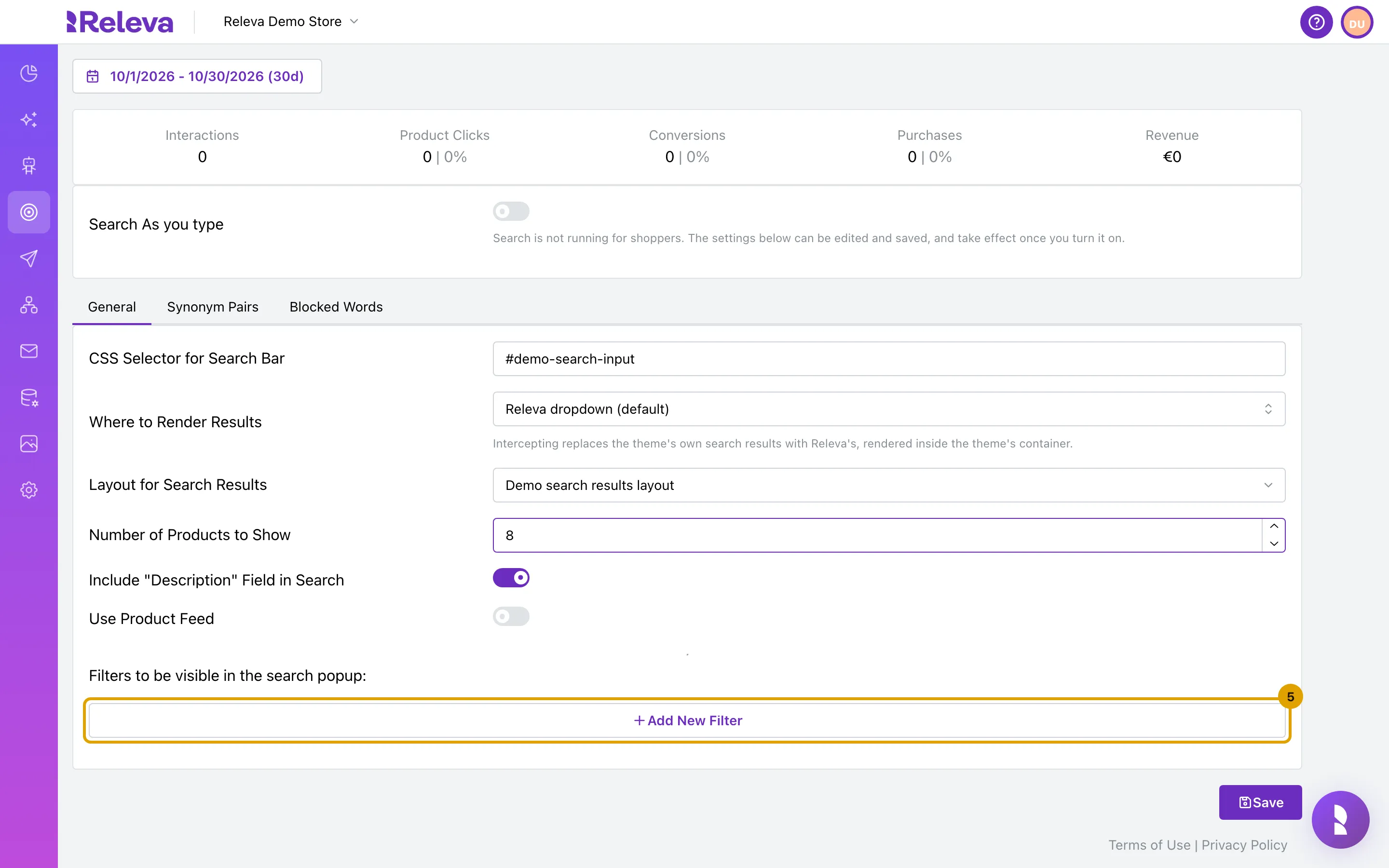
Under Filters to be visible in the search popup, select Add New Filter.
Filters are optional. Each one lets shoppers narrow the results by one product field. Leave Include “Description” Field in Search on so that words from product descriptions also match.
-
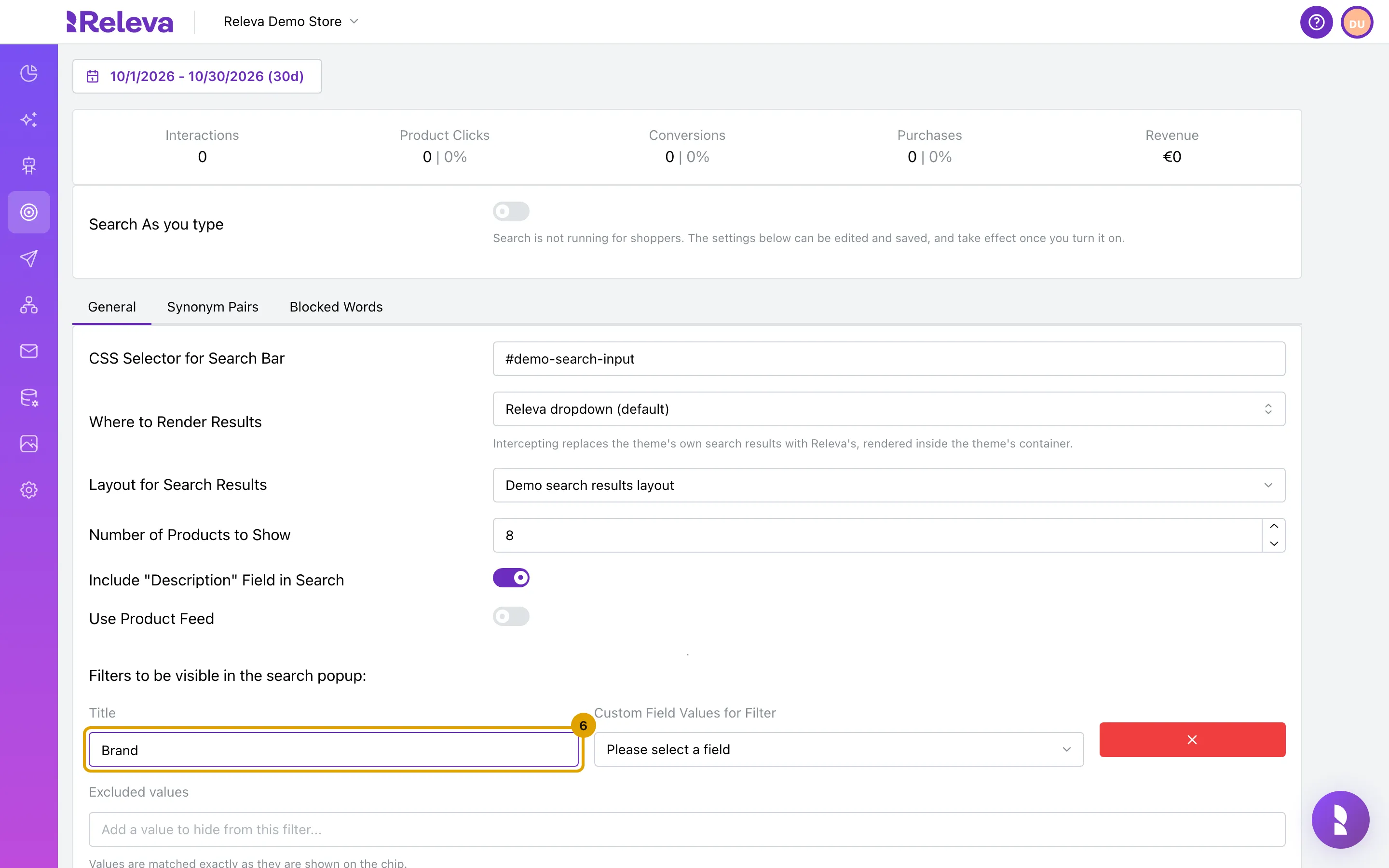
In Title, enter the name shoppers see above the filter.
-
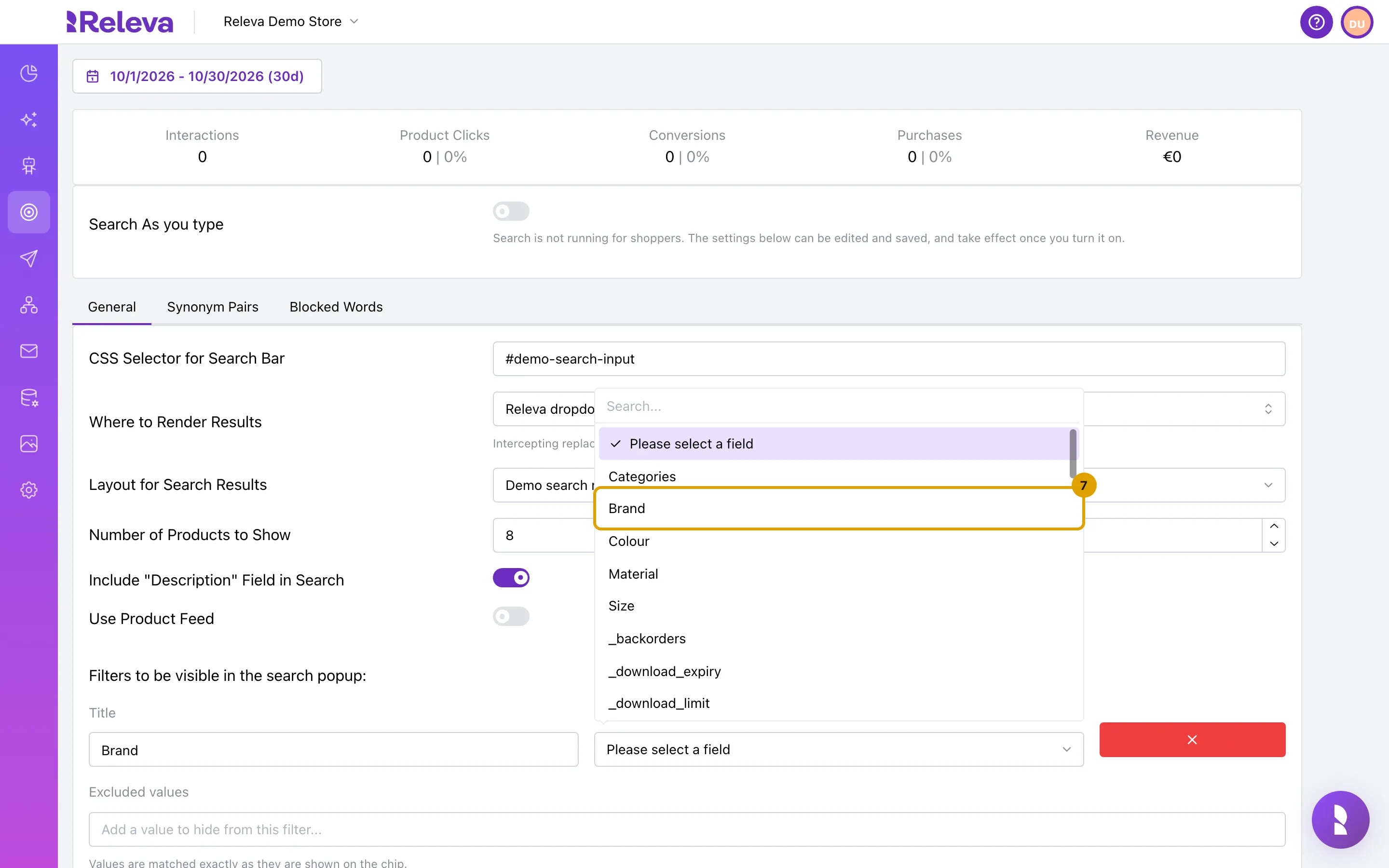
In Custom Field Values for Filter, choose the product field the filter uses.
Categories uses your category tree; the other entries are the custom fields of your products, such as Brand or Colour. The list shows the field names exactly as your catalog sends them, so it can also hold technical fields from your shop platform. The filter shows the five most common values among the matches. To hide a value from the filter, type it in Excluded values and press Enter; it must match the value exactly. The red X removes a filter at once, without asking.
-
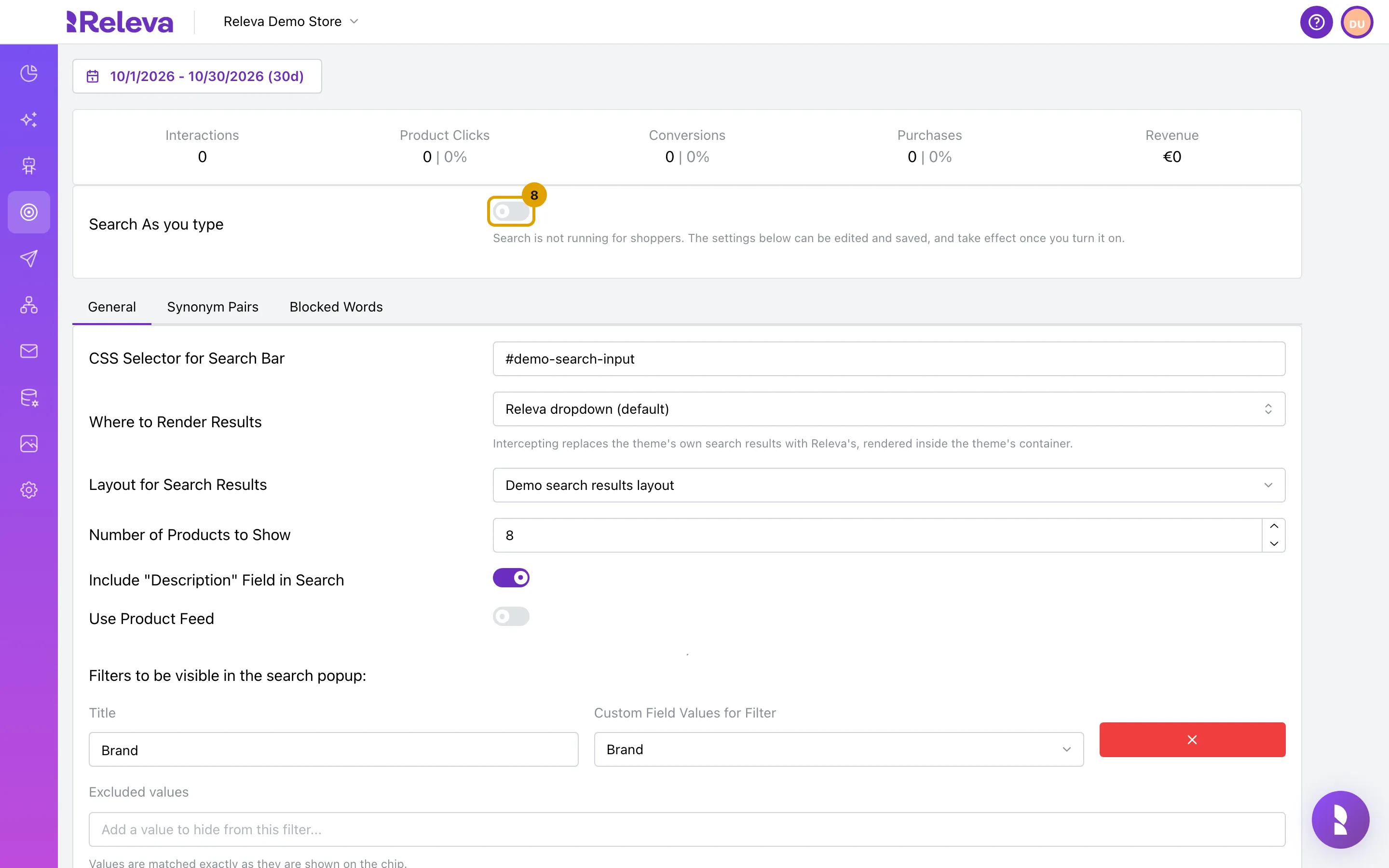
Turn on Search As you type.
While the switch is off, the hint under it reads “Search is not running for shoppers. The settings below can be edited and saved, and take effect once you turn it on.” You can save settings with the switch off and turn it on later.
-
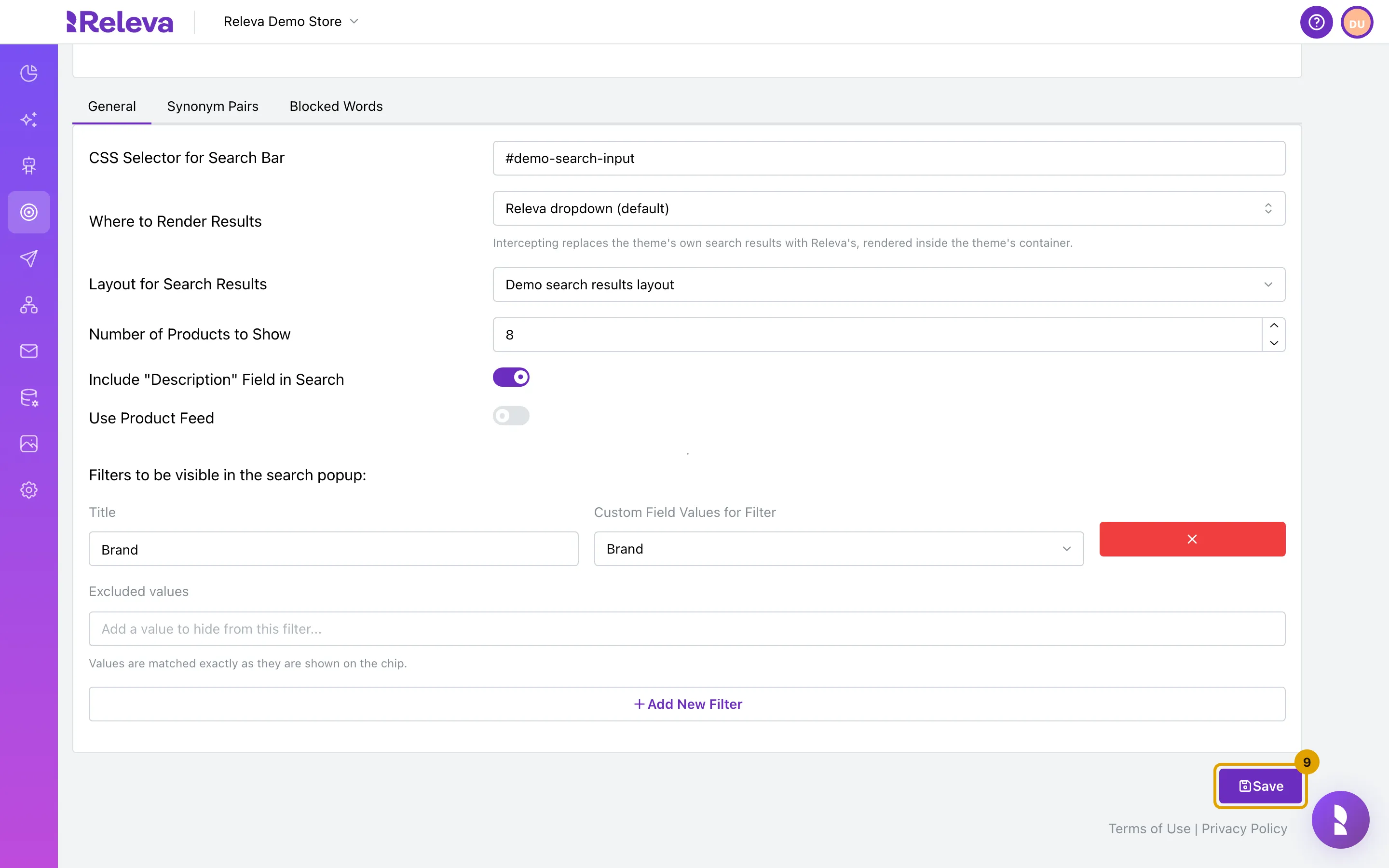
Select Save.
Saving with the switch on makes search as you type live for shoppers at once.
-
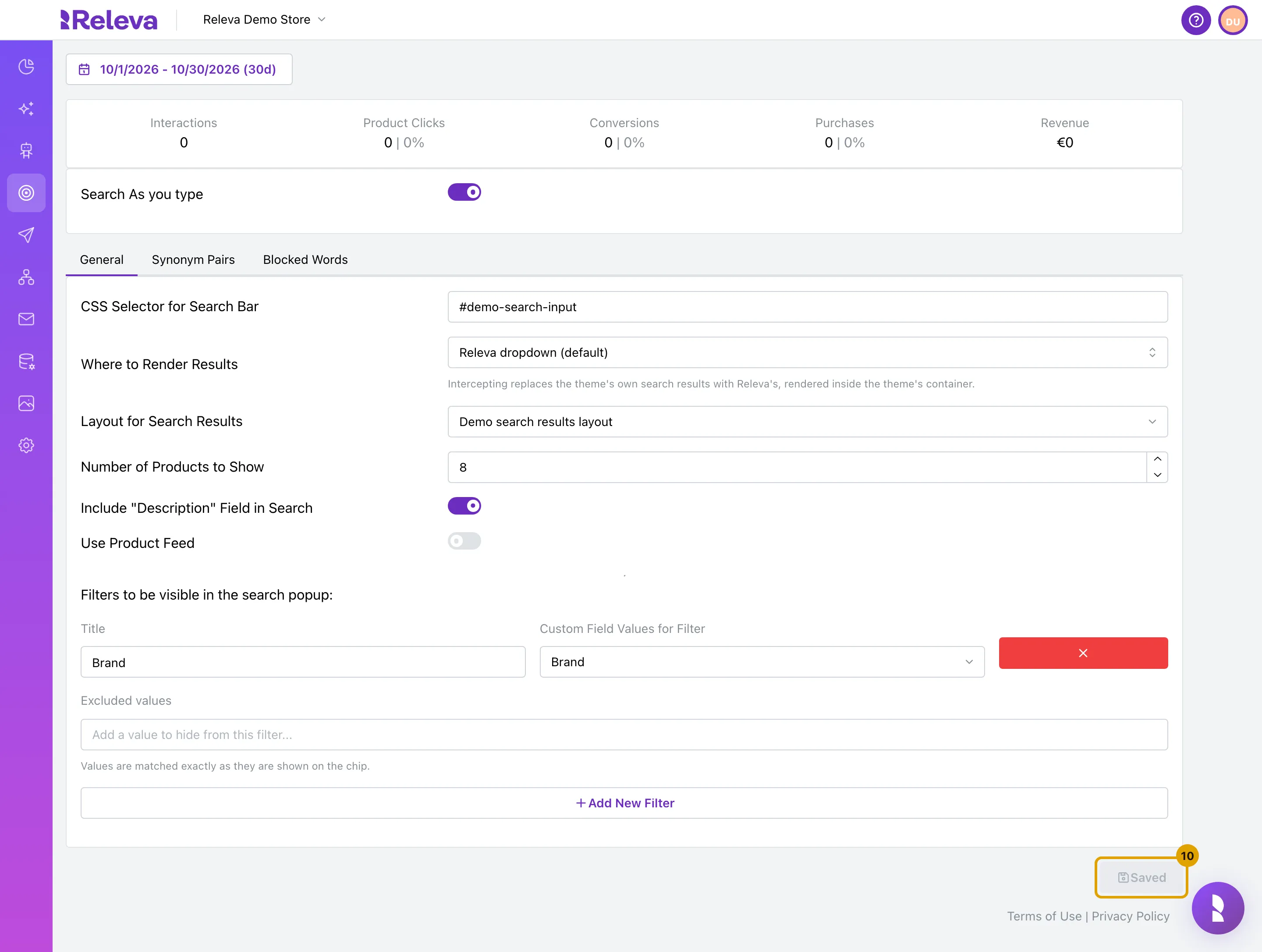
Check that the button now reads Saved.
The switch at the top is on and the hint under it is gone.
Check it worked
Section titled “Check it worked”- The button reads Saved and the hint under the switch is gone.
- Reload the page: the selector, layout, number and filter are still there.
- Open your shop in a private browser window and type a product name in the search box. A results panel appears under it after a short pause. If you are in the control group of a running A/B test you will not see it; add
?rlv_mode=debugto the shop URL to force the panel. - Back in the admin, the Interactions tile counts one for every search a shopper made.
Troubleshooting
Section titled “Troubleshooting”Nothing appears under the search box on my shop. Check, in this order: the switch is on and saved; a layout is chosen in Layout for Search Results; the selector matches the search box (in the browser console, document.querySelectorAll('<your selector>') returns one element); the Releva snippet is loaded on the page. Shoppers in the control group of an A/B test never get the panel.
The panel appears but is empty. The products Releva searched do not match. Only available products in the page’s language are searched. If your catalog is in another language than the shop’s default locale, make sure the Releva snippet sends the page locale.
The page went blank after I selected Save. The save failed and the page could not show the error. Reload the page; it comes back with the last saved settings. Known causes: Number of Products to Show was empty, or the layout was changed back to Please select a layout. Enter a number and pick a layout, then save again.
Save is greyed out and reads Saved. Nothing changed since the last save. Changing a value and changing it back counts as no change.
I removed a filter by mistake. There is no undo. Reload the page before saving to get the last saved filters back.
I cannot find my layout in the list. Only layouts with the Search scope are listed. Create or copy one under Assets › Layouts with that scope.