

Approve Sales Agent answers
Besides the text of your documents, the Sales Agent answers from question-and-answer pairs: a question a shopper may ask and the answer it should give. AI can write pairs from your documents, and you can write your own. No pair reaches shoppers until you approve it. This guide shows how to review the pairs and how to add one for a question the Sales Agent could not answer. To add the documents themselves, see Add knowledge for the Sales Agent.
Before you start
Section titled “Before you start”- The Sales Agent is switched on for your shop. Until then, Agentic › Sales Agent shows only the figures and a Chat Bot switch you cannot turn on, and no tabs. Releva turns the Sales Agent on for your shop the first time: only a Releva super admin can make the first switch-on, so contact Releva.
- Your knowledge base has at least one document. Pairs written by AI appear only for documents added with Generate Q&A pairs with AI on.
- Anyone with access to the shop can approve, edit, reject and add pairs.
-
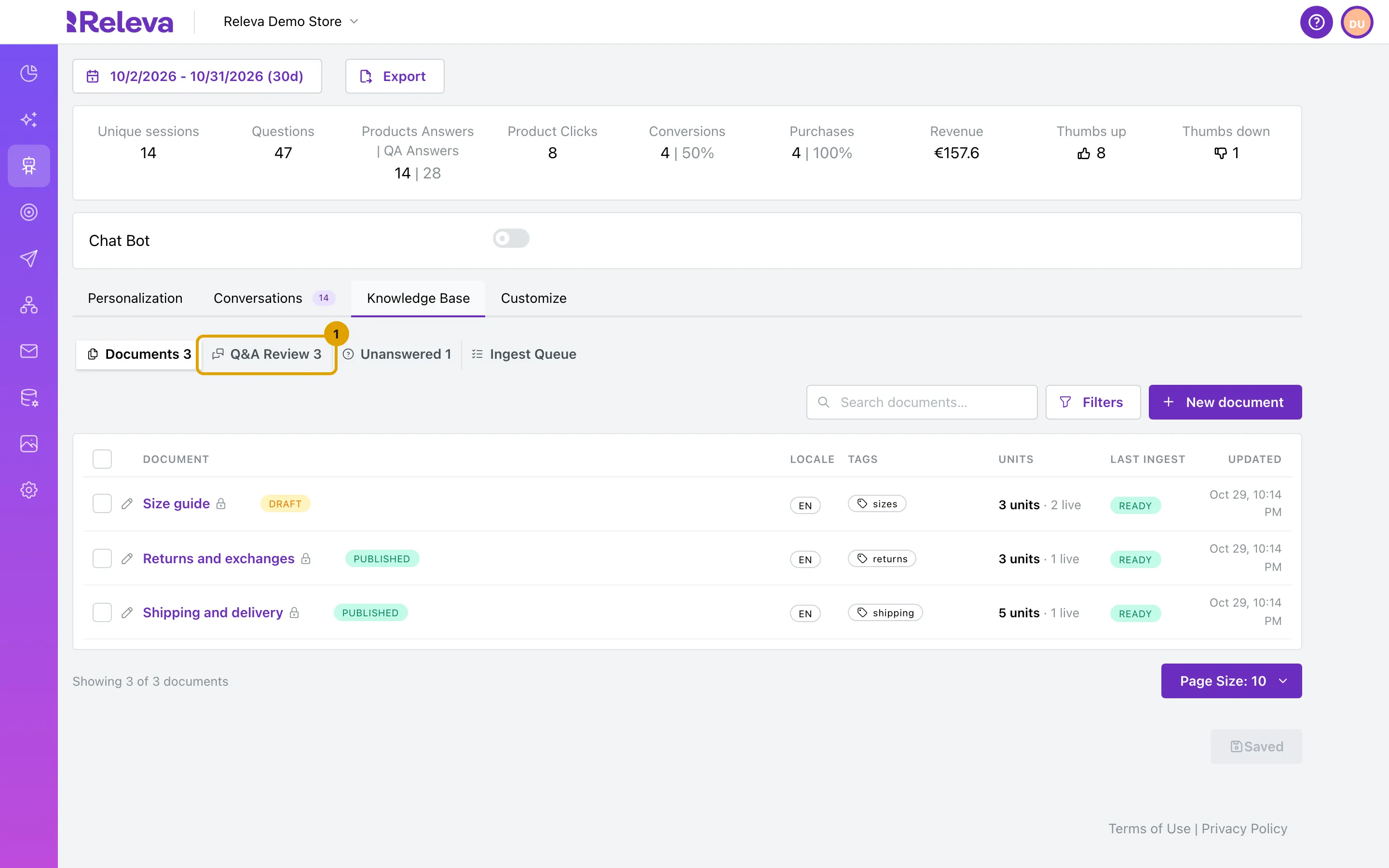
Go to Agentic › Sales Agent, select the Knowledge Base tab and then Q&A Review.
The number next to Q&A Review is how many pairs wait for your review.
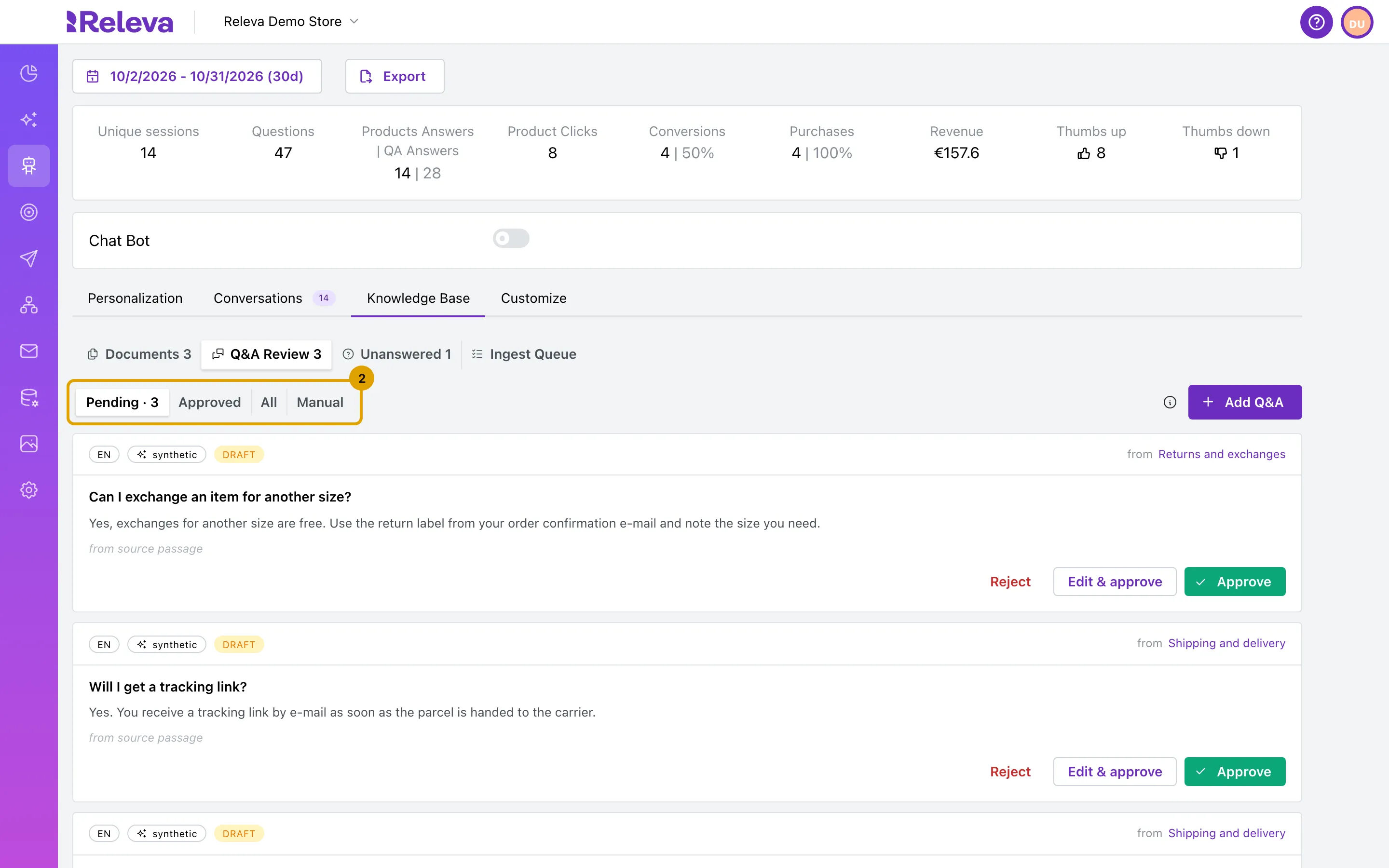
Pending lists the pairs AI wrote from your documents, each with its language, the synthetic badge, the status draft and the document it comes from.
-
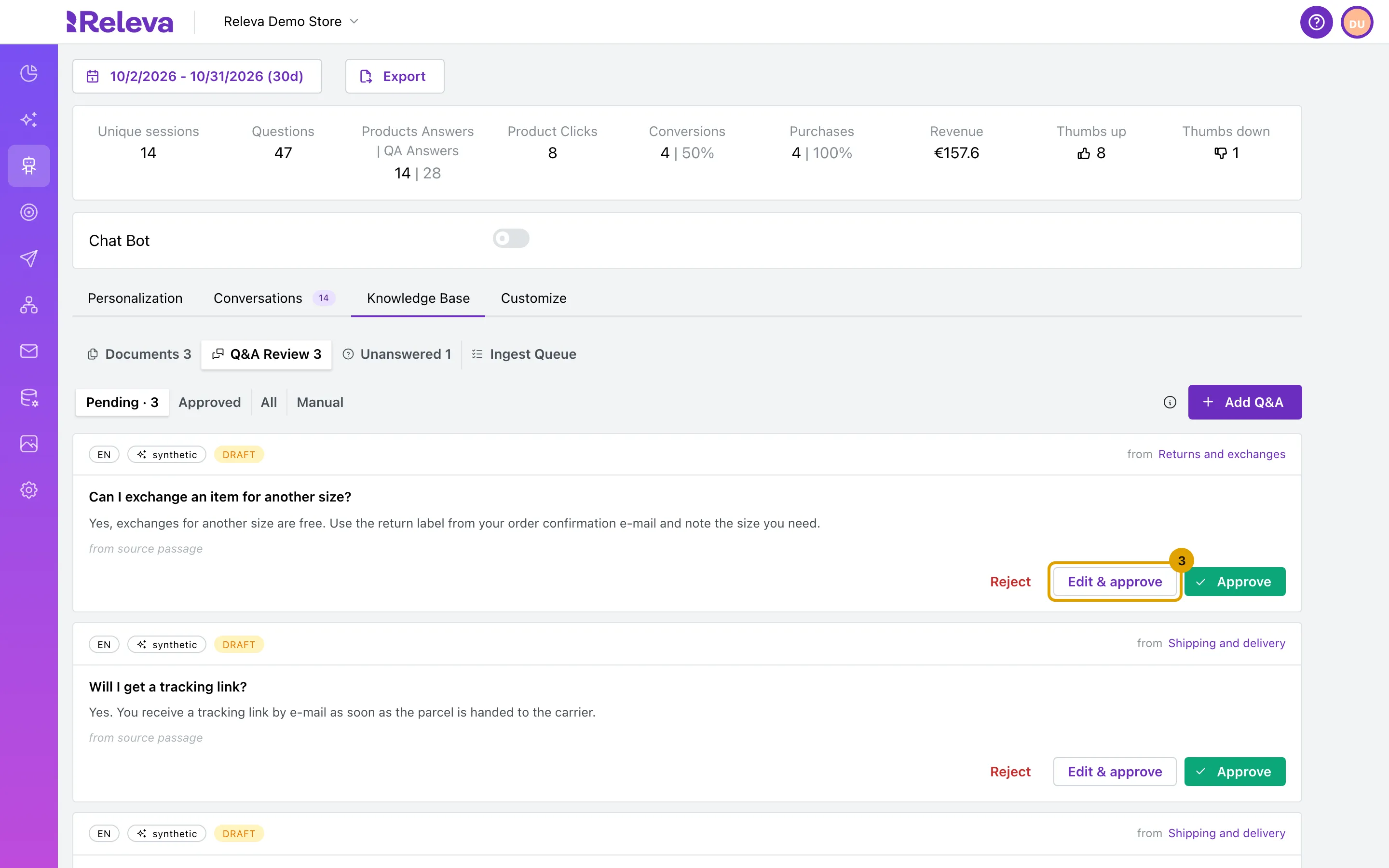
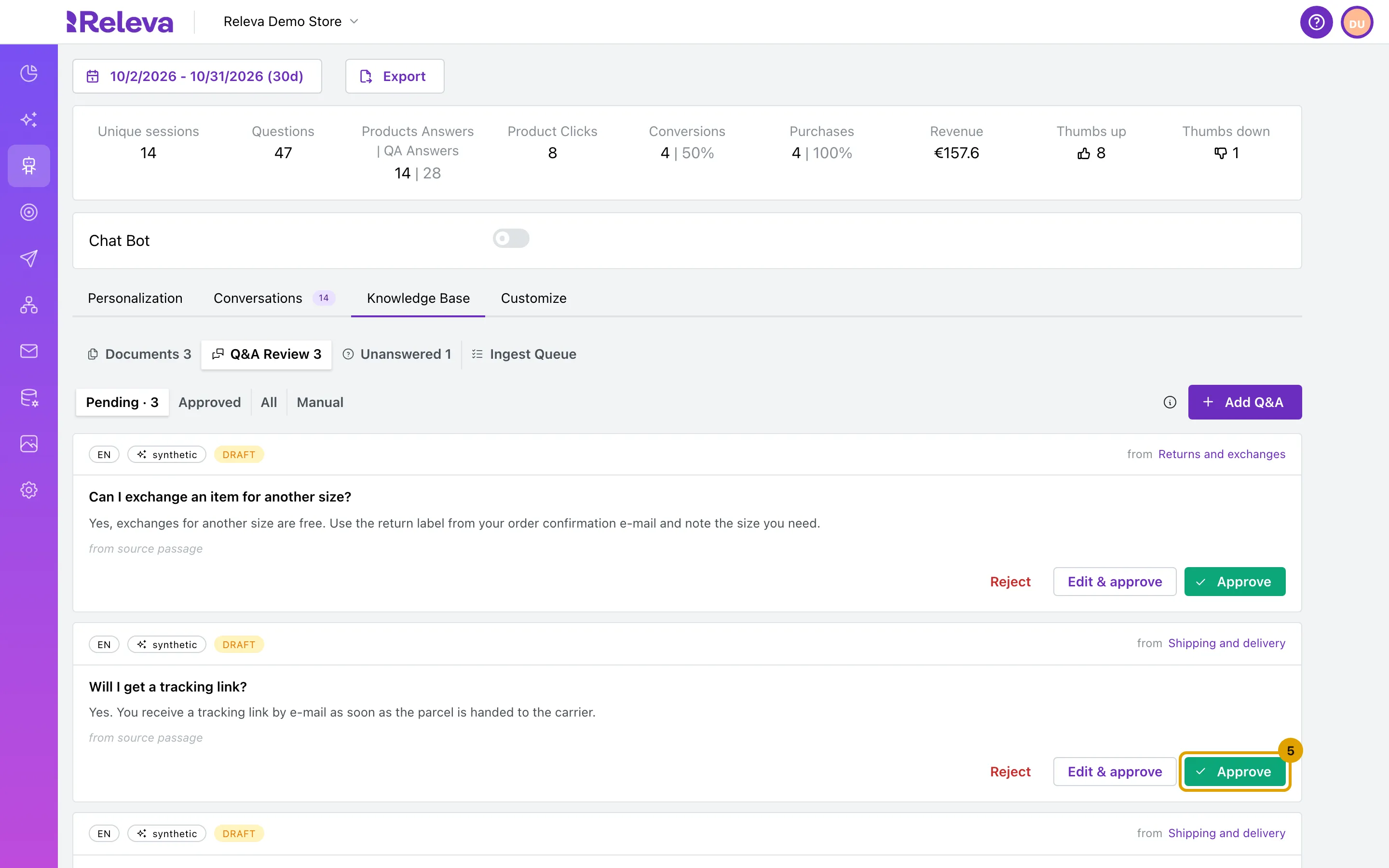
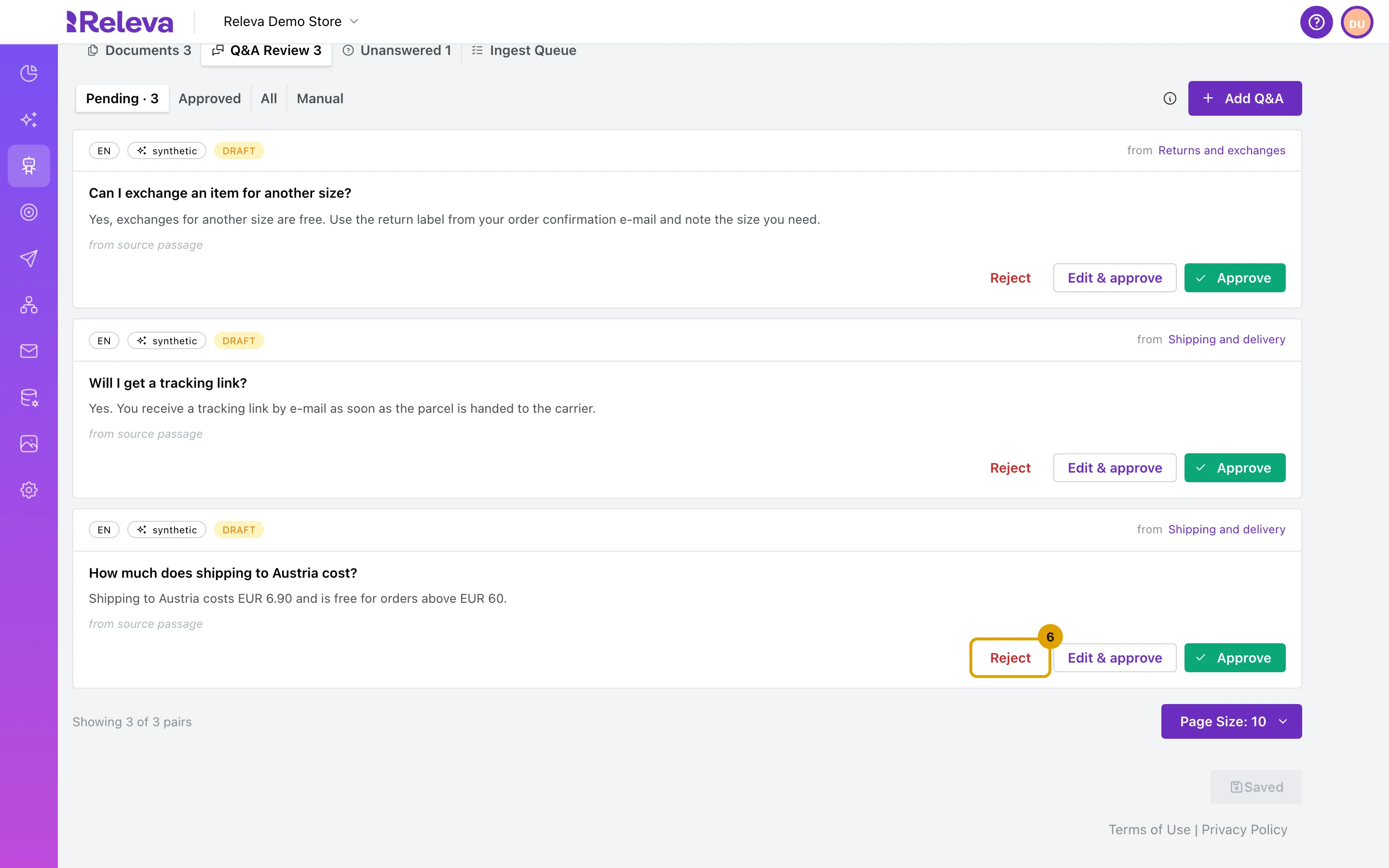
Read each pair and decide:
- When the pair is right as it is, select Approve.
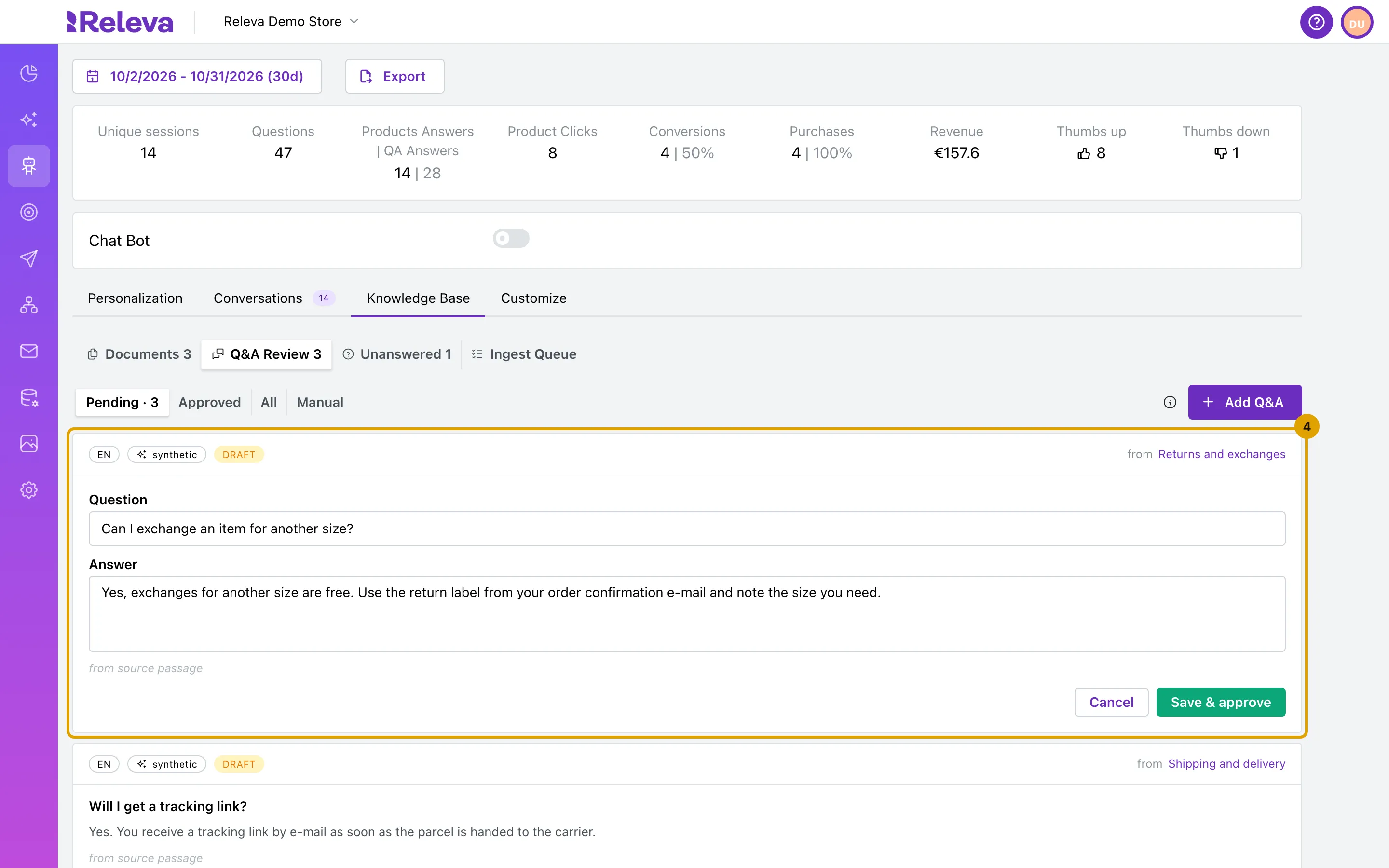
- When it needs a change, select Edit & approve, correct the Question or the Answer and select Save & approve.
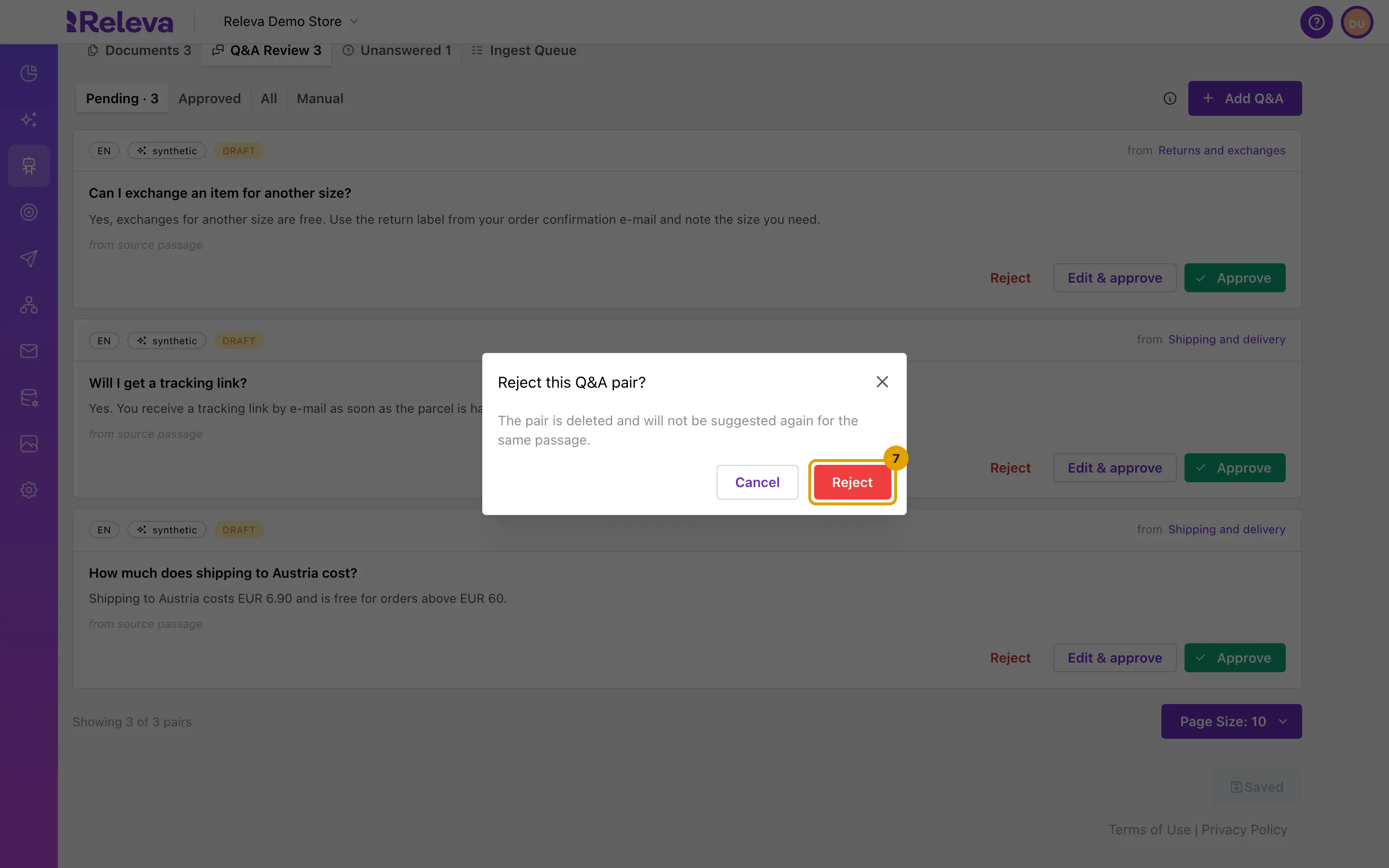
- When it is wrong, select Reject and confirm with Reject. The pair is deleted and is not suggested again for the same passage.
An approved pair goes live for the Sales Agent and leaves Pending.
-
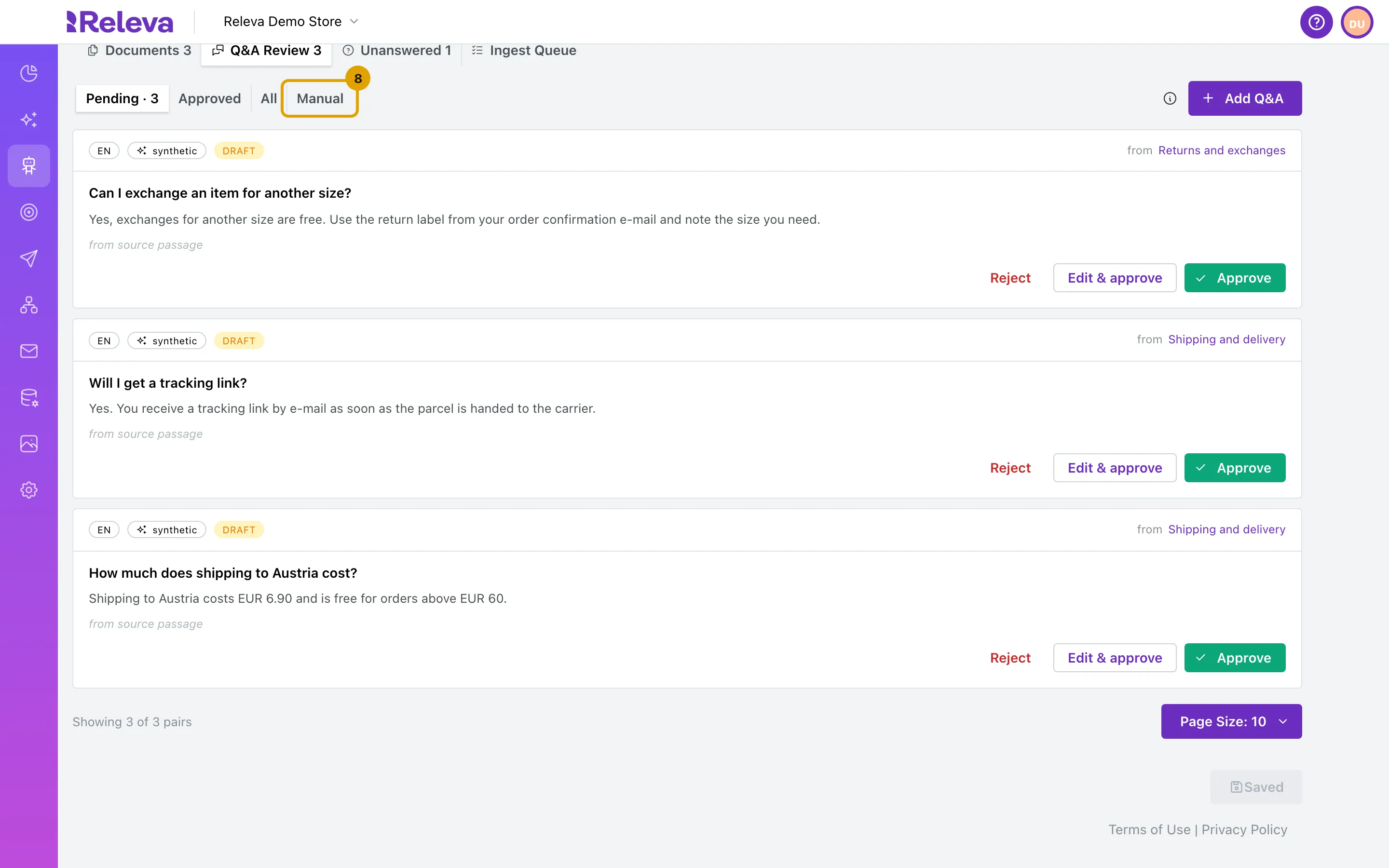
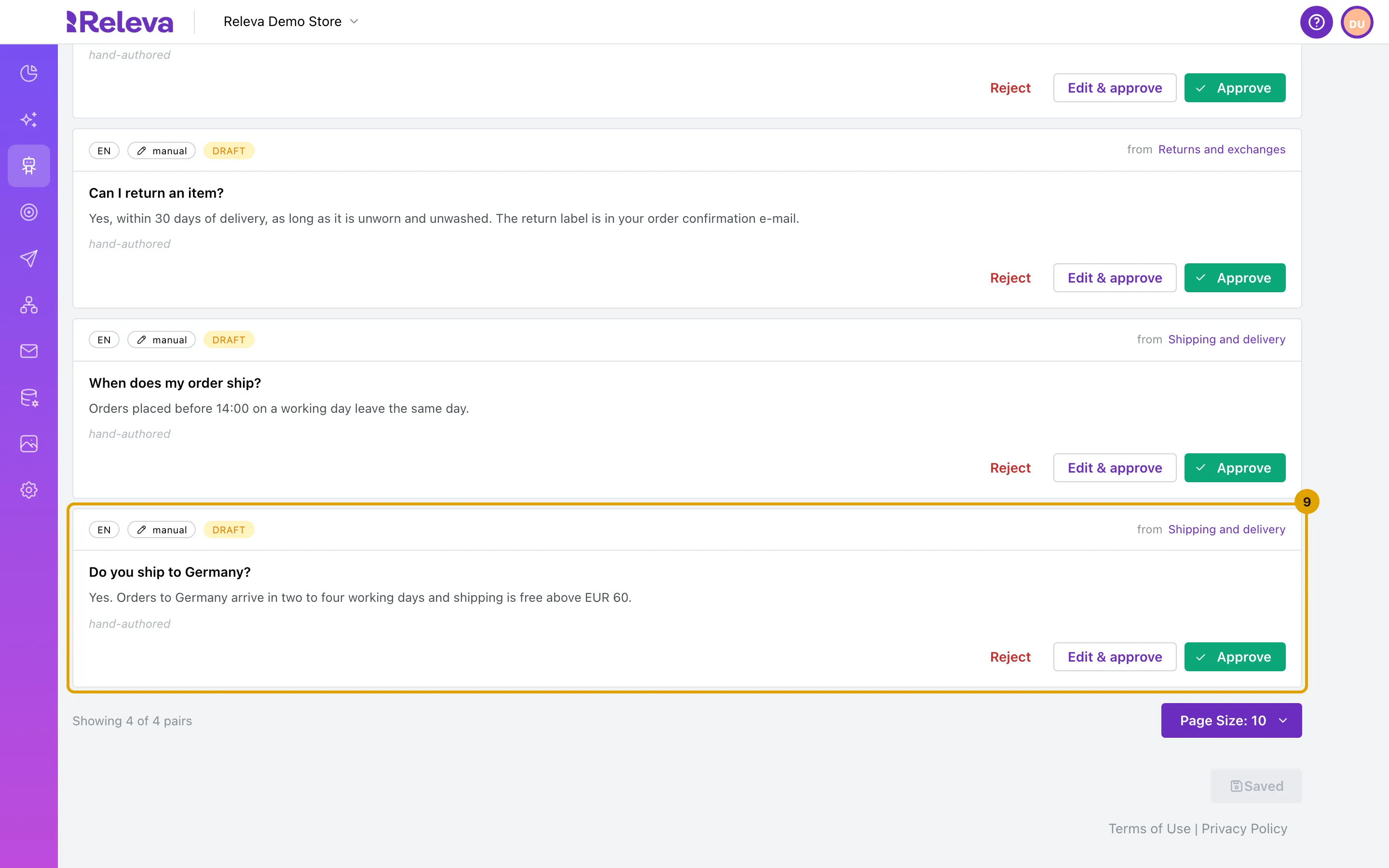
Select Manual to review the pairs you or your team wrote.
Your own pairs also start as drafts, but they never show under Pending. Approve them here, with the same buttons.
-
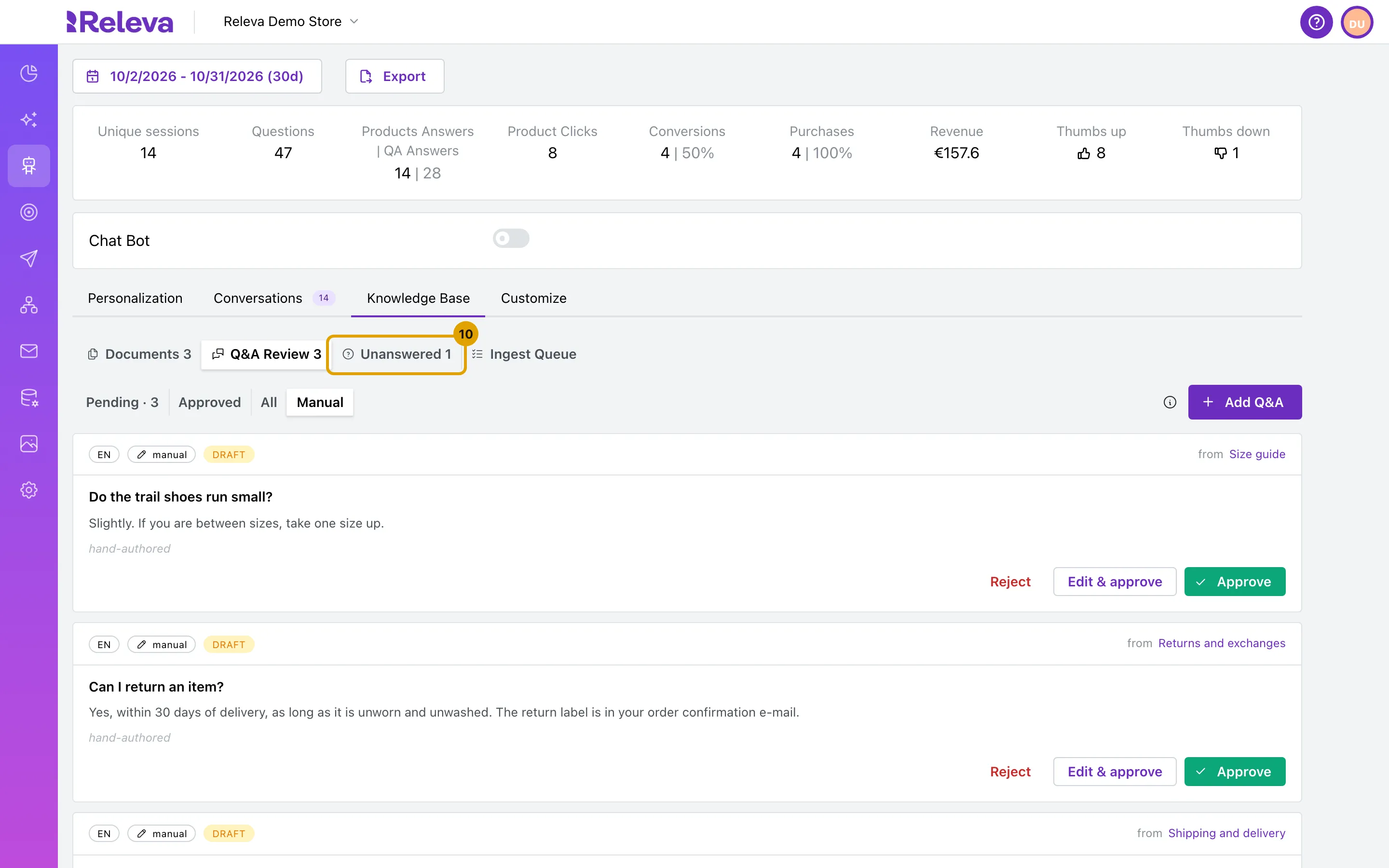
Select Unanswered to find what the Sales Agent is missing.
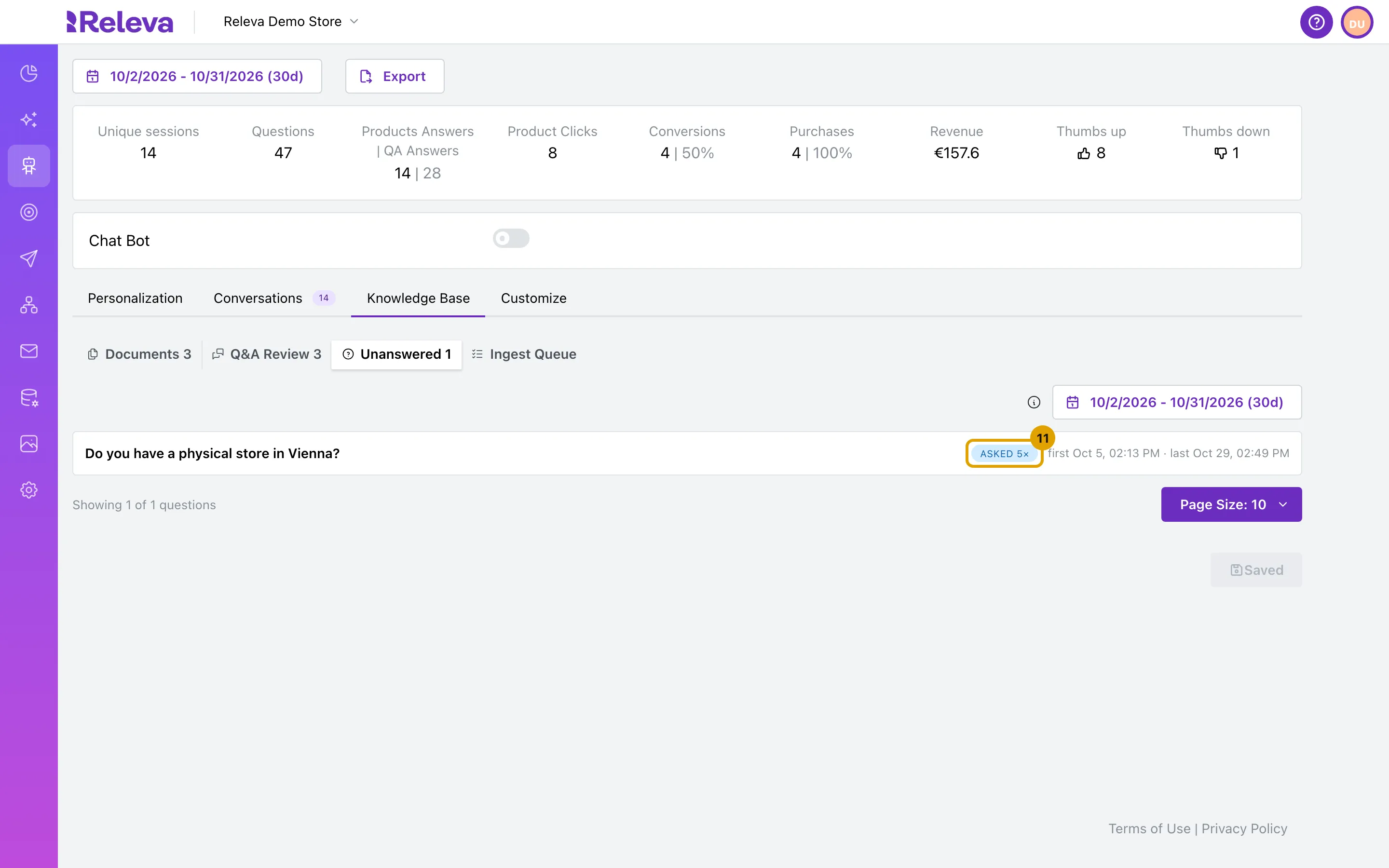
The list shows the questions shoppers asked that the Sales Agent had no material for, most-asked first, with how often each was asked (asked 5×) and when it was first and last asked. It covers the last 30 days; change the period with the date range.
-
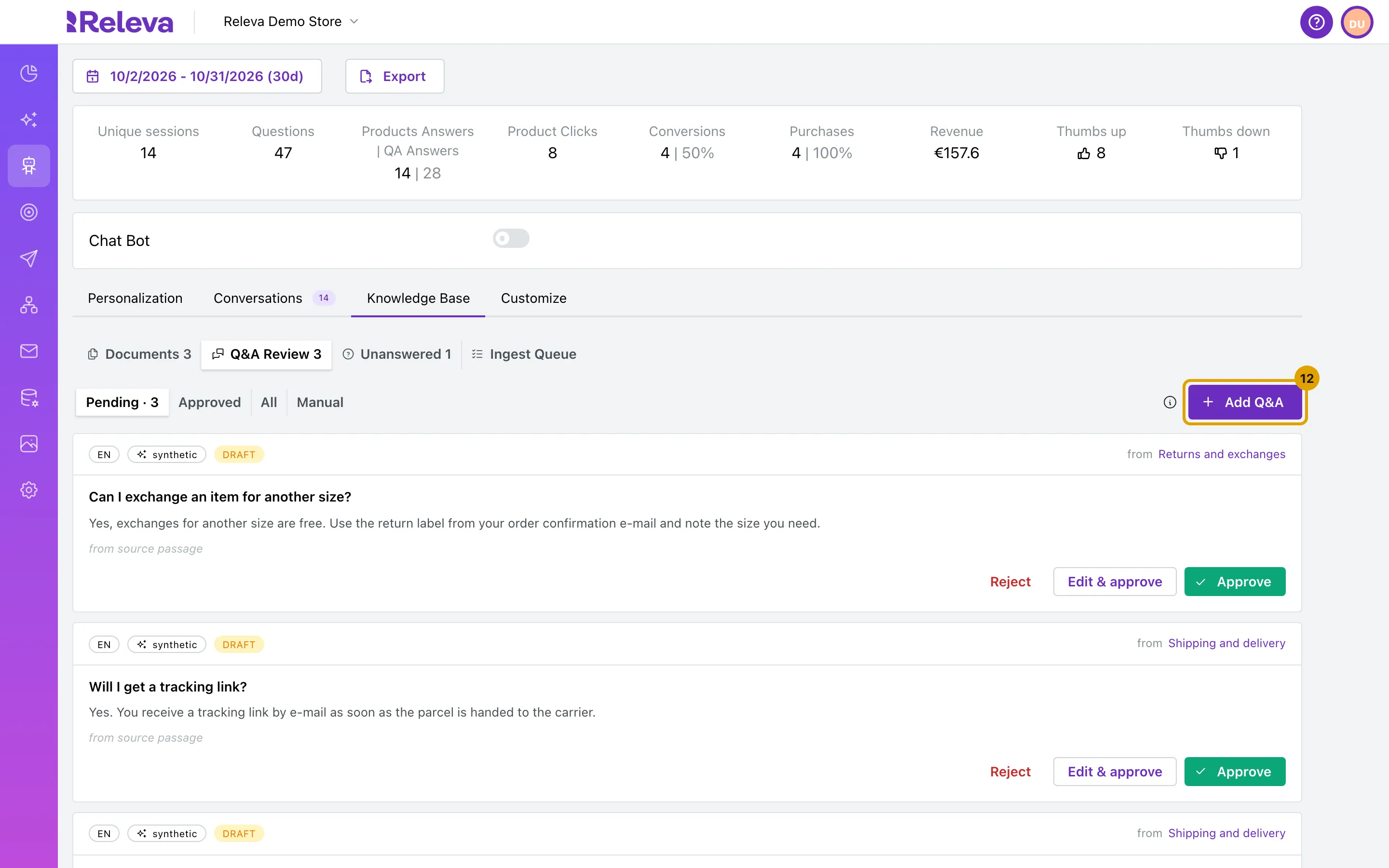
To answer one of these questions, go back to Q&A Review and select Add Q&A.
-
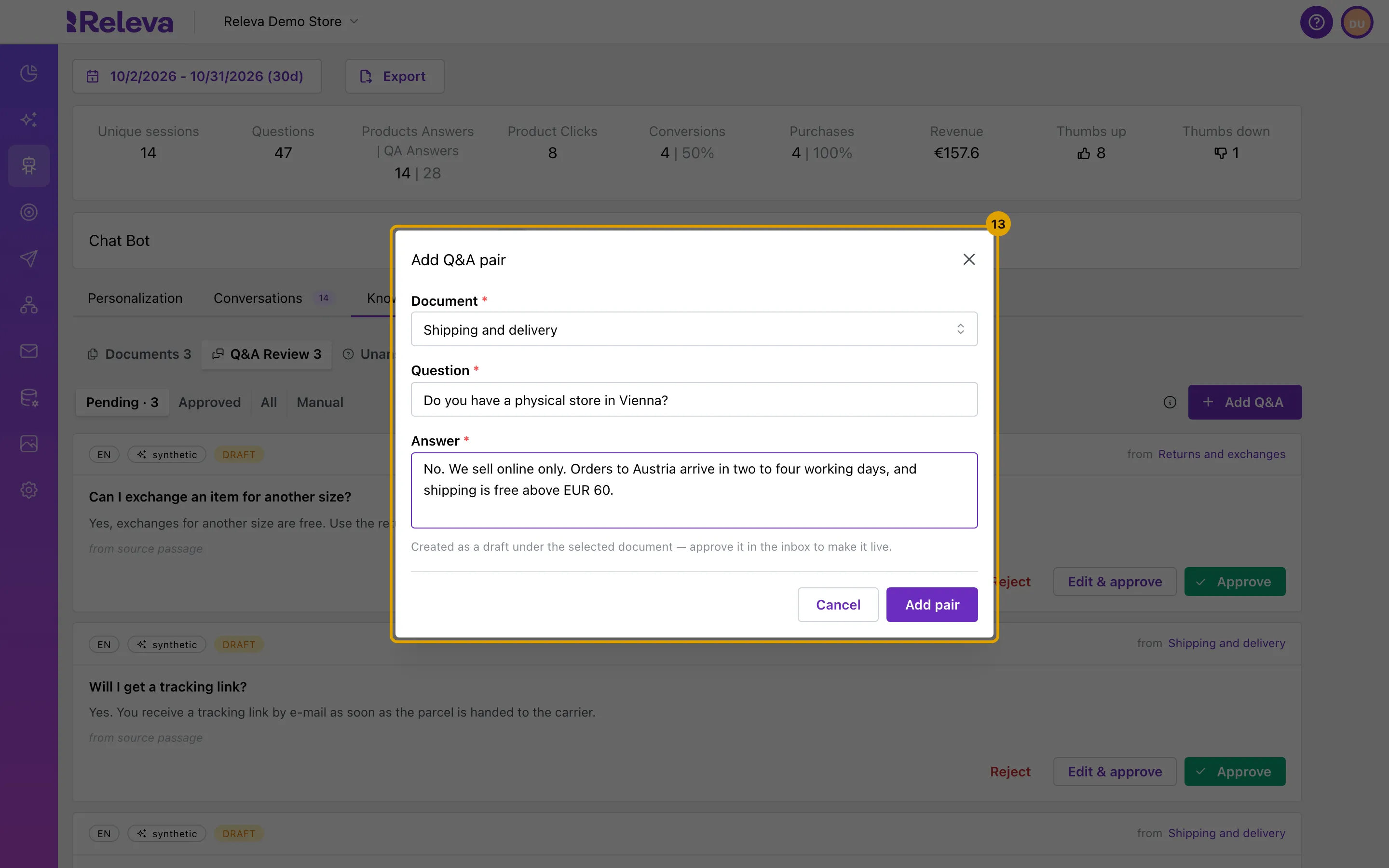
Choose the Document the pair belongs to, enter the Question as a shopper would ask it and the Answer the Sales Agent should give, then select Add pair.
-
In Manual, select Approve on the new pair.
Check it worked
Section titled “Check it worked”- Select Approved: the pairs you approved are listed there.
- A pair shows published (gated) when its document is still a draft. It goes live once you publish the document in Documents.
- After a few days, check Unanswered again: a question you covered should be asked less often there.
Troubleshooting
Section titled “Troubleshooting”Pending is empty (Inbox zero). AI has written no pairs that wait for review. Pairs are written only for documents added with Generate Q&A pairs with AI on. Your own pairs are under Manual.
An approved pair shows published (gated). Its document is a draft or validated, so nothing from it is served. Open the document in Documents and select Publish.
An edited pair shows no vector yet. After Save & approve with changes, the pair is found by its words only until Releva has processed the new text in the background. It is already live; nothing else to do.
Add pair stays disabled. Document, Question and Answer are all required.