

Review Sales Agent conversations
The Conversations tab shows every chat shoppers had with the Sales Agent on your site. Here you find the questions it could not answer and the answers shoppers voted down, and you tell Releva what the agent should have said. This guide does not cover the knowledge the agent answers from: for that, see Add knowledge for the Sales Agent.
Before you start
Section titled “Before you start”- The Sales Agent is switched on for your shop. Until then, Agentic › Sales Agent shows only the figures and a Chat Bot switch you cannot turn on, and no tabs. Releva turns the Sales Agent on for your shop the first time: only a Releva super admin can make the first switch-on, so contact Releva.
- Shoppers have chatted with the Sales Agent in the period you look at. Conversations appear only while the Chat Bot switch is on and the widget shows on your site.
- Anyone with access to the shop can read conversations and send suggestions. Releva reviews the suggestions with the help of AI before the agent uses them.
-
Go to Agentic › Sales Agent and select the Conversations tab.
The badge on the tab shows how many conversations the selected period has.
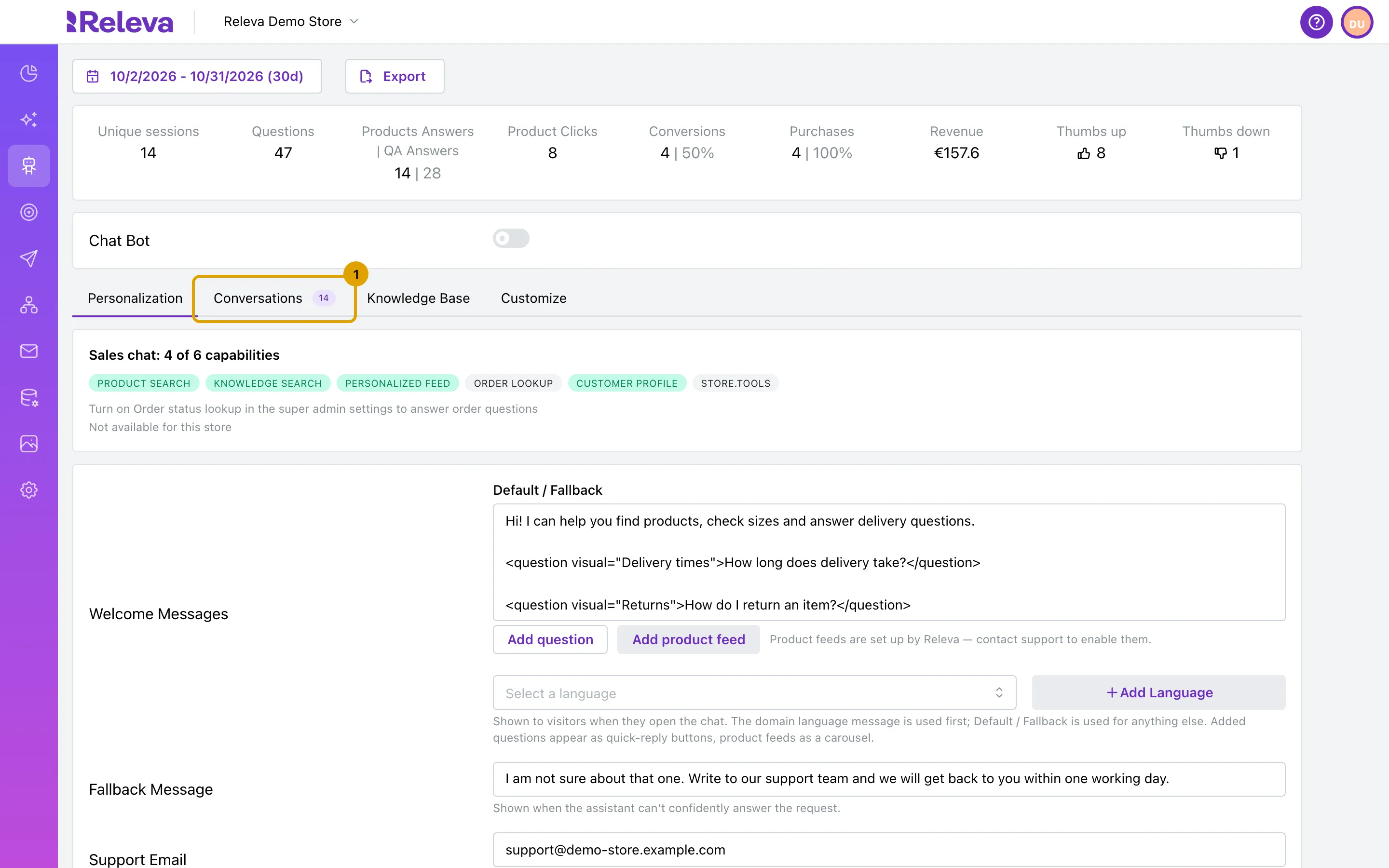
The list shows every conversation in the period of the date range above, newest first. Each row shows the shopper, the first question, the time of the last message, an Unanswered badge if the agent could not answer something, the votes and the number of messages.
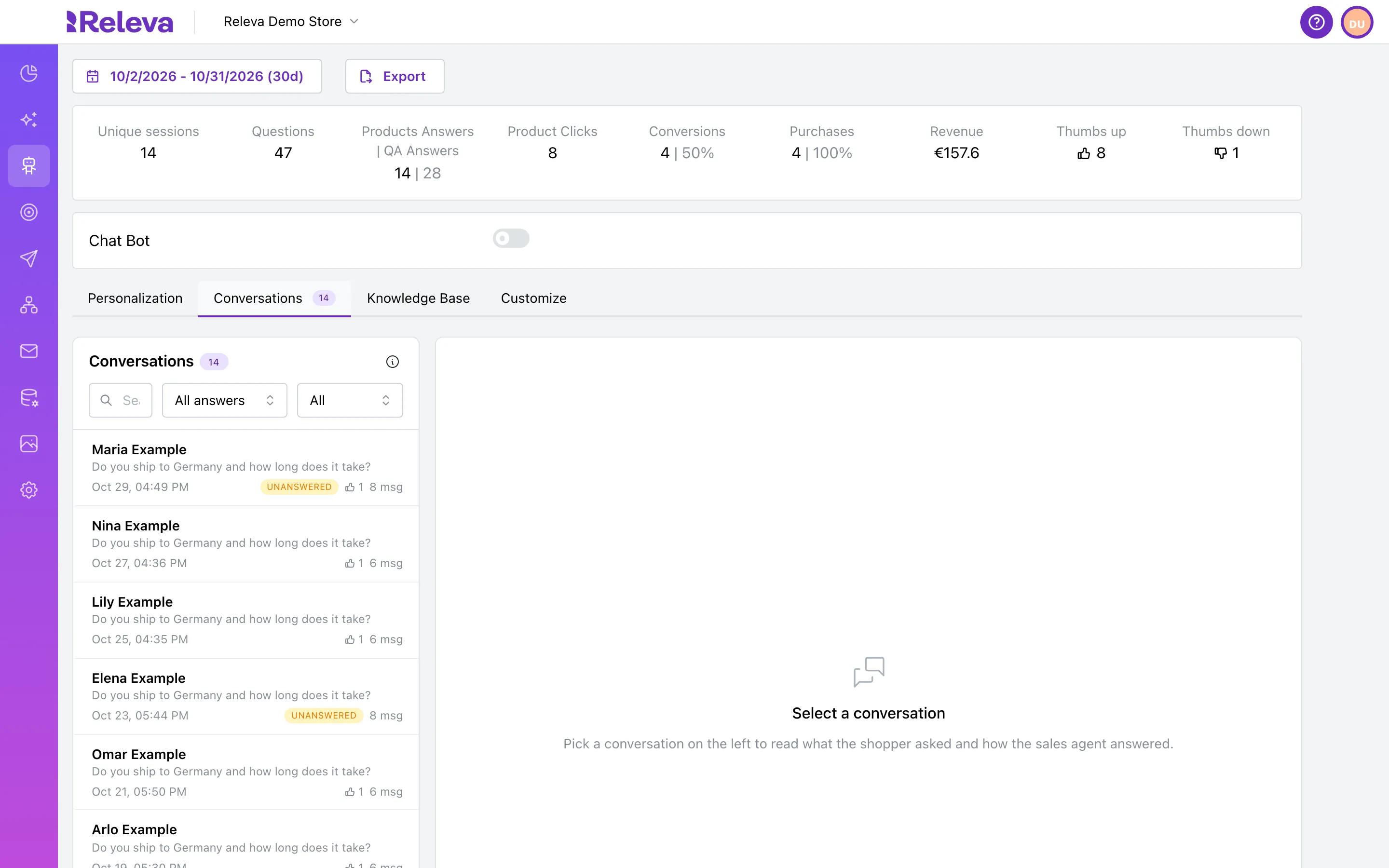
-
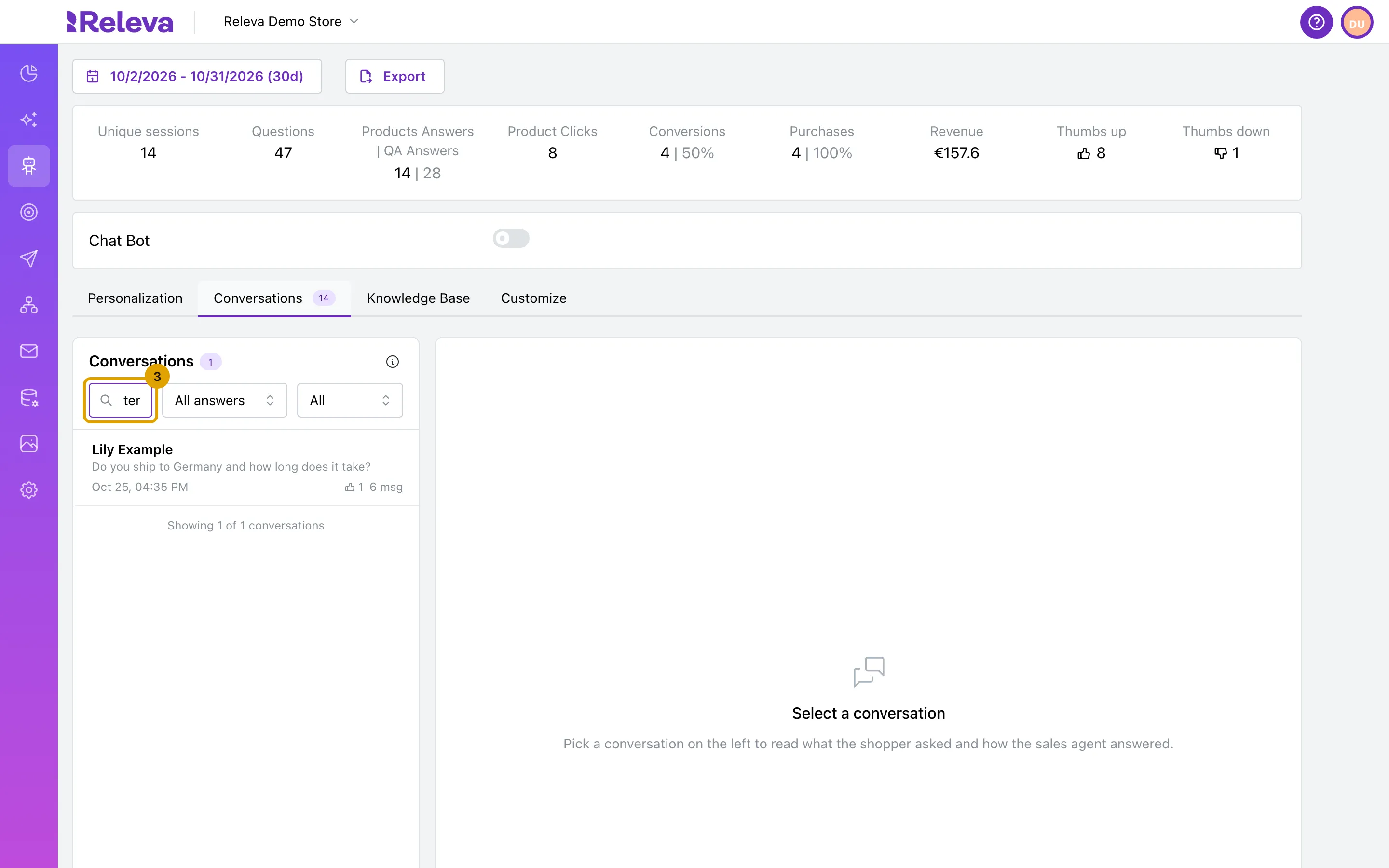
Type a word in Search questions to find conversations where a shopper asked about it.
The search looks in shopper questions only, not in the agent’s answers, and ignores upper and lower case.
-
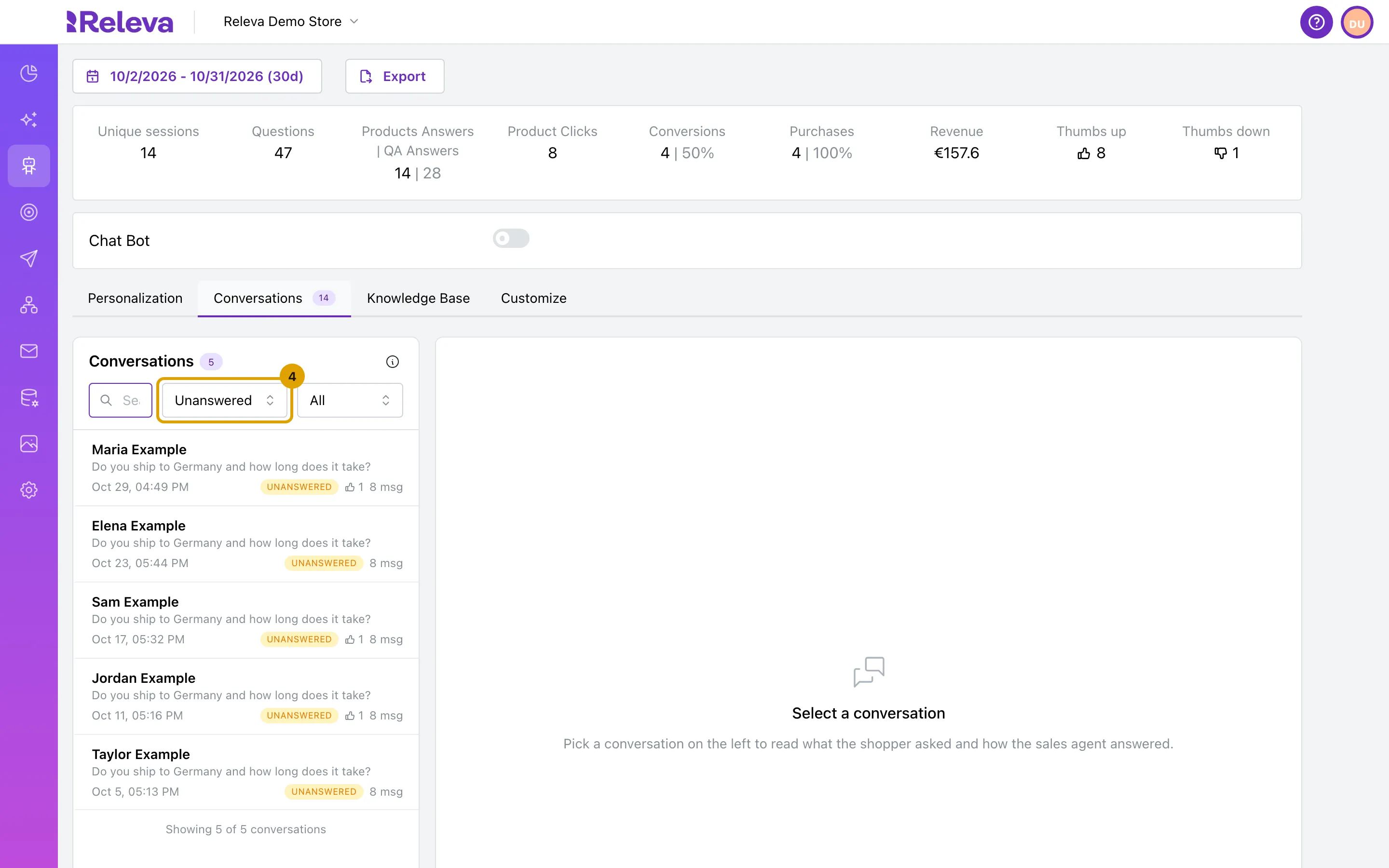
To narrow the list by answer, select a type in Answer type: Products, Q&A, Order or Unanswered.
Unanswered lists the conversations with a question the agent could not answer. They are the first place to look for missing knowledge.
-
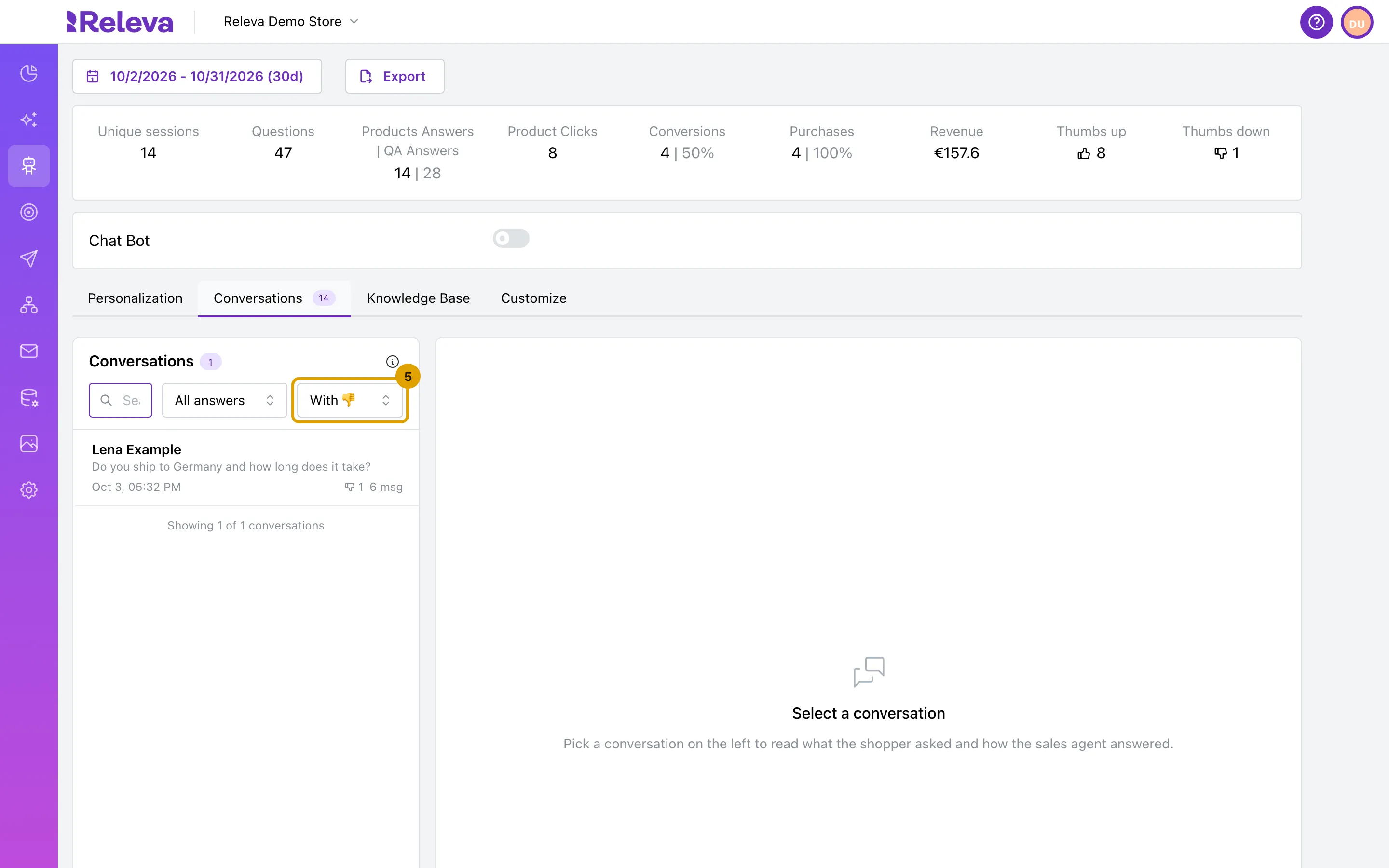
To find answers shoppers rated, select With 👍 or With 👎 in Votes.
-
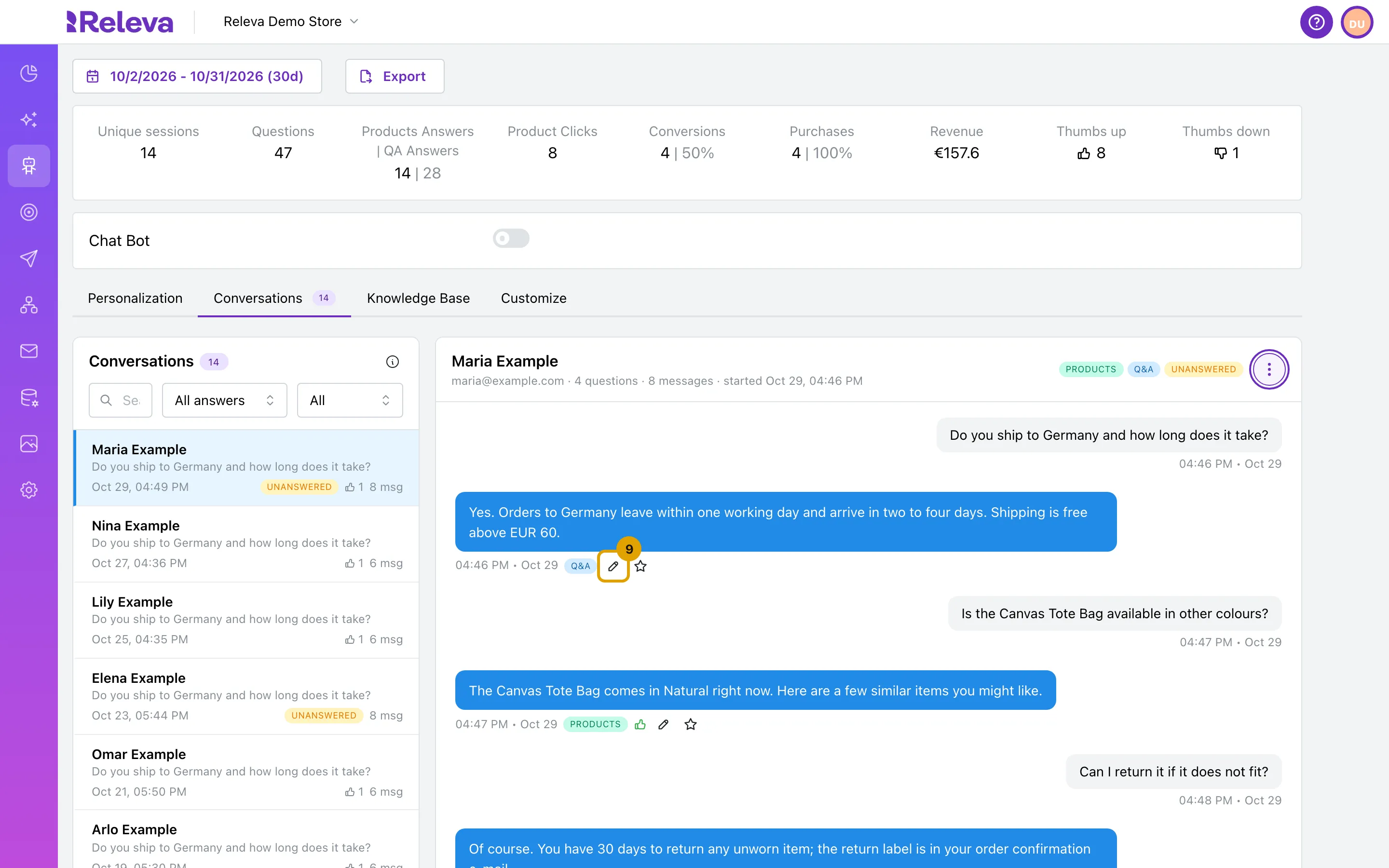
Select a conversation to open it.
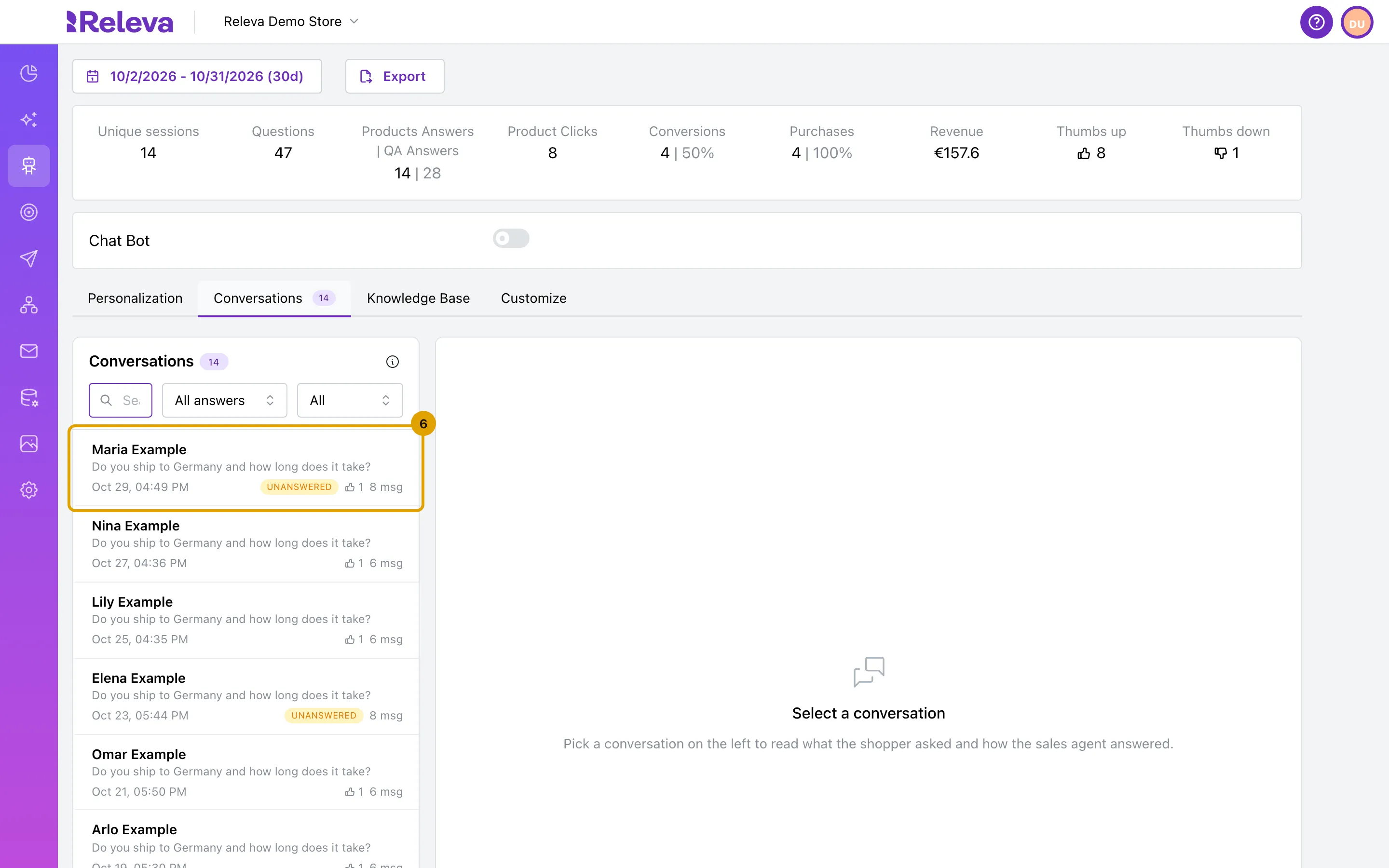
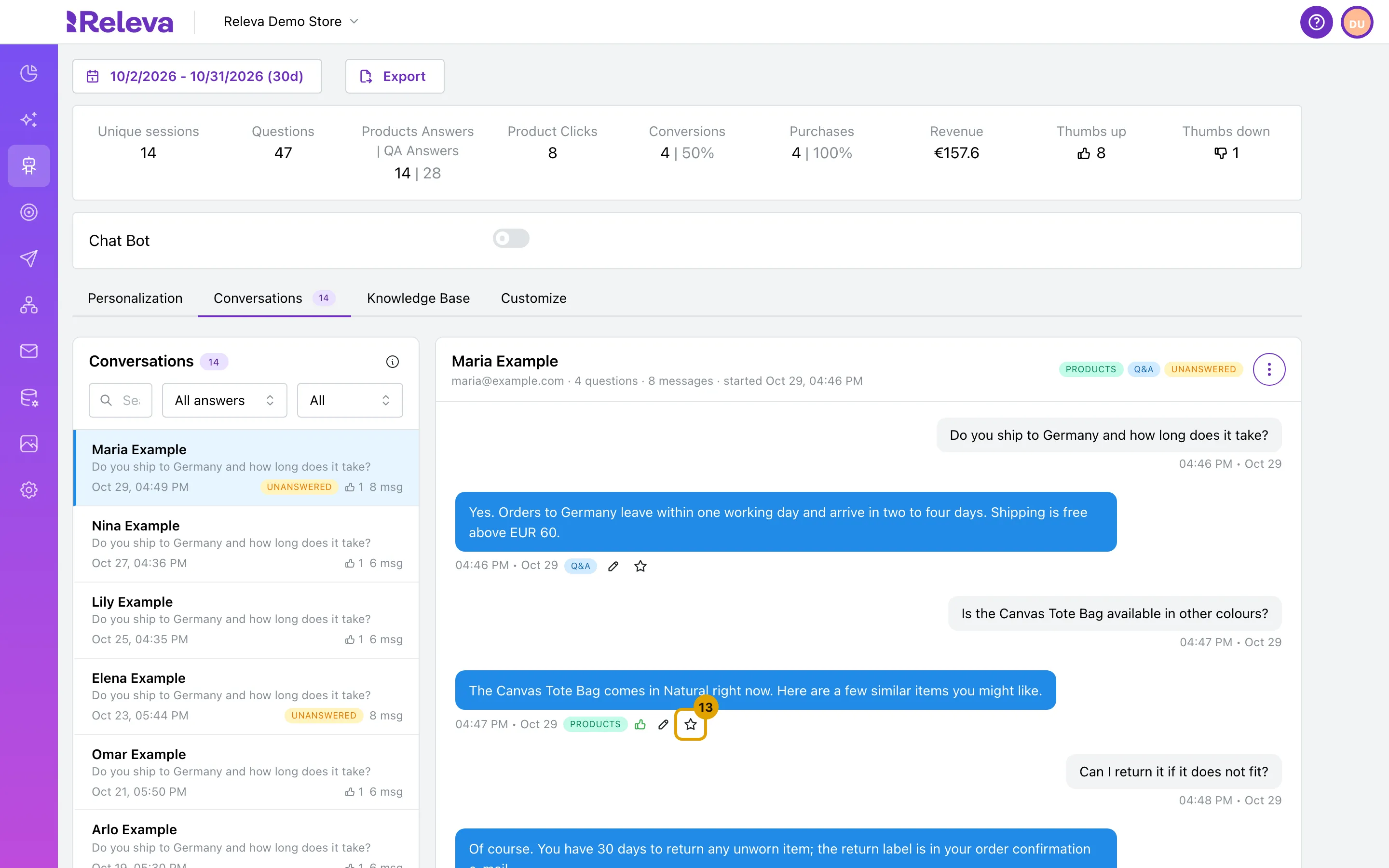
The conversation shows each question and answer with its time, the answer type and the shopper’s vote. The header shows the shopper, the number of questions and messages and when the conversation started. Product cards appear under an answer when the agent showed products.
-
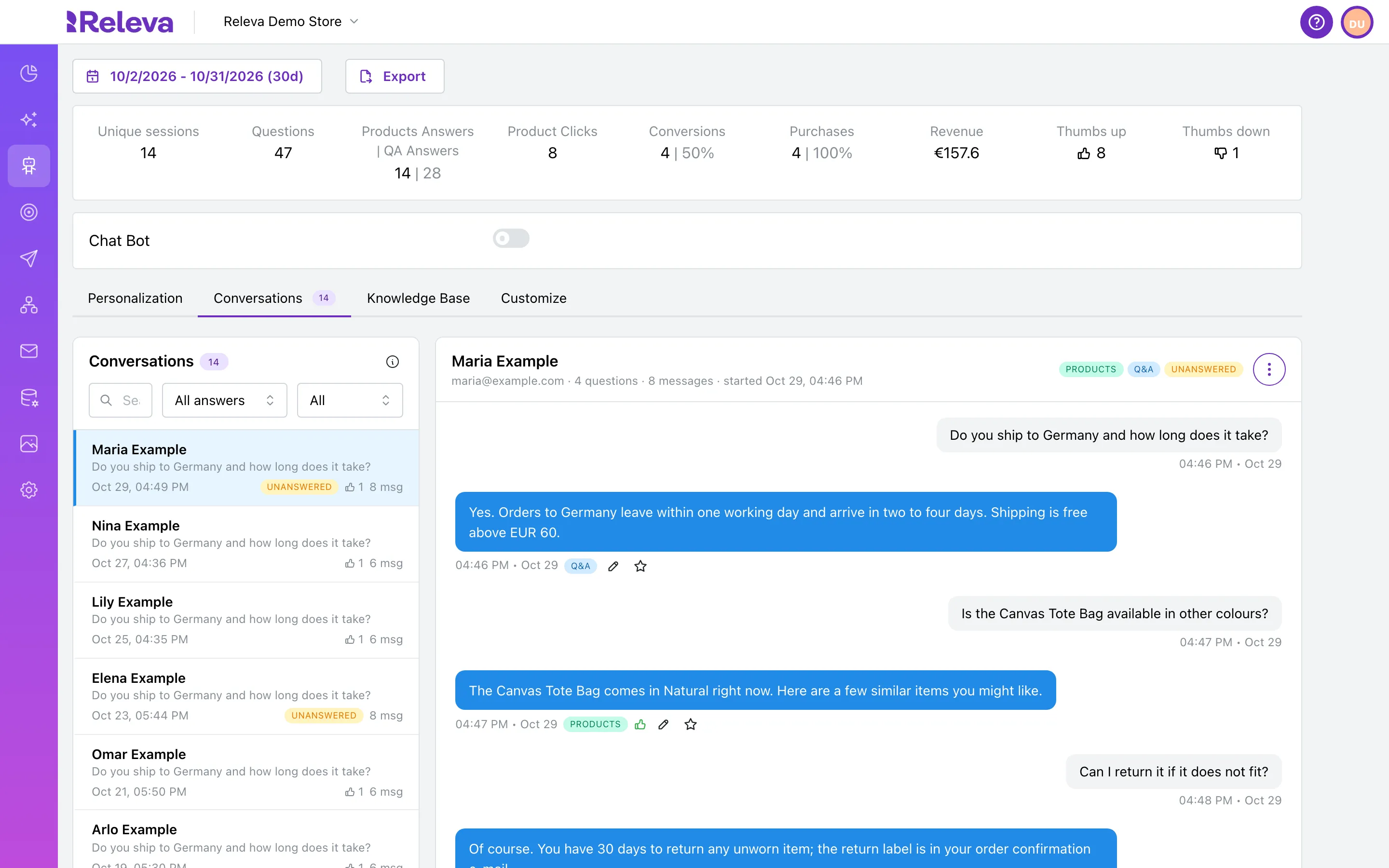
To see who the shopper is, select Conversation actions (the ⋮ button) and then Open profile.
The same menu has Copy conversation ID and, for a known visitor, Copy visitor ID, for when you contact Releva support about a conversation.
-
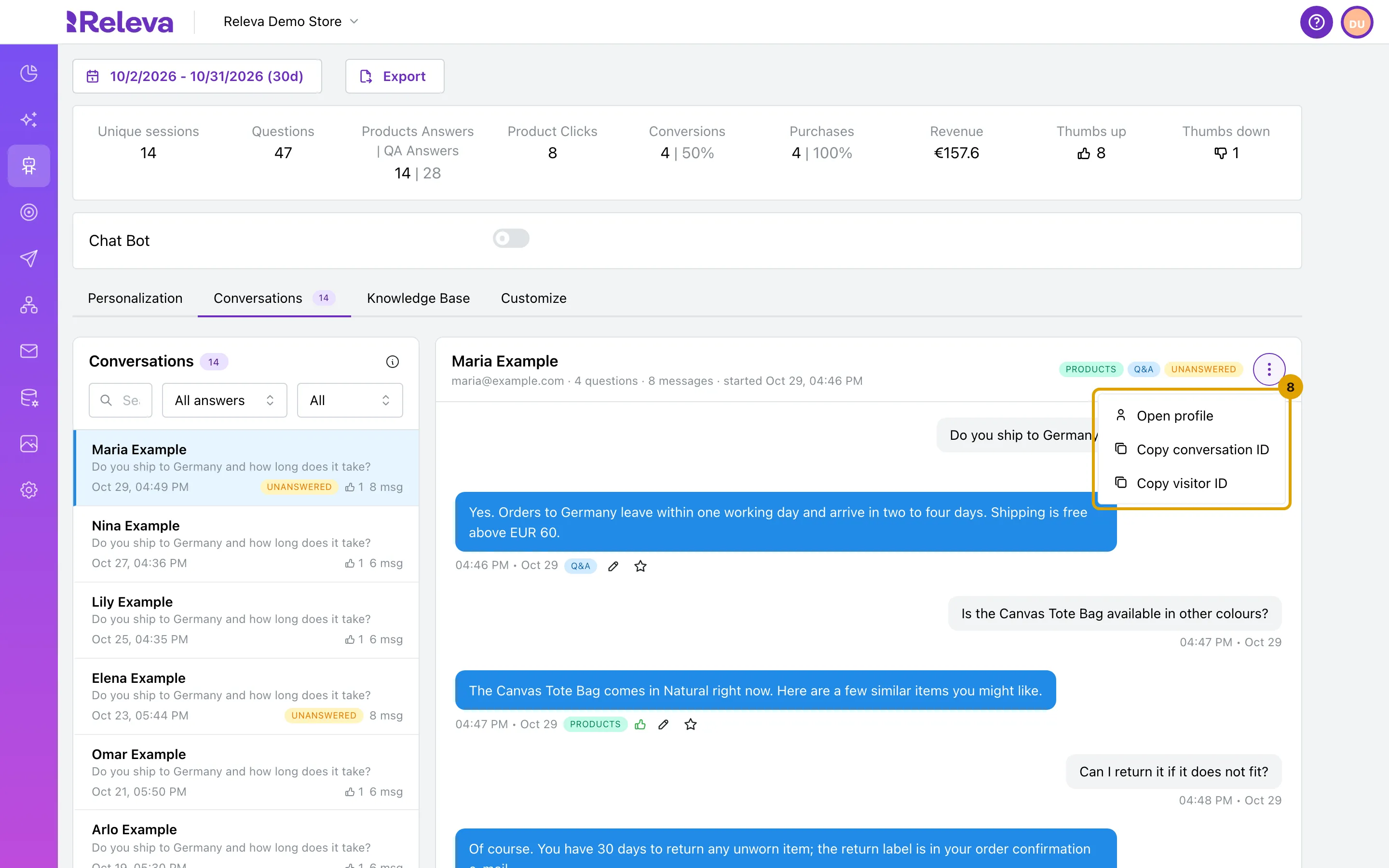
If an answer is wrong or incomplete, select Suggest a better answer (the pencil icon) next to it.
-
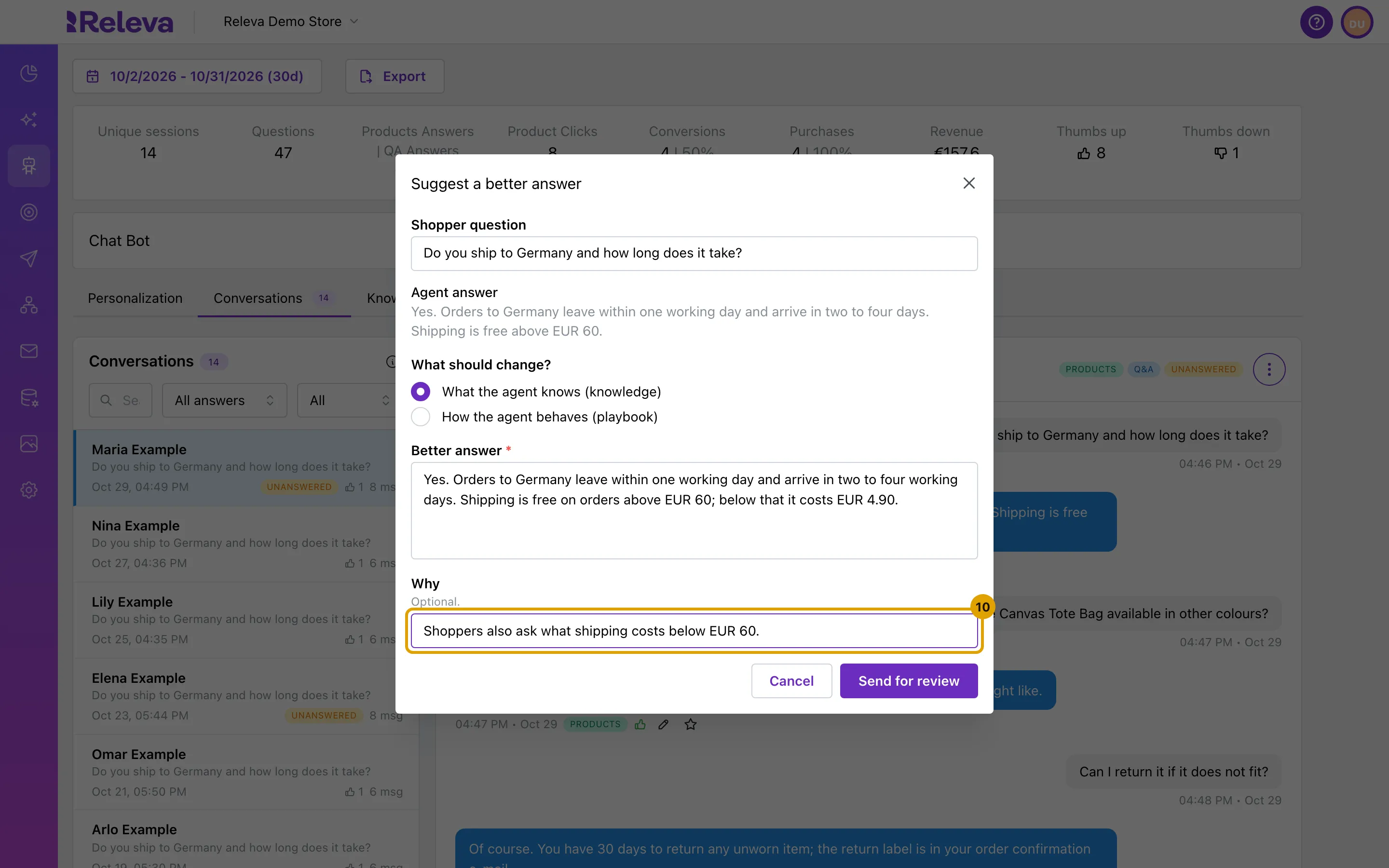
Under What should change?, choose what to fix and write it down:
- What the agent knows (knowledge): edit the text in Better answer (up to 4,000 characters). It starts with the agent’s own answer.
- How the agent behaves (playbook): write one instruction in Rule for the agent (up to 500 characters), such as “Always mention the shipping cost below the free-shipping threshold.”
Add a short note in Why if it helps the reviewer. It is optional.
-
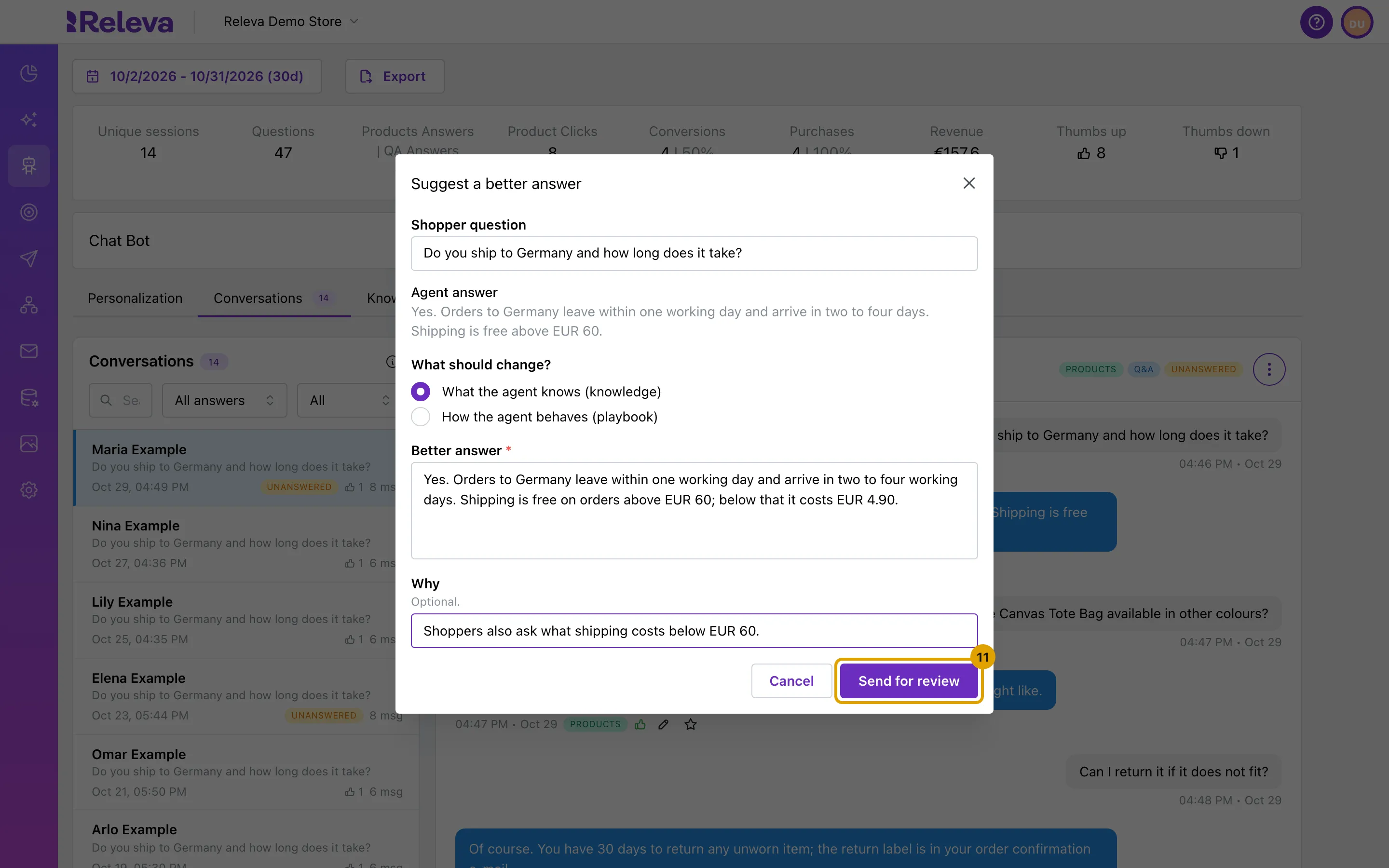
Select Send for review.
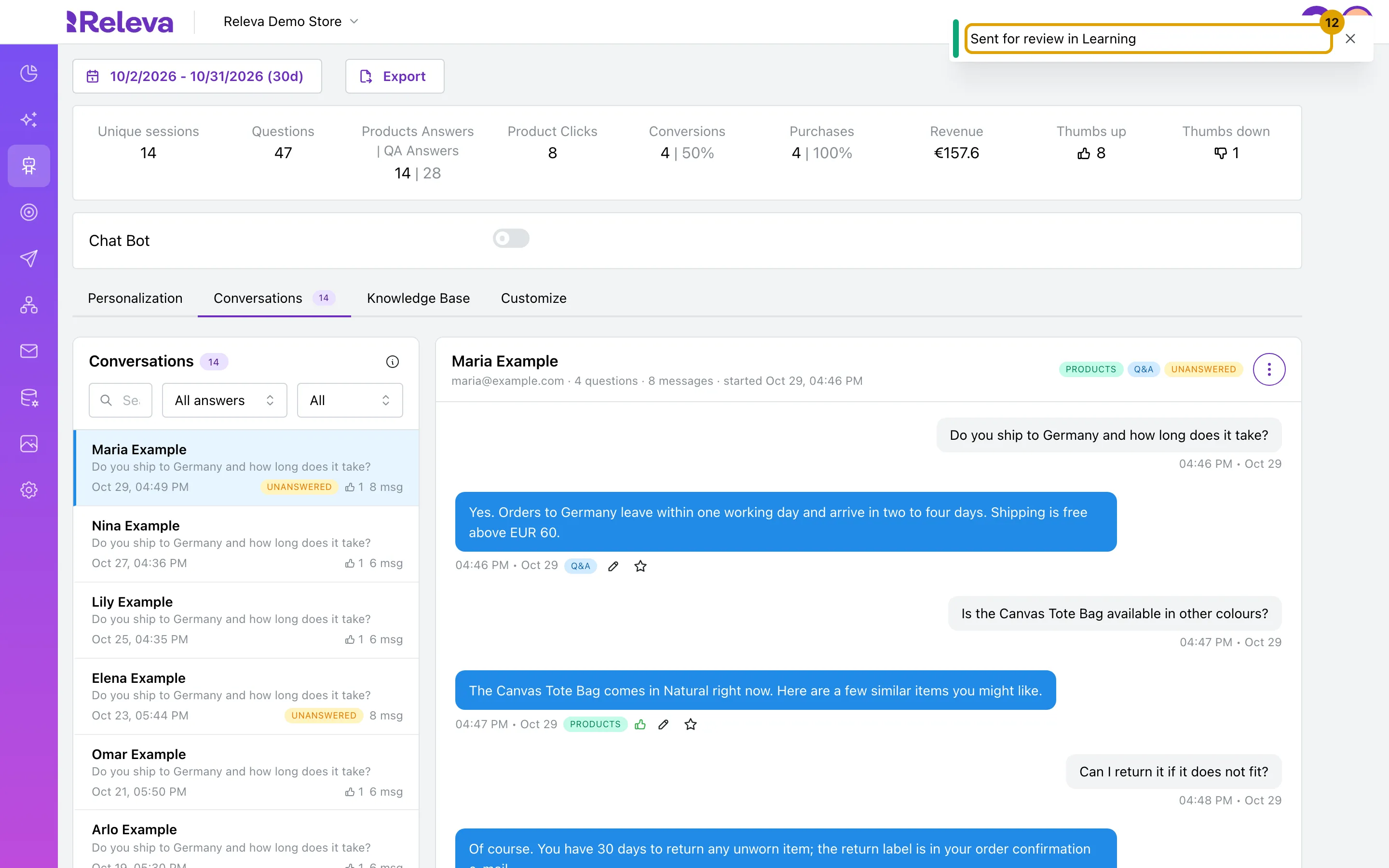
The message Sent for review in Learning confirms it. Releva reviews the suggestion with the help of AI and decides whether the agent uses it. Nothing changes for shoppers until then.
-
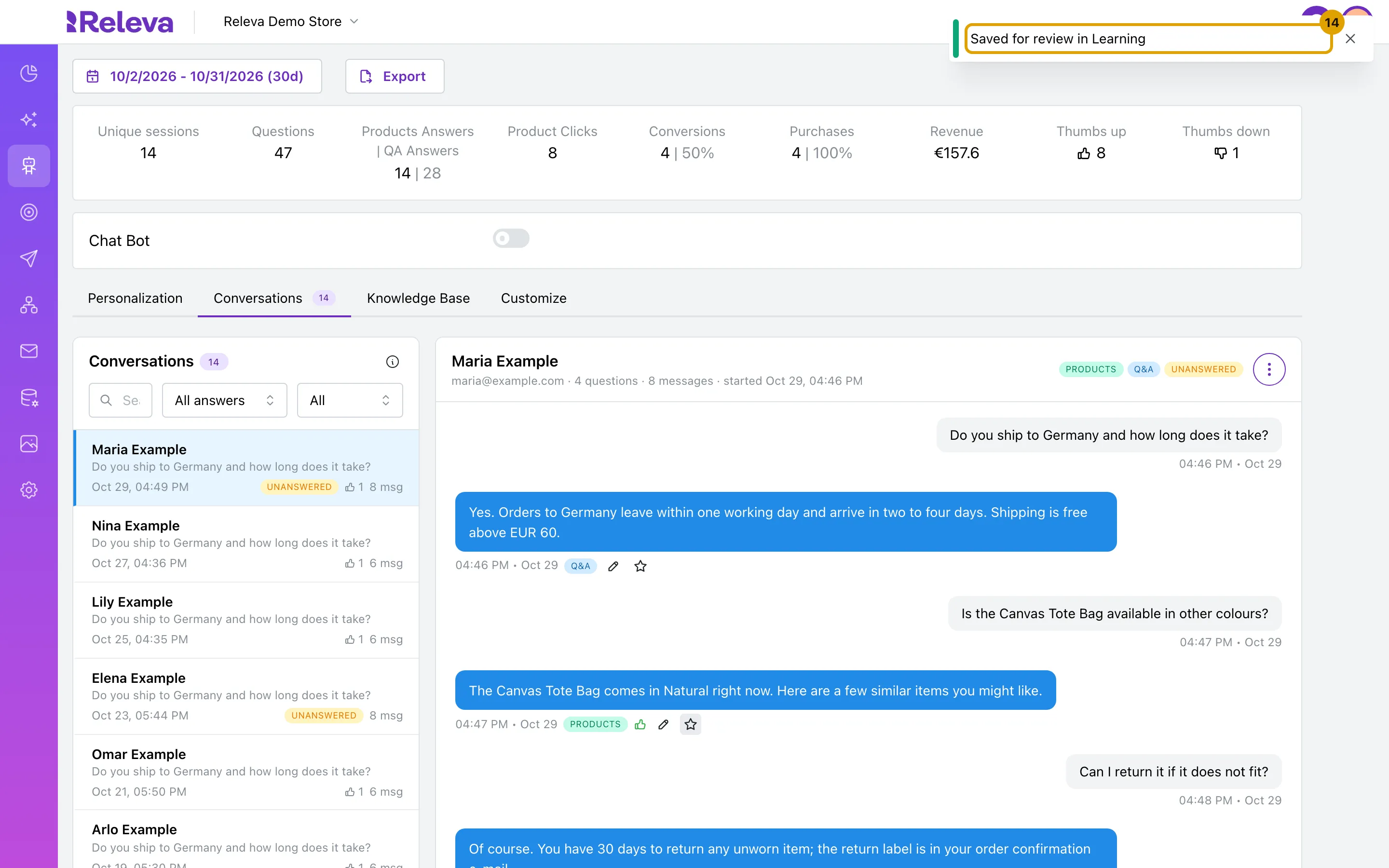
If an answer is good and you want the agent to keep giving it, select Promote this answer (the star icon) next to it.
The message Saved for review in Learning confirms it. The answer goes to Releva as a question-and-answer pair, and Releva reviews it with the help of AI.
To keep a copy of every message of the period, select Export next to the date range, then Create Export. You receive the conversations by e-mail as a CSV file.
Check it worked
Section titled “Check it worked”- After Send for review or Promote this answer, the green message Sent for review in Learning or Saved for review in Learning appears at the top right.
- The list and the badge on Conversations follow the date range above the figures. Change the range and the list changes with it.
Troubleshooting
Section titled “Troubleshooting”The page shows no Personalization, Conversations, Knowledge Base or Customize tabs. The Sales Agent is not switched on for your shop yet. Releva turns the Sales Agent on for your shop the first time: only a Releva super admin can make the first switch-on, so contact Releva.
No conversations. No shopper chatted in the selected period, or your search and filters match nothing. The text under it says which. Widen the date range, clear Search questions and set Answer type and Votes back to All answers and All.
An answer has no pencil or star icon. You can only send feedback on an answer that follows a shopper question. Welcome messages the agent shows before the first question have no icons.
Could not send, with “Learning queue is full”. Too many suggestions are waiting for review. Wait until Releva has reviewed them, then send yours again.
A conversation is missing from the list. The list follows the date range above the page, not the tab. A conversation counts in the period of its messages, so a conversation from before your start date does not show.