

Choose where the Sales Agent appears
By default the Sales Agent shows on every page of your site. With the URL filter on the Customize tab, you show it only on some pages, or keep it off pages where it would get in the way, such as checkout and the cart. Widget Position picks the side of the screen. To change how the chat looks, see Customize how the Sales Agent looks on your site.
Before you start
Section titled “Before you start”- The Sales Agent is switched on for your shop. Until then, the page has no tabs. Releva turns the Sales Agent on for your shop the first time: only a Releva super admin can make the first switch-on, so contact Releva.
- Know the addresses of the pages you want to include or leave out. Open them on your site and note a part of the address they share, for example
productsorcheckout.
-
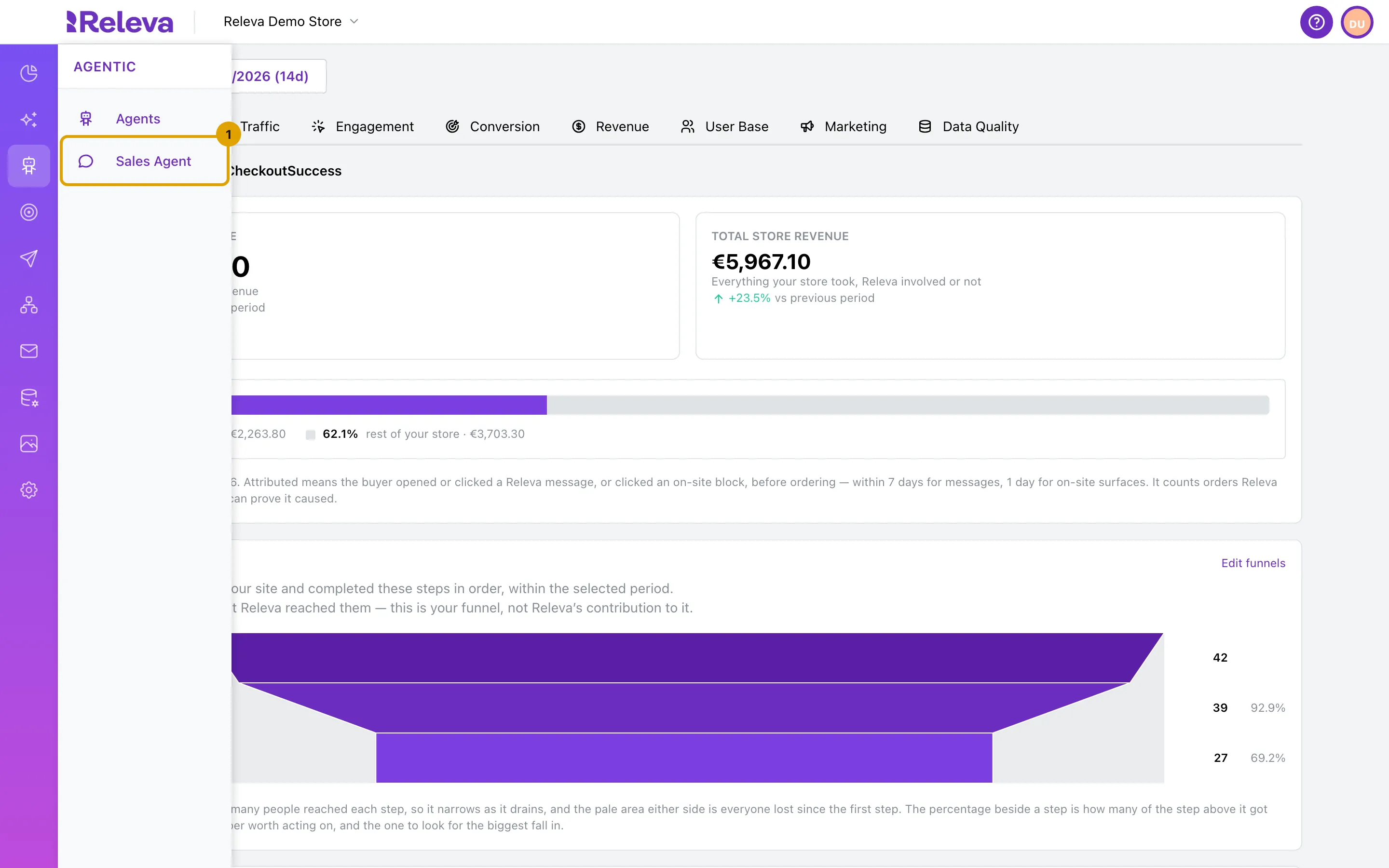
In the sidebar, open Agentic and select Sales Agent.
-
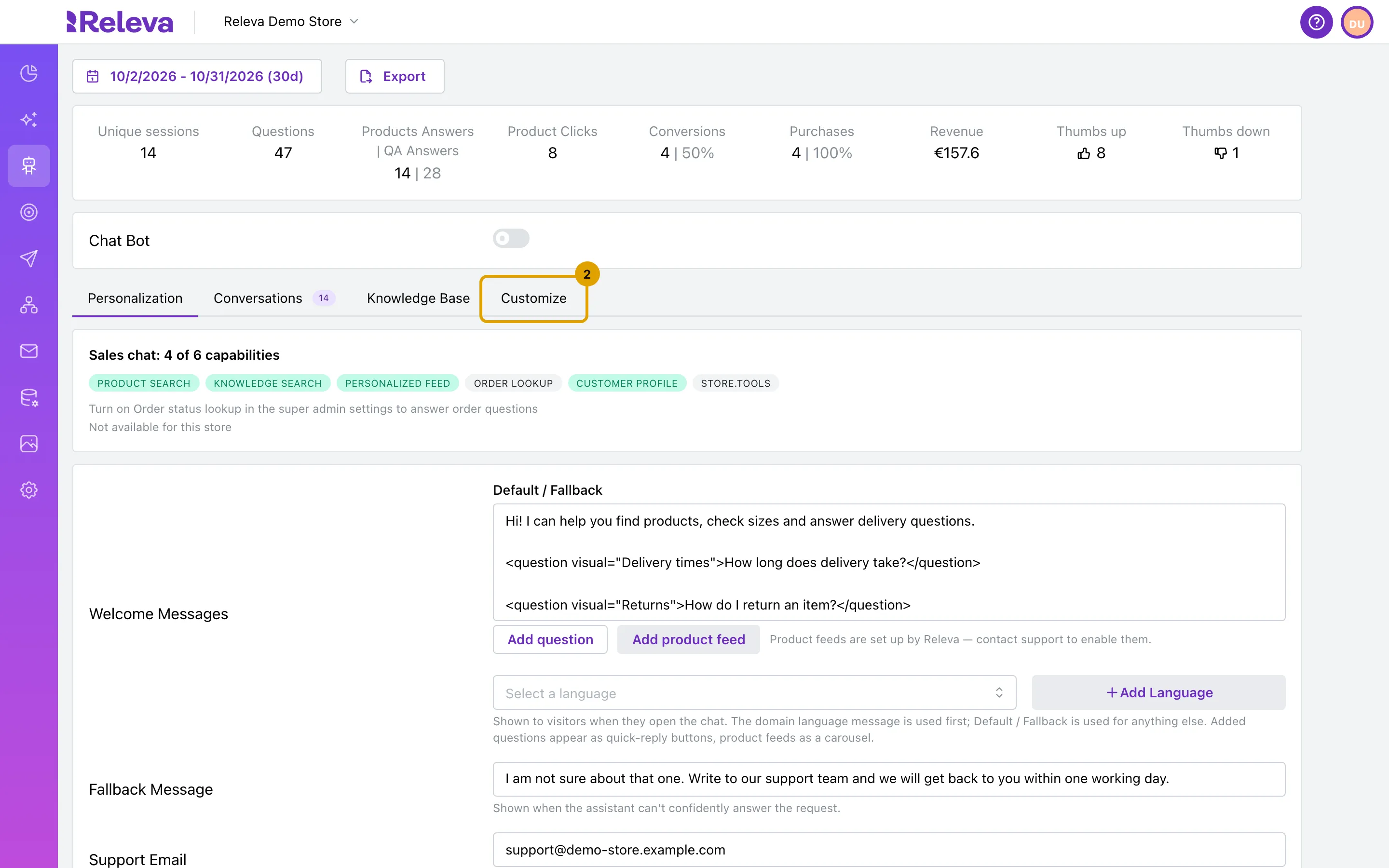
Select the Customize tab.
-
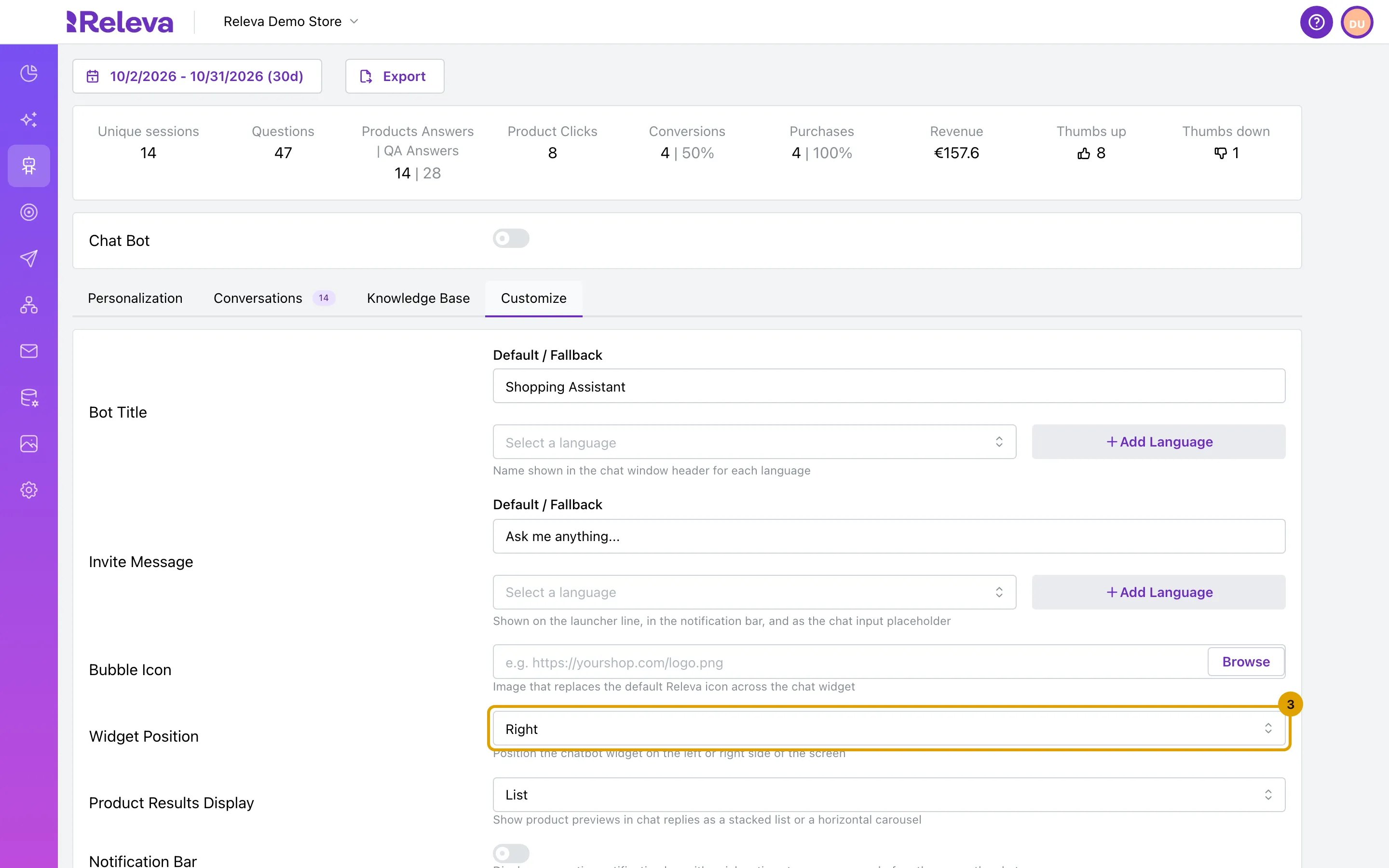
In Widget Position, choose the side of the screen, Right or Left.
-
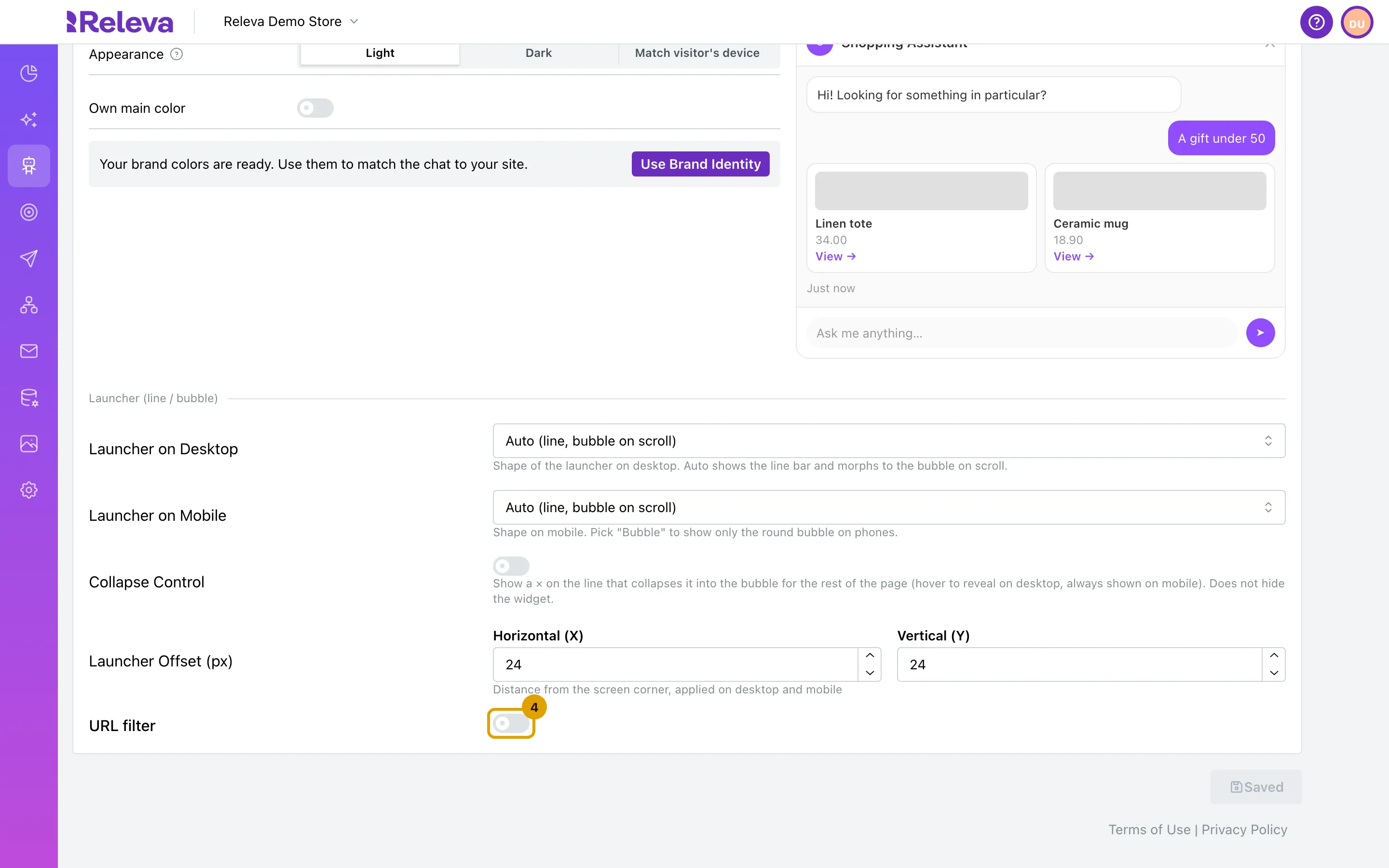
At the bottom of the tab, turn on URL filter.
Two boxes appear: URL contains and URL doesn’t contain. Once you type in a box, the line above it reads Show only where URL contains or Hide where URL contains.
-
In URL doesn’t contain, enter a part of the address of the pages where the Sales Agent must not show, for example
checkout.To leave out several kinds of pages, separate the parts with
|, for examplecheckout|cart. The chat stays off every page whose address contains any of them.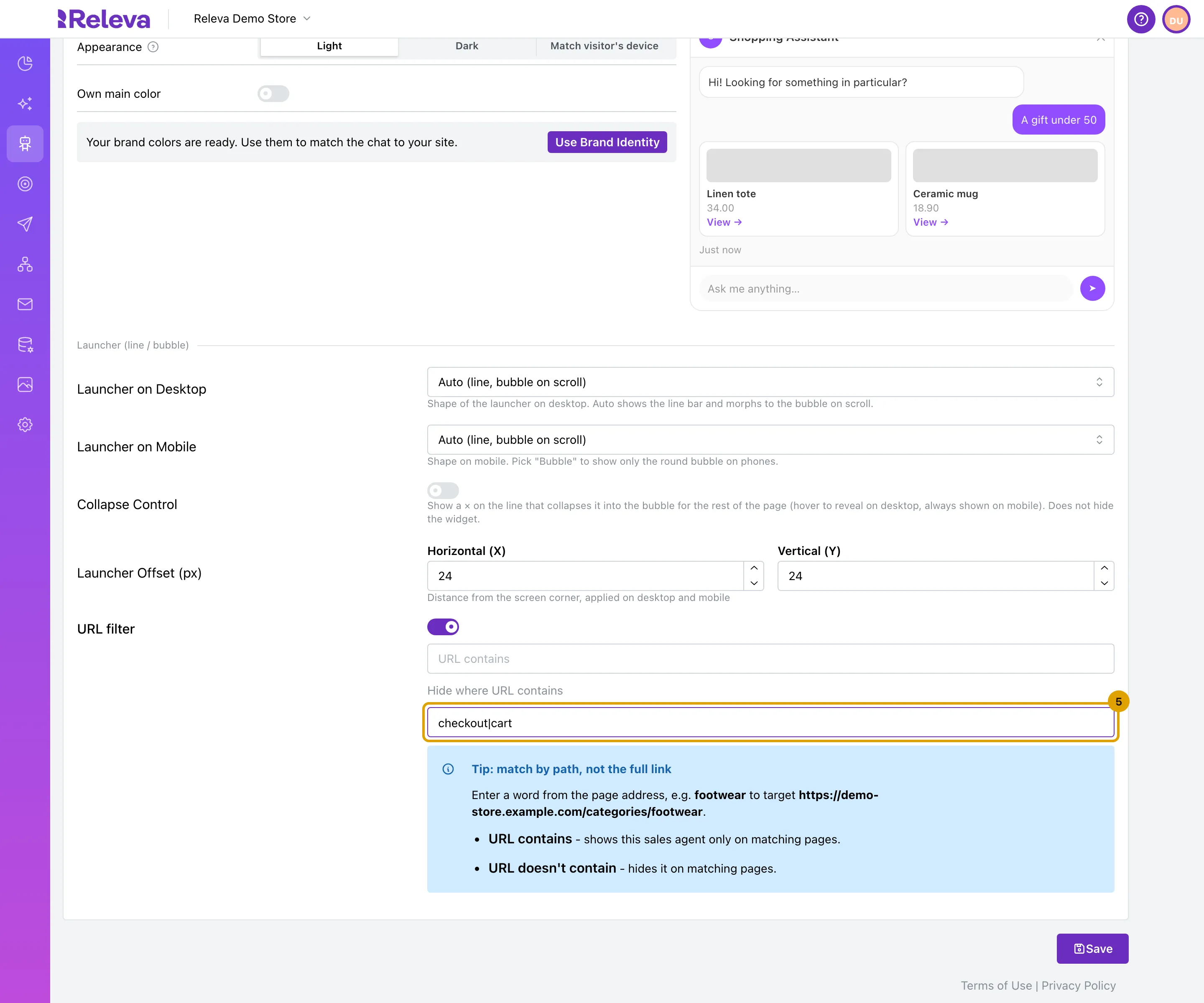
-
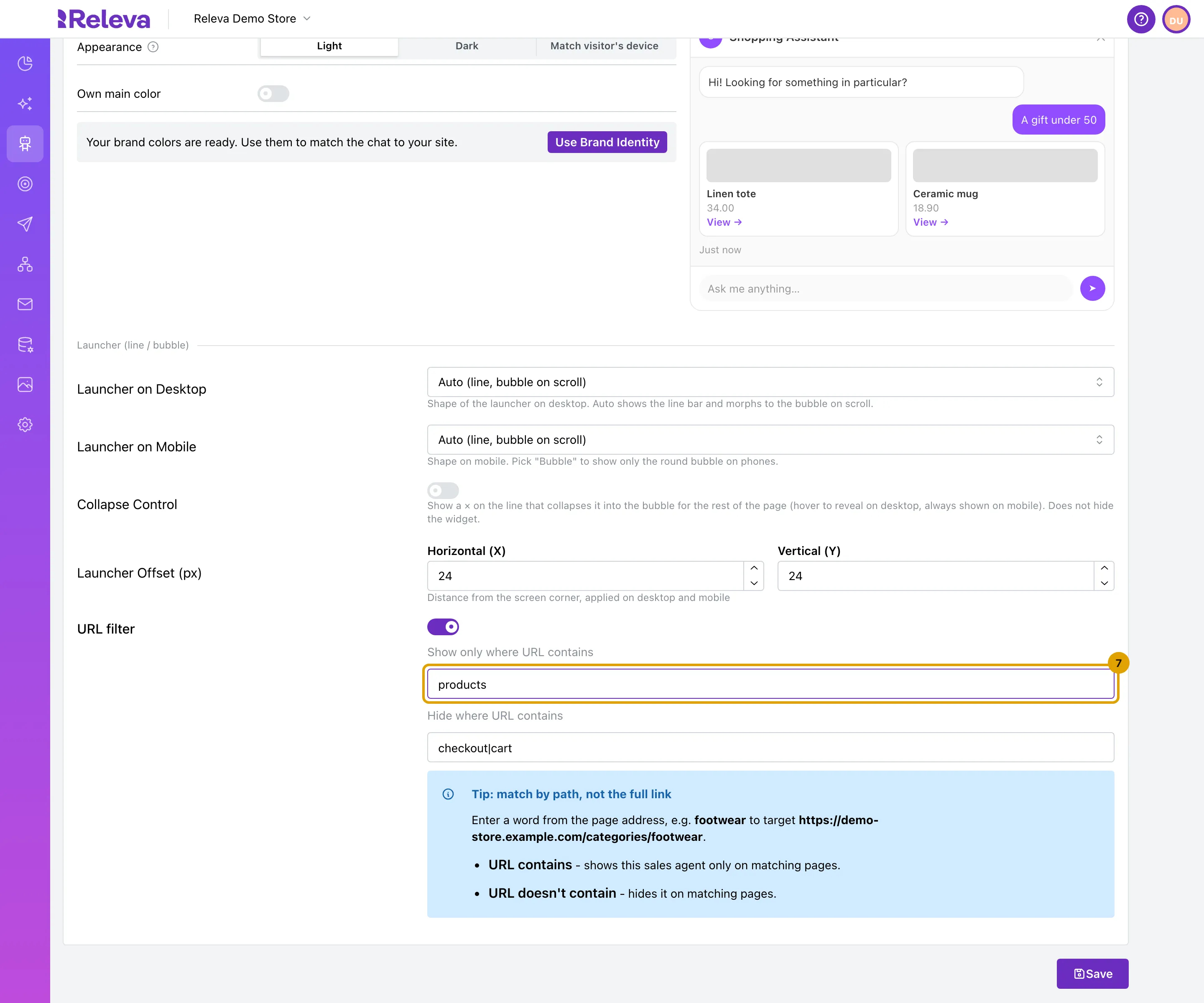
Optional: in URL contains, enter a part of the address of the only pages where the Sales Agent may show, for example
products.Enter only the part of the address, not the whole link. With a whole link (one that starts with
https://orwww.), a warning appears under the box.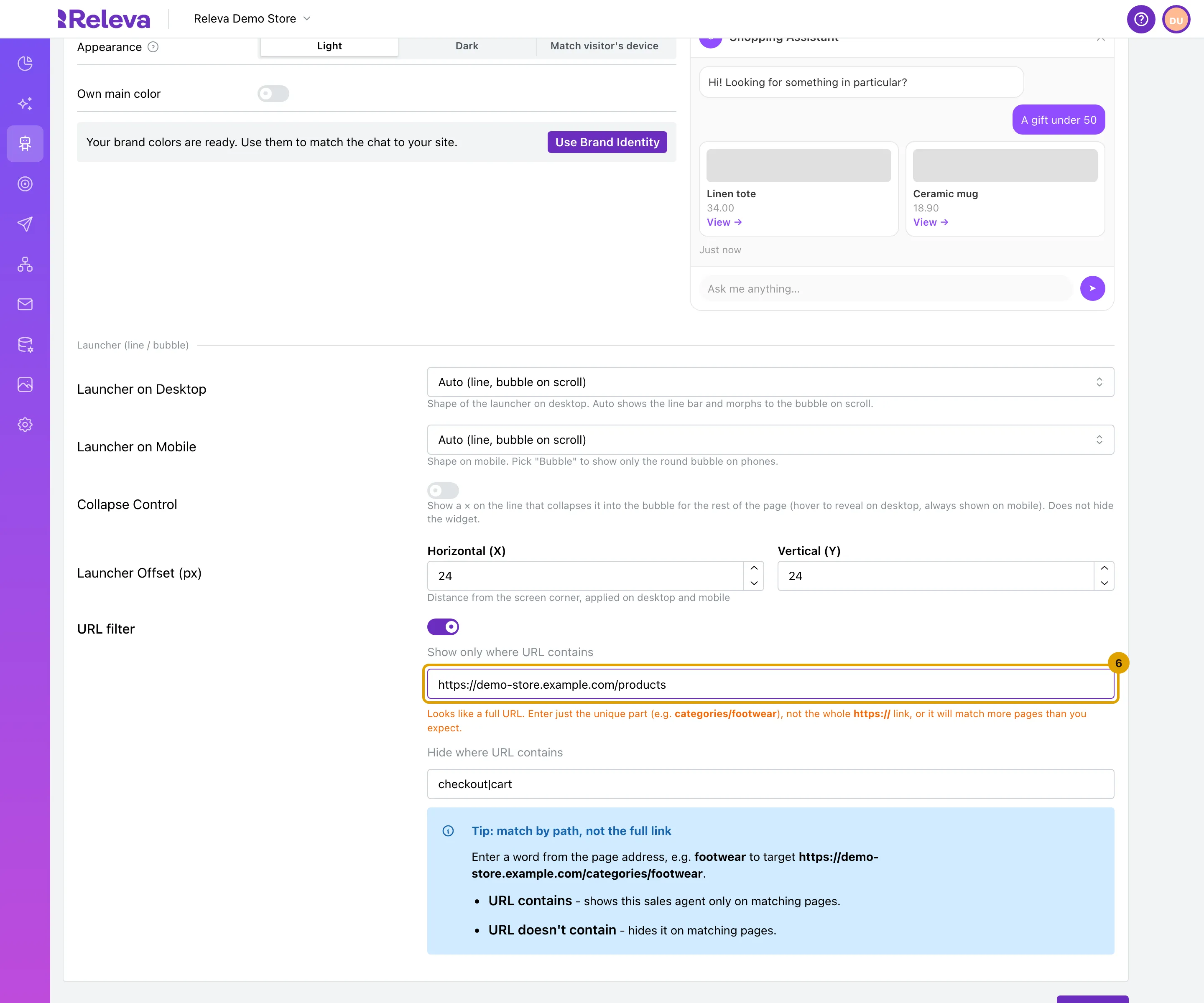
Leave URL contains empty to allow every page except those in URL doesn’t contain. Several parts work here too, separated with
|.
-
Select Save.
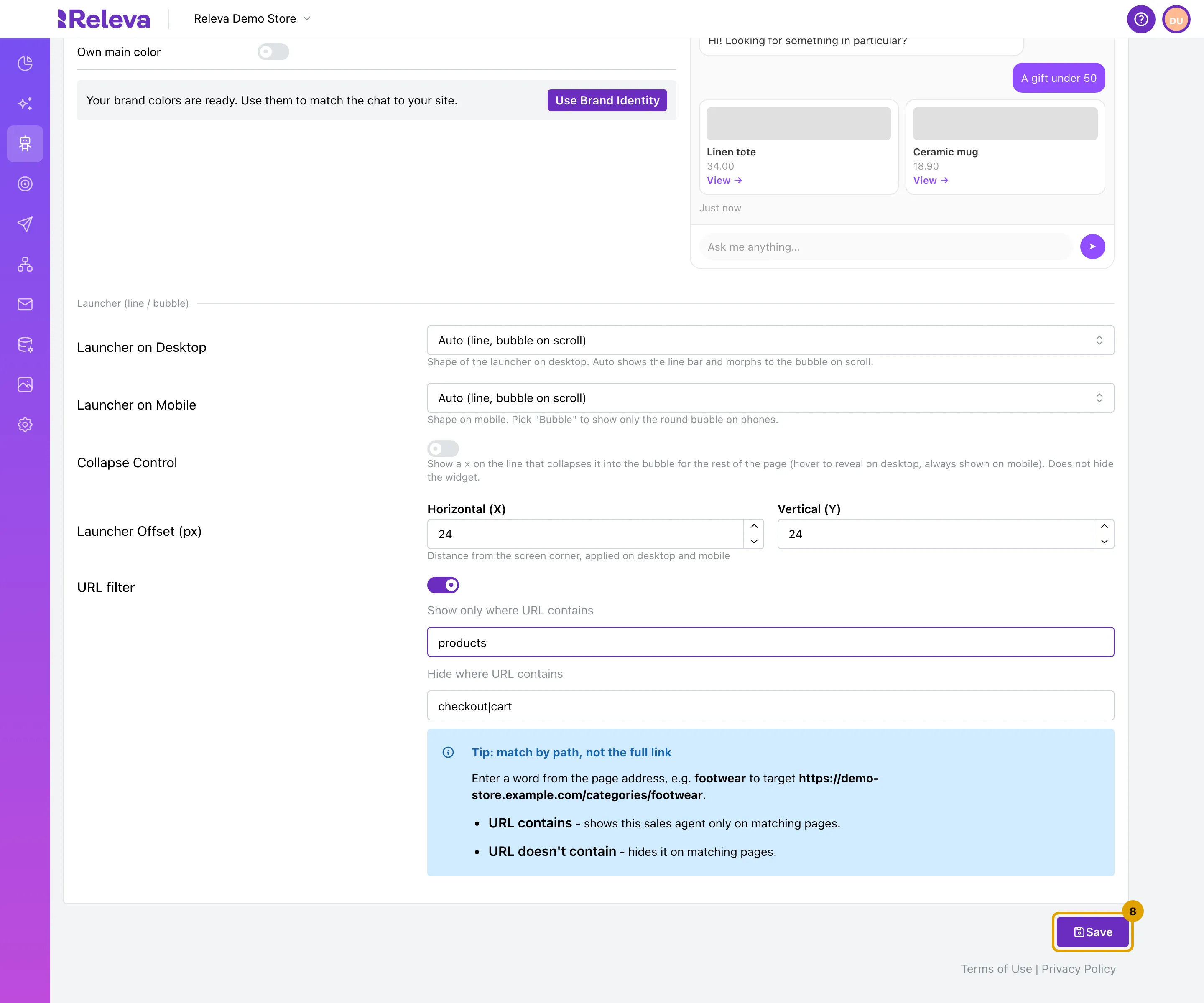
When both boxes are filled in, a page shows the Sales Agent only when its address contains a part from URL contains and none from URL doesn’t contain. The match is on plain text, upper and lower case count, and it uses the whole address of the page, including anything after ?.
Check it worked
Section titled “Check it worked”- The button at the bottom of the page reads Saved.
- Open a page your filter allows with debug mode (
?rlv_mode=debug): the launcher shows at the bottom of the page. Then open a page your filter leaves out, for example the checkout, with debug mode: no launcher. Debug mode shows the chat even while the Chat Bot switch is off, but it always follows the URL filter. See Check Releva on your site with debug mode.
Troubleshooting
Section titled “Troubleshooting”The chat does not show on any page. URL contains probably holds text that no address contains, often a whole link or a typo. Open a page where the chat should show, compare its address with the text, and enter only a part of it. To show the chat everywhere again, turn off URL filter and select Save: both boxes are cleared.
The chat still shows on a page I left out. Check that the page’s address really contains the text in URL doesn’t contain, including upper and lower case. Then select Save and reload the page.
A page I left out has checkout only after ?. The filter reads the whole address, so a page such as /order?step=checkout is left out too. Use a more specific part, such as /checkout, if that is not what you want.
Some shoppers never see the chat, even on allowed pages. Shoppers in the control group of an A/B test do not see the Sales Agent; that is how the test measures its effect. The Chat Bot switch must also be on. See Turn the Sales Agent on or off.