

Add knowledge for the Sales Agent
The Sales Agent answers shoppers’ questions about delivery, returns, sizes and your other policies from the documents in its knowledge base. You add a document from a page of your shop, a PDF or text you type in. Releva splits it into small passages (units), and the Sales Agent uses them once you publish the document. This guide does not cover the questions and answers made from your documents: for those, see Approve Sales Agent answers.
Before you start
Section titled “Before you start”- The Sales Agent is switched on for your shop. Until then, Agentic › Sales Agent shows only the figures and a Chat Bot switch you cannot turn on, and no tabs. Releva turns the Sales Agent on for your shop the first time: only a Releva super admin can make the first switch-on, so contact Releva.
- Have the content ready: the address of a public page of your shop, a PDF (on your computer, in Assets, or at a public address), or the text itself.
- Anyone with access to the shop can add, publish and remove documents.
-
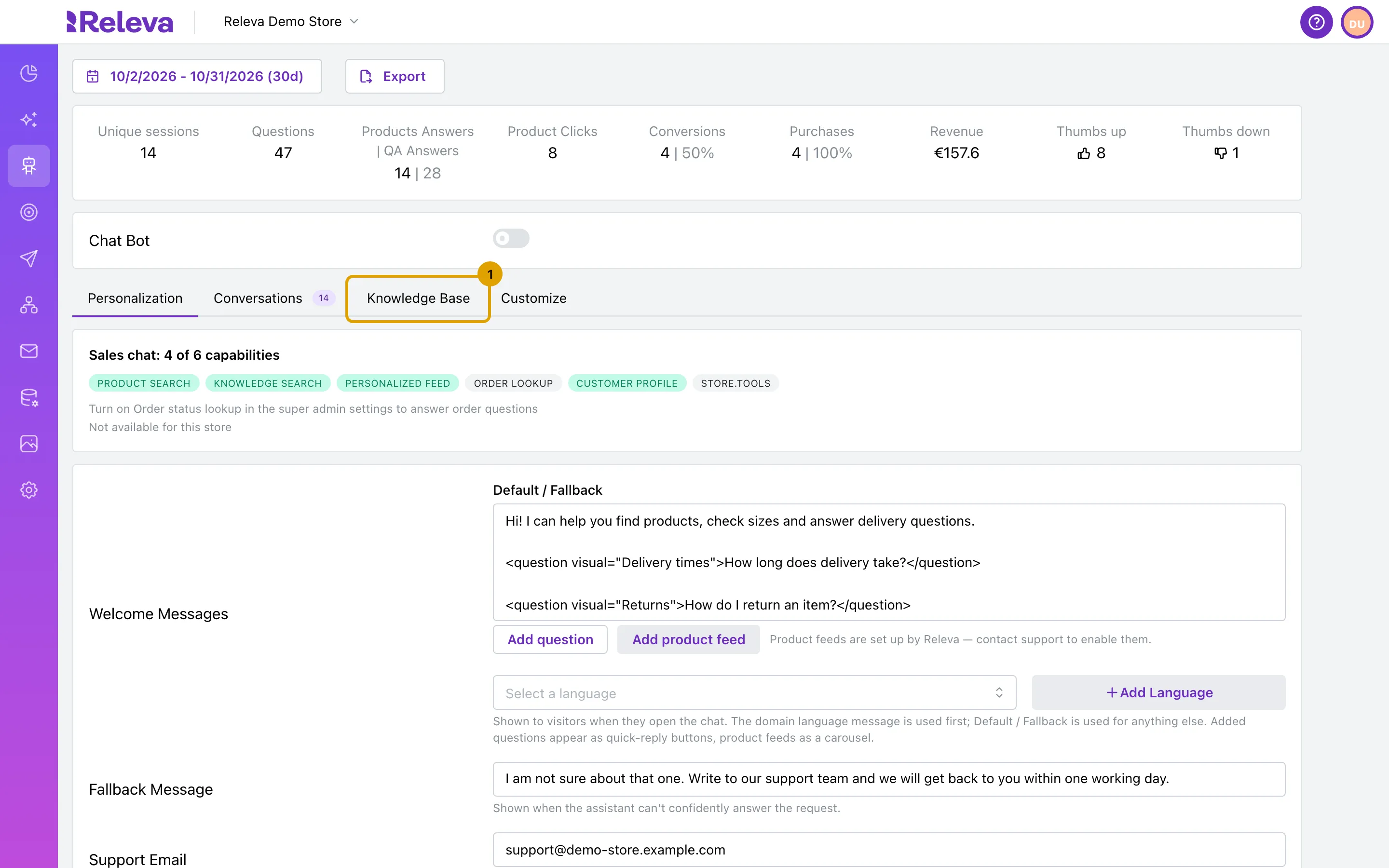
Go to Agentic › Sales Agent and select the Knowledge Base tab.
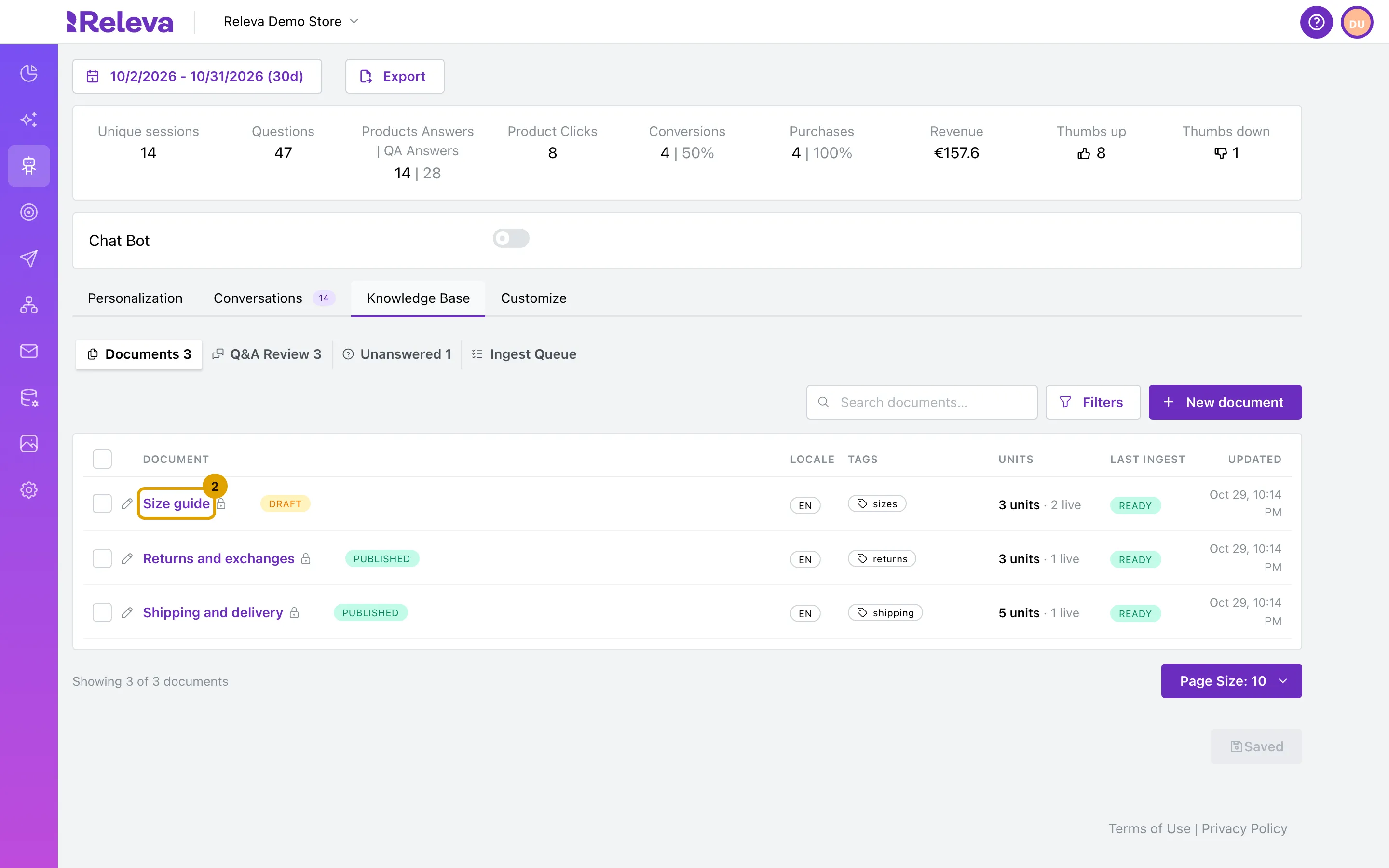
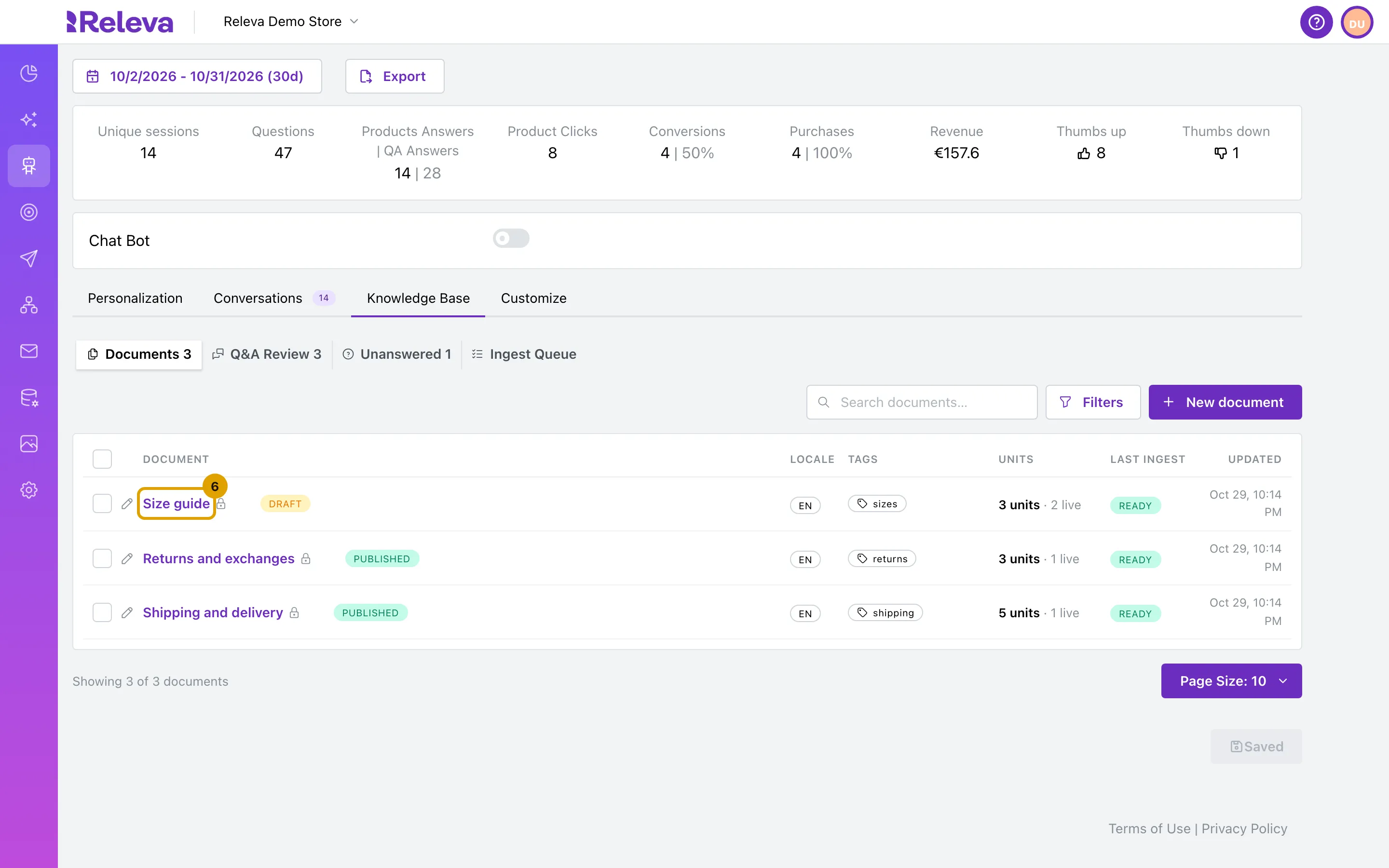
Documents opens first. Each row shows the document with its status (draft, validated or published), its locale and tags, how many units it has and how many of them are live, the result of the last import (Last ingest) and when it was last changed.
-
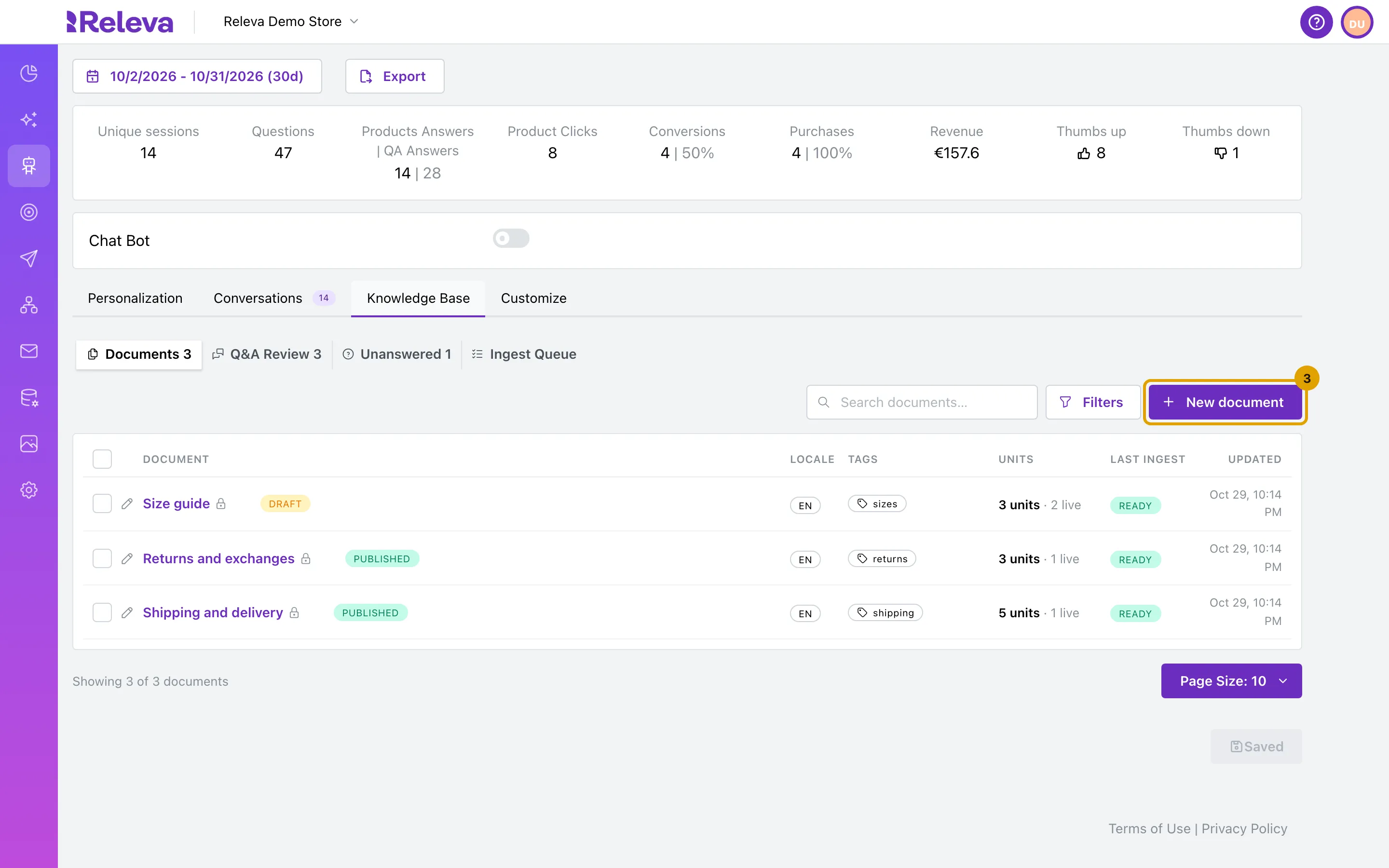
Select New document.
-
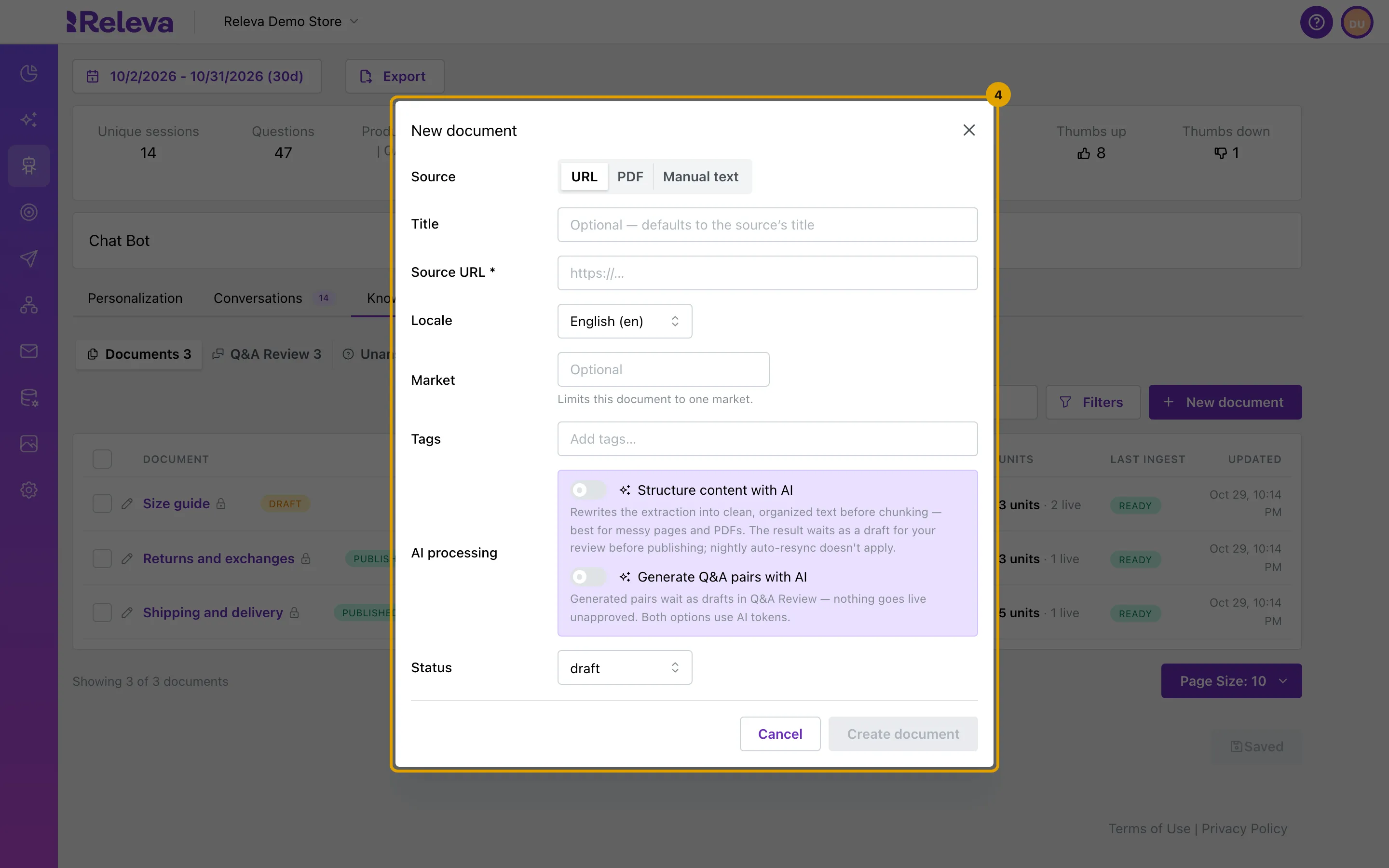
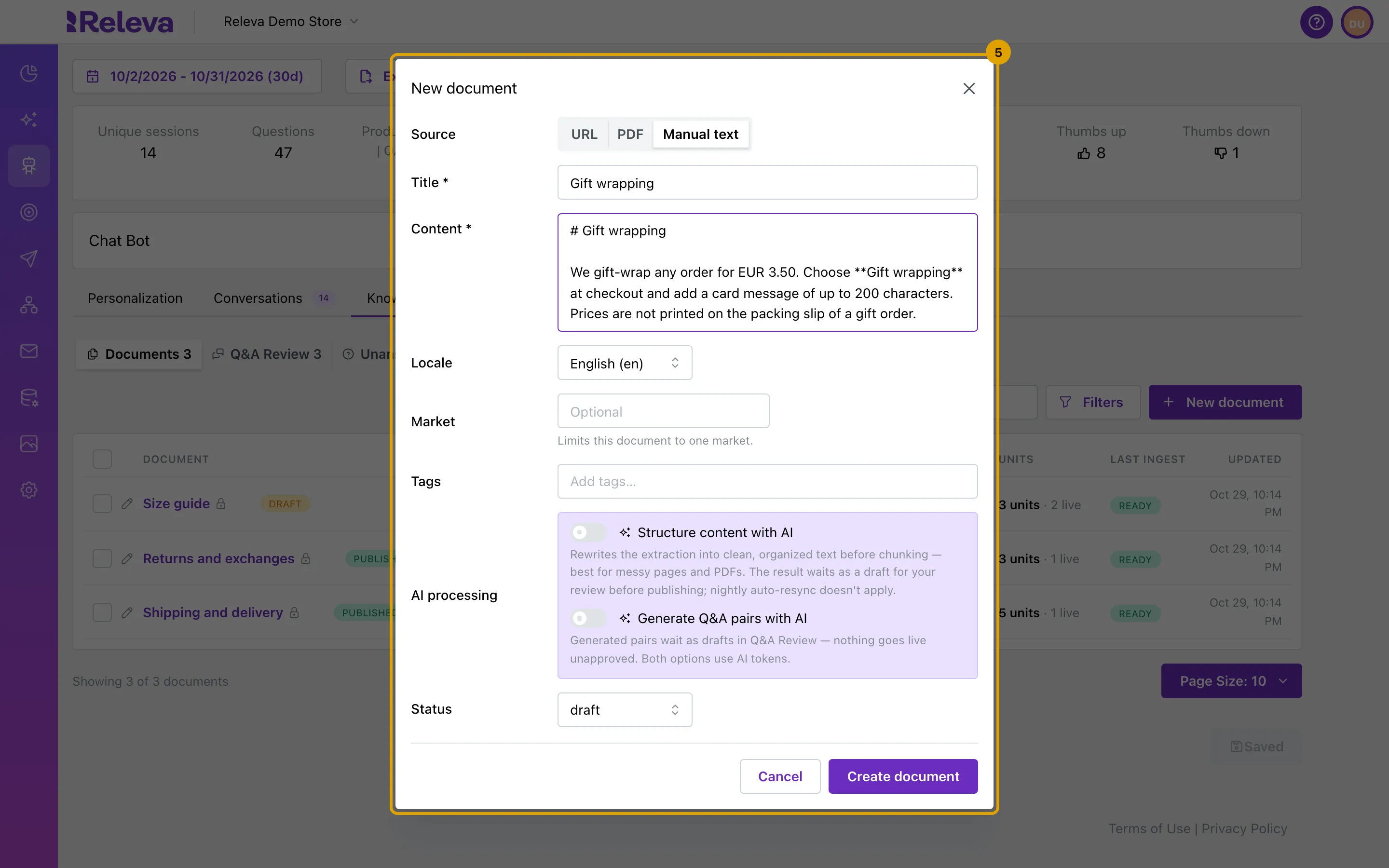
Under Source, choose where the content comes from:
- URL imports a public page. Enter its address in Source URL.
- PDF imports a PDF. Select Upload file, Pick from Assets or Paste URL.
- Manual text takes the text you type in.
-
Enter a Title. For Manual text, also enter the Content. You can format it as Markdown, with headings and lists.
For a URL or a PDF the title is optional: without one, the document takes the title of the page or the file.
-
Check the other fields:
- Locale: the shop language the document is for. All locales serves it in every language.
- Market: leave it empty unless the document is for one market only.
- Tags: optional labels to filter and select documents later.
- AI processing: Structure content with AI rewrites a messy page or PDF into clean text before it is split. Generate Q&A pairs with AI writes questions and answers from the document for you to review. Both use AI tokens; leave them off if you do not need them.
- Status: keep draft so nothing reaches shoppers before you check the result.
-
Select Create document.
The document appears in the list and Releva imports it in the background. Last ingest shows ready when the import has finished.
-
Select the document’s title to open it.
-
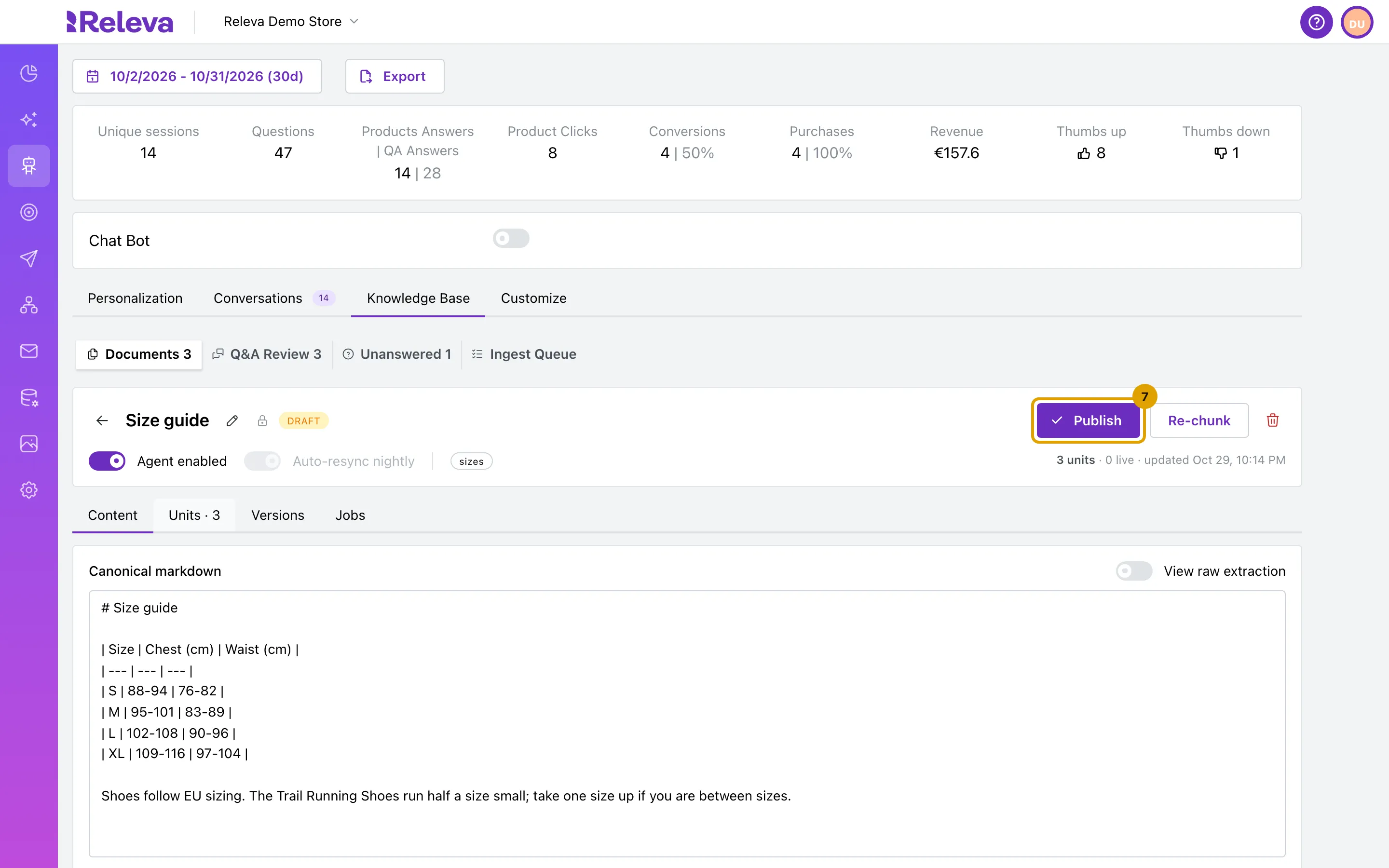
Check the Content tab and the Units tab, then select Publish.
Content shows the imported text. If you change it, select Save changes: Releva splits it again and the previous version keeps answering until that is done.
-
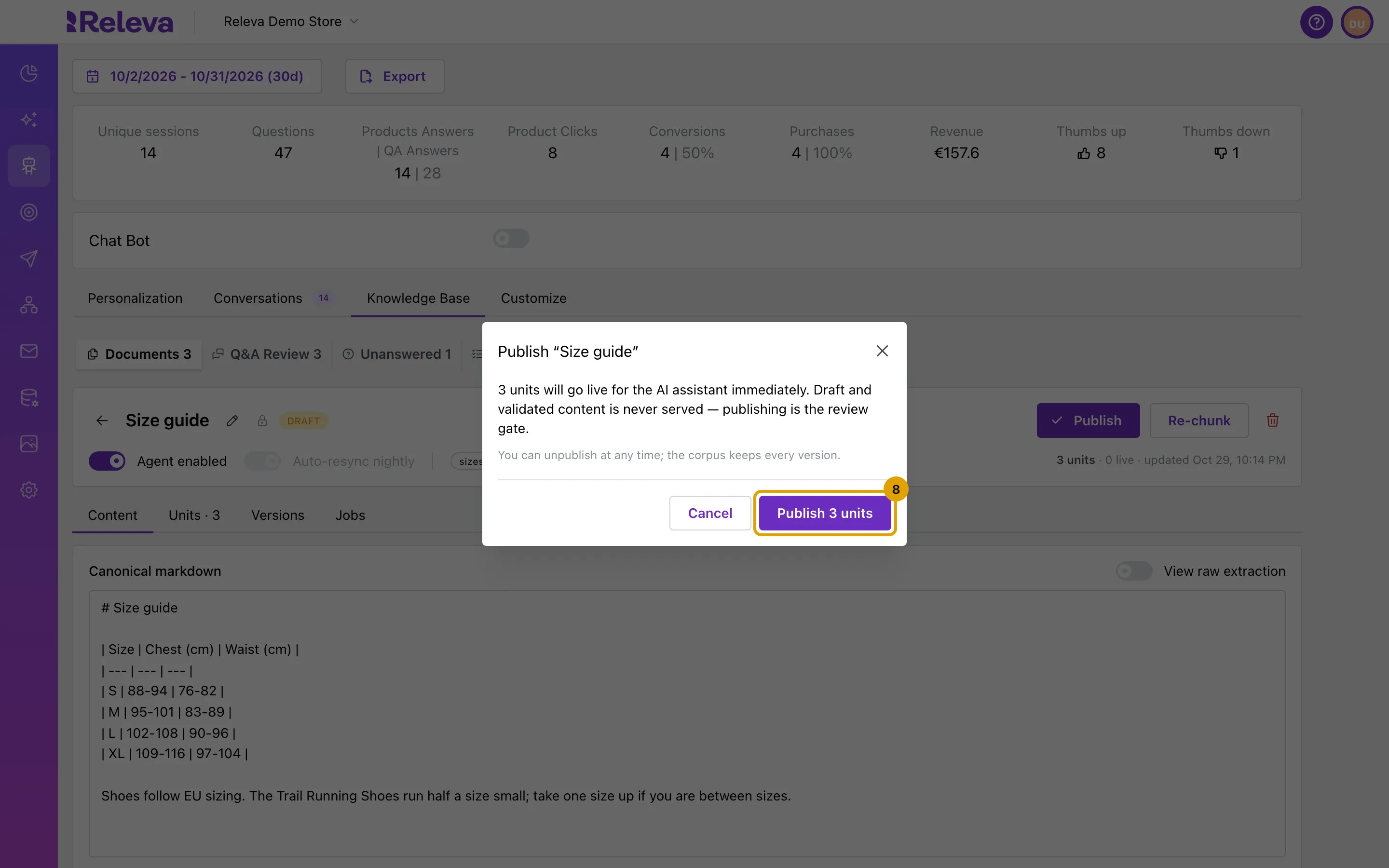
Select Publish … units to confirm.
The units go live for the Sales Agent right away. You can select Unpublish at any time; nothing is deleted.
-
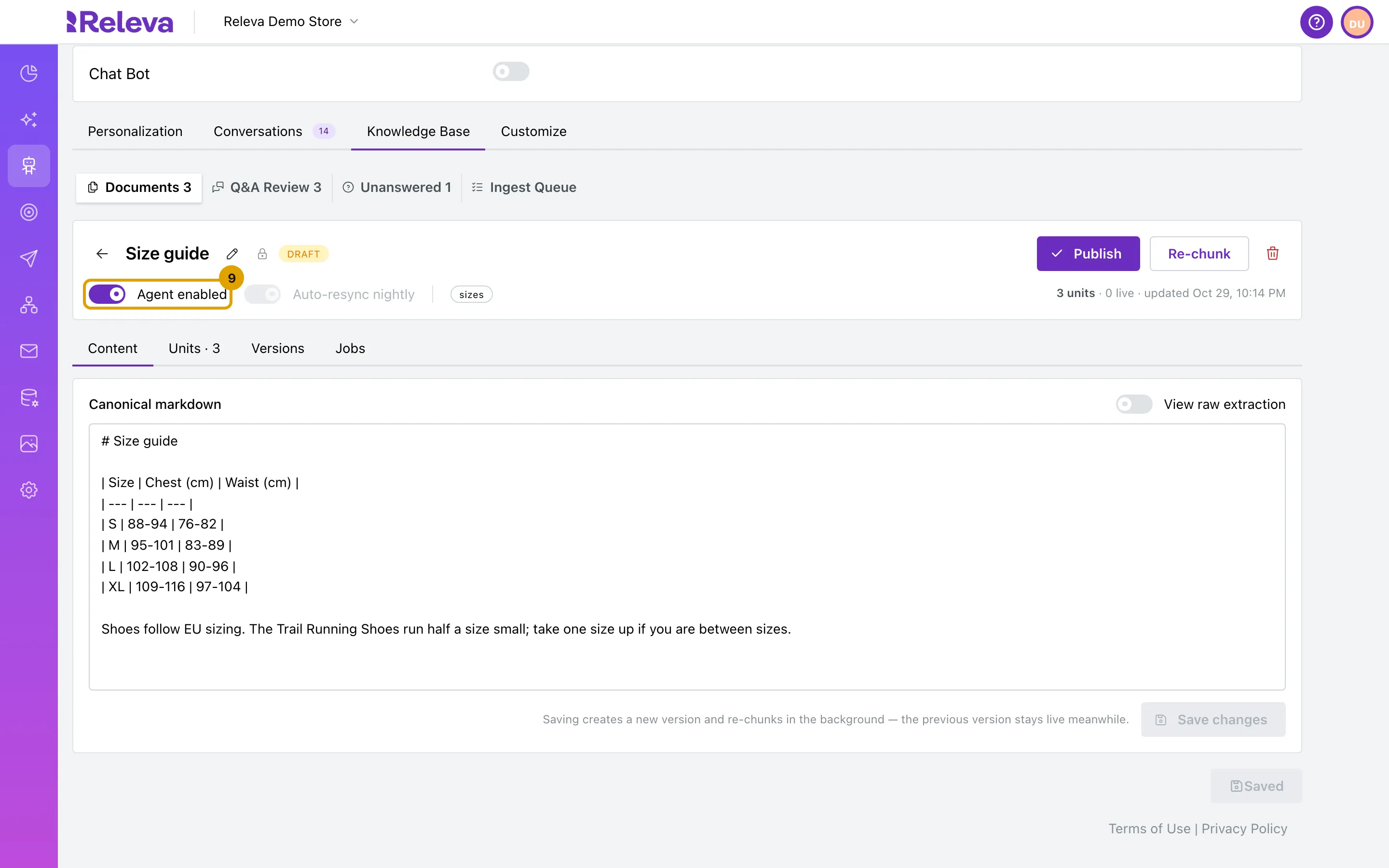
Leave Agent enabled on, so the Sales Agent may use the document.
Turn it off to hold a published document back without unpublishing it. For a URL or a PDF, turn on Auto-resync nightly to import the source again every night when it has changed. It is not available for Manual text or for documents structured with AI.
Check it worked
Section titled “Check it worked”-
The document shows published in Documents, and Units shows that its units are live.
-
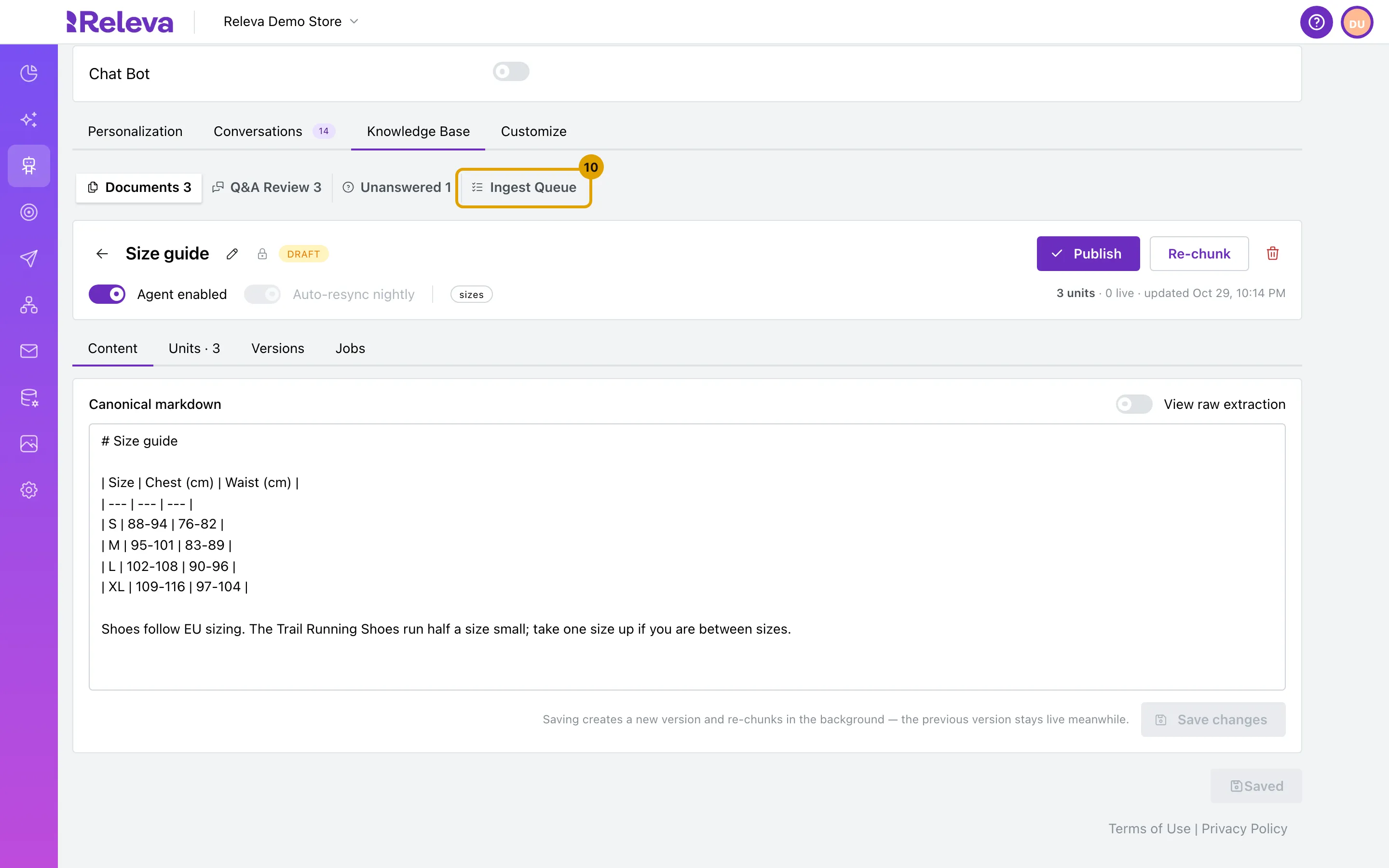
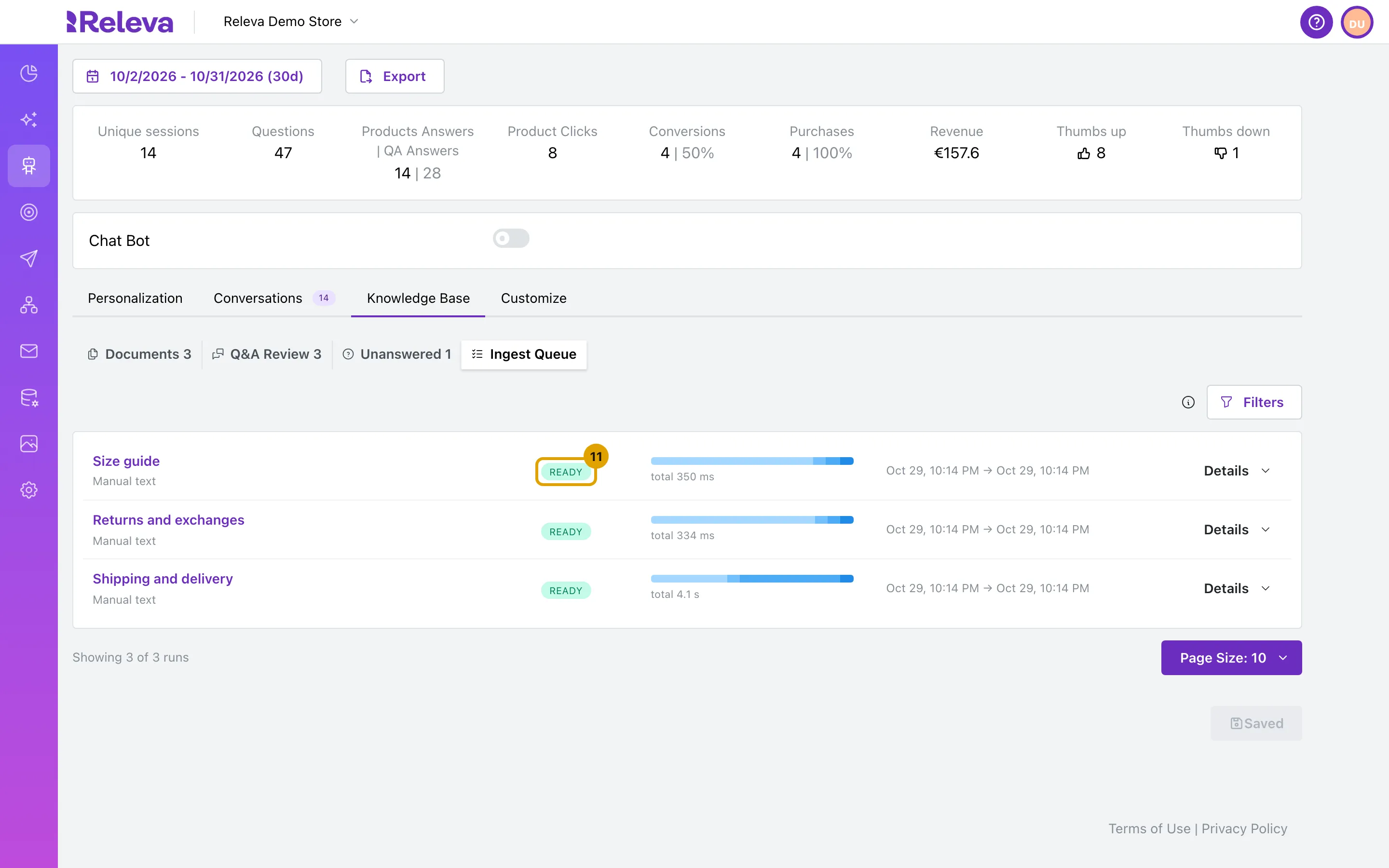
Select Ingest Queue to see each import run, newest first, with its stage. A finished run shows ready.
Troubleshooting
Section titled “Troubleshooting”Already in the knowledge base. A document with the same source exists. Select Open document in the message to open it instead of adding it again.
Choose a PDF file. Upload file takes PDF files only. Save the file as a PDF, or add the text with Manual text.
Last ingest shows failed. The import did not finish, for example because the page could not be read. A failed run never takes content down: the last good version keeps answering. Hover over the badge to see what happened. For a URL, check that the page is public, then select Retry on the run in Ingest Queue. If it keeps failing, add the text with Manual text or contact Releva support.
The document has 0 live units. Units go live only when the document is published. Open it and select Publish. If Units is empty, wait until Last ingest shows ready.
The Sales Agent does not use a published document. Check that Agent enabled is on and that the document’s Locale matches the language of your shop, or is All locales.