This article is about WooCommerce plugin installation instructions.
The Releva.ai Integration plugin is published in the official WordPress plugin directory, so the easiest way to install it is directly from your WordPress admin:
Perform the following actions:
1. Login to your WordPress Dashboard.
2. Go to Plugins > Add New Plugin.
3. In the search box, type “Releva.ai”.
4. Find the Releva.ai Integration plugin (by relevaai) and click Install Now.
5. When the installation finishes, click Activate.
After activation, a Releva.AI menu item appears in your WordPress admin – continue with the configuration section below. Future plugin updates arrive automatically through the standard Dashboard > Updates screen.
You will need to copy the Releva Access Token and the Shop Secret Key (Fig. 4). You can get them from https://releva.ai/admin, Settings -> Shop (Fig. 3).
If you do not have a Releva account yet, book a demo and our team will get you set up with the access token, secret key, and page tokens used in the configuration steps.
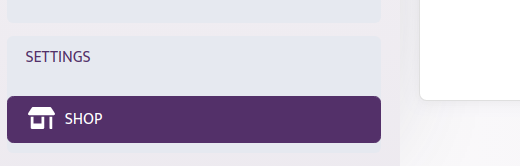

Please paste the access token and secret key in the corresponding boxes in the Releva.AI configuration in your wordpress admin dashboard.

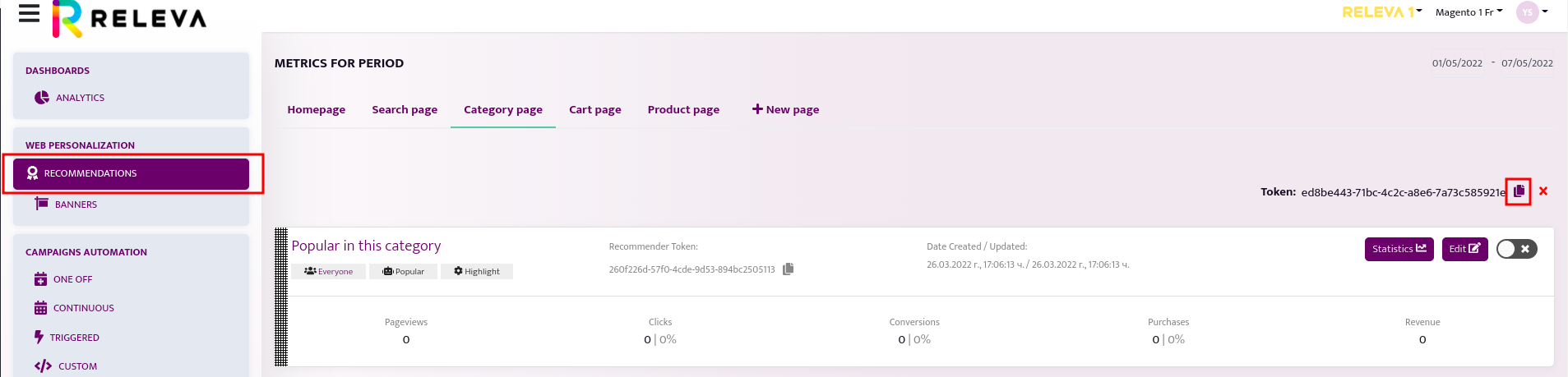
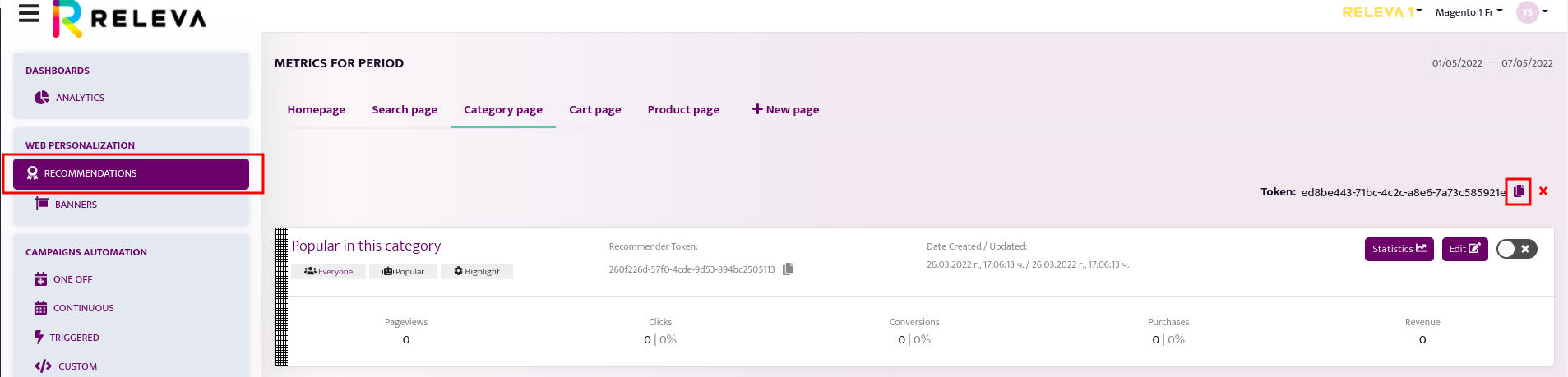
Then, in https://releva.ai/admin, go to Web Personalization -> Recommenders, and copy the page tokens and paste them in the corresponding boxes in the Releva.AI configuration in your wordpress admin dashboard.
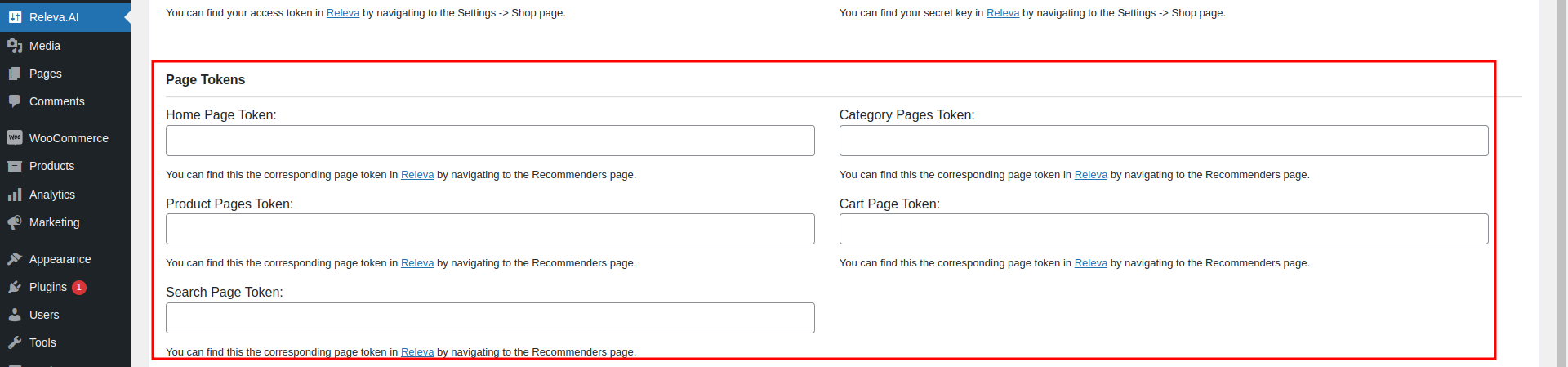
Under the Privacy and Data Protection section, please add the name of the cookie which holds the consent status, and, optionally, the cookie value indicates that the visitor has granted consent for their data to be processed for first-level marketing and analytics purposes. For example, if accepting your cookie policy results in the visitor receiving a cookie named “cookielaw” with a value 1, you need to set the name and value as shown below.
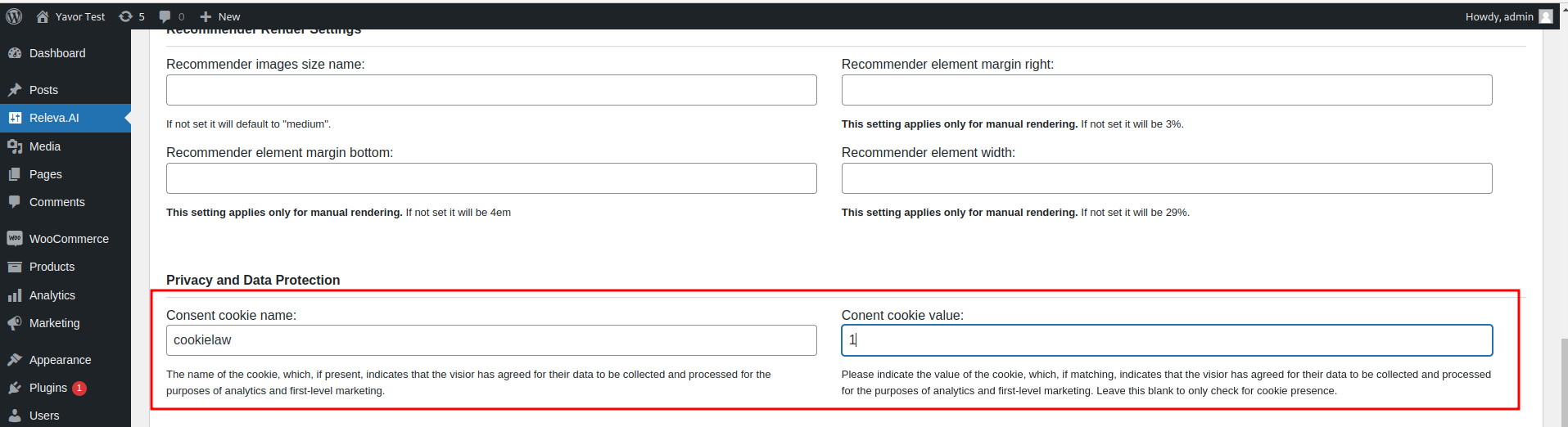
Important!! You may skip this step if you are not subject to data protection laws such as GDPR, CCPA, etc. However, if you are subject to such laws and you fail to configure this section correctly, you may be subject to substantial fines. Releva will not take responsibility for issues caused by module misconfiguration.
Next, if you wish to use push notifications with Releva, you may enable them using the section at the bottom.
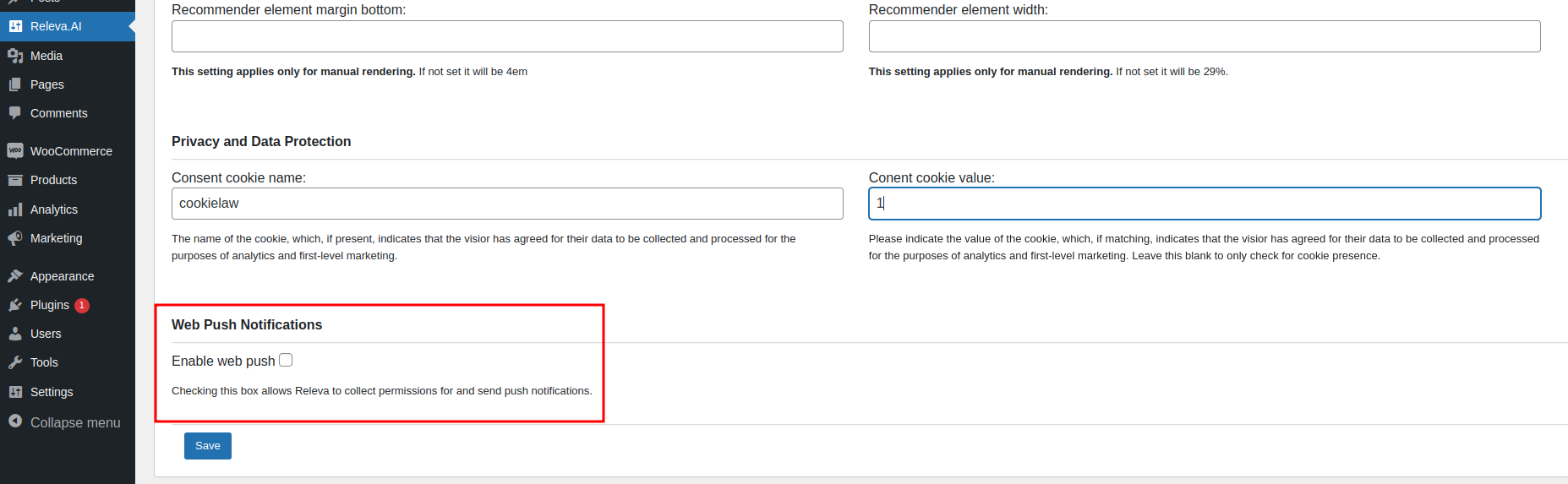
Finally, click Save.
Congratulations! This concludes the installation and activation of the Releva plugin for woocommerce.
Note: To link other WordPress pages with Releva you will need to open the corresponding page in WordPress Admin and towards the bottom on each page you will see a field with the name Releva Page Token.
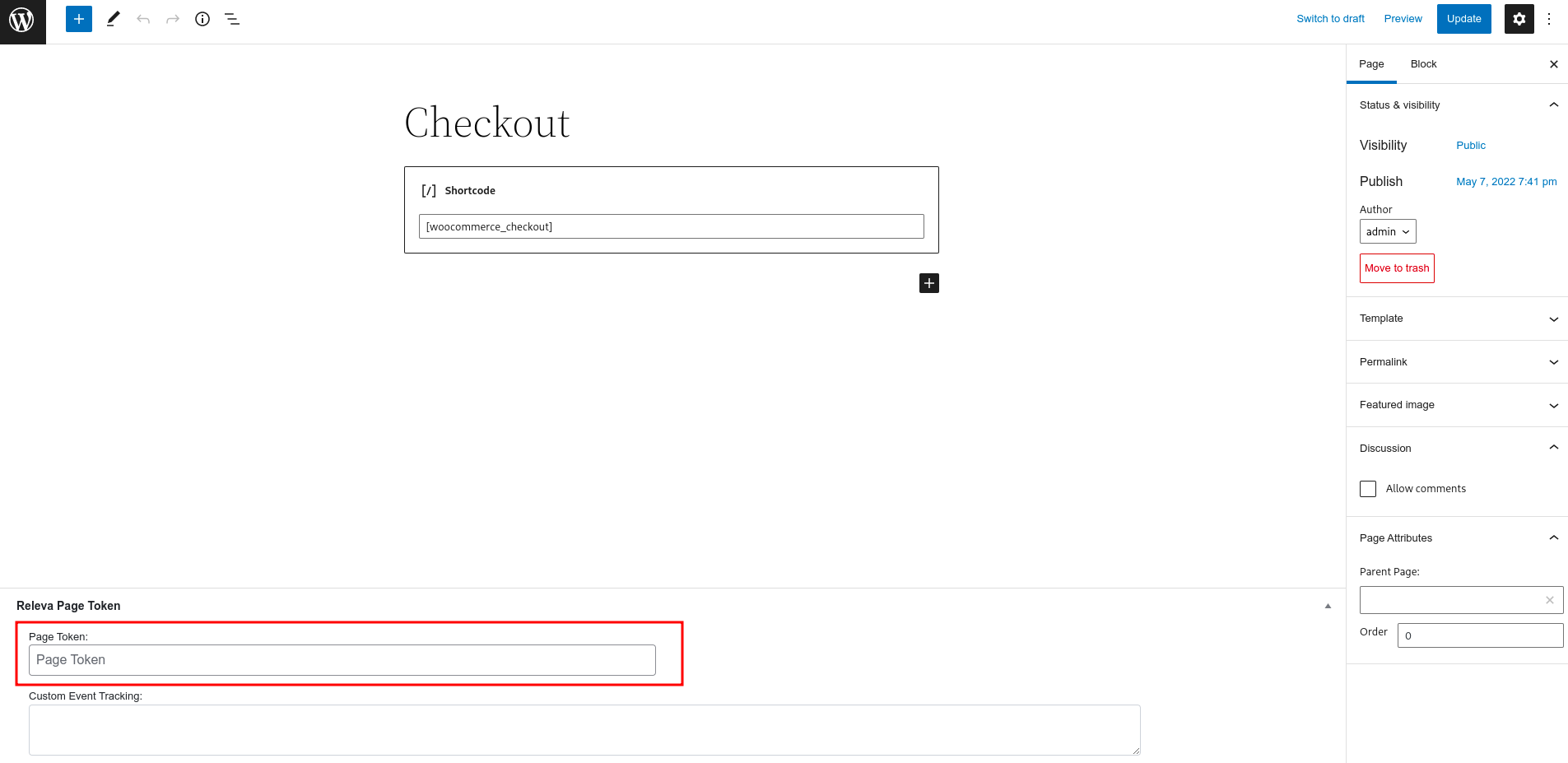
Get the Releva page tokens from https://releva/adimin in the Web Personalization -> Recommenders section. In case you need to create a new page in Releva, you can do so using the + New Page link on top.
Feel free to email your account manager or support@releva.ai if you have any questions. We are here to help!


